Notifications in Windows 11 keep you informed about messages, reminders, app alerts, and system updates. But when every app fires alerts at once, the constant interruptions hurt your focus and productivity. Windows 11 lets you turn off notifications entirely, silence specific apps, block notification sounds, or schedule automatic quiet hours with Do Not Disturb.
This guide walks you through every method to turn off notifications in Windows 11, from a single toggle to per-app controls, Focus sessions, and browser notification blocking.
How Notifications Work in Windows 11
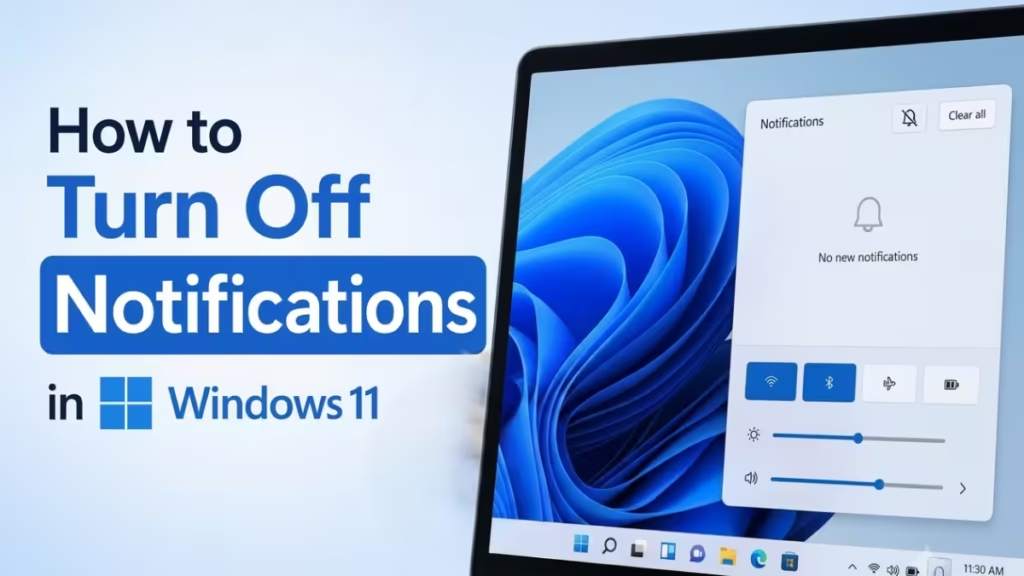
Notifications appear as banners in the lower-right corner of your screen and stack inside the Notification Center. When new notifications arrive, the bell icon on the taskbar lights up.
To open the Notification Center, use any of these methods:
- Click the clock or bell icon on the taskbar
- Press Windows key + N
- Swipe inward from the right edge of the screen (touch screens)
Inside the Notification Center, you can:
- Read full notification details or take quick actions (like replying to a message) without opening the app
- Expand a notification by clicking the arrow next to the timestamp
- Dismiss a single notification using the X button
- Clear all notifications from one app by clicking X next to the app name
- Remove everything with the Clear All button
- Block all notifications from a specific app by selecting More (...) then Turn off all notifications
How to Turn Off All Notifications in Windows 11
To silence every notification at once:
- Press Windows key + I to open Settings.
- Go to System > Notifications.
- Toggle the Notifications switch to Off.
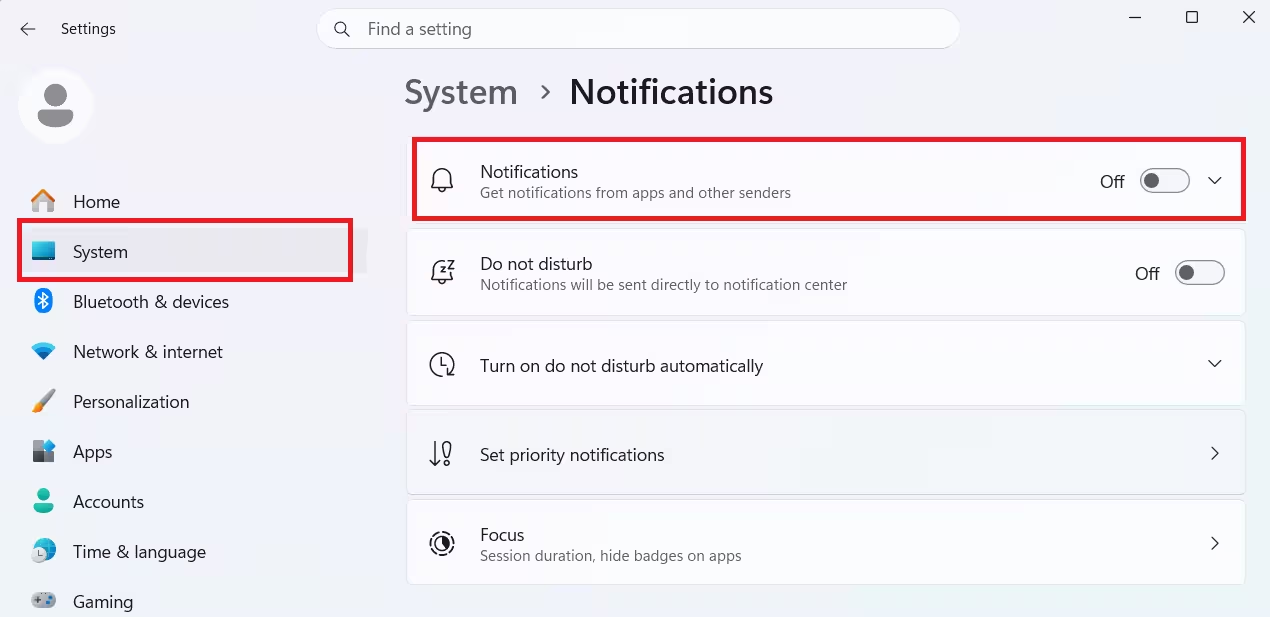
Windows immediately stops showing banners and stops delivering alerts to the Notification Center. Use this option when you need a completely distraction-free session.
How to Turn Off Notifications for Specific Apps
If you only want to block certain apps while keeping others active:
- Open Settings > System > Notifications.
- Scroll down to the Notifications from apps and other senders list.
- Click the app you want to adjust.
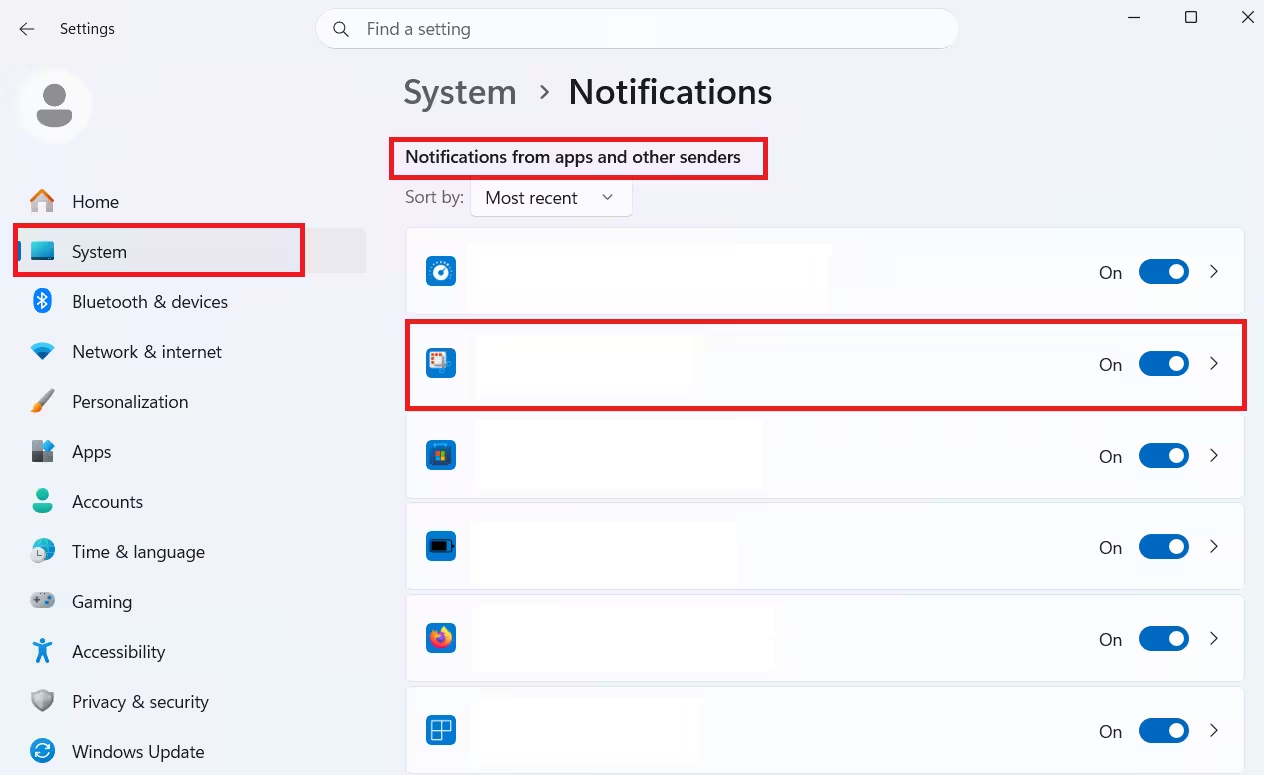
- Toggle Notifications off for that app.
Repeat this for every app you want to silence. The remaining apps continue sending alerts normally.
How to Customize Notification Style Per App
Windows 11 lets you control exactly how each app delivers its notifications. Under each app's notification settings, you can adjust:
- Show notification banners: Toggles the pop-up banner that appears on screen
- Show notifications in notification center: Keeps or hides alerts in the bell panel
- Hide content when notifications are on lock screen: Prevents sensitive details from showing when your PC is locked
- Play a sound: Enables or disables the audio alert for incoming notifications
- Priority of notifications: Sets the rank to Top, High, or Normal
Priority note: Only one app can hold Top priority at a time. High-priority notifications appear above Normal ones inside the Notification Center.
To reach these settings: Settings > System > Notifications > click the app name.
How to Disable Notification Sounds Only
If banners do not bother you but sounds do:
- Open Settings > System > Notifications.
- Click the specific app in the list.
- Turn off Play a sound when a notification arrives.
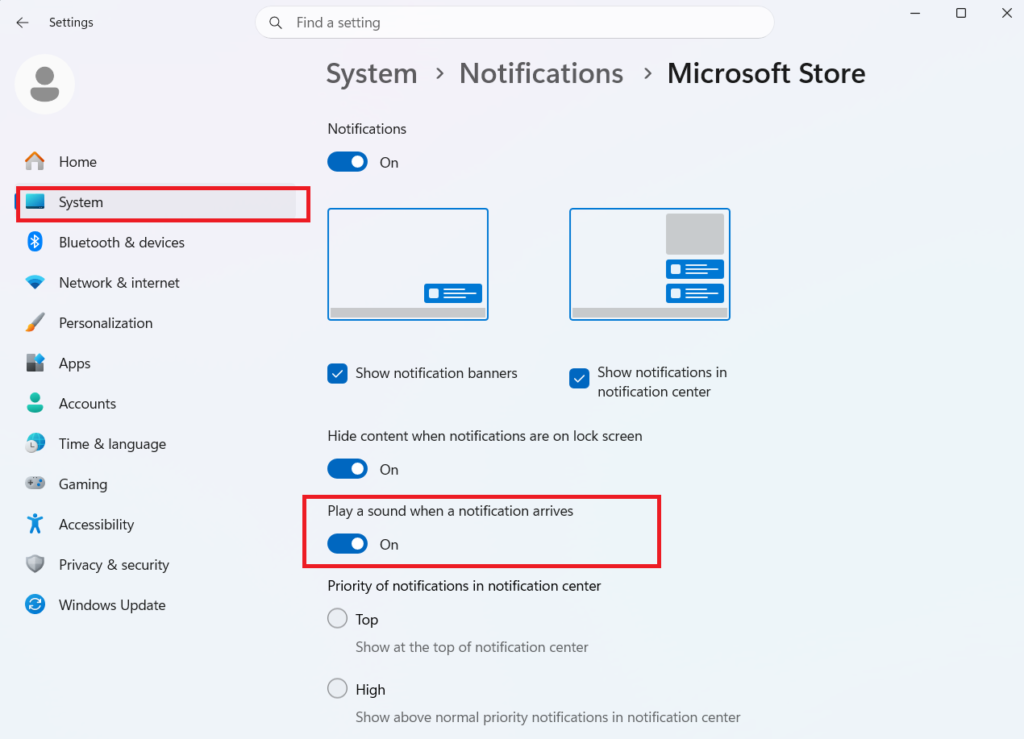
The app continues showing banners and logging to the Notification Center, but it plays no audio.
How to Use Do Not Disturb in Windows 11
Do Not Disturb silences all incoming notification banners while you work, game, or present. Notifications still collect in the Notification Center so you can review them later.
To turn on Do Not Disturb manually:
- Click the bell icon on the taskbar to open the Notification Center.
- Click the bell with ZZ icon at the top of the panel.
Do Not Disturb stays on until you turn it off the same way. While it is active, only alarms, reminders, and apps you specifically allow can show banners.
How to Set Do Not Disturb to Turn On Automatically
Windows 11 can activate Do Not Disturb on its own based on conditions you define:
- Open Settings > System > Notifications.
- Expand Turn on do not disturb automatically.
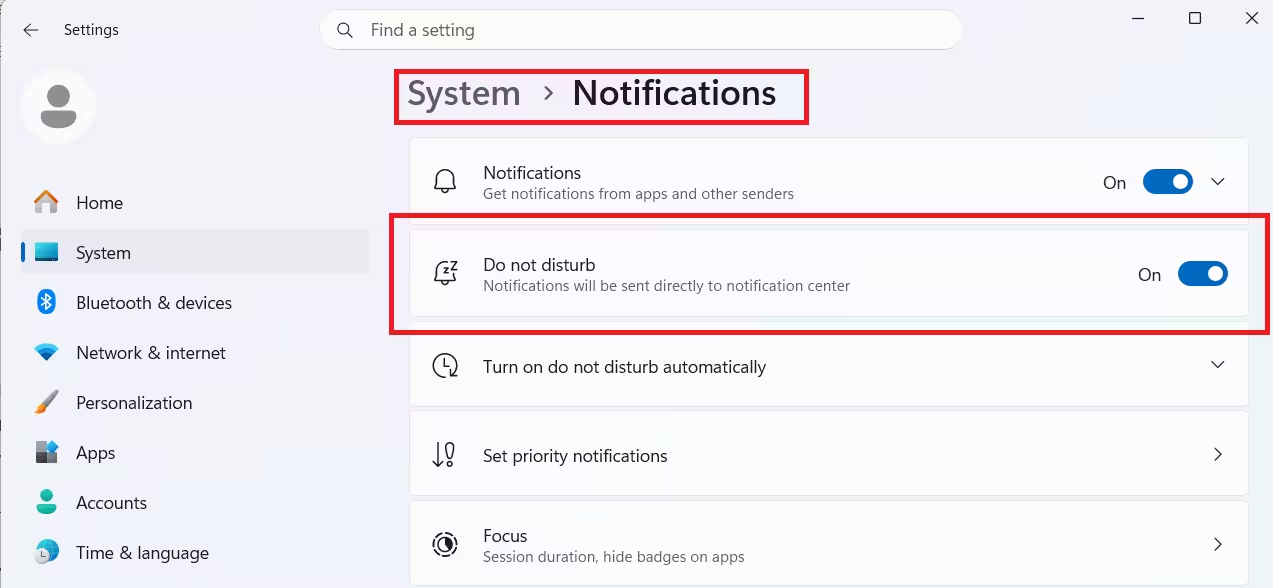
- Enable any combination of the following conditions:
| Condition | What It Does |
|---|---|
| During certain times of the day | Schedules a quiet window, like overnight or during lunch |
| When duplicating the display | Activates when you mirror your screen to a projector or TV |
| When playing a game | Silences alerts during gaming sessions |
| When using an app in full-screen mode | Blocks interruptions during presentations or video playback |
| For the first hour after a Windows feature update | Suppresses the post-update notification flood |
How to Set Priority Notifications During Do Not Disturb
Even with Do Not Disturb on, you can allow specific apps and reminders to break through:
- Go to Settings > System > Notifications.
- Under Calls and reminders, check the boxes to allow incoming calls or reminders.
- Under Apps, click Add apps to choose which apps can still send banners while Do Not Disturb is active.
This setup works well if you need to block most noise but still want alerts from a calendar app, messaging tool, or security software.
How to Use Focus Mode to Block Notifications
Focus (previously called Focus Assist) pairs with Do Not Disturb for a deeper work session experience:
- Open Settings > System > Focus.
- Click Start focus session and set a duration.
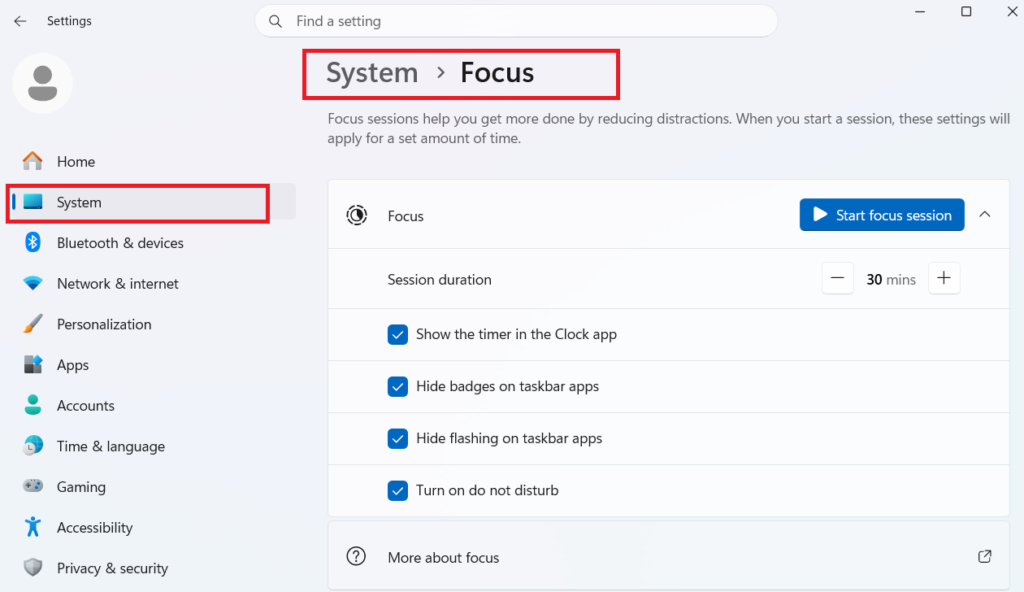
- Toggle any of these options:
- Show the timer in the Clock app
- Hide badges on taskbar apps
- Hide flashing on taskbar apps
- Turn on Do Not Disturb automatically
Focus sessions block visual and audio distractions for the duration you set, then return your notification settings to normal when the timer ends.
How to Block Browser Notifications in Windows 11
Websites and browser extensions can push notifications through your browser even with Windows notifications managed. Block them directly inside the browser.
Microsoft Edge:
- Open Edge and go to Settings > Cookies and site permissions.
- Click Notifications.
- Remove or block any sites sending unwanted alerts.
Google Chrome:
- Open Chrome and go to Settings > Privacy and security.
- Click Site settings > Notifications.
- Move unwanted sites to the Block list or remove them entirely.
Tip: If a rogue browser extension is sending spam notifications, clearing your browser cache and restarting the browser usually removes it.
Two Additional Notification Settings Worth Checking
Under Settings > System > Notifications, scroll to the bottom to find two checkboxes:
- Show the Windows welcome experience after updates and when signed in: Displays a welcome screen highlighting new features after updates
- Get tips and suggestions when using Windows: Delivers periodic tips while you work
Uncheck both if you prefer a cleaner, quieter experience.