A product key unlocks the full features of Windows 11 and removes the watermark and restrictions that come with an unactivated copy. This guide walks you through entering your product key, checking your activation status, and fixing common issues along the way.
What Is a Windows 11 Product Key
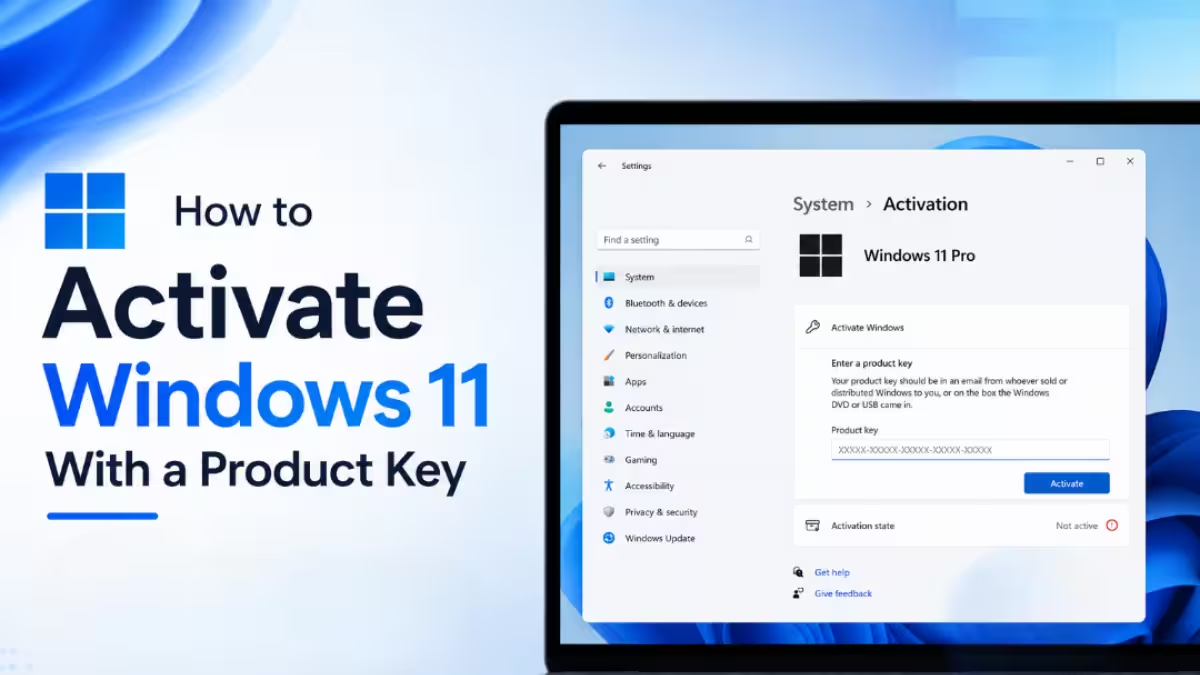
A product key is a 25 character code that activates your copy of Windows 11. It follows this format:
XXXXX-XXXXX-XXXXX-XXXXX-XXXXXYou need this key if you bought a boxed copy of Windows 11, purchased a digital copy from an authorized retailer, built a custom PC, or have a Volume Licensing agreement. If you upgraded for free from a genuine copy of Windows 10, Windows 8.1, or Windows 7, your device likely uses a digital license instead, and you won’t need to enter a key.
Where to Find Your Windows 11 Product Key
Check these locations depending on how you got Windows 11:
- Boxed copy: The key is on a label inside the box.
- Digital purchase from a retailer: Check the confirmation email or your digital locker on the retailer’s website.
- New or refurbished PC: Look on the device packaging, a printed card, or the Certificate of Authenticity (COA) sticker attached to the device. Refurbished PCs get their key from the refurbisher, not Microsoft.
- Microsoft Store purchase: Check the confirmation email in your order history.
- Volume Licensing or MSDN subscription: Find the key through your program’s web portal.
If the key sits under a gray scratch panel on a COA card, scratch it off gently with a coin or your fingernail.
How to Activate Windows 11 With a Product Key
Follow these steps to enter your product key through Settings.
- Select Start.
- Open Settings.
- Go to System > Activation.
- Select Change product key.
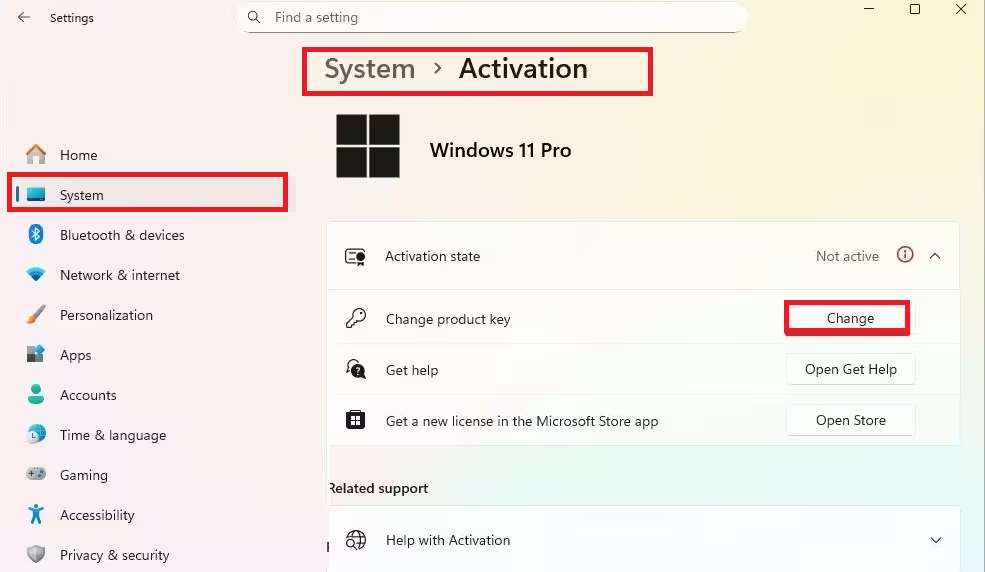
- Type in your 25 character product key.
- Follow the on-screen prompts to complete activation.
Windows validates the key online, and your activation status updates automatically once the process finishes.
Entering a Product Key During Installation
You can also activate Windows 11 while installing it.
- During setup, wait for the Activate Windows screen.
- Enter your 25 character product key when prompted.
- Continue through the remaining installation steps.
Windows activates automatically online once installation completes and your device connects to the internet. If you don’t have a key on hand, select I don’t have a product key to skip this step and activate later.
Checking Your Activation Status
Confirm activation succeeded before you continue using your device.
- Select Start.
- Open Settings.
- Go to System > Activation.
- Check the status listed next to Activation status.
You’ll see one of these messages:
| Status | Meaning |
|---|---|
| Windows is activated | Your copy is activated but your Microsoft account isn’t linked. |
| Windows is activated with a digital license | Activated, but not linked to your Microsoft account. |
| Windows is activated with a digital license linked to your Microsoft account | Fully activated and linked. |
| Windows is not activated | Activation failed. An error message explains why. |
Activating a Windows 10 Product Key on Windows 11
A Windows 10 product key works to activate Windows 11, including on a fresh installation. Windows 7 and Windows 8 keys don’t work since Microsoft closed that upgrade path. Enter a Windows 10 key the same way you enter a Windows 11 key, through Settings > System > Activation > Change product key.
Activating After a Hardware Change
Replacing major hardware, such as your motherboard, can cause Windows 11 to lose its activation. If you have a product key, reactivate using the same steps above: go to Settings > System > Activation > Change product key, then enter your key again.
If your device uses a digital license instead of a product key, link your Microsoft account to the license first, then use the Activation Troubleshooter:
- Select Start.
- Open Settings.
- Go to System > Activation > Troubleshoot.
- Select I changed hardware on this device recently.
- Sign in with the Microsoft account linked to your digital license.
- Select the device you’re currently using from the list.
- Select Activate.
What Causes Windows 11 Activation to Fail
- The product key doesn’t match the Windows 11 edition you’re installing, such as using a Home key on a Pro installation.
- The device isn’t connected to the internet during activation.
- A Windows 7 or Windows 8 product key was used, which Microsoft no longer accepts.
- Recent hardware changes removed the license match tied to your previous configuration.
Fix 1: Match Your Windows Edition to Your License
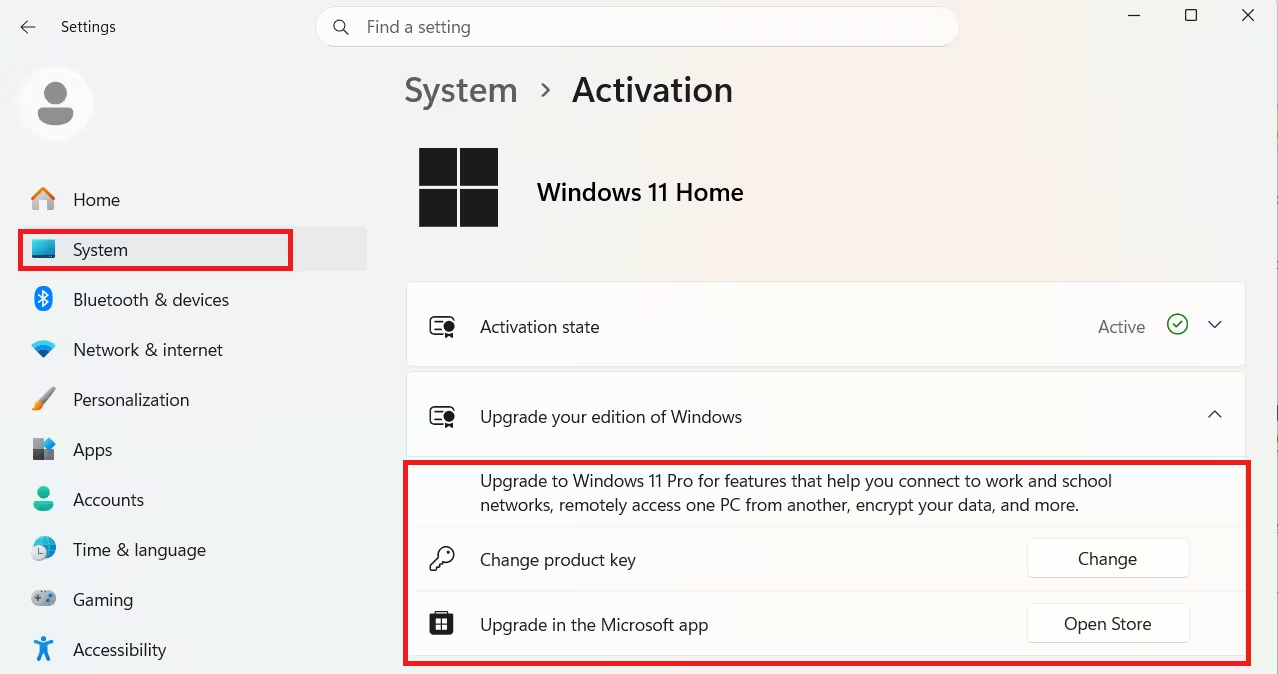
Windows 11 only activates if the edition installed matches the edition your license or key covers. Check your edition under Settings > System > Activation. If you purchased Windows 11 Home but installed Pro, reinstall the matching edition, or upgrade your license through Settings > System > Activation > Upgrade your edition of Windows.
Fix 2: Link Your Microsoft Account to Your Digital License
Linking your account protects you against future hardware changes and enables the Activation Troubleshooter.
- Sign in as an administrator. Confirm this under Settings > Accounts > Your info.
- Confirm an email address shows above Administrator. This confirms you’re using a Microsoft account rather than a local account.
- Go back to Settings > System > Activation.
- Select Add an account.
- Enter your Microsoft account credentials and select Sign in.
Once linked, the Activation page shows Windows is activated with a digital license linked to your Microsoft account.
Purchasing a Digital License if You Don’t Have a Key
If you installed Windows 11 without a product key or digital license, you can buy a digital license directly from Settings.
- Select Start.
- Open Settings.
- Go to System > Activation.
- Select Go to Store.
- Complete the purchase through the Microsoft Store app.
Your device activates automatically once the purchase completes and you’re connected to the internet.
Frequently Asked Questions
Can I activate Windows 11 with a Windows 10 product key?
Yes. A valid Windows 10 product key activates Windows 11, even on a fresh install.
Can I activate Windows 11 with a Windows 7 or Windows 8 key?
No. Microsoft closed this upgrade path, so older keys no longer work.
Do I need a product key if I upgraded from Windows 10 for free?
No. Free upgrades from a genuine, activated copy of Windows 10, 8.1, or 7 use a digital license instead of a product key.
What happens if I enter the wrong product key?
Windows shows an error and won’t activate. Check the key characters carefully, since keys often confuse the number 0 with the letter O, and 1 with I.
Does Microsoft keep a record of my product key?
Only if you purchased directly from the Microsoft online store. Check your Microsoft account order history to confirm.