If Bluetooth is acting up on your Windows 11 PC, reinstalling the driver often clears the problem. It works well for connection drops. It also helps when you want to force the latest driver version, or undo a recent driver update that caused problems. This guide walks through the full reinstall process along with the alternative methods worth trying first.
What Causes the Need for a Bluetooth Driver Reinstall
- Persistent pairing or connection failures that a simple restart doesn’t fix
- A corrupted driver left behind after a failed update
- A newer driver version causing conflicts with existing hardware
- Windows failing to detect the Bluetooth adapter after installing an update
Before you start, run through this checklist:
- Plug in your Bluetooth adapter, if you use an external one
- Install any pending Windows updates
- Make sure your internet connection is stable
- Disconnect any paired Bluetooth devices, so they don’t interfere during the reinstall
Fix 1: Uninstall and Reinstall via Device Manager
- Press
Win + Rto open Run. - Type
devmgmt.mscand click OK. - Expand Bluetooth in Device Manager.
- Right-click your Bluetooth driver (for example, Realtek Bluetooth 5.0 Adapter) and select Uninstall device.
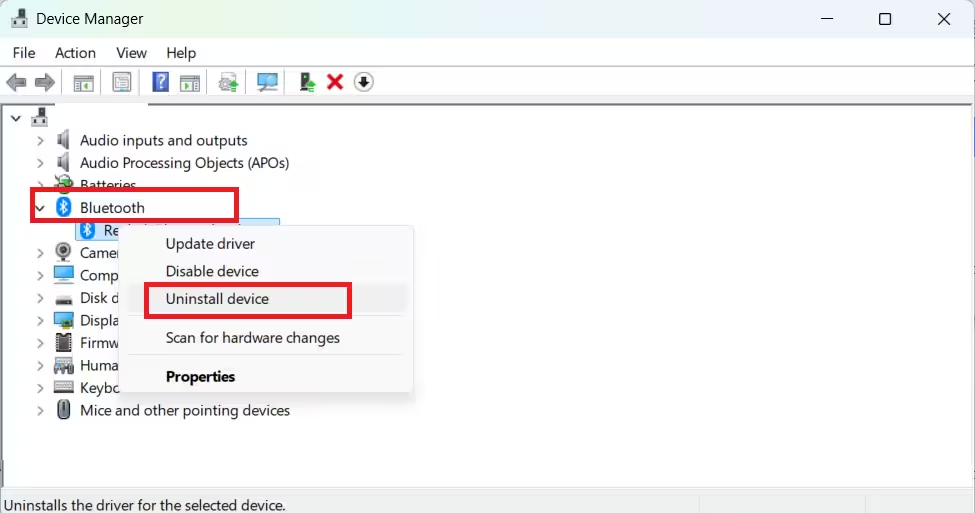
- Tick Attempt to remove the driver for this device.
- Click Uninstall.
- Restart your PC. Windows usually reinstalls the driver automatically on boot.
If it doesn’t reinstall automatically after the restart:
- Open Device Manager again and select Bluetooth.
- Click Action in the menu, then choose Scan for hardware changes.
- If a driver appears with a yellow warning icon, right-click it and select Update driver.
- Choose Search automatically for drivers to let Windows install the default version.
Fix 2: Update the Driver Through Device Manager
Use this when Bluetooth still works but you want the latest driver version installed.
- Select Start and type Device Manager.
- Open Device Manager from the search results.
- Expand Bluetooth to see your adapter.
- Right-click the adapter and select Update driver.
- Choose Search automatically for drivers.
- Follow the on-screen prompts.
- Restart your PC once the update finishes.
If Windows reports that the best driver is already installed, that doesn’t always mean it’s the newest one. Visit your PC manufacturer’s support website, search for your model number, and look for a Bluetooth driver listed there. It’s often a more recent version than the one Windows finds on its own.
Fix 3: Install the Driver from the Manufacturer’s Website
- Go to your motherboard or Bluetooth adapter manufacturer’s website. For example, use Intel’s download center if you have an internal Intel Bluetooth card.
- Search for your exact model number to find the matching driver page.
- Look for a driver labeled “Bluetooth” and download it.
- Run the downloaded installer file.
- Restart your PC once installation completes.
Manufacturer websites often list a newer driver than the one Windows installs automatically, since Windows tends to install a generic, older version first.
Fix 4: Roll Back the Driver
If Bluetooth worked fine before a recent driver or Windows update and stopped afterward, rolling back can restore it.
- Open Device Manager and expand Bluetooth.
- Right-click your adapter and select Properties.
- Go to the Driver tab and select Roll Back Driver, if the option is available.
- Follow the on-screen instructions to complete the rollback.
This option only appears if Windows has a previous driver version stored. If it’s greyed out, there’s nothing to roll back to.
Fix 5: Install Bluetooth Drivers Through Windows Update
- Select Start > Settings > Windows Update.
- Click Check for updates.
- Install any updates found, then restart your PC.
Windows Update sometimes bundles driver fixes separately from feature updates, so this step can resolve issues even when Device Manager shows no new driver.
Frequently Asked Questions
Will reinstalling the Bluetooth driver delete my paired devices?
No, but you will need to reconnect your paired devices after Windows reinstalls the driver. The reinstall briefly resets how Windows talks to your Bluetooth hardware, so it forgets active connections until you pair them again.
What if Windows doesn’t reinstall the driver automatically after uninstalling it?
Open Device Manager, select Bluetooth, then go to Action > Scan for hardware changes. This forces Windows to detect and reinstall the adapter.
Should I use the manufacturer’s driver or the one from Windows Update?
Try Windows Update first, since it’s faster and needs less effort. If the problem continues, install the driver from the manufacturer’s website instead. It’s usually newer and made specifically for your hardware.
Why would I roll back a Bluetooth driver instead of reinstalling it?
Roll back only if Bluetooth worked correctly before a specific driver or Windows update. It restores the previous working version instead of reinstalling the same problematic one.
Related Guides
- How to Install Epson L3210 Driver on Windows 11
- How to Update Drivers in Windows 11 Using Device Manager (6 Methods)
- How to Update All Drivers in Windows 11 Using CMD Automatically
Driver Error Fixes

