Intel releases regular Bluetooth driver updates to fix connection drops, pairing failures, and detection issues. If your Bluetooth devices disconnect randomly or fail to pair, an outdated driver is usually the cause. This guide covers every method to download and install the latest Intel Wireless Bluetooth driver on Windows 10 and Windows 11.
Latest Intel Bluetooth Driver Version
The current latest release is driver package 24.40.0. Intel has validated this version for Windows 10 and Windows 11, including Windows 11 25H2 support (via the 23.170.0 package for Wi-Fi 7 products).
Supported Intel Adapters in Version 24.40.0
The 24.40.0 package supports the following Intel wireless adapters (64-bit OS only):
- Intel Wi-Fi 7 BE213, BE211, BE202, BE201, BE200
- Intel Wi-Fi 6E AX411, AX211, AX210
- Intel Wi-Fi 6 AX203, AX201, AX101
- Intel Wireless-AC 9560, 9462, 9461, 9260
The package also covers Intel Killer variants: BE1775(i/s), BE1750(x/w), BE1750(i/s), AX1690, AX1675, AX1650(i/s), and 1550.
Important for Wireless-AC 9560, 9462, and 9461 users: Before upgrading from driver versions 23.10.x.x through 23.50.x.x to 24.40.0, disconnect and unpair all Bluetooth devices from your PC first. After the upgrade completes, re-pair your devices normally.
Discontinued Products Removed from This Package
Intel dropped support for several older products in recent releases:
- Intel Wi-Fi 6 AX200, Killer AX1650(x/w): Removed from package 24.20.0 onward
- Wireless-AC 7265 (Rev. D), 3168, 3165: Removed from package 23.50.0 onward
- Wireless-AC 8260 and 8265: Removed from package 22.210.0 onward
If you use one of these adapters, download the dedicated legacy driver package from Intel’s support page for your specific product.
Method 1: Use Intel Driver and Support Assistant (Recommended)
Intel Driver and Support Assistant (DSA) automatically detects your hardware and installs the correct driver version. This is the safest and easiest method.
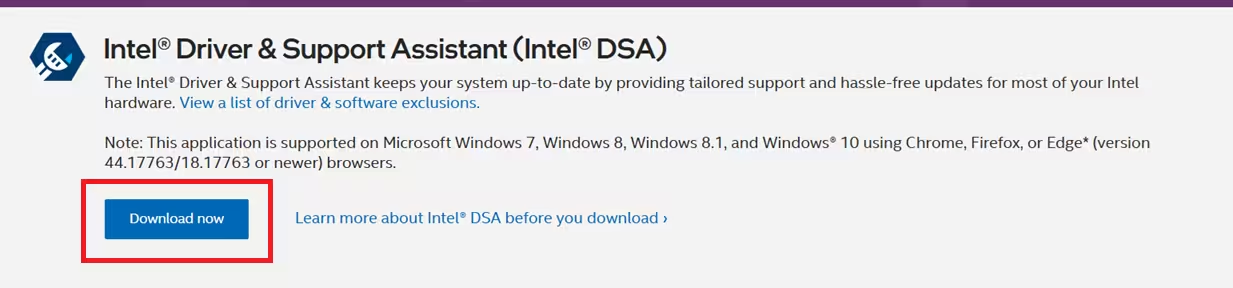
- Visit the Intel Driver and Support Assistant download page.
- Click Download Now and run the installer.
- Follow the on-screen prompts to complete installation.
- Open the Support Assistant from your browser (it runs as a local web app).
- Let it scan your system and identify available updates.
- Install the Bluetooth driver update it recommends.
- Restart your PC after installation.
Note: Intel DSA supports Windows 7, 8, 8.1, and 10/11 using Chrome, Firefox, or Edge (version 44.17763 or newer).
Method 2: Update Bluetooth Driver via Device Manager
Device Manager lets you trigger a driver update directly from within Windows.
- Press Windows + S, type Device Manager, and open it.
- Expand the Bluetooth section.
- Right-click your Intel Bluetooth adapter.
- Select Update driver.
- Choose Search automatically for drivers.
- Follow the on-screen instructions.
- Restart your PC after the update finishes.
If Windows says the best driver is already installed, your PC manufacturer may still have a newer version on their support site.
Method 3: Install Bluetooth Driver via Windows Update
Windows Update sometimes delivers driver updates alongside system patches.
- Open Settings and go to Windows Update.
- Click Check for updates.
- Install all available updates.
- Restart your PC.
Method 4: Download the Driver Manually from Intel
For full control over the version you install, download the driver package directly.
- Go to Intel’s Wireless Bluetooth driver download page.
- Select your operating system from the drop-down menu.
- Choose driver version 24.40.0 (Latest) and download it.
- Run the installer and follow the prompts.
- Restart your PC after installation completes.
How to Reinstall the Bluetooth Driver
If updating the driver does not fix your issue, a clean reinstall often resolves deeper conflicts.
- Open Device Manager.
- Expand Bluetooth.
- Right-click your Bluetooth adapter and select Uninstall device.
- Restart your PC.
- Windows automatically reinstalls the Bluetooth driver on the next boot.
How to Roll Back the Bluetooth Driver
If Bluetooth stopped working after a recent driver or Windows update, rolling back to the previous version can restore functionality.
- Open Device Manager.
- Expand Bluetooth and right-click your Bluetooth adapter.
- Select Properties.
- Open the Driver tab.
- Click Roll Back Driver if the option is available.
- Follow the on-screen instructions and restart your PC.
Download Driver from Your PC Manufacturer
If none of the above methods resolve the issue, your PC manufacturer may offer a customized Bluetooth driver optimized for your specific hardware.
- Visit your PC manufacturer’s support website.
- Search using your device model number.
- Download the latest Bluetooth driver for Windows 11.
- Install it and restart your PC.
Intel recommends contacting your system manufacturer before installing any software or requesting technical support, as they may provide drivers configured specifically for your device.
Keeping your Intel Bluetooth driver up to date prevents pairing failures, connection drops, and device detection problems. The easiest approach is Intel Driver and Support Assistant, which handles detection and installation automatically. If you prefer manual control, download package 24.40.0 directly from Intel’s support page and install it yourself. After the update, restart your PC and test your Bluetooth devices.

