The 0x80d03002 error appears when you try to download, update, or install Microsoft Store apps using Winget on Windows 11 or Windows 10. The command stops midway and returns a generic message that reads 0x80d03002 : unknown error. The issue usually traces back to how Winget routes downloads through Windows Update Delivery Optimization, so switching the download method resolves it in most cases.
What Causes the 0x80d03002 Error
- Delivery Optimization, the Windows feature that helps speed up downloads, fails or gets blocked.
- You are using an old version of Winget or App Installer that does not have Microsoft’s fix for this error.
- Your device is a work computer, and company IT rules block or limit Delivery Optimization.
- The Microsoft Store’s cache (its stored temporary files) is corrupted and this affects Winget too.
Before trying the fixes below, install any pending Windows updates and confirm your Winget version with this command.
winget --versionIf the version is older than 1.0.11692, update the App Installer package from the Microsoft Store first, then retry your command.
Fix 1: Change Winget Download Method to WinINet
By default, Winget uses Delivery Optimization to download files. This is usually where the 0x80d03002 error comes from. Switching Winget to use WinINet instead fixes the error for most people. WinINet is a different, more standard way for Windows to download files from the internet.
Follow these steps.
- Check if you already have a Winget settings file at this path. You can paste the path into File Explorer to get there quickly.
$env:LOCALAPPDATA\Packages\Microsoft.DesktopAppInstaller_8wekyb3d8bbwe\LocalState- If the file already exists, open it. If it does not exist, run this command to create it.
winget.exe settings- Find the
networkline in the file (or add it if it is missing) and set the downloader towininet. Your file should look like this.
{
   "$schema": "https://aka.ms/winget-settings.schema.json",
   "network": {"downloader": "wininet"}
}- Save the file.
- Close the file.
- Run your original Winget command again. A completed progress bar followed by a success message means it worked.
Fix 2: Toggle Delivery Optimization
Delivery Optimization is a Windows feature that can download update files from other computers on your network, not just from the internet. For example, if a neighbor on the same network already downloaded an update, your PC can grab pieces of it from their computer instead of downloading everything fresh. The 0x80d03002 error is often linked to this feature.
Follow these steps.
- Open Settings and go to Windows Update > Advanced options > Delivery Optimization.
- Check whether the toggle is on or off.
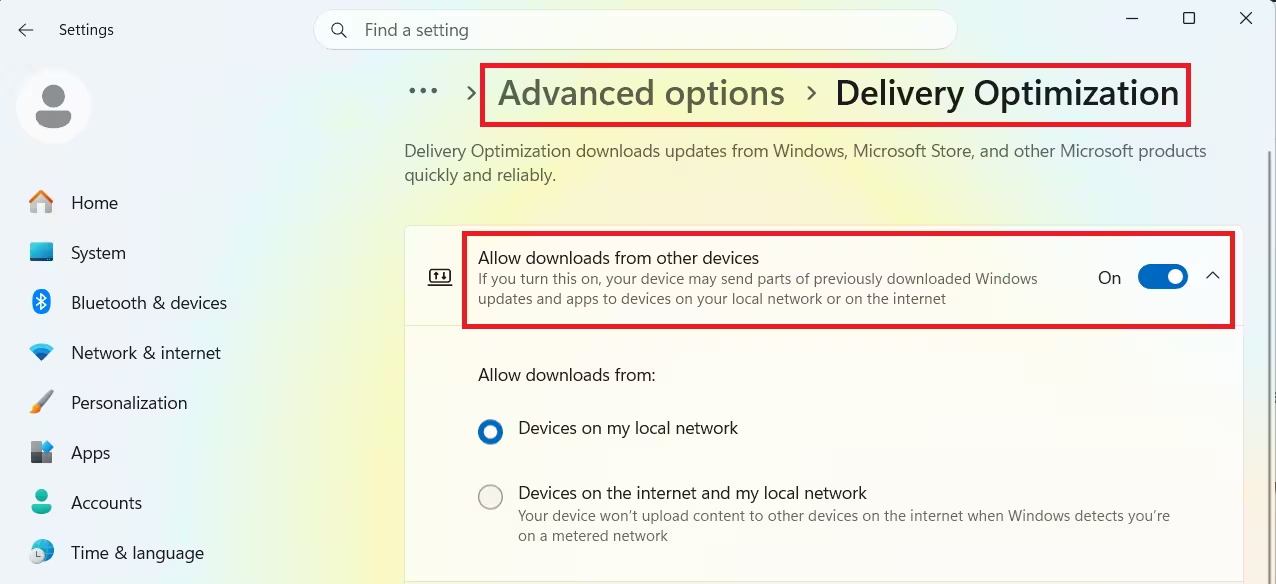
- If it is on, turn it off.
- If it is off, turn it on.
- Retry your Winget command.
If you are using a work computer, this setting may be locked by your company’s IT department. In that case, ask an administrator to change it for you.
Fix 3: Reset the Microsoft Store
Winget uses the Microsoft Store behind the scenes for some tasks, like checking app details or downloading Store-based apps. If the Store’s cache (its stored temporary files) is corrupted, this can keep the 0x80d03002 error showing up. Resetting the Store clears this cache. Note that it also signs you out, so you will need to sign back in afterward.
On Windows 11:
- Open Settings and go to Apps > Apps & Features.
- Scroll to Microsoft Store, click the three-dot button, and select Advanced Options.
- Scroll down and click Reset, then close Settings and run your Winget command again.
On Windows 10:
- Open Settings and go to Apps > Apps and features.
- Find Microsoft Store, click the entry to expand it, then click Advanced options.
- Scroll down and click Reset, then close Settings. You can also run
wsreset.exeto reset the Store cache directly.
You will know the error is fixed once your Winget command runs all the way through, shows a full download progress bar, and ends with a success message.
Try the fixes in the order listed above, and test your command again after each one. Fix 1 solves the error for most people. If it does not work for you, move on to Fix 2 and then Fix 3.
Frequently Asked Questions
How do I check my Winget version?
Run winget --version in Command Prompt or [PowerShell](https://www.fdaytalk.com/how-to-install-winget-in-powershell/). Update through the Microsoft Store if it is older than 1.0.11692.
Does resetting Microsoft Store delete my apps?
No, it only clears the Store’s cache and sign-in data. Your installed apps stay on your device, but you will need to sign back into the Store afterward.
Can I change the Winget download method without editing files manually?
No. You need to open the settings.json file and change the setting yourself. Winget does not currently have a simple on-screen option or command for this.
Why does Delivery Optimization affect Winget downloads?
Winget can use Delivery Optimization to download parts of a package from other computers on your network, not just from the internet. When this feature fails or is blocked by a company policy, the download fails and shows the 0x80d03002 error.

