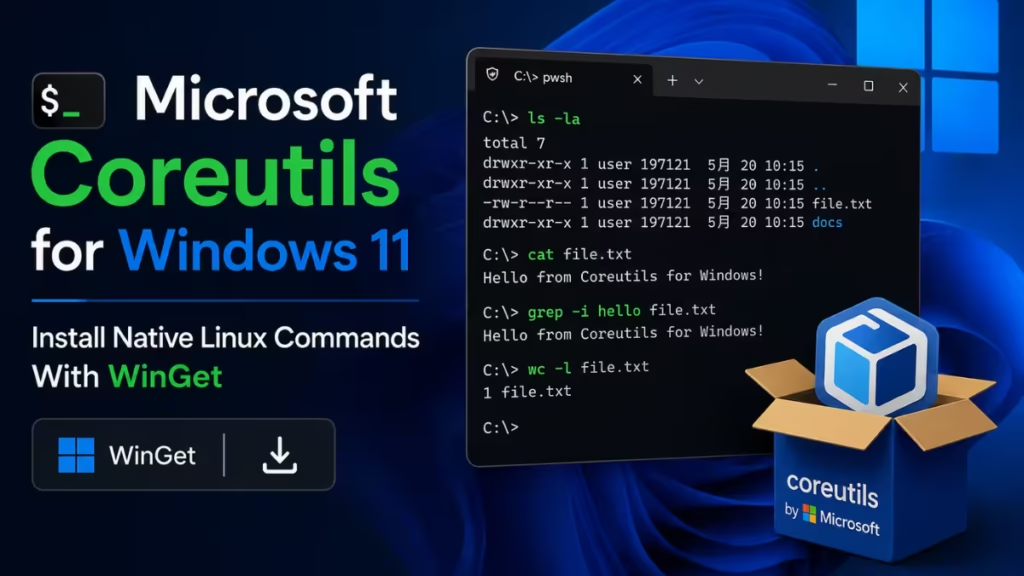
Microsoft has released Coreutils for Windows 11, bringing native Linux command-line tools like ls, cp, mv, and rm directly to the operating system. The package runs natively, so you no longer need a separate Linux environment to use the commands you rely on every day. This guide explains what Coreutils includes, how to install it, which shells support it, and the conflicts and caveats you should know before you switch your scripts over.
What Is Coreutils for Windows 11
Coreutils for Windows is a Microsoft-maintained build of the open-source uutils project, a cross-platform reimplementation of GNU Coreutils written in Rust. Microsoft packages uutils/coreutils, findutils, and a newly written grep into a single multi-call binary for Windows. The goal is simple: the same commands, flags, and pipelines you use on Linux, macOS, and WSL work the same way on Windows, so your existing scripts carry over without translation.
Microsoft announced general availability at Build 2026, alongside other developer-focused additions. The company described Coreutils as more than 75 familiar Linux CLIs running directly inside Windows 11. The project is still marked as preview, so expect occasional bugs in early builds.
Windows 11 already shipped several Linux-inspired tools, including curl, tar, the OpenSSH utilities, and the Windows Package Manager (winget). Developers could also run Linux commands through Windows Subsystem for Linux (WSL). Coreutils fills the remaining gap by making the core file and text commands available natively, without launching a subsystem.
What Commands Does Coreutils Include
The package covers the everyday commands most developers reach for first:
lslists files and directoriescpcopies files and foldersmvmoves or renames filesrmdeletes files and directoriescatprints file contentsmkdircreates directoriestouchcreates files or updates timestampspwdprints the current working directory
These are only the headline commands. The build ships dozens more, plus the bundled findutils and grep implementations. Every command supports the standard --help flag, so you can check full syntax and options directly in your terminal.
How to Install Coreutils on Windows 11
You can install Coreutils in two ways. The fastest route uses winget, the package manager built into Windows 11.
- Open Windows Terminal, Command Prompt, or PowerShell.
- Run the install command:
winget install Microsoft.Coreutils- Restart the console so the new commands load into your session.
If you prefer a direct download, grab the latest installer from the official Coreutils release page. Microsoft publishes both x64 and arm64 builds, so pick the one that matches your hardware. You can also review the full source and packaging on the Microsoft Coreutils GitHub repository, and the underlying Rust implementation lives in the uutils/coreutils project.
After installation, the commands become available from the command line without a separate Linux environment.
Which Shells Support Coreutils
Coreutils runs on Command Prompt, PowerShell, and Windows Terminal. One requirement matters: PowerShell 7.4 or newer is required, and older PowerShell versions will not work. If you run an older build, update PowerShell first, then install Coreutils.
Whether a given Coreutils command actually runs depends on three things: the shell you use, the order of your PATH, and, in PowerShell, the alias table. Several command names overlap with shell built-ins, which changes how Windows resolves them.
Command Conflicts You Should Know
Some Coreutils commands ship and work cleanly, some ship but conflict with a built-in, and a few do not ship at all. The table below maps the most common commands across both shells.
| Command | CMD | PowerShell 7.4+ | Notes |
|---|---|---|---|
cat | Works | Conflicts | |
cp | Works | Conflicts | |
date | Conflicts | Conflicts | |
dir | Not shipped | Not shipped | Conflicts with the built-in DOS command |
echo | Conflicts | Conflicts | |
find | Works | Works | Integrated port of the original DOS command |
hostname | Works | Works | Superset of the Windows built-in |
kill | Not shipped | Not shipped | Windows lacks POSIX signals |
ls | Works | Conflicts | |
mkdir | Conflicts | Conflicts | |
more | Not shipped | Not shipped | Conflicts with the built-in DOS command |
mv | Works | Conflicts | |
pwd | Works | Conflicts | |
rm | Works | Conflicts | |
sort | Works | Works | Integrated port of the original DOS command |
tee | Works | Conflicts | |
timeout | Not shipped | Not shipped | Depends on kill functionality |
uptime | Works | Conflicts | |
whoami | Not shipped | Not shipped | Conflicts with the built-in Windows command |
When a command conflicts in PowerShell, the built-in alias usually wins. You can call the Coreutils version explicitly or adjust your PATH and alias table to control which one runs.
Windows Caveats When Using Coreutils
Coreutils behaves the same as its Linux counterpart in most cases, but a few Windows-specific differences can trip up your scripts:
- CRLF line endings: Windows text files often use CRLF. Most utilities handle this transparently, but pattern matching with
$and exact byte counts can change. - No
/dev/null: UseNULinstead, for examplefind . -name "*.log" > NUL. - No POSIX signals: Signals such as SIGHUP and SIGPIPE are not available, though Ctrl+C still works as expected.
- Path separators: Both
/and\are accepted, but some utilities produce\-separated output, which can affect downstream piping. - File permissions: Windows uses ACLs rather than POSIX permission bits, so predicates like
find -permmay behave differently or stay unavailable. - Symbolic links: Reading existing symbolic links works without elevation. Creating new ones requires Developer Mode or an elevated terminal.
If a command does not appear after install, the cause is almost always your PATH. Restart the console first, then confirm the install directory sits on your PATH before you troubleshoot anything deeper.
Coreutils vs WSL: When to Use Each
Coreutils does not replace WSL. It removes the need to launch a full Linux subsystem just to run a handful of common commands. Reach for Coreutils when you want quick, native access to tools like ls, cp, and rm inside a normal Windows shell. Keep WSL for full Linux workloads, package managers, and Linux-only software, including Docker and container workflows that depend on a real Linux kernel.
For developers who move between Linux servers, containers, cloud environments, and Windows all day, Coreutils removes dozens of small interruptions. You stop pausing to remember which command works where.
Related Guides
- How to Install WinGet in PowerShell
- Fix HCS_E_SERVICE_NOT_AVAILABLE WSL Error on Windows 10 and 11
- How to Fix OpenClaw Not Discoverable on PATH After Installation
Coreutils for Windows 11 makes the operating system feel closer to the Linux and macOS environments developers already use. Install it with winget install Microsoft.Coreutils or from the GitHub release page, run PowerShell 7.4 or newer, and watch for the command conflicts and Windows caveats above. The package is still in preview, so test it against your scripts before you depend on it in production.

