A system image backup saves your entire PC as one big file instead of separate files. This makes it harder to grab back just one document or folder. The good news is you do not need to restore your whole system to get a single file back. This guide shows you how to open that backup file directly and copy out just what you need.
Why You Cannot Just Open a System Image Backup Directly
A system image backup is not a folder of copied files you can browse normally.
- The backup stores everything inside one file called a VHDX. Think of it as a single container that holds a full copy of your PC, similar to a zip file but for your entire drive
- Windows cannot open this file like a normal folder
- You first need to “mount” it, which simply means telling Windows to treat this file as if it were a real drive, so it shows up in File Explorer
- The backup folder also uses generic names, like WindowsImageBackup, which can make it hard to find the right file on your own
Method 1: Use Disk Management to Open Your System Image Backup
This is the built-in method. It works on Windows 11, Windows 10, and Windows 7, and you do not need to install anything extra.
- Press Win + R on your keyboard. Type
diskmgmt.mscin the box that appears, then press Enter. - Click Action in the menu bar at the top. Select Attach VHD from the list.
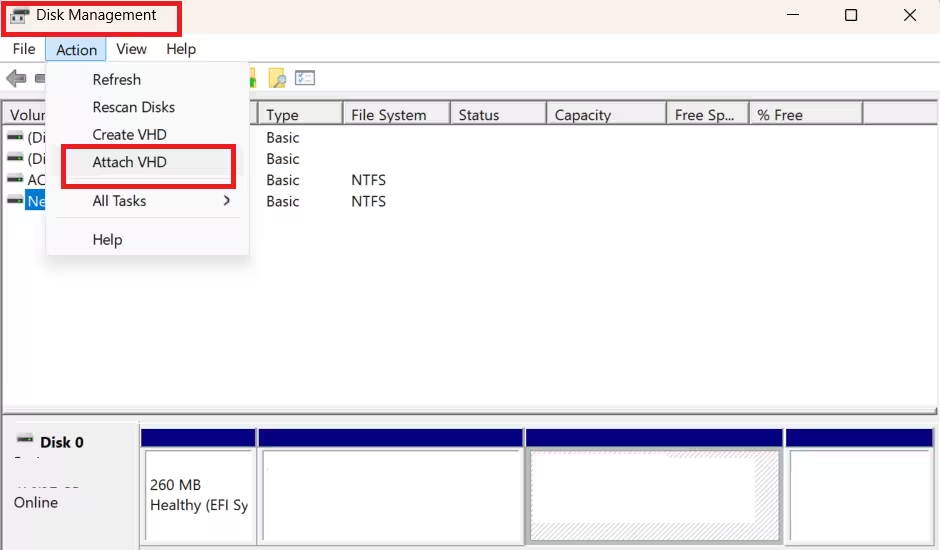
- Click the Browse button. Go to the drive where your backup is saved. Open the folder named
WindowsImageBackup. - Open the folder with your computer’s name. Then open the folder named
Backupfollowed by a date and time. - Look for the largest file in that folder. This is usually the one you want, since it holds your system and personal files. Click on it, then click Open.
- Click OK to attach the file. Windows will now treat it as a new drive.
- Right-click the drive you just attached inside Disk Management. Choose Change Drive Letter and Paths.
- Click Add. Select Assign the following drive letter. Pick any letter that is not already in use.
- Click OK to save the new drive letter.
- Open File Explorer. Click This PC on the left side. Open the drive you just added. Your personal files are usually inside a folder called Users.
- Copy whatever files or folders you need. Paste them somewhere safe, like your desktop or another drive.
- When you are done, go back to Disk Management. Right-click the mounted drive. Choose Change Drive Letter and Paths, then click Remove. Confirm by clicking Yes, then OK.
- Right-click the drive one more time in the left pane. Choose Detach VHD. This safely closes the backup file.
Method 2: Restore Files From a Windows Backup
This method is for Windows 10. Windows 10 includes a simpler backup tool that lets you restore individual files without going through Disk Management. Use this method if you remember creating your backup through Windows Settings instead of a separate program.
- Go to Start, then Settings, then Update & Security, then Backup.
- Click More options.
- Scroll down and click Restore files from a current backup.
- Look through the different backup versions, or search by file name, to find what you need.
- Select the files you want.
- Click Restore to send them back to their original location.
Method 3: Use Backup and Restore on Windows 7
If you are on Windows 7, you can restore individual files without touching Disk Management at all.
- Click Start.
- Type
backup, then open Backup and Restore. - Click Restore My Files.
- Find the files or folders you need, then click Next.
- Choose where you want to restore the files to.
- If a file with the same name already exists, choose whether to replace it, skip it, or keep both copies.
- Click Finish once your files appear.
Better Alternatives to System Image Backup
System Image Backup still works, but it was designed to restore your whole PC, not to grab single files. If you often need to recover individual files, a simpler tool called File History does this automatically in the background. Microsoft’s own File History documentation explains how to set it up, so you do not have to go through these steps again next time.
Frequently Asked Questions
Can I extract files from a system image backup without restoring the whole PC?
Yes. Mounting the backup file in Disk Management gives you direct access to your files without a full system restore.
Which file should I open if there are several inside the backup folder?
Open the largest one. It usually holds your system and personal files together.
Do I need to install anything extra to do this?
No. Disk Management comes built into every version of Windows since Windows 7.
Is it safe to work directly with the original backup file?
It is safer to make a copy of the backup first. Mounting it does not usually cause any harm, but using a copy protects you in case something goes wrong.
Related Windows Error Fixes
- Secure Boot State Off in System Information But On in BIOS: How to Fix It
- KB5083769 Breaks Backup Software on Windows 11 24H2 and 25H2: How to Fix It
- How to Fix Winget 0x80d03002 Error on Windows 11
Tech How-To

