You can run a Palworld dedicated server for free through Steam or SteamCMD, without paying for a hosting service. This keeps your world online 24/7 and lets more friends join than a regular multiplayer session allows.

Do You Need a Dedicated Server to Play Palworld with Friends?
You do not need a dedicated server just to play with friends. A regular multiplayer world works fine for casual sessions.
Open your save, go to Start Game, and select the world you want to play with friends. If multiplayer is off, click Change World Settings at the bottom and turn multiplayer on. A crossplay option appears right below it if you want to enable that too. After you confirm and load into the world, press Escape to find an invite code you can send to friends, along with a Server Info tab showing who else is connected.
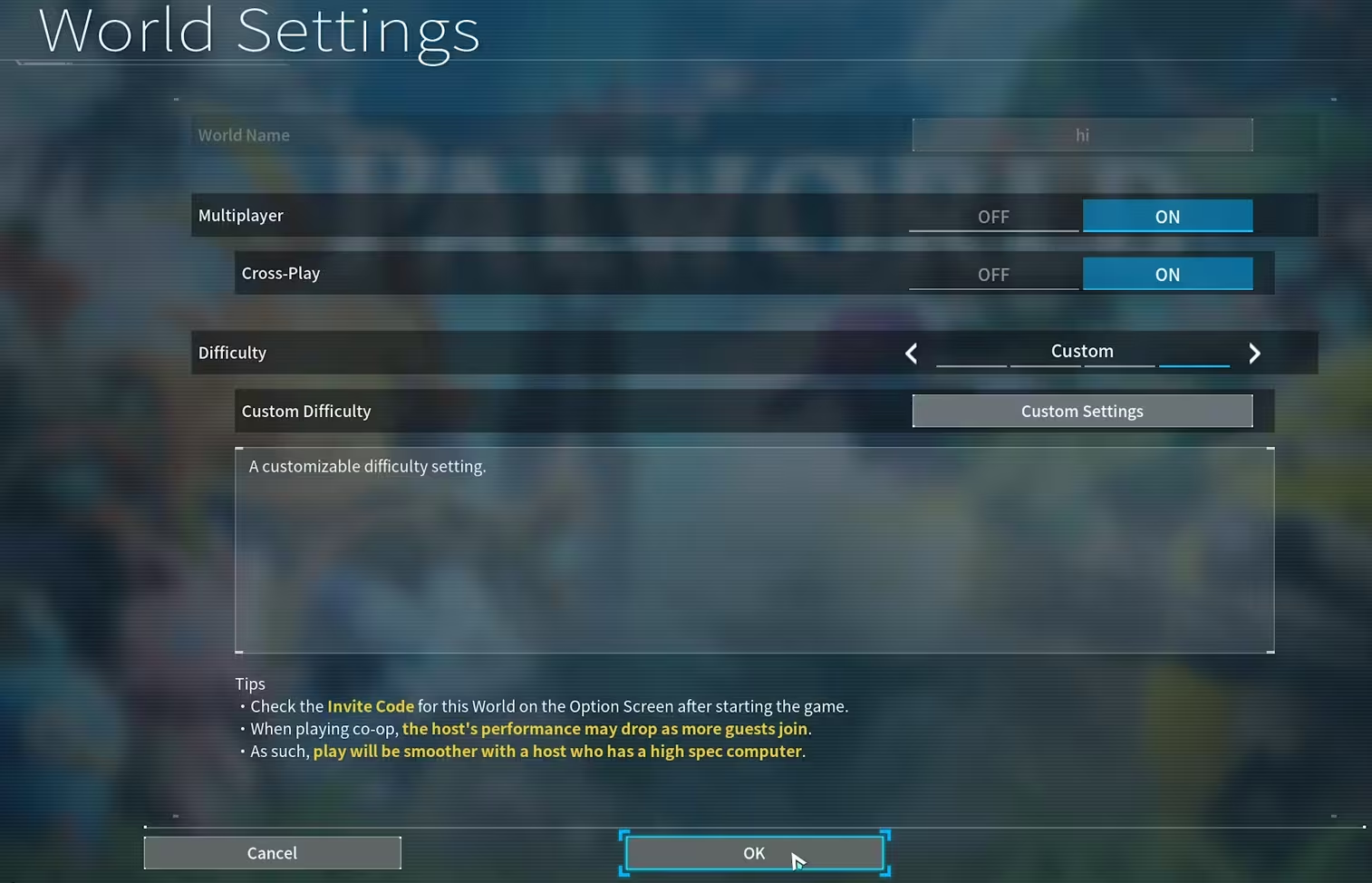
A dedicated server is only necessary if you want a higher player limit or a world that stays online without you needing to keep your own game running.
How to Download the Palworld Dedicated Server
You can download the dedicated server in one of two ways, and the method you pick depends on whether you want to run it on your main gaming PC or a separate machine.
- Search for Palworld on Steam and select Palworld Dedicated Server. Or use SteamCMD if you want it on a separate computer.
- Navigate to the download folder.
- Run
PalServer.exeto launch it, same as clicking Launch on Steam. - Want it public? Add
-publiclobbyto your SteamCMD launch arguments, or pick Community Server when launching through Steam.
Keep in mind your PC needs to stay on for the entire time you want friends to be able to join, since the server only runs while that machine is active.
How to Configure Your Palworld Server Settings
Before your server is ready for friends, you need to set a server name, passwords, and player limit through its settings file.
- Right-click Palworld Dedicated Server in Steam, hover Manage, choose Browse Local Files. On SteamCMD, just open that folder directly.
- Open PowerShell in that folder and run:
Copy-Item steamapps\common\PalServer\DefaultPalWorldSettings.ini steamapps\common\PalServer\Pal\Saved\Config\WindowsServer\PalWorldSettings.ini - Open the new
PalWorldSettings.inifile in Notepad. - Set your server name, admin password, server password, max players, and RCON if needed.
- Save the file.
Note that editing DefaultPalWorldSettings.ini directly does nothing. Your server only reads PalWorldSettings.ini inside the Config folder.
If you plan to list your server publicly as a community server, keep in mind that a router without Hairpin NAT support will block you from connecting to your own server from inside the same network, even though outside players can join fine.
How to Launch Your Server With Custom Settings
For your saved settings to actually apply, you need to pass a few launch options to the server before starting it.
On Steam, right-click the Palworld Dedicated Server, choose Properties, and open the General tab. Enter your launch options here. Close the properties window and start the server for the new settings to take effect.
If you downloaded through SteamCMD, use start.bat from the server folder instead of launching through Steam.
Here are the launch arguments you can pass in:
| Argument | What It Does |
|---|---|
-port=8211 | Changes the port the server listens on |
-players=32 | Sets the maximum number of players |
-publiclobby | Lists the server as a community server |
-publicip=x.x.x.x | Manually sets your public IP for community servers |
-publicport=xxxx | Manually sets your public port for community servers |
-logformat=text | Sets log format to text instead of JSON |
-useperfthreads -NoAsyncLoadingThread -UseMultithreadForDS | Performance flags. In 1.0 and later, leaving these unset may actually run better |
For example, to run a private server on the default port with a 20-player cap: -port=8211 -players=20
How to Connect to Your Dedicated Server
Once your server is running, launch Palworld, go to Join Multiplayer Game, and enter the default address 127.0.0.1:8211 at the bottom of the screen, then select Connect.
To gain admin access on your own server, open chat in-game and type /AdminPassword followed by the password you set earlier. This lets you run admin commands directly from the server.
At this stage, only you or someone on your local network can join. Getting friends online involves two more steps: allowing the server through your firewall, and forwarding the correct ports on your router.
How to Allow Your Palworld Server Through Windows Firewall
Windows blocks outside computers from reaching local programs by default, so the server needs an exception added before anyone outside your network can connect.
- Open the Start menu and search PowerShell.
- Right-click it and choose Run as Administrator.
- Paste in the firewall command for Palworld and press Enter.
- Type
ipconfigand press Enter. - Find your network (Ethernet or Wi-Fi) and note the IPv4 address.
Friends on the same local network can now connect using this address in place of 127.0.0.1.
How to Port Forward Your Palworld Server
Local network access is enough for LAN parties, but friends joining over the internet need your router configured to forward the correct ports. If your router only allows one protocol per rule, add each port twice, once for TCP and once for UDP.
- Log into your router’s admin settings.
- Go to the port forwarding section (may be labeled security, application forwarding, or game forwarding).
- Forward these ports for both TCP and UDP:
- 8211
- 27015
- 27016
- Enter your local IP address for each port and enable the rule.
- Using RCON? Forward that port too.
Once port forwarding is complete, search “what is my IP” on Google and share that address with friends so they can connect from outside your network.
Frequently Asked Questions
Do I need a dedicated server to play Palworld with friends?
No. A regular multiplayer world works for casual play. A dedicated server is only needed if you want a higher player limit or a server that stays online without your own game running.
Is the Palworld dedicated server free to run?
Yes. You can download and run it through Steam or SteamCMD at no cost, as long as you have a PC that can stay online while friends are playing.
Which ports does Palworld need forwarded?
Port 8211 for the main connection, along with 27015 and 27016. Forward all three for both TCP and UDP.
Why can only I connect to my server at first?
Windows Firewall blocks outside connections by default, and most home routers do not forward the required ports automatically. Both need to be configured before friends outside your network can join.
Read More
- Palworld 1.0 New Weapons: Full Crafting Guide
- All 40 Shanty Locations in Assassin’s Creed Black Flag Resynced
- Moonlight Peaks Achievements and Walkthrough Guide
- Secure the Airport Classes: Full List, Costs, HP, and Best One to Buy First
- How To Get Chihiro In Legacy Piece: Quest Steps, Boss Drops, And Kuro Instinct
- Assassin’s Creed Black Flag Resynced: Best Items to Sell, Buy, and Keep

