OneDrive comes built into Windows 11 and starts syncing files automatically the moment you sign in with a Microsoft account. For many users this works fine, but it can also eat into bandwidth, duplicate storage across local and cloud folders, or simply run in the background when it’s not needed. If you use a different cloud storage provider, work on a shared or managed device, or just prefer to keep files local, you have several ways to deal with it depending on how permanent you want the change to be.
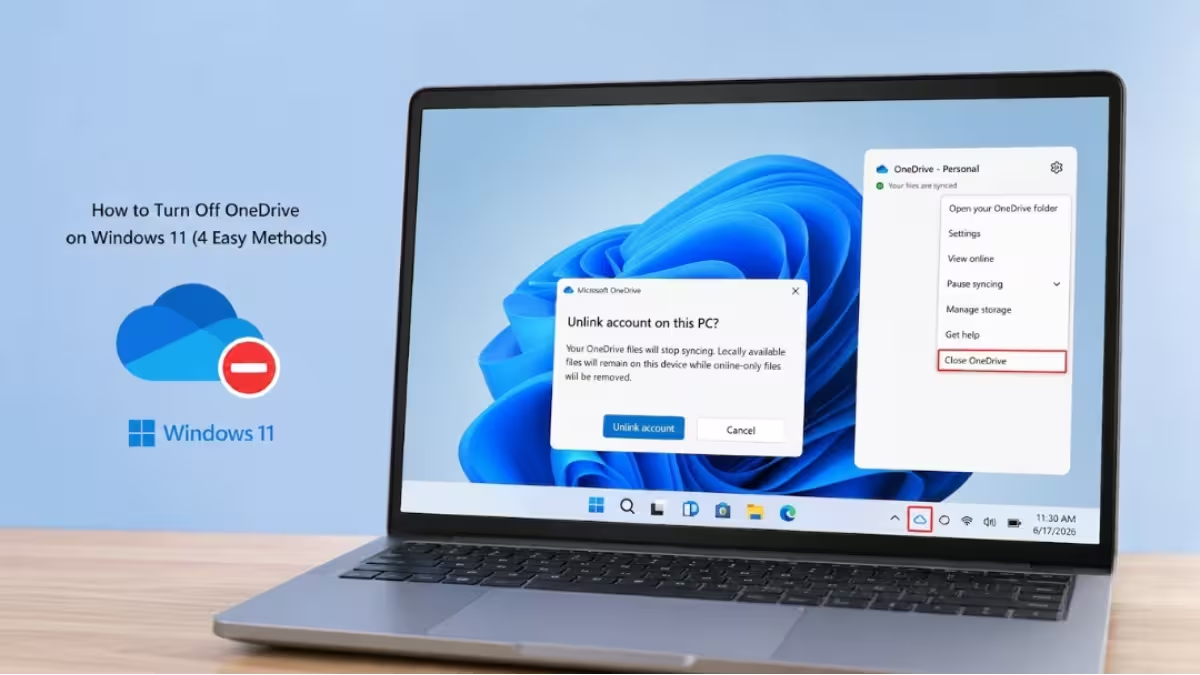
You can pause syncing for a few hours if it’s a one-time slowdown, unlink your account to stop syncing without losing files, hide OneDrive from File Explorer if Windows won’t let you remove it outright, or uninstall it completely if you want it off your system for good. This article walks through all four methods, along with the reasons people usually turn OneDrive off and answers to the most common questions that come up along the way.
Method 1: Pause OneDrive Syncing in Windows 11
Pausing sync stops OneDrive from uploading or downloading files without removing your account or files.
- Right-click the OneDrive cloud icon on the taskbar.
- Select Pause syncing, then choose 2 hours, 8 hours, or 24 hours.
- To resume sooner, open the OneDrive icon again and select Resume syncing.
This option works well if syncing is slowing down your internet connection or system performance during a specific task.
Method 2: Turn Off OneDrive in Windows 11
Unlinking stops OneDrive from syncing entirely but keeps your files available online. You will not lose any files or data by unlinking your account, since everything stays accessible through OneDrive.com.
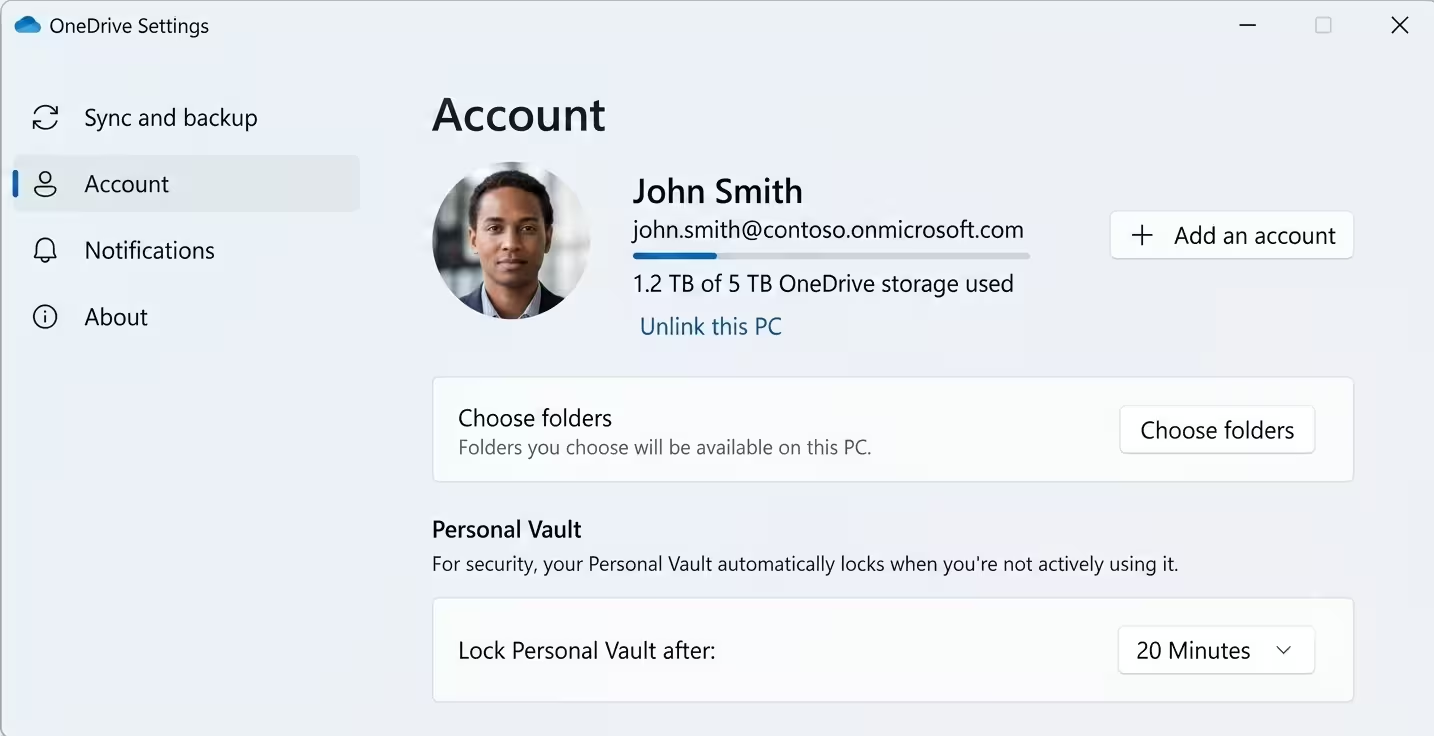
- Select the OneDrive cloud icon in the notification area.
- Select the Help and Settings icon, then choose Settings.
- Go to the Account tab.
- Select Unlink this PC, then confirm by selecting Unlink account.
Once unlinked, OneDrive stops syncing files to your computer, but the local copies already on your PC remain untouched.
Method 3: Hide OneDrive in Windows 11
Windows 11 includes OneDrive as a built-in component, so you cannot always remove it completely. Hiding it keeps the sync process inactive and clears it from view.
- Unlink your account first using the steps above.
- Open File Explorer, right-click OneDrive, and select Properties.
- On the General tab, check the Hidden box next to Attributes.
- Right-click the OneDrive icon in the notification area and select Quit OneDrive to remove it from the Notifications area.
This method suits users who want OneDrive out of sight without uninstalling it from the system.
Method 4: Uninstall OneDrive in Windows 11
If you want to remove OneDrive from your PC entirely, uninstall it through Windows Settings.
- Select Start, type Add or remove programs, and open it from the search results.
- Under Apps & features, find Microsoft OneDrive.
- Select it, then select Uninstall.
- Confirm the action if prompted for administrator permission.
You will not lose files or data by uninstalling OneDrive, since your files remain stored online and can be accessed anytime by signing back in through OneDrive.com.
Why Users Disable OneDrive
- OneDrive syncing consumes bandwidth or storage the user wants reserved for other tasks.
- Duplicate file management between local folders and OneDrive folders causes confusion.
- Users switch to a different cloud storage provider or prefer fully local file storage.
- Shared or work devices don’t need a personal Microsoft account syncing files automatically.
Frequently Asked Questions
Will I lose my files if I turn off OneDrive?
No. Unlinking, hiding, or uninstalling OneDrive does not delete any files. Your files stay stored online and remain accessible by signing in to your Microsoft account through the OneDrive website.
Can I completely remove OneDrive from Windows 11?
You can uninstall the OneDrive app through Add or remove programs, but some Windows 11 versions [reinstall](https://www.fdaytalk.com/reinstall-onedrive-windows-11-not-working/) it during system updates. Hiding it is a more permanent workaround if uninstalling doesn’t stick.
Does pausing sync stop OneDrive from running in the background?
No. Pausing only stops uploads and downloads temporarily. The app itself still runs and resumes syncing automatically once the pause period ends.
How do I stop OneDrive from opening at startup?
Unlinking your account or uninstalling the app both stop OneDrive from launching at startup. You can also disable it directly through Task Manager’s Startup tab.

