OneDrive relies on a valid account connection, free storage space, and clean file names to keep syncing on Windows 11. When one of these breaks, files stop uploading and the taskbar icon shows a warning instead of an up to date status. Here is how to find the cause and fix it step by step.
What Causes OneDrive Not Syncing on Windows 11
- The wrong Microsoft account is signed in, or OneDrive shows “Not signed in.”
- Your OneDrive storage quota is full, so new files cannot upload.
- A file name contains an unsupported character, or a folder path is too long.
- Security software, a VPN, or Controlled Folder Access is blocking OneDrive.exe from making outbound connections.
- The local sync cache is corrupted after an update or an interrupted sync.
Fix 1: Confirm the Correct Account Is Signed In
Windows 11 devices that use both a personal Microsoft account and a work or school account often sync the wrong one. Check which account is connected before touching any files.
- Select the OneDrive cloud icon in the taskbar notification area (click the hidden icons arrow if it is not visible).
- Open Help & Settings > Settings, then check the Account tab to confirm the email address matches the files you expect to sync.
- If it says Not signed in, select Sign in and complete authentication.
- If the wrong account is connected, select Unlink this PC, restart OneDrive, and sign in with the correct account.
- If your organization uses multi-factor authentication, approve the sign-in prompt on your phone or authenticator app.
- If Windows keeps asking for a password, go to Settings > Accounts > Email & accounts and remove outdated work or school entries.
Fix 2: Check and Free Up OneDrive Storage
OneDrive stops uploading new files once your storage quota is exceeded. Open OneDrive settings, go to Account, and review the storage bar, or check storage from the lower-left corner at OneDrive.com.
If the account is near or over its limit, delete unnecessary files, empty the OneDrive recycle bin, move large archives out of OneDrive, or upgrade the storage plan. For work or school accounts, storage may depend on your Microsoft 365 license. If OneDrive reports the account as frozen, unlicensed, or over quota, sign in to the Microsoft 365 portal, and if access is blocked there too, contact your IT administrator.
Fix 3: Fix Invalid File Names and Long Folder Paths
OneDrive pauses syncing for files with unsupported characters or paths buried too deep inside nested folders. Open the OneDrive folder in File Explorer and look for a red X or a sync arrow that never finishes.
- Rename any file or folder containing
" * : < > ? / \ |. - Do not end a file or folder name with a period or a space.
- Avoid reserved Windows names such as
CON,PRN,AUX,NUL,COM1, andLPT1. - Shorten long folder paths by moving the file closer to the main OneDrive folder or renaming parent folders. For example, move a file out of
OneDrive > Work > Clients > 2026 > Final Documents > Approved Versionsinto a shorter path likeOneDrive > Work > Client Presentation.pptx. - Close the file if it is open in Word, Excel, PowerPoint, or another desktop app, since OneDrive waits until the app releases the file before syncing it.
Fix 4: Restart and Reset OneDrive
Restarting clears a stuck session. If that does not help, a full reset rebuilds the local sync cache without deleting any files from OneDrive online or from your PC.
To restart OneDrive:
- Right-click the OneDrive icon in the notification area.
- Select the Settings icon and choose Quit OneDrive, then confirm.
- Reopen OneDrive from the Start menu and check whether it syncs.
To reset OneDrive:
- Press
Win + R, paste%localappdata%\Microsoft\OneDrive\onedrive.exe /reset, and select OK. - Wait 1 to 3 minutes. The cloud icon may disappear from the taskbar during the reset.
- If OneDrive does not reopen automatically, press
Win + Ragain and run%localappdata%\Microsoft\OneDrive\onedrive.exe.
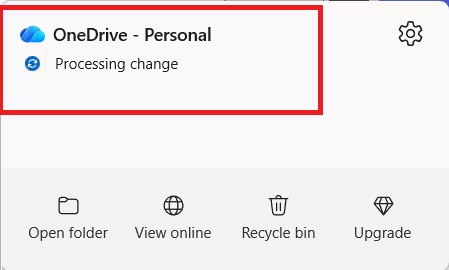
- Let the app finish processing changes before moving, renaming, or deleting files, since interrupting the rebuild can cause new sync conflicts.
Fix 5: Check Security Software and Controlled Folder Access
OneDrive needs steady access to Microsoft cloud services over HTTPS. A VPN, proxy, or Windows Security’s ransomware protection can silently block it.
- Temporarily disconnect from any VPN and test sync again on a trusted network.
- If you use a proxy, check Settings > Network & internet > Proxy and confirm the configuration matches your network.
- Open Windows Security > Virus & threat protection > Ransomware protection, then select Allow an app through Controlled folder access. Add OneDrive if it appears blocked, usually located at
%localappdata%\Microsoft\OneDrive\OneDrive.exe. - After allowing it, pause and resume sync from the OneDrive cloud icon, or restart Windows.
- On a managed work or school device, contact your administrator before changing proxy, firewall, or endpoint protection rules.
Fix 6: Update or Reinstall OneDrive
If sync still fails after resetting, the installed client itself may be outdated or damaged.
- Select the OneDrive cloud icon, open Help & Settings > Settings > About, and check the version number against the current release. Download the latest installer from Microsoft if your version is behind.
- If updating does not fix it, go to Settings > Apps > Installed apps, search for Microsoft OneDrive, select the three-dot menu, and choose Uninstall.
- Restart Windows, download the newest OneDrive installer, run it, and sign in with the same account used before.
- Choose the OneDrive folder location carefully if you previously used a custom drive or folder path, and review which folders are selected for sync before finishing setup.
- If OneDrive does not appear in Installed apps but setup files remain, press
Win + Rand run%SystemRoot%\SysWOW64\OneDriveSetup.exe(or%SystemRoot%\System32\OneDriveSetup.exeon some devices) to restore the client directly.
Fix 7: Check Group Policy Restrictions
On Windows 11 Pro, Enterprise, or Education editions, a policy setting can block OneDrive even after every other fix.
- Open
gpedit.mscand browse to Computer Configuration > Administrative Templates > OneDrive. - Confirm that Prevent the usage of OneDrive for file storage is not enabled, unless your organization requires it.
- On a managed device, policy changes may reset automatically after a restart or sign-in. In that case, the fix has to come from your Microsoft 365 or device management administrator.
If none of these steps restores sync, collect the exact error message from the OneDrive activity center, note whether the issue affects one device or all of them, and compare the same files at OneDrive.com to narrow the problem down to the local PC, the network, or the cloud account before contacting Microsoft Support.
Frequently Asked Questions
Will resetting OneDrive delete my files?
No. Resetting restarts the sync client and rebuilds its settings. Your files stay in the OneDrive cloud account, though OneDrive will need to rescan folders and match local files with cloud copies again.
How do I know if a OneDrive sync problem is caused by full storage?
Open OneDrive settings or visit OneDrive on the web and check your available storage. If it is full, new files will not upload and changes stop syncing until you free up space or upgrade your plan.
What should I do if OneDrive is stuck on “Processing changes”?
Leave the PC connected to the internet for a while, especially after adding many files. If it stays stuck, pause and resume sync, close and reopen OneDrive, then check for very large files, invalid file names, or folders with thousands of small files.
Can I fix OneDrive sync problems without unlinking my PC?
Yes. Many problems clear up by checking your internet connection, signing in again, freeing storage, resolving file conflicts, or restarting OneDrive. Unlinking is better saved for cases where the account connection or folder setup looks broken.
What happens if I reinstall OneDrive on Windows 11?
Reinstalling replaces the desktop sync app but does not remove files already stored in OneDrive online. You will need to sign in again, choose your OneDrive folder location, and reselect which folders sync to the device.

