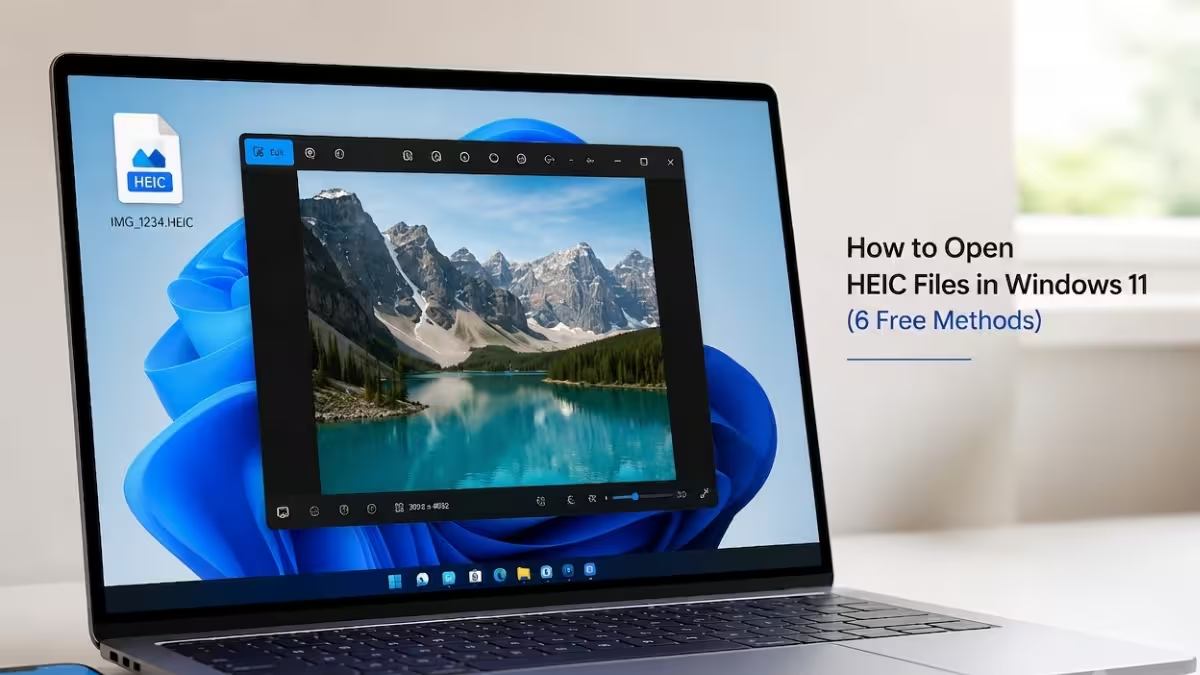
Transferring photos from an iPhone to a Windows 11 PC often ends with the same problem: the images have a .heic extension, and File Explorer either shows a blank thumbnail or refuses to open them at all. This happens because HEIC is Apple's default photo format since iOS 11, and Windows 11 does not ship with the codec needed to decode it.
The fix does not require paid software in most cases. A free Microsoft Store add-on restores full HEIC support in File Explorer, Photos, and Paint within a few minutes, and if that alone does not work, several other free methods below cover conversion, blocked work PCs, and troubleshooting when HEIC files still refuse to open.
Why Windows 11 Cannot Open HEIC Files by Default
Windows 11 does not include the HEVC codec required to render HEIC images out of the box.
HEIC (High Efficiency Image Container) is the default photo format on iPhones running iOS 11 and later. It compresses images using the HEVC codec, and Microsoft does not bundle this codec with Windows 11 due to licensing costs. Without it, File Explorer shows a blank thumbnail and the Photos app throws an error when you try to open a .heic file.
Method 1: Install HEIF Image Extensions from Microsoft Store
This is the fastest and most reliable way to add native HEIC support system-wide.
- Open the Microsoft Store app
- Search for HEIF Image Extensions
- Click Get or Install
- If prompted, also install HEVC Video Extensions, since HEIC images depend on the same codec
- Restart File Explorer or sign out and back in
Once installed, HEIC files show proper thumbnails in File Explorer and open directly in the Photos app with a double-click.
Method 2: Open HEIC Files Directly in the Photos App
Once the codec is installed, the built-in Photos app handles HEIC like any other image format.
- Right-click the
.heicfile - Select Open with > Photos
- The image displays normally, and you can zoom, rotate, or edit it
Method 3: Convert HEIC to JPG or PNG Using Photos
Converting is useful when you need to share the image with an app or website that does not support HEIC.
- Open the HEIC file in Photos
- Click the three-dot menu (...) in the top toolbar
- Select Save As
- Choose JPEG or PNG from the format dropdown and save
Method 4: Use Paint to Convert HEIC Files
Paint works as a lightweight alternative once the HEIF extension is installed.
- Right-click the HEIC file and choose Open with > Paint
- Go to File > Save As
- Pick JPEG or PNG and save to a new location
Method 5: Check HEIC Files with File Explorer's Preview Pane
This is a quick way to confirm the codec is working without fully opening the file.
- Open File Explorer
- Click View on the command bar
- Select Show > Preview pane
- Select any
.heicfile
The preview pane displays the image instantly once HEIF Image Extensions is installed correctly. If the pane stays blank while Photos still opens the file normally, give Windows a few minutes since thumbnail generation can lag behind on large photo folders.
Method 6: Convert HEIC Files Online Without Installing Anything
This works on locked-down PCs or when you cannot access the Microsoft Store.
- Go to a browser-based converter such as CloudConvert
- Upload the
.heicfile - Select JPG or PNG as the output format
- Download the converted file
Uploading personal photos to a browser tool means the file leaves your device temporarily, so avoid this for sensitive images and prefer Method 1 when possible.
Do You Need to Pay for the HEVC Extension?
Not always, so check for a free option before you pay for anything.
Some HEIC photos are compressed using the HEVC codec, and Photos may prompt you to install HEVC Video Extensions separately from HEIF Image Extensions. The consumer Store listing for this extension usually costs $0.99. Before paying, search the Microsoft Store for HEVC Video Extensions from Device Manufacturer. Many PCs qualify for this free version since manufacturers like Dell, HP, Lenovo, and Samsung license HEVC support for their hardware. If this free listing does not appear for your device, running Windows Update and installing the latest graphics driver can also add HEVC support without a paid extension.
Set Photos as the Default App for HEIC Files
Do this if HEIC files keep opening in the wrong program instead of Photos.
- Right-click any
.heicfile - Select Open with > Choose another app
- Choose Photos
- Check Always use this app to open .heic files
- Click OK
On Windows 11, you can also set this globally by going to Settings > Apps > Default apps, searching for .heic, and assigning it to Photos.
What to Do If HEIC Files Still Will Not Open on a Blocked PC
Try this when Microsoft Store or codec installs are restricted, such as on a work or school laptop.
Sign in to iCloud.com in a browser and open Photos to view your iPhone images without installing anything locally. If you see a download option, choose Most Compatible to save a JPEG copy instead of the original HEIC file. OneDrive works the same way. Upload the HEIC files at onedrive.live.com and click a file to preview it in the browser, since the web preview does not depend on your PC's local codecs. If neither option is available, ask your IT administrator to deploy HEIF Image Extensions through Microsoft Store for Business or Intune.
Troubleshooting: HEIC Files Still Will Not Open
Work through these steps in order if Method 1 did not fix the problem.
- Repair the Photos app: Go to Settings > Apps > Installed apps, find Microsoft Photos, open Advanced options, and click Repair. Click Reset if the issue continues.
- Run Windows Update: Go to Settings > Windows Update, click Check for updates, install everything available, and restart your PC.
- Update Microsoft Store apps: Open Microsoft Store, click Library, and click Get updates to refresh Photos and HEIF Image Extensions.
- Confirm the file is a real HEIC image: A file named
photo.heiccan be corrupted or mislabeled. Test a few different HEIC files. If only one fails, the file itself is the problem, not Windows. - Move cloud-only files to a local folder: Files stored only in the cloud, such as network drives or email attachments, sometimes need to fully download before Photos can read them. Copy the file to Pictures or Desktop and try again.
Frequently Asked Questions
Does Windows 11 support HEIC files natively?
No. Windows 11 requires the free HEIF Image Extensions and HEVC Video Extensions from the Microsoft Store to view or convert HEIC files, since the codec is not bundled with the OS by default.
Why does my HEIC file show a blank thumbnail in File Explorer?
The HEIF Image Extensions codec is not installed. Installing it from the Microsoft Store and restarting File Explorer resolves the blank thumbnail issue.
Can I convert HEIC to JPG without installing any software?
Yes. Free browser-based tools like CloudConvert let you upload a HEIC file and download it as JPG or PNG without installing anything on your PC.
Why does Microsoft Store show a paid HEVC extension?
Some HEIC photos need HEVC decoding, and the consumer HEVC Video Extensions listing usually costs $0.99. Search the Store for HEVC Video Extensions from Device Manufacturer first, since many PCs qualify for this free version through the hardware maker.
Is HEIF Image Extensions really free?
Yes. Microsoft offers HEIF Image Extensions for free on the Microsoft Store, though it may show as a paid listing in some regions where an alternate free download link from Microsoft's own site is used instead.