If you use OneDrive and feel confused about which version you actually have or which one you need, you are not alone. Microsoft offers two distinct products under the same OneDrive name, and picking the wrong one wastes money or leaves you without features your workflow demands.
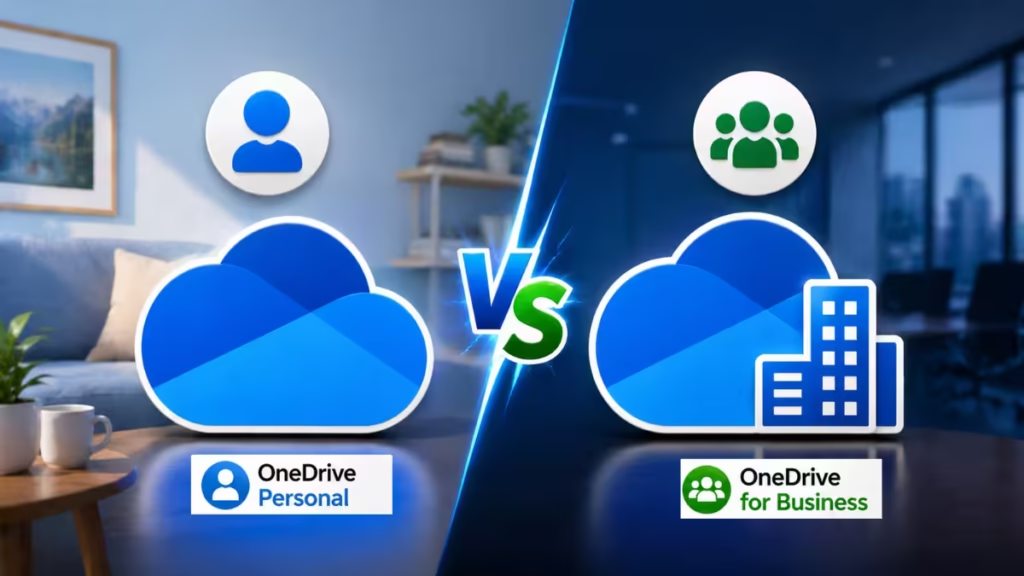
This guide breaks down every key difference so you can make the right call.
Quick Comparison: OneDrive Personal vs OneDrive Business
| Feature | OneDrive Personal | OneDrive Business |
|---|---|---|
| Target user | Individuals, families | Employees, organizations |
| Free storage | 5 GB | None (requires Microsoft 365 plan) |
| Paid storage | Up to 1 TB (Microsoft 365 Personal) or 6 TB (Family) | 1 TB per user (standard); up to unlimited with add-ons |
| Starting price | Free | From $6/user/month (Microsoft 365 Business Basic) |
| Admin controls | None | Full admin center |
| Compliance tools | No | Yes (DLP, eDiscovery, retention policies) |
| SharePoint integration | No | Yes |
| Version history | 30 days | 30 to 180 days |
| File sharing | Anyone with a link | Granular org-level controls |
| Microsoft 365 apps included | Personal/Family plans only | Depends on plan tier |
OneDrive Personal
OneDrive Personal is Microsoft's cloud storage for individual users. Every Microsoft account gets 5 GB of free storage out of the box, which covers basic document backup and photo sync.
If you need more space, Microsoft offers several paid plans under the Microsoft 365 umbrella.
1. Microsoft 365 Basic costs $1.99 per month (or $19.99 per year) and includes:
- 100 GB of OneDrive storage
- 100 GB of mailbox storage
- Ad-free Outlook email and calendar
- Advanced email security features
- One person, usable across multiple devices
2. Microsoft 365 Personal costs $9.99 per month (or $99.99 per year) and includes:
- 1 TB of OneDrive storage
- Full desktop versions of Word, Excel, PowerPoint, Outlook, and OneNote with Microsoft Copilot
- Microsoft Defender for device and identity security
- One person, usable on up to 5 devices simultaneously
3. Microsoft 365 Family costs $12.99 per month (or $129.99 per year) and includes:
- Up to 6 TB of OneDrive storage (1 TB per person)
- Same desktop apps as Personal, shared across the household
- Up to 6 people, with each person getting their own private 1 TB storage
OneDrive Personal works well for backing up photos, syncing documents across your Windows PC and phone, and sharing files casually with friends or family. It does not offer any admin management, compliance tools, or business-grade security controls.
OneDrive for Business
OneDrive for Business runs on the same cloud infrastructure but Microsoft manages it through a SharePoint backend. Organizations buy it as part of a Microsoft 365 business or enterprise plan, and IT admins control the entire environment.
See also: How to Fix Proxy Authentication Error 2606 in Microsoft OneDrive on Windows 11
Every user in the organization gets their own OneDrive for Business library tied to their work account. The storage amount depends on the plan:
| Plan | Monthly cost (per user, billed yearly) | OneDrive storage |
|---|---|---|
| Microsoft 365 Business Basic | $6.00 | 1 TB |
| Microsoft 365 Business Standard | $12.50 | 1 TB |
| Microsoft 365 Business Premium | $22.00 | 1 TB |
| Microsoft 365 E3 / E5 | $36.00 / $57.00 | 1 TB (expandable to unlimited) |
Note: Prices listed as of April 2026. Microsoft has announced price increases for Business Basic (to $7) and Business Standard (to $14) effective July 1, 2026. Check Microsoft's official pricing page for current rates in your region.
OneDrive for Business includes features no personal plan offers:
- Admin center: IT admins can control storage quotas, sharing permissions, and external access across the entire organization from a single dashboard.
- Conditional access: Admins can block access from unmanaged devices or specific countries.
- Data Loss Prevention (DLP): Microsoft 365 automatically scans files for sensitive information like credit card numbers or Social Security numbers and blocks unauthorized sharing.
- eDiscovery and legal hold: Organizations can lock specific files or accounts during legal investigations, preventing deletion or editing.
- Retention policies: Admins set rules to keep or delete files automatically after a defined period.
- SharePoint integration: Teams can collaborate on shared document libraries that live in SharePoint but sync to each user's desktop through OneDrive.
- Audit logs: Every file action (view, edit, share, delete) gets logged for compliance review.
OneDrive for Business suits any organization that needs to control how employees store and share company data, meet regulatory requirements, or manage large-scale file collaboration.
Key Differences: Sharing, Security, and Retention
1. Sharing
OneDrive Personal lets you share files with anyone using a link. You can set the link to view-only or allow editing, and you can add a password or expiry date on paid Microsoft 365 plans.
OneDrive for Business gives admins far more control. Admins can:
- Block sharing with users outside the organization entirely
- Allow sharing only with specific external domains
- Require users to set link expiry dates
- Prevent anyone from sharing files they did not create
2. Security
Both versions encrypt files at rest and in transit. OneDrive Personal offers basic multi-factor authentication tied to your Microsoft account.
OneDrive for Business adds enterprise-grade security on top:
- Microsoft Entra ID integration (formerly Azure AD) for identity management
- Conditional access policies that enforce MFA or block unmanaged devices
- Microsoft Defender for Cloud Apps integration for advanced threat detection
- Sensitivity labels that classify documents and restrict what users can do with them
3. Retention and Version History
OneDrive Personal keeps version history for 30 days on all files.
OneDrive for Business extends that to up to 180 days depending on your plan configuration. Admins can also set retention policies that preserve deleted files in the compliance center even after a user empties their recycle bin.
Can You Have Both Accounts on the Same PC?
Yes. Windows allows you to sign into both a personal OneDrive account and a work OneDrive for Business account simultaneously on the same PC.
Here is how to add a second account:
- Click the OneDrive cloud icon in the taskbar (bottom-right corner).
- Select the gear icon (Settings).
- Go to the Account tab.
- Click Add an account.
- Sign in with your work or personal Microsoft account.
Once you add both accounts, Windows creates two separate OneDrive folders on your PC. They sync independently and appear as separate locations in File Explorer. Files from your personal account never mix with files from your work account.
Tip: If your taskbar shows two cloud icons (one white, one colored), both accounts are active and syncing correctly.
How to Switch Between Personal and Business OneDrive
Switching between accounts does not require signing out. Both stay active at the same time.
To access files from a specific account:
In File Explorer:
- Open File Explorer.
- Look at the left panel under OneDrive. You will see two entries: one labeled "OneDrive - Personal" and one labeled "OneDrive - [Your Company Name]."
- Click whichever account you want to browse.
On OneDrive's web interface:
- Go to onedrive.live.com for your personal account.
- Go to your organization's SharePoint URL or portal.office.com and open OneDrive from there for your business account.
- If you land on the wrong account, click your profile photo (top-right corner) and select Switch account.
In Microsoft Office apps:
- Open any Office app (Word, Excel, etc.).
- Click File > Save As.
- Under OneDrive, you will see both accounts listed. Select the one you want to save to.
Which One Is Right for You?
Use this section to find your answer fast.
Choose OneDrive Personal if:
- You are an individual who needs to back up photos, documents, and files across personal devices.
- You already use Microsoft 365 Personal or Family for Office apps.
- You share files casually with friends or family.
- You do not need admin controls, compliance tools, or team collaboration features.
- Your budget fits the Microsoft 365 Basic plan at $1.99/month or the Personal plan at $9.99/month.
Choose OneDrive for Business if:
- You run a company or manage employees who handle company files.
- You need IT admin controls over who can access and share data.
- Your business must meet compliance requirements (HIPAA, GDPR, SOC 2, etc.).
- You want SharePoint-based team document libraries alongside individual storage.
- You already pay for a Microsoft 365 Business or Enterprise plan.
You may need both if:
- You work as a contractor or freelancer using a client's Microsoft 365 environment. Your client gives you a business OneDrive account, but you also maintain personal cloud storage for your own files.
- You manage your own business and also use personal OneDrive for photos and non-work documents.
In that case, run both accounts side by side on the same PC as described above.
See also: iCloud+ Pricing 2026: Are You Overpaying for Storage?
OneDrive Personal covers individual and family needs well. OneDrive for Business exists for organizations that require control, compliance, and collaboration at scale. The two products share a name and a sync client but serve completely different purposes. Pick based on whether your primary need is personal convenience or organizational control.
FAQs
Can I use OneDrive Personal and OneDrive for Business on the same PC?
Yes, you can use both on the same PC. The OneDrive sync client allows multiple accounts, and each one creates a separate folder in File Explorer. This keeps your personal and work files completely independent.
What is the difference between OneDrive Personal and OneDrive for Business?
OneDrive Personal is designed for individuals and families, focusing on simple file storage and sharing. OneDrive for Business is built for organizations and includes admin controls, team collaboration features, and integration with Microsoft 365 tools like SharePoint.
Is OneDrive for Business included in Microsoft 365?
Yes, OneDrive for Business is included in all Microsoft 365 Business and Enterprise plans. Most plans provide at least 1 TB of storage per user along with additional collaboration and security features.
Is OneDrive for Business more secure than OneDrive Personal?
Both versions offer strong encryption for your files. However, OneDrive for Business adds extra layers of security such as admin controls, access policies, and monitoring tools that are essential for organizations.
Can I switch from OneDrive Personal to OneDrive for Business?
There is no direct one-click migration. The common method is to download your files from OneDrive Personal and upload them to your Business account. For large data transfers, Microsoft tools can help automate the process.