Your BIOS version tells you exactly which firmware release is running on your motherboard, and checking it takes less than a minute using tools already built into Windows 11. No third-party software is required for any of the methods below. Knowing your current version matters when a manufacturer releases a BIOS update, when you’re installing new hardware such as a CPU or graphics card that may need a firmware fix for full compatibility, or when a support technician asks for it while diagnosing a hardware issue.
This article covers six ways to check your BIOS version in Windows 11: System Information, Command Prompt, PowerShell, Settings, directly inside the BIOS/UEFI screen, and Registry Editor. Each method works independently, so use whichever tool is fastest for your situation, or fall back to another if one is restricted on your system.
Method 1: Check BIOS Version Using System Information
The System Information tool shows the BIOS version without opening the BIOS itself.
- Press
Win + Rto open the Run dialog. - Type
msinfo32and press Enter. - In the System Summary panel, locate BIOS Version/Date.
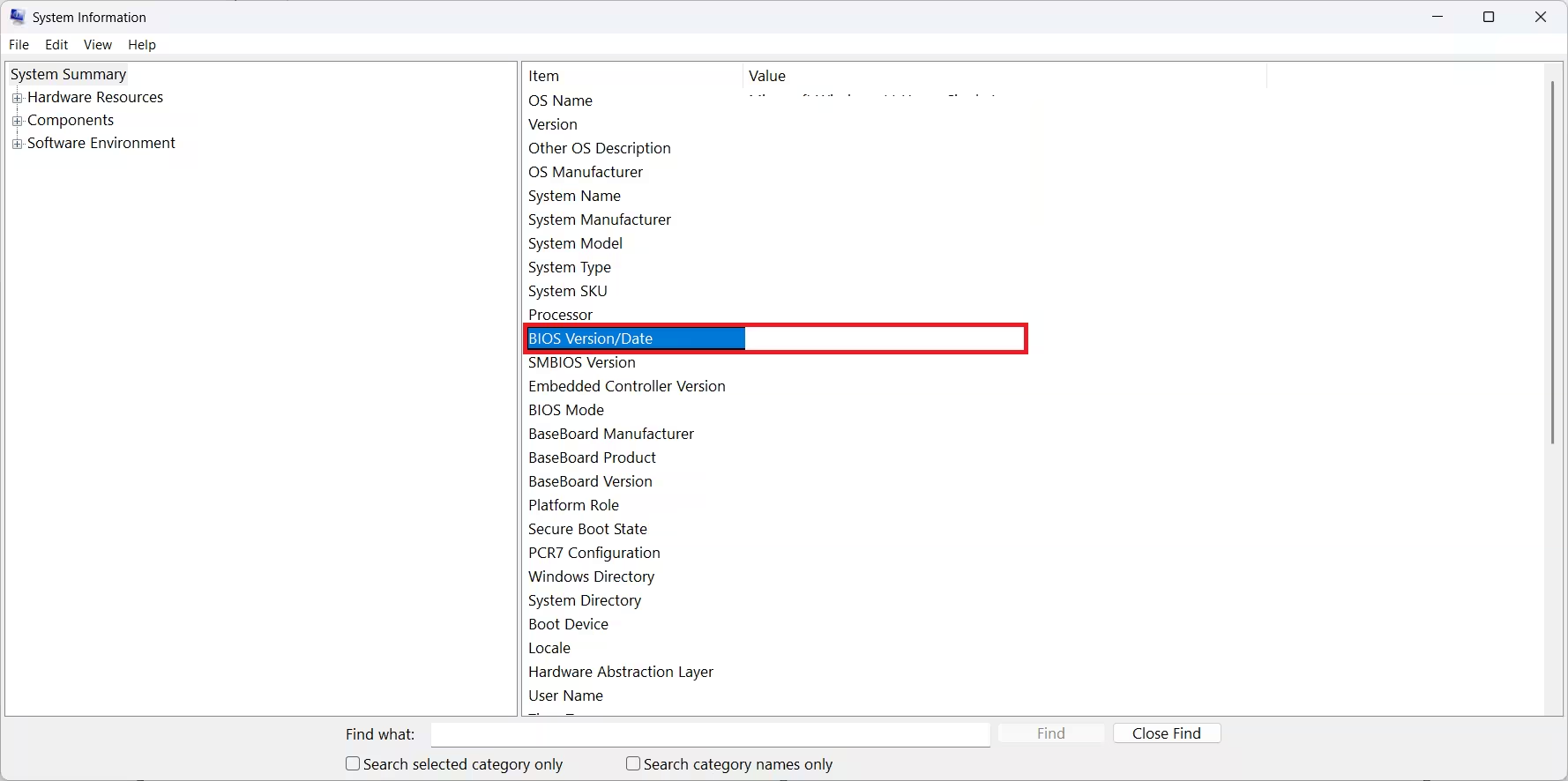
This method works on every Windows 11 device regardless of the manufacturer, since it pulls data directly from Windows rather than relying on OEM software.
Method 2: Check BIOS Version Using Command Prompt
Command Prompt gives you the same information in a single line.
- Search for cmd in the Start menu and open Command Prompt.
- Type the following command and press Enter:
wmic bios get smbiosbiosversionThe output displays your current BIOS version directly below the command.
Microsoft has deprecated wmic and removed it from some newer Windows 11 builds. If you see a “not recognized” error after running the command, skip to Method 3 and use PowerShell instead.
Method 3: Check BIOS Version Using PowerShell
PowerShell offers a more modern alternative to the wmic command, which Microsoft has marked for deprecation.
- Search for PowerShell in the Start menu and open it.
- Run the following command:
Get-WmiObject win32_bios | Select-Object SMBIOSBIOSVersionThis returns the BIOS version in a clean, readable format.
Method 4: Check BIOS Version Using Settings
Some systems display BIOS details directly in the Settings app, though this depends on the manufacturer.
- Open Settings and go to System > About.
- Under Device specifications, check for BIOS Version/Date.
Not all OEMs populate this field, so if it is missing, use one of the methods above instead.
Method 5: Check BIOS Version From Inside the BIOS
If your PC won’t boot into Windows normally, you can still view the BIOS version directly from the firmware screen.
- Open Settings and go to System > Recovery.
- Next to Advanced startup, click Restart now.
- After the reboot, select Troubleshoot > Advanced options > UEFI Firmware Settings, then click Restart.
- Once the BIOS screen loads, look for BIOS Version or Firmware Version on the Main or startup tab. The exact label and location vary by motherboard manufacturer.
If you can’t sign in to Windows at all, click the power icon on the sign-in screen, hold Shift, and click Restart to reach the same Advanced Startup menu.
Once you’ve confirmed your BIOS version, check your motherboard or laptop manufacturer’s support page to see if a newer version is available before deciding whether to update.
Method 6: Check BIOS Version Using Registry Editor
The Windows Registry stores BIOS details as system properties, which you can view directly without opening any diagnostic tool.
- Press
Win + R, typeregedit, and press Enter. - Navigate to the following path:
HKEY_LOCAL_MACHINE\HARDWARE\DESCRIPTION\System\BIOS- Look for BIOSVersion and BIOSReleaseDate in the right pane to see your current firmware details.
This method is useful if Command Prompt or PowerShell access is restricted on your system, since Registry Editor remains accessible in most standard Windows configurations.
Frequently Asked Questions
Why do I need to know my BIOS version?
Knowing your BIOS version helps you confirm compatibility with new hardware, verify whether a firmware update is needed, and provide accurate details when contacting manufacturer support.
Does checking the BIOS version require restarting the PC?
No, not for most methods. Methods 1 through 4 and Method 6 work from within Windows without restarting. Only Method 5 requires a restart, since it involves [entering the BIOS setup screen](https://www.fdaytalk.com/how-to-enter-bios-in-windows-11/) directly.
Is wmic still reliable on Windows 11?
The wmic command still works on most Windows 11 systems, but Microsoft has deprecated it in favor of PowerShell. The Get-WmiObject command is the more future-proof option.
Which method should I use if I’m not comfortable with commands?
Use Method 1 (System Information) or Method 4 (Settings). Both rely on simple menu navigation with no typed commands, making them the most beginner-friendly options.
Can I check the BIOS version of a laptop the same way as a desktop?
Yes. All six methods work identically on laptops and desktops running Windows 11, since they read firmware data through Windows rather than through hardware-specific tools.

