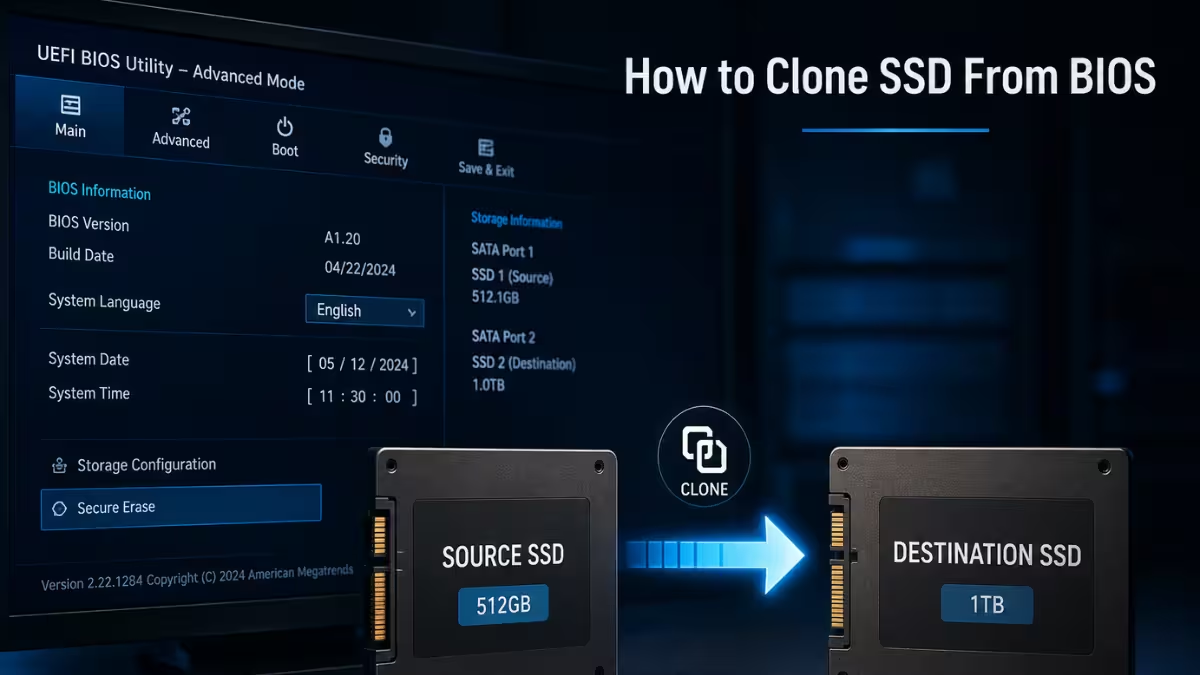
Cloning an SSD from BIOS lets you copy a failing or full drive onto a new one without ever loading Windows. This method is useful in a few situations. Windows may refuse to boot at all. Or there may be no free space left to run a cloning tool from inside Windows. Or the source disk may be starting to fail, so every extra read on it is a risk.
Why You Might Need to Clone an SSD From BIOS
Windows based cloning tools need enough free space on the source drive and a working operating system to run in. Neither is guaranteed when a drive is dying or the system won’t boot.
- The system drops straight into BIOS or a boot loop, and Windows never loads.
- The current SSD is full, so there is no room to install or run a cloning tool from inside Windows.
- The drive shows early signs of failure, and you want to copy readable data to a new disk before it gets worse.
- You are upgrading to a new NVMe or M.2 SSD on a machine that no longer boots reliably.
What You Need Before You Start
A few things in place beforehand will save you from restarting the whole process halfway through.
- A USB flash drive, at least 8GB, that you can fully erase.
- A disk cloning tool that can build a bootable USB. Most cloning tools include this option. Look for a feature called Bootable Media or Create Boot Disk.
- A second working PC. The computer that won’t start can’t run any software, so you need a different, working computer to install the cloning tool and build the bootable USB. Once the USB is ready, you move it to the PC that won’t start.
- A target drive, connected and ready. If it is a brand new disk, initialize it first (this just means preparing it so Windows can recognize it). Also make sure its storage capacity is at least as large as the data on the source SSD.
- A backup of anything on the target drive. The cloning process erases everything already on the destination disk, and building the bootable USB wipes that drive too.
- Check whether BitLocker is turned on for the source drive. BitLocker is a Windows feature that locks a drive’s contents with a password style code, so no one else can read the data if the drive is lost or stolen.
- If it’s on, you may need a recovery key during or after cloning to unlock the drive.
- If you saved this key online before, you can look it up through the BitLocker recovery process.
How to Create a Bootable USB for Cloning
You build this USB on the working PC, then move it to the machine you need to clone.
- Connect the USB drive to the working computer.
- Open your cloning software.
- Find the bootable media or boot disk creation option. It’s usually listed on the left side of the main window.
- Select the USB drive as the target. If no USB is connected, most tools let you save a disc image file instead and burn it to a USB later.
- Click Create.
- Confirm the warning that the drive will be erased.
- Once the process finishes, choose Done rather than restarting. You’ll use this USB on a different PC, not this one.
How to Clone SSD From BIOS Using the Bootable USB
With the bootable USB ready, plug it into the PC with the failing or full drive and boot from it directly.
- Insert the bootable USB into the target PC and power it on.
- Press the key for your BIOS or boot menu during startup. This is commonly F2, F10, F12, or Del, and it varies by manufacturer.
- Set the USB drive as the first boot device.
- Save the change and restart. The PC will now load the cloning tool instead of Windows.
- Once the cloning tool’s interface loads, select Clone.
- Choose either Clone OS Disk or Clone Data Disk, depending on what you’re copying.
- Select the source disk. This is the drive you’re cloning from.
- Click Next.
- Select the target disk. This is the new drive you’re copying everything onto.
- A warning will appear saying the target disk’s existing data will be erased. Confirm it, then click Next.
- Review the partition layout. Most tools offer a few options here: Autofit (lets the tool decide), Clone as source (keeps the same layout as the old drive), or Edit layout (lets you set the sizes yourself).
- Click Start to begin cloning. This can take anywhere from fifteen minutes to a few hours, depending on how much data you have and how the drives are connected.
How to Boot From the Cloned SSD
Once cloning finishes, you need to tell BIOS to boot from the new drive instead of the old one.
- Restart the PC and enter BIOS using the same key combination as before.
- Go to the Boot tab using the arrow keys, then select the cloned SSD as the first boot option.
- Press F10 to save changes and exit. The PC restarts and should now load Windows from the new drive.
Common Problems After Cloning an SSD From BIOS
Cloning generally goes smoothly, but a few issues show up often enough to plan for.
- BIOS detects the SSD, but Windows won’t load. Windows needs a small hidden section called the EFI system partition to start up correctly. Check that this partition was included in the clone. You can also try temporarily turning off Secure Boot in BIOS, which is a setting that blocks any drive it doesn’t recognize as trusted.
- The cloning process gets stuck. This is usually caused by a mismatch in how the two drives are formatted. Drives use one of two formatting styles, called GPT and MBR, and your PC also boots using one of two modes, called UEFI and Legacy. If these don’t match between your source and target drives, cloning can freeze. Check that the boot mode matches the source disk before trying again.
- The cloned SSD won’t boot at all. This can happen for a couple of reasons. The boot files may not have copied correctly, or BIOS may still be set to boot from the old disk instead of the new one. Try these fixes in order:
- Reclone the drive with only the target SSD connected.
- Confirm the partition style matches the boot mode. UEFI needs GPT, and Legacy needs MBR.
- In BIOS, set the new SSD as the primary boot device.
- If boot files are missing, Windows recovery tools can rebuild them. These are typed commands that repair the files Windows needs to start, and they include
bootrec /fixmbr,bootrec /fixboot, andbootrec /rebuildbcd.
Frequently Asked Questions
Can I clone an SSD from BIOS without Windows installed?
Not directly. BIOS only boots a system; it doesn’t clone anything on its own. You need a bootable USB carrying cloning software that runs independently of Windows.
Can I clone a failing SSD to an external hard drive this way?
Yes, as long as the failing SSD is still readable. A bootable cloning environment can copy whatever data is still accessible, even if Windows itself can’t start.
Why does BIOS detect my SSD, but Windows still won’t boot after cloning?
This is most often caused by an incomplete EFI partition, Secure Boot blocking the new drive, or a mismatched boot mode between the source and target disks.
Is cloning better than reinstalling Windows in this situation?
In most cases, yes. Cloning keeps your applications, settings, and files intact, while a fresh Windows install means setting everything up again from scratch.
Do I need to initialize the target disk before cloning?
Yes. Initializing prepares the disk structure to receive partitions and boot data, which lowers the chance of the clone failing partway through.

