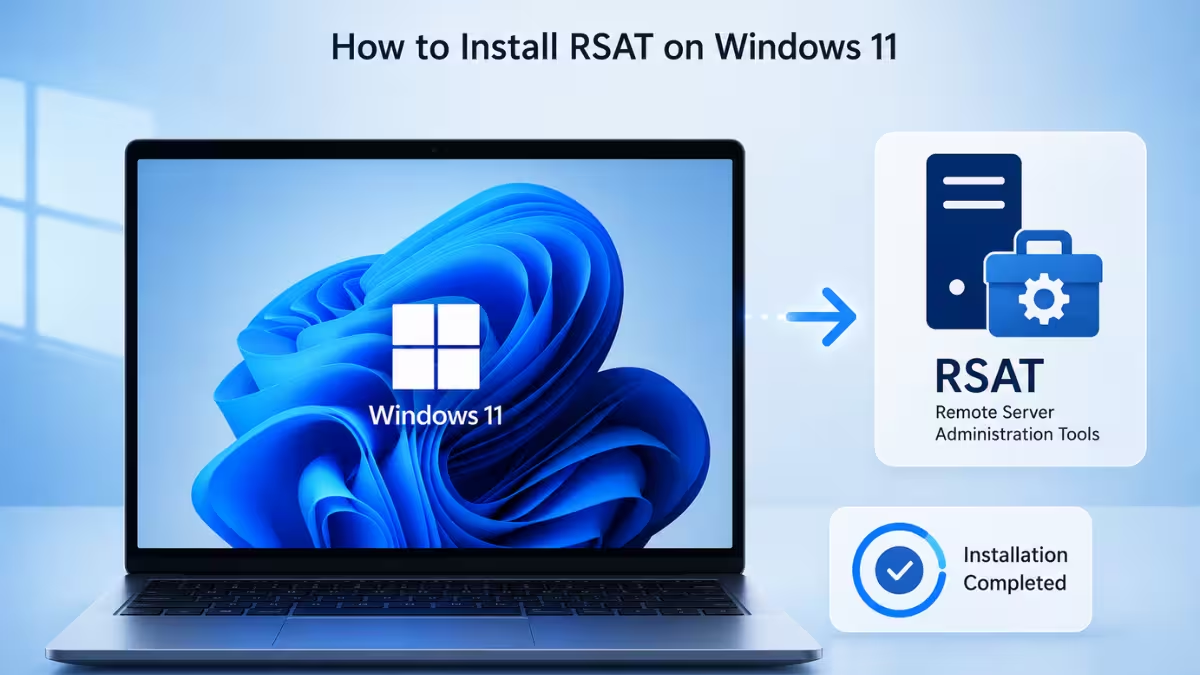
Remote Server Administration Tools (RSAT) lets IT admins manage Windows Server roles and features directly from a Windows 11 PC. Windows 11 includes RSAT as a set of optional features, so you install it through Settings without downloading any separate package. This guide covers the full installation process, verification steps, and common fixes.
What Is RSAT and Why You Need It
RSAT bundles Server Manager, MMC snap-ins, PowerShell cmdlets, and command-line tools for managing Windows Server roles remotely. You need it when you administer Active Directory, DNS, DHCP, Group Policy, or other server roles from your desktop instead of logging into the server itself.
Requirements Before You Install
Check these requirements before you start the installation.
- Windows 11 Pro, Enterprise, or Education edition. RSAT does not install on Windows 11 Home.
- An active internet connection, since Windows installs RSAT features on demand from Microsoft's servers.
- An admin account on the PC.
- On Arm64 devices, only a limited set of RSAT tools is available: Active Directory Domain Services and Lightweight Directory Services Tools, Active Directory Certificate Services Tools, Server Manager, Group Policy Management Tools, DNS Server Tools, and DHCP Server Tools.
Method 1: Install RSAT Through Windows Settings
This is the standard method for Windows 11 and works for most users.
- Press
Win + Ito open Settings. - Select System from the left sidebar, then select Optional features. On older builds, this may appear under Apps instead.
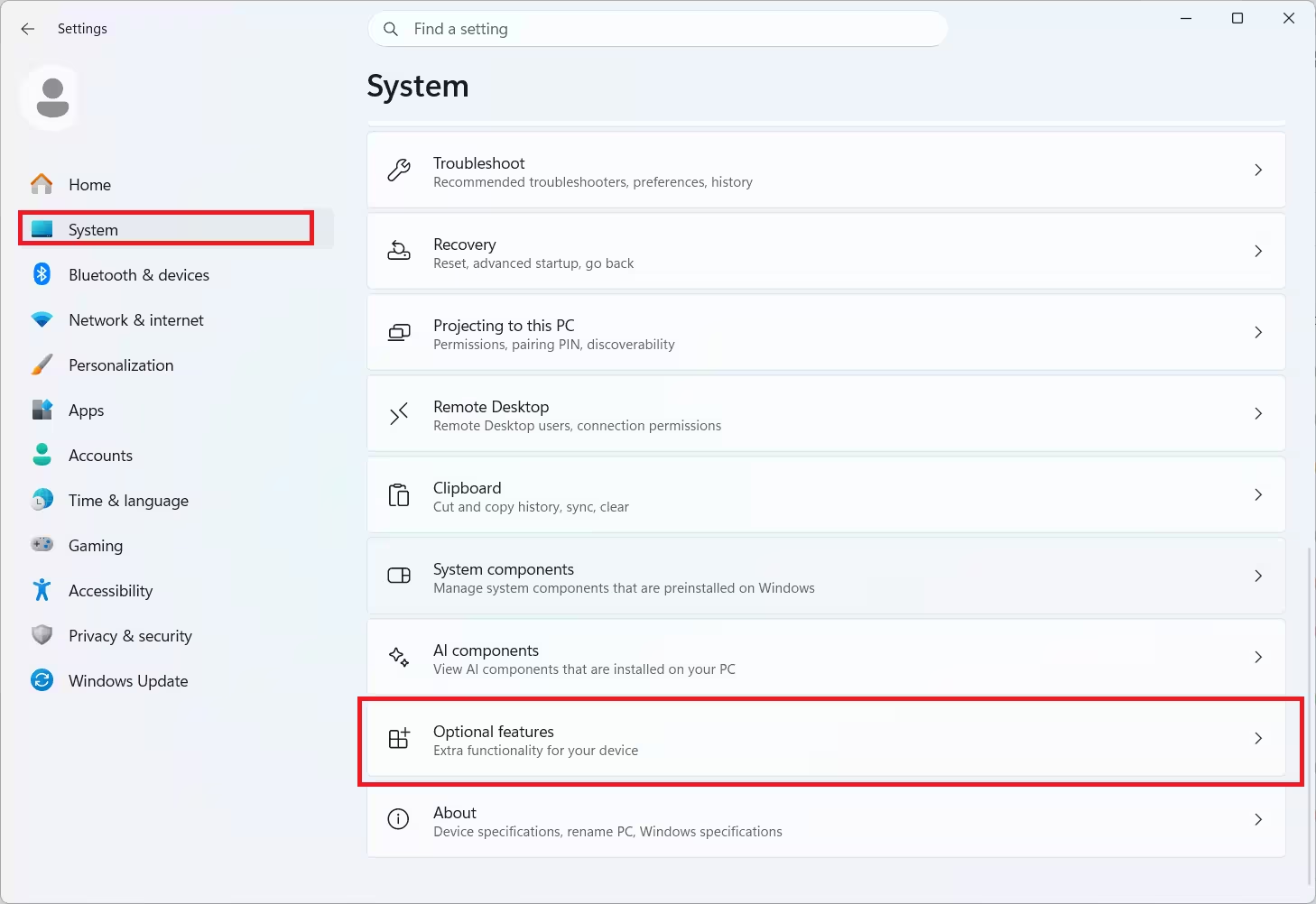
- Select View features, then select See available features to switch from installed features to the full list you can add.
- Type Remote in the search box. The tools are listed under their full name, Remote Server Administration Tools, so searching RSAT may return no results.
- Check the boxes next to the RSAT tools you need, such as RSAT: Active Directory Domain Services and Lightweight Directory Services Tools or RSAT: DNS Server Tools.
- Select Next, then Install.
- Wait for the install to finish. You can track progress by going back to Optional features and checking the status next to each tool.
Once installed, these features persist across Windows 11 feature updates, so you will not need to reinstall RSAT after every major update.
If the search still shows No features found after these steps, skip to Method 2 or Method 3, since PowerShell and DISM install RSAT directly without depending on the Settings search index.
Method 2: Install RSAT Using PowerShell
PowerShell is faster if you need to install several tools at once or want to automate the process.
- Press
Win + Xand select Windows Terminal (Admin). - Run this command to list all available RSAT capabilities:
Get-WindowsCapability -Name RSAT* -Online- Copy the exact name of the capability you need from the output.
- Install it with:
Add-WindowsCapability -Online -Name Rsat.ActiveDirectory.DS-LDS.Tools~~~~0.0.1.0- Replace the name with the capability you copied for other tools, such as DNS Server Tools or Group Policy Management Tools.
- Repeat the command for each tool you need.
Method 3: Install RSAT Using DISM
DISM works well for scripted deployments across multiple machines.
- Open Command Prompt as administrator.
- Run the following to see available capabilities:
DISM /Online /Get-Capabilities | findstr RSAT- Add a specific tool with:
DISM /Online /Add-Capability /CapabilityName:Rsat.DNS.Tools~~~~0.0.1.0- Swap the capability name for the specific tool you want to install.
How to Verify RSAT Installed Correctly
Confirm the tools are available before you close Settings.
- Press
Win + Sand search for the tool name, such as Active Directory Users and Computers or DNS Manager. - Confirm the app opens without errors.
- If it does not appear in Start, restart your PC and search again.
Fix RSAT Installation Errors
Fix 1: Error 0x800f0954 or 0x800f0922 During Install
This error usually means Windows Update is blocked from reaching Microsoft's servers to download the optional feature files.
- Check that Windows Update is not disabled through Group Policy or a registry setting.
- Confirm your PC has a working internet connection and is not behind a proxy that blocks Windows Update traffic.
- Run Windows Update Troubleshooter from Settings > System > Troubleshoot > Other troubleshooters.
- If the error persists, repair the Windows image with this command in an admin Command Prompt:
DISM /Online /Cleanup-Image /RestoreHealth- Retry the install after the troubleshooter or repair command completes.
Fix 2: RSAT Tool Missing From the List
If a specific RSAT tool does not show up under Optional features, it may already be installed or unavailable for your Windows 11 edition.
- Check Optional features > View features and search again with just RSAT instead of the full tool name.
- Confirm you are not on Windows 11 Home, since RSAT is not supported there.
- On Arm64 devices, only the six tools listed in the requirements section are available. Other tools will not appear.
Fix 3: Uninstall Fails or Tool Reappears After Removal
Some RSAT tools depend on others, which can block removal or cause the tool to appear installed again after a restart.
- If Tool A is a dependency of Tool B, uninstall Tool B first, then remove Tool A.
- You can also uninstall a specific tool through PowerShell instead of Settings:
Remove-WindowsCapability -Online -Name Rsat.DNS.Tools~~~~0.0.1.0- After uninstalling, restart your PC to complete the removal process.
- Check Optional features again after restart to confirm the tool is gone.
Fix 4: RSAT Shows as Not Installed After a Windows Update
A Windows 11 feature update can occasionally reset the state of an RSAT tool, even though it worked fine before the update.
- Open Optional features and check if the tool now shows as Not installed.
- Reinstall it using the same Settings, PowerShell, or DISM method you used the first time.
- Restart your PC after reinstalling to confirm the tool loads correctly.
What Causes RSAT Installation Problems
- Windows Update service is disabled or blocked by network policy, which stops the on-demand feature download.
- The Windows 11 edition in use does not support RSAT, such as Windows 11 Home.
- A dependency between two RSAT tools blocks a clean uninstall.
- Regional or corporate network restrictions prevent access to Microsoft's Features on Demand servers.
- A Windows 11 feature update resets the installed state of an optional feature, which requires a manual reinstall.
Frequently Asked Questions
Can I install RSAT on Windows 11 Home?
No. RSAT installs only on Windows 11 Pro, Enterprise, or Education. Windows 11 Home does not support these optional features.
Do I need to reinstall RSAT after a Windows 11 update?
No. RSAT tools installed as optional features persist across feature updates, so you do not need to reinstall them.
Can I install RSAT without an internet connection?
No. Windows 11 downloads RSAT tools on demand from Microsoft's servers, so an active internet connection is required during installation.
Which RSAT tools work on Arm64 devices?
Arm64 devices support RSAT: Active Directory Domain Services and Lightweight Directory Services Tools, RSAT: Active Directory Certificate Services Tools, RSAT: Server Manager, RSAT: Group Policy Management Tools, RSAT: DNS Server Tools, and RSAT: DHCP Server Tools only.