Matplotlib is a Python library used for creating charts, graphs, and visualizations, including line graphs, bar charts, scatter plots, and histograms. A missing or broken Matplotlib install usually comes down to the wrong pip, an inactive environment, or a PATH issue rather than the library itself. This article covers every method to install Matplotlib, pip, conda, and virtual environments, with separate steps for Windows, macOS, and Linux, plus fixes for the errors that show up most often during installation.
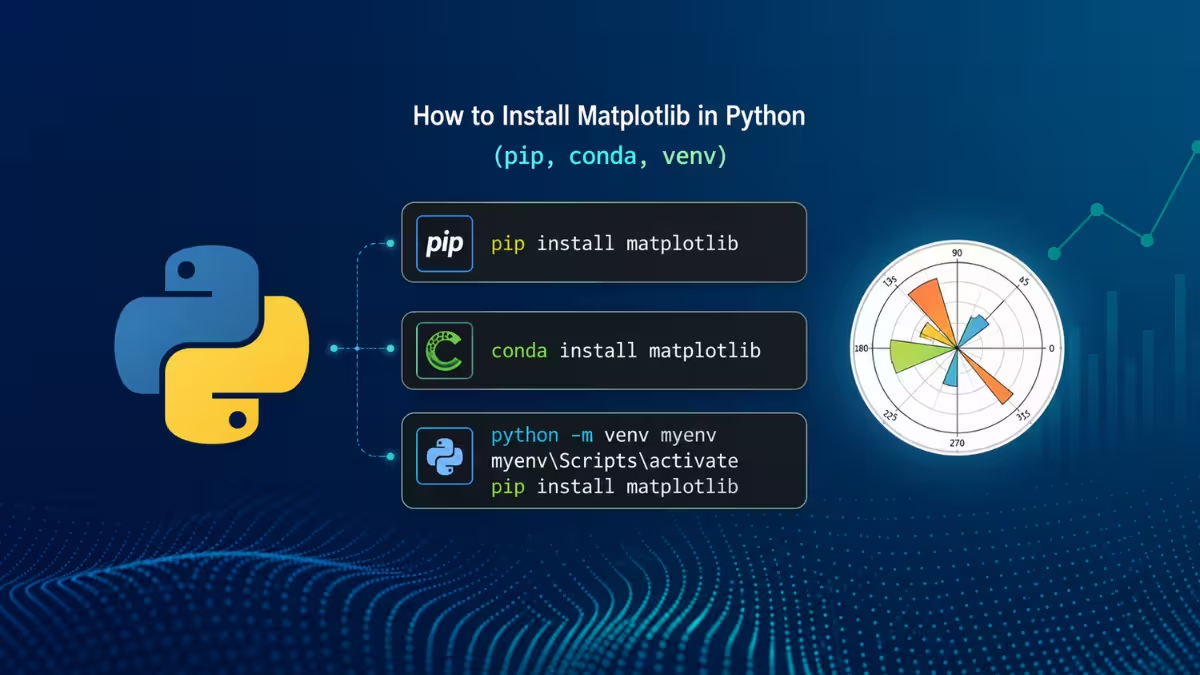
Before You Install
A few quick checks prevent most installation problems before they start.
- Python version: Run
python --versionorpython3 --versionin the terminal. Matplotlib requires Python 3.9 or higher. - pip availability: Run
pip --version. A missing pip installs withpython -m ensurepip --upgrade. - Active environment: A virtual environment or Conda environment needs to be activated before installing, otherwise Matplotlib installs into the wrong Python.
Method 1: Install Matplotlib Using pip
The pip command installs Matplotlib directly from the Python Package Index.
Run the following command in a terminal or command prompt.
pip install matplotlibSystems with Python 3 mapped to pip3 instead of pip use this command.
pip3 install matplotlibSystems with multiple Python versions installed benefit from calling pip through the interpreter directly, since this installs into the exact Python environment in use.
python -m pip install matplotlibpython3 -m pip install matplotlibMethod 2: Install Matplotlib on Windows
Windows 10 and 11 use the same install process through Command Prompt.
- Open Command Prompt by searching for
cmdin the Start menu. - Check the installed Python version with
python --version. - Upgrade pip with
python.exe -m pip install --upgrade pip. - Install Matplotlib with
python -m pip install matplotlib. - Verify the install with
python -c "import matplotlib; print(matplotlib.__version__)".
A python is not recognized error means Python was not added to PATH during installation. Reinstalling Python and checking the Add Python to PATH box on the first installer screen fixes this.
Method 3: Install Matplotlib on macOS
macOS ships with a system Python that most projects avoid using directly, since a separate Python from python.org or Homebrew keeps project dependencies isolated from the OS.
python3 -m pip install matplotlibVerify the install and confirm which Python installation it uses.
python3 -c "import matplotlib; print(matplotlib.__version__, matplotlib.__file__)"Running which python3 and seeing /usr/bin/python3 in the output confirms the system Python is active, which works for quick installs but a virtual environment remains the better option for real projects.
Method 4: Install Matplotlib on Linux
Linux systems install Matplotlib through pip or the system package manager.
Pip installs the latest version and works the same way across distributions.
python3 -m pip install matplotlibThe system package manager installs an OS-tested version that sometimes lags behind the latest Matplotlib release.
- Debian / Ubuntu:
sudo apt-get install python3-matplotlib - Fedora:
sudo dnf install python3-matplotlib - Red Hat:
sudo yum install python3-matplotlib - Arch Linux:
sudo pacman -S python-matplotlib
Fix the Externally Managed Environment Error on Linux
Newer Ubuntu and Debian releases block system-wide pip installs to protect OS packages, which triggers this error during a direct install attempt.
Adding the --break-system-packages flag bypasses the restriction for a single package.
pip install matplotlib --break-system-packagesA virtual environment remains the safer long-term fix, since it avoids touching system packages entirely.
Method 5: Install Matplotlib in a Virtual Environment
A virtual environment keeps Matplotlib and its dependencies isolated from the system-wide Python installation, which real projects benefit from.
Create and activate the environment first.
python3 -m venv venvLinux and macOS activate the environment with this command.
source venv/bin/activateWindows activates the environment with this command instead.
venv\Scripts\activateRun the standard install command once the environment is active.
pip install matplotlibMethod 6: Install Matplotlib with Conda
Anaconda and Miniconda users install Matplotlib through conda so dependencies stay managed together.
conda install matplotlibThe community-maintained conda-forge channel usually carries a more up-to-date release.
conda install -c conda-forge matplotlibCreating a separate environment before installing avoids conflicts with the base environment.
conda create -n my-env
conda activate my-env
conda install matplotlib
Verify the Matplotlib Installation
A version check confirms Matplotlib installed correctly and is importable.
python -c "import matplotlib; print(matplotlib.__version__)"A version number in the output, such as 3.10.1, confirms a working install. A ModuleNotFoundError means the install did not complete in the same environment used for verification, so the pip or conda command needs to be rerun there.
Run a First Plot
A short script confirms Matplotlib renders a chart correctly after installation.
Run a First Plot
A short script confirms Matplotlib renders a chart correctly after installation.
import matplotlib.pyplot as plt
import numpy as np

x = np.linspace(0, 2 * np.pi, 100)
plt.plot(x, np.sin(x), label="sin(x)")
plt.plot(x, np.cos(x), label="cos(x)")
plt.legend()
plt.title("Trigonometric Functions")
plt.show()
A window with two curves confirms Matplotlib is working. Jupyter Notebook users often see the plot render without needing plt.show().
Upgrade or Uninstall Matplotlib
Matplotlib updates, downgrades, and removals all run through pip.
Upgrade to the latest version.
pip install --upgrade matplotlibCheck the currently installed version and install location before upgrading.
pip show matplotlibInstall a specific version for compatibility with an older project.
pip install matplotlib==3.8.0Uninstall Matplotlib completely.
pip uninstall matplotlibCommon Matplotlib Installation Errors
Most Matplotlib install failures trace back to environment mismatches, PATH issues, or outdated tools.
| Error | Cause | Fix |
|---|---|---|
ModuleNotFoundError: No module named 'matplotlib' | Package not installed in the active environment | Run pip install matplotlib with the environment activated |
Installed but still shows ModuleNotFoundError | pip installed into a different Python than the one running the script | Use python -m pip install matplotlib |
pip: command not found | pip missing from PATH | Use python -m pip install matplotlib or pip3 |
PermissionError: [Errno 13] Permission denied | No write access to the system package directory | Use a virtual environment or add --user |
SSL: CERTIFICATE_VERIFY_FAILED | Corporate proxy blocking certificate verification | Run pip install --trusted-host pypi.org --trusted-host files.pythonhosted.org matplotlib |
ERROR: Failed building wheel | Outdated pip or missing wheel package | Run python -m pip install --upgrade pip wheel setuptools, then retry |
| Version conflict with NumPy | Incompatible package versions installed together | Run pip install matplotlib --upgrade or use a fresh virtual environment |
Matplotlib installs through a single pip or conda command on most systems, with virtual environments, Windows PATH fixes, and the --break-system-packages flag covering the common edge cases across platforms. Running the version check and a first plot after installation confirms Matplotlib is ready to use in a Python script.
Frequently Asked Questions
How do I know if Matplotlib is already installed?
Running python -c "import matplotlib; print(matplotlib.__version__)" in the terminal prints a version number when Matplotlib is installed and raises a ModuleNotFoundError when it is not.
Can I install Matplotlib without pip?
Linux systems install Matplotlib through the system package manager, such as apt-get, dnf, or pacman. Anaconda and Miniconda install it through conda install matplotlib.
How do I install a specific version of Matplotlib?
Running pip install matplotlib==X.X.X with the exact version number installs that release, for example pip install matplotlib==3.7.2.
Why does my plot not show up?
A missing plt.show() at the end of the script keeps the plot window from appearing outside Jupyter Notebook. A persistent blank window points to a backend issue, which matplotlib.use('TkAgg') before the pyplot import usually resolves.
Does Matplotlib work with the latest Python versions?
Matplotlib supports Python 3.9 through 3.13, so installing the latest stable Python 3.x release keeps compatibility intact.
Read More
- How to Fix Azure Blob Storage ConnectionResetError 10054 in Python (On-Prem Windows VM Guide)
- Python Errors: ‘Type or Namespace Not Found’ Fix
- 7 Best AI Tools for Small Business Owners (2026)
- League of Legends Error 004: How to Fix the Patch Failure
- Pokemon Center 503 Error: How to Fix Service Unavailable Issue
- How to Install RSAT on Windows 11 (Step by Step Guide)
- How to Check BIOS Version in Windows 11

