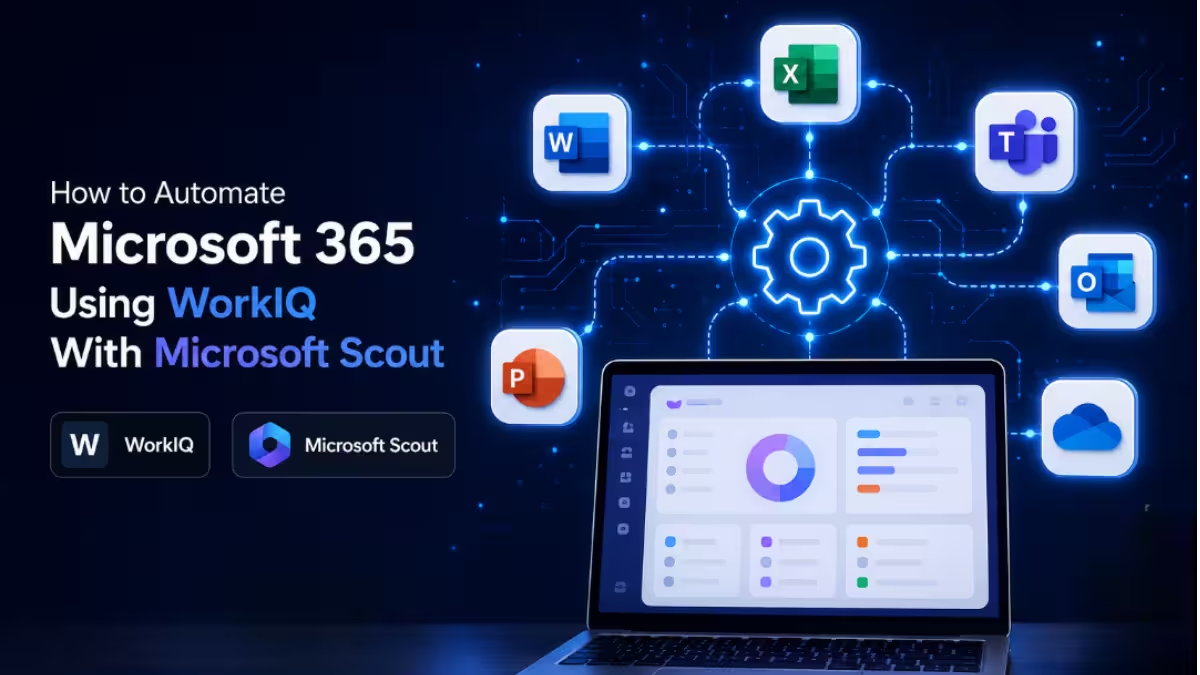
Microsoft Scout is a desktop AI application from Microsoft’s Frontier preview program that can act on your files, run shell commands, control a browser, and work directly with Microsoft 365 data. For Microsoft 365 tasks, it relies on a combination of direct API tools and WorkIQ for handling more complex queries. This tutorial explains how Microsoft Scout connects to Microsoft 365 and how to put its automation features to work.
What Is Microsoft Scout
Microsoft Scout is a desktop AI application that acts on your files, runs commands, controls a browser, and works with your Microsoft 365 data through a chat interface.
The chat window renders responses in rich markdown, including headings, tables, code blocks with syntax highlighting, Mermaid diagrams, and inline images. Requests are processed as soon as you send them, and follow-up messages are queued in order so you can redirect Microsoft Scout mid-task without losing your place.
What Is WorkIQ
WorkIQ is the component Microsoft Scout uses alongside direct API tools (m365_*) to handle complex Microsoft 365 queries.
While simple, well-defined requests route through direct API calls, WorkIQ steps in for queries that need broader reasoning across your Microsoft 365 data, such as cross-referencing emails, calendar events, and documents in a single request.
Requirements Before You Start
Microsoft Scout requires enrollment in the Frontier preview program before you can access it.
- Sign up and accept the Frontier participation terms.
- Availability and capabilities may change since this is prerelease documentation.
- Frontier previews are governed by your existing customer agreement’s preview terms.
How to Set Up Microsoft Scout
Setup takes a handful of steps before Microsoft Scout can start automating Microsoft 365 tasks.
- Download and install Microsoft Scout for Windows or macOS.
- Sign in with your Microsoft 365 credentials.
- Configure your workspace directory, which is the folder Microsoft Scout reads from and writes to.
- Connect to Microsoft 365 for email, calendar, Teams, and OneDrive access if you plan to automate those areas.
- Type a request in the chat and send it.
Microsoft Scout is a desktop-only application for Windows and macOS. It doesn’t run on mobile devices because it needs local file system access, shell access, and browser control that mobile platforms don’t expose.
Permissions and Data Security With WorkIQ
Microsoft Scout only accesses the Microsoft 365 resources your administrator has explicitly connected, and it doesn’t bypass existing protections on top of that.
Documents protected with Microsoft Purview sensitivity labels and role-based permissions stay protected during automated workflows, so a restricted file remains restricted whether you open it manually or Microsoft Scout retrieves it on your behalf.
What You Can Automate With WorkIQ and Microsoft Scout
Once connected, Microsoft Scout can act on your Microsoft 365 data directly from chat requests instead of manual clicks through Outlook, Teams, or SharePoint. WorkIQ lets it connect the dots across your Teams chats, calendar, email, and stored documents instead of treating each app as a separate silo, deciding whether to use a direct m365_* API tool or route the request through WorkIQ depending on how complex the query is.
Catch Up on Teams Conversations
Ask Microsoft Scout to review a chat or channel and summarize what happened while you were away.
Instead of scrolling through a long thread, a request like “Summarize the project channel from this week” surfaces the decisions made, deadlines mentioned, tasks assigned, and any questions still waiting on an answer.
Prepare for Meetings
Microsoft Scout can pull together everything relevant to an upcoming meeting before it starts.
A request such as “Prepare me for my 3 PM meeting” has it check your calendar, pull related Teams conversations, and locate supporting documents from SharePoint, so you walk in with context instead of gathering it yourself.
Draft Outlook Emails From Context
Rather than starting a follow-up email from a blank draft, Microsoft Scout can build one from recent meeting notes and project updates.
A prompt like “Draft a follow-up email summarizing today’s meeting” produces a draft with discussion points, action items, and next steps included. You still review and send it yourself.
Find Files Across SharePoint, OneDrive, and Teams
Project files are rarely in one place, and WorkIQ helps Microsoft Scout locate them without a manual search through each app.
Describing the file you need, such as “Find the Q3 budget spreadsheet someone shared in Teams,” lets Microsoft Scout search across connected locations and surface the most relevant match.
How Microsoft Scout Handles Files
Microsoft Scout reads, writes, and searches files inside your workspace directory using MCP filesystem tools.
You can ask it to create new files, such as a markdown summary or an HTML dashboard, or edit existing ones, like updating a README or fixing formatting in a Word document. For structured documents, it automatically loads specialized skills for Word, Excel, PowerPoint, and interactive web artifacts, activating whichever one the request calls for.
Co-creating Files in Real Time
Microsoft Scout supports co-creation on text, code, markdown, and configuration files opened in its in-app preview.
While it edits, an Agent is editing this file badge appears above the editor, along with a colored cursor marking its last edit position. You can keep typing at the same time, and the editor only follows Microsoft Scout’s cursor after a few seconds of your own inactivity, so it won’t pull focus while you’re actively typing.
How Shell Command Permissions Work
Microsoft Scout classifies every shell command into one of three permission tiers before running it.
| Tier | Behavior | Examples |
|---|---|---|
| Auto-approve | Runs without prompting | ls, cat, grep, git log |
| Prompt | Pauses for your approval | npm install, git push, curl |
| Deny | Blocked entirely | Destructive commands like rm -rf / |
You can customize this behavior from Settings > Permissions, where you can add patterns to the allow list, block categories of commands entirely, toggle auto-approve for read-only commands, and mark sensitive paths that always require approval.
How Browser Control Works
Microsoft Scout automates a browser using bundled Playwright tools, letting it navigate sites, fill forms, click buttons, and extract content on your behalf.
This is also how the bundled Loop skill edits Microsoft Loop documents: Microsoft Scout navigates to the page, makes the requested edits, and confirms the changes back to you.
Heartbeat Mode and Automations
Heartbeat is a background mode where Microsoft Scout periodically runs a single repeating prompt without waiting for you to send a message.
You configure the prompt, how often it runs (every 15 minutes, 30 minutes, 1 hour, or 2 hours), the work hours during which it stays active, and a separate permission policy for what it can do unattended. Automations differ in that they are discrete, scheduled or condition-triggered tasks with their own prompt and workflow, rather than one recurring check-in prompt.
Frequently Asked Questions
Does Microsoft Scout work on mobile devices?
No. Microsoft Scout is a desktop application for Windows and macOS, since it requires local file system access, shell access, and browser control that aren’t available on mobile platforms.
Can Microsoft Scout delegate work to sub-agents?
Yes. It can launch specialized sub-agents, including Explore, Task, Code review, Research, and General-purpose agents, that run in the background and report results once finished.
How does action approval work?
Before taking a sensitive action, such as sending an email or running a command that requires approval, Microsoft Scout pauses and shows exactly what it plans to do. You can Approve, select Always allow to add the pattern to the auto-approve list, or Deny the action.
What happens if I lose my connection?
Work in progress pauses until the connection is restored, at which point Microsoft Scout resumes automatically. Work completed before the disconnection is preserved.
Can an administrator disable Microsoft Scout?
Yes. Administrators can control access through the organization’s Intune admin center, including disabling installation, managing licensing, or restricting access for specific users or groups.
Which Microsoft 365 apps work with WorkIQ?
WorkIQ works across Microsoft Teams, Outlook, Outlook Calendar, SharePoint, and OneDrive, as long as your administrator has connected and authorized those services.

