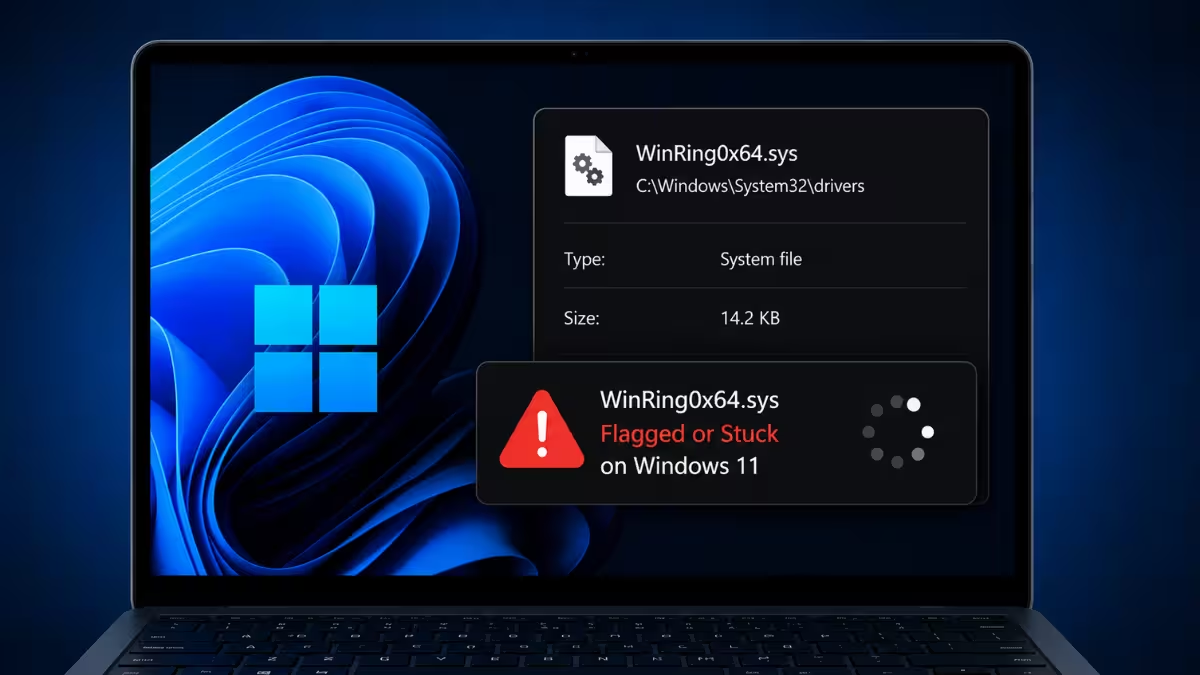
WinRing0x64.sys is a kernel driver that shows up either as a Windows Defender detection or as a leftover file in System32 that will not go away. It usually comes bundled with fan control, RGB lighting, or hardware monitoring software, and it sticks around because a known vulnerability in the driver, not the driver acting maliciously, is what triggers the alert. This guide covers what causes it, how to tell if your copy is safe, and two fixes to remove it for good.
What Causes the WinRing0x64.sys Issue
WinRing0x64.sys is not a default Windows file, so it only appears on a PC because an app installed it or a leftover service is still recreating it.
- Hardware monitoring and fan control tools such as HWiNFO, MSI Afterburner, Libre Hardware Monitor, and OpenRGB bundle WinRing0x64.sys to get low-level access to CPU and sensor data.
- The driver contains a known vulnerability tracked as CVE-2020-14979, which lets local processes read and write arbitrary memory locations.
- Microsoft Defender has started actively flagging it under names like
HackTool:Win32/Winring0orVulnerableDriver:WinNT/Winring0, even when the parent app is legitimate. - Windows 11 22H2 and later enables Microsoft’s vulnerable driver blocklist by default, and the same blocking also triggers when Memory Integrity or Smart App Control is turned on.
Is It Safe to Keep or Should You Delete It
Not every WinRing0x64.sys detection means the same thing, so it is worth a quick check before you remove anything.
- Signs it is legitimate: the file sits inside a known RGB, fan-control, or monitoring app folder you installed on purpose, and the Defender alert first appeared right after installing or updating that app.
- Signs it is risky: the file is in
Temp,AppData, Downloads, or a crack/cheat folder, it keeps returning with no matching hardware app installed, or Defender flags other threats alongside it. - Do not add a Defender exclusion as a first step. An exclusion hides a driver with a confirmed vulnerability instead of resolving why that copy exists on your system.
- If the file matches the risky pattern above, run a full scan in Windows Security before doing anything else.
Fix 1: Stop and Delete the Driver via Command Prompt
This removes the driver service directly when you no longer need the monitoring or RGB app that installed it.
- Open the Start menu, search
cmd, right-click Command Prompt, and select Run as administrator. - Type the following command and press Enter:
sc stop WinRing0x64- Confirm the output shows STATE: STOPPED.
- Delete the service registration with:
sc delete WinRing0x64- Navigate to
C:\Windows\System32\driversand deleteWinRing0x64.sysif it is still present. Deleting the file without stopping the service first can fail or let the parent app recreate it on next launch. - Restart your PC to confirm the service does not return.
Fix 2: Update or Remove the Parent Application
If the driver keeps coming back after Fix 1, an installed app is recreating it on every boot.
- Open Settings > Apps > Installed apps and look for fan control, RGB lighting, or hardware monitoring software, such as MSI Afterburner, SteelSeries Engine, Razer Synapse, OpenRGB, HWiNFO, CapFrameX, OmenMon, ZenTimings, or EVGA Precision X1.
- Check the vendor’s official site for a newer version, since several vendors, including Razer, have shipped patches that drop the vulnerable driver entirely.
- If an update is available, install it and reboot, then repeat Fix 1 to confirm the service is gone.
- If you do not need the app, uninstall it through Settings > Apps, then reboot and repeat Fix 1.
- Run a Full Scan in Windows Security > Virus & threat protection to confirm no related detections remain.
WinRing0x64.sys almost always traces back to a fan control, RGB, or hardware monitoring app rather than an actual infection, but the vulnerability behind it is real, so it is worth handling properly instead of ignoring the alert or excluding it in Defender. Stopping and deleting the driver in Fix 1 clears it in most cases, and updating or removing the parent app in Fix 2 stops it from reappearing on the next reboot. If the file turns up in an unexpected folder with no matching app installed, treat it as a red flag and run a full scan before doing anything else.
Frequently Asked Questions
Is WinRing0x64.sys actually malware?
No. It is a legitimate hardware access driver used by monitoring and RGB control apps. Microsoft Defender flags it because of a real, unpatched vulnerability in the driver itself, not because the file is malicious code.
Should I add a Windows Defender exclusion for WinRing0x64.sys?
No, not as a first step. Adding an exclusion hides a driver with a confirmed vulnerability instead of addressing it. Identify the parent app, update or remove it, then let Defender scan normally.
Is it safe to just delete WinRing0x64.sys?
Yes, if you no longer use the app that installed it. Stop the service first with sc stop WinRing0x64 before deleting the file, otherwise Windows may block the deletion or recreate it on next launch of the parent app.
Why does WinRing0x64.sys keep coming back after I delete it?
The parent app or a related service is set to recreate it automatically on launch or at boot. Removing or updating the parent application in Fix 2 stops this instead of repeating Fix 1 on its own.
Will removing it break my fan control or RGB software?
Deleting the driver will stop that specific feature from working until the app reinstalls it or you update to a version that no longer depends on it. Check the vendor’s latest release before removing it if you still use the app actively.

