ChatGPT’s Memory feature is supposed to carry context from one chat into the next, but plenty of users find it forgets things it should already know. Most of the time, the fix is not complicated. It usually comes down to one of a few settings or account issues you can check in under five minutes.

This guide walks through why ChatGPT memory stops working and how to get it saving and recalling information again. Work through the fixes below in order. Most people are back up and running after the first two.
Why Is ChatGPT Memory Not Working
Memory failures almost always trace back to one of these issues.
- The memory toggle got switched off, sometimes after an app update
- You’re chatting inside Temporary Chat mode, which never touches memory
- Your saved memory slot is full and can’t take new entries
- You’re signed into a different account than the one holding your memories
- The feature isn’t available yet for your plan, region, or account type
- A workspace admin turned memory off on a Team or Enterprise plan
Each of these has a direct fix below.
Fix 1: Turn On the ChatGPT Memory Toggles
If ChatGPT stopped remembering things out of nowhere, start here. The setting is a single switch, and it can end up off without you noticing, especially after an app update or a settings reset.
- Open ChatGPT and click your profile picture.
- Go to Settings > Personalization.
- Scroll to the Memory section.
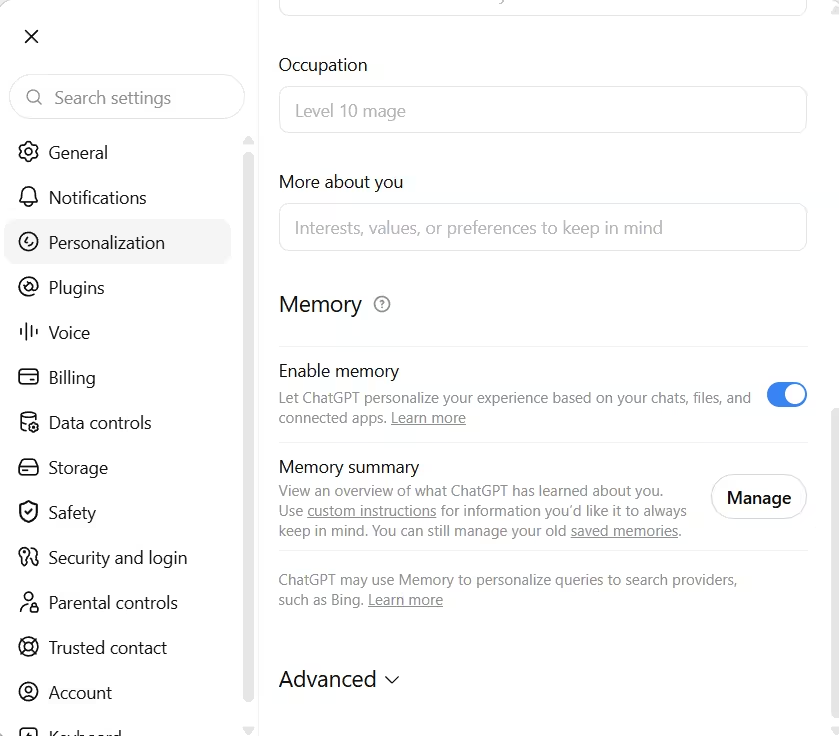
- Turn on Enable memory if it’s off.
Check the Advanced section right below Memory as well. Some accounts show additional controls there, and one of them can be switched off independently even while the main Enable memory toggle stays on.
Fix 2: Check Whether You’re Using a Temporary Chat
Temporary Chat is a private mode marked by a lightning-bolt icon next to the model name at the top of the screen. Anything typed there is excluded from memory, chat history, and model training by design, and it’s easy to leave it on without noticing.
- Look at the top of your current chat window for the Temporary Chat icon.
- If it’s active, click New Chat from the sidebar to leave Temporary Chat.
- Start your conversation again in a normal chat window.
If your last several conversations seem to be missing from memory or history, this is often the reason.
Fix 3: Free Up Space in ChatGPT’s Saved Memory
ChatGPT’s saved memory has a limit, generally landing somewhere between 200 and 400 entries depending on how long each one is. If you’ve used ChatGPT heavily for months, you’re far more likely to have hit this cap than someone with a few weeks of light use. Once the slot fills up, older entries get overwritten automatically with no alert.
- Go to Settings > Personalization > Memory.
- Click Manage next to Memory summary, or open the legacy Saved memories page if that’s what your account shows.
- Delete entries you no longer need, especially old or duplicate ones.
- Ask ChatGPT to save the information again once space is available.
Pruning old memories periodically, even when things seem fine, tends to improve how accurately ChatGPT retrieves what you actually need.
Fix 4: Confirm You’re Signed Into the Right ChatGPT Account
Memory is stored per account, not per device or browser. If you’ve logged into a work account, a Team workspace, or a second personal account recently, you might be looking at a completely different memory store than the one you expect.
- Click your profile picture and check the email listed under your account.
- If it’s not the account you meant to use, sign out completely.
- Sign back in with the correct account and confirm the email again.
Once you’ve confirmed the account is correct, move on to Fix 5 to check whether a specific memory actually got saved.
Fix 5: Verify Whether ChatGPT Actually Saved the Memory
The fixes above deal with memory being off, full, or attached to the wrong account. This one is different. It checks whether one particular fact you told ChatGPT to remember actually made it into storage, since sometimes ChatGPT says it remembered something when the entry never got saved due to a glitch or a full memory slot.
- Go to Settings > Personalization > Memory.
- Open Manage next to Memory summary.
- Review the list to see if the specific detail you expected is listed.
- If it’s missing, ask ChatGPT to save it again directly, for example by typing “remember that I prefer short answers.”
New accounts or accounts that just enabled memory may show an empty summary until enough conversations build it up.
Fix 6: Check If Your Account Has Memory Restrictions
If none of the fixes above solved the problem, the cause is likely tied to your account type rather than a setting you can toggle yourself. Work through these three scenarios to find which one applies.
- Check if Memory even appears under Settings > Personalization on your account. If the section is missing entirely, the feature likely hasn’t rolled out to your region or plan yet, and there’s no workaround on your end.
- If you’re on a Team or Enterprise plan, ask your workspace admin to confirm whether memory has been disabled account-wide. This setting is admin-controlled and won’t show up as an option in your own settings.
- If memory writes stopped completely and none of the steps above explain it, your account may be under a review that pauses new memory writes while still displaying old ones. Contact support with your account email and describe what’s happening. This is the only way to resolve that specific case.
Why ChatGPT Memory Feels Inconsistent Even When It’s On
The fixes above cover memory being off, full, or tied to the wrong account. But if you’ve confirmed memory is on, storage isn’t full, and it still feels unreliable, the cause is different. Even with everything enabled and stored correctly, ChatGPT decides in each response whether to actually pull memory into that specific answer. A vague prompt like “give me some ideas” often skips memory retrieval entirely, while a prompt like “based on what you know about me, give me some ideas” makes retrieval far more likely.
If memory feels like it works sometimes and not other times, try phrasing your prompt to reference memory directly rather than assuming ChatGPT will pull it in automatically.
Frequently Asked Questions
Why does ChatGPT say memory is full?
Saved memory has a storage cap. Once you hit it, ChatGPT can’t add new entries until you delete some through Manage memories.
Does Temporary Chat use memory at all?
No. Temporary Chat is designed to skip memory, chat history, and training completely, even if memory is turned on elsewhere in your account.
Can I move my ChatGPT memory to another account or app?
Not directly through ChatGPT’s built-in memory feature. It stays tied to the account it was created under. If you want your context to carry across tools, you’d need to manually copy the details out and re-enter them elsewhere.
Why doesn’t ChatGPT remember something I told it days ago?
It may have never been saved as a memory in the first place. Saved memories are selective, not automatic, so specific facts often need to be stated explicitly for ChatGPT to store them.
Read More

