Microsoft has rolled out a public preview of GitHub Copilot inside Microsoft Teams, letting development teams turn everyday chat discussions directly into working code and pull requests. Instead of copying a bug report or feature request into a separate coding tool, developers can now pull GitHub Copilot straight into the conversation where the problem was first raised.
What Is GitHub Copilot in Microsoft Teams and How Does It Work
Coding agents have always needed a detailed prompt to work from, and until now, building that prompt meant someone manually reconstructing the whole discussion (the bug, the agreed fix, the constraints) in a separate tool. GitHub Copilot in Teams skips that step entirely.
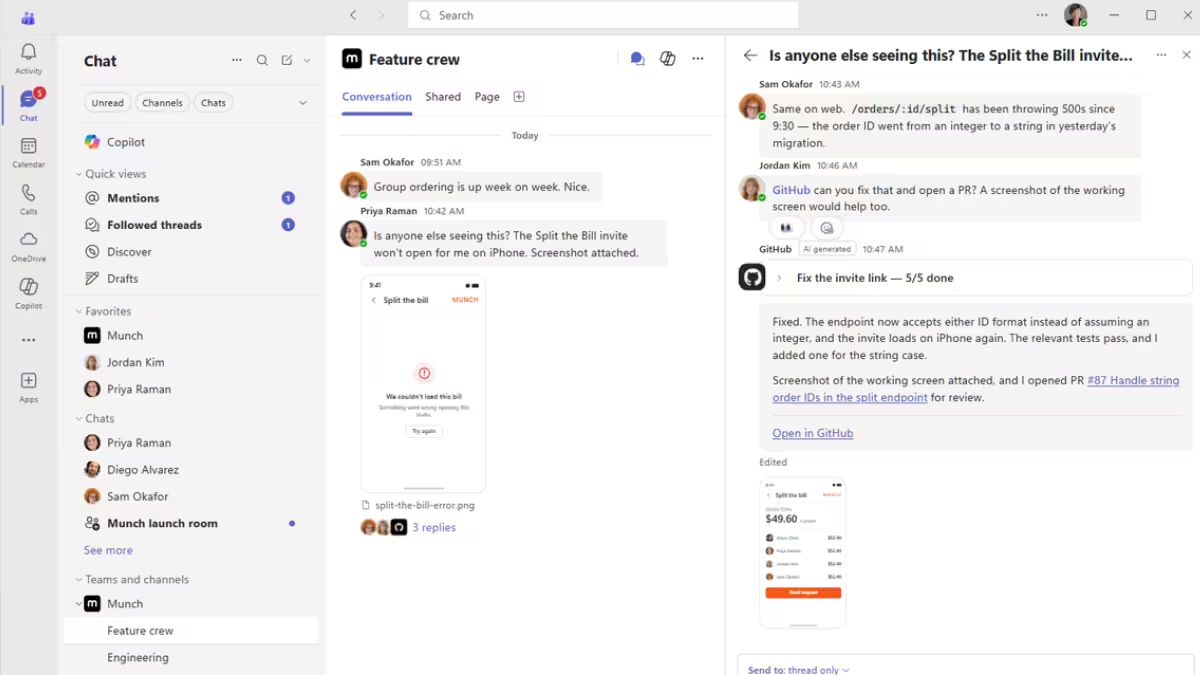
Once a team installs the GitHub app for Microsoft Teams, anyone in a chat or channel can @mention GitHub Copilot to bring it into the discussion. Copilot reads the surrounding conversation along with the connected GitHub repository to understand what the team wants built or fixed, so the conversation itself becomes the prompt.
Tasks GitHub Copilot Can Do in Teams During Public Preview
During the preview phase, GitHub Copilot in Teams supports a defined set of tasks:
- Building a feature based on requirements the team already discussed
- Implementing a fix for a reported bug
- Expanding test coverage
- Improving project documentation
- Creating or updating a pull request
Copilot works across 1:1 chats, group chats, meeting chats, and Teams channels, so a task can start wherever the discussion is already happening rather than in a dedicated dev channel.
One of the more practical uses of this shows up in meetings, where a task can be handed off before the discussion even ends.
How to Use GitHub Copilot in Teams Meeting Chats
A team can hand Copilot an action item mid-meeting. For example, during a standup, someone can ask Copilot to start investigating a bug while the discussion continues, and the agent’s progress becomes visible to everyone in the chat. Anyone with context can jump in, correct assumptions, or steer the approach before the work is finalized.
That real-time steering covers work started and finished inside a single conversation, but a task doesn’t have to stay confined to Teams once it’s kicked off.
Can You Continue GitHub Copilot Tasks Outside of Teams
A task started in Teams doesn’t have to stay there. Copilot can run asynchronously in a cloud sandbox, and developers can pick up the resulting branch or pull request later from the terminal, the GitHub Copilot app, or their preferred IDE, following the same cloud sandboxing documentation GitHub already provides for its coding agent.
None of that flexibility changes who’s allowed to trigger or merge changes in the first place.
GitHub Copilot Teams Permissions and Approval Controls
GitHub Copilot in Teams doesn’t bypass existing GitHub controls. It operates within a repository’s existing permissions, and only participants with write access to a repository can trigger Copilot to make changes. Branch protection rules and required reviewers still apply to anything Copilot proposes, so merging stays a human decision.
Beyond these defaults, organizations that want an extra layer of oversight can go further. Repository administrators can require an additional approval specifically for pull requests attributed to the Teams Copilot integration identity. If a repository already requires two approvals, enabling this pushes Copilot-authored pull requests to three, adding one more human checkpoint before agent-written code ships.
How to Set Up GitHub Copilot in Microsoft Teams
GitHub Copilot in Teams is live now in public preview and available with paid GitHub Copilot plans. Cloud agent sessions started from Teams consume AI credits, tracked separately from cloud sandbox usage, and both are governed by usage-based billing budgets that organizations can configure.
To set it up:
- An org administrator needs to enable GitHub Copilot cloud agent and cloud sandboxes first, since sandbox policies share the same configuration as agent policies.
- Install the GitHub app for Microsoft Teams.
- In Teams, mention
@GitHuband connect your GitHub account when prompted. - Public channels need a default repository configured; direct messages skip this step since they don’t use one.
- Mention
@GitHubfollowed by the task, or send@GitHub helpto see the full command list.
That setup is enough to start using GitHub Copilot in Teams today, though it’s worth keeping in mind this is still a preview. Microsoft hasn’t announced a timeline for general availability yet, so the feature set and limits could still change before it leaves preview.

