Buried inside Windows is a five-key combination that has nothing to do with productivity, security, or system settings. Press Ctrl + Alt + Shift + Win + L and your default browser snaps open straight to LinkedIn.com, with no app, extension, or setting involved to explain why.
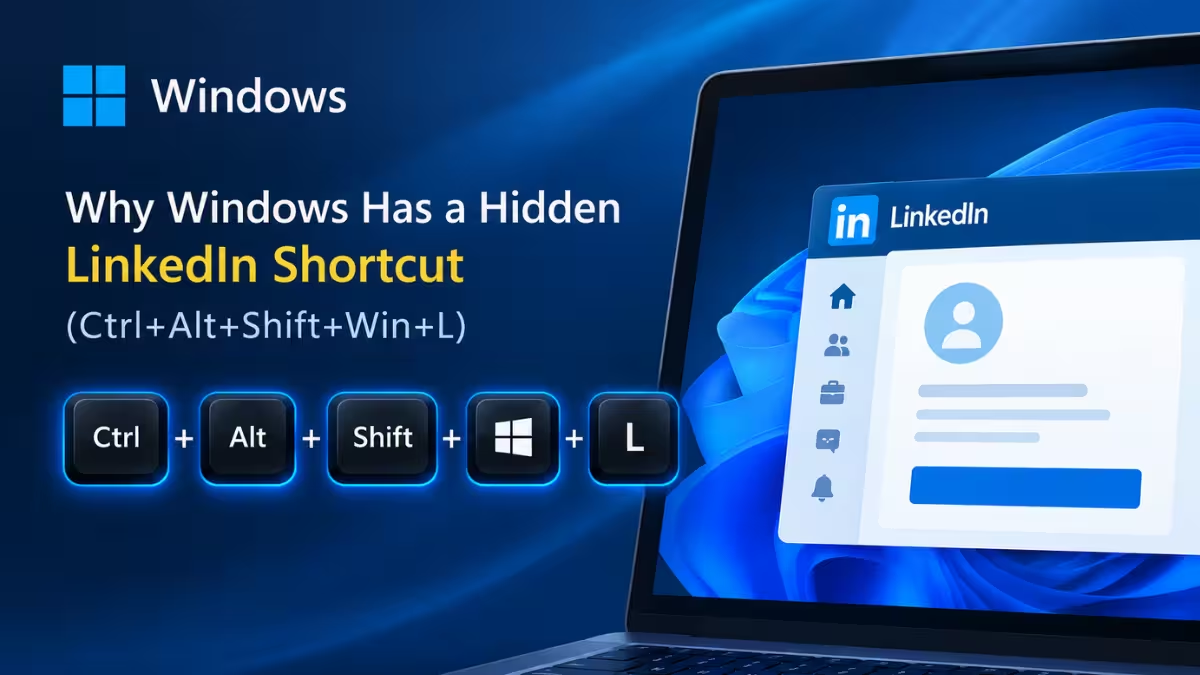
What Ctrl + Alt + Shift + Win + L Actually Does
This combination works across Windows 11 Home, Windows 11 Pro, and even Windows Server, so it isn’t limited to a single edition. The moment you press all five keys together, your browser opens a new tab and navigates straight to LinkedIn’s homepage.
Windows also appends a tracking parameter to the URL when it triggers this shortcut. The address briefly shows linkedin.com/?trk=Officekey before LinkedIn strips it away once the page finishes loading. That tag lets LinkedIn identify visits that came from this specific keyboard combination rather than a bookmark or search result.
You won’t find this shortcut listed on Microsoft’s official Windows shortcuts page, and there’s no built-in way to disable or remap it through normal Settings menus. The only workaround is a third-party tool like PowerToys.
Why Does Ctrl + Alt + Shift + Win Open LinkedIn?
The answer traces back to a piece of hardware Microsoft no longer sells. Older Microsoft Ergonomic Keyboards shipped with a dedicated “Office key” designed to jump straight into Microsoft 365 apps.
Since standard keyboards don’t have a physical Office key, Microsoft mapped that function to a modifier combination instead: Ctrl + Alt + Shift + Win. Any keyboard that sends this combination triggers the same behavior the dedicated key once did, which is why the shortcut still works on modern PCs that never shipped with special hardware.
Microsoft owns LinkedIn, so the company folded it into this same shortcut system alongside its other productivity apps. This feature only works on Windows 10 version 1903 (May 2019 Update) or later, and on a laptop without a physical Office key, you substitute Ctrl + Alt + Shift + Win for it. Here’s what each letter opens:
| Letter to Press | What It Opens |
|---|---|
Office key + W | Word |
Office key + P | PowerPoint |
Office key + X | Excel |
Office key + O | Outlook |
Office key + T | Microsoft Teams |
Office key + D | OneDrive inside File Explorer |
Office key + N | OneNote |
Office key + L | LinkedIn.com in your default browser |
Office key + Y | Viva Engage in your default browser |
Note that Win + L on its own is a different, much more common shortcut that locks your PC, so the LinkedIn shortcut only works when you hold all four modifier keys together before pressing L.
Why This Shortcut Still Works on Windows 11
Microsoft has kept this shortcut alive since at least 2019, when it first appeared in Windows 10 version 1903. It has carried over through every major Windows release since, including Windows 11.
One likely reason it still exists is that removing it would break workflows for anyone still using an Office-key keyboard, even though those keyboards are largely out of production now. The shortcut also causes friction for power users who rely on AutoHotkey scripts, since Ctrl + Alt + Shift + Win is a combination some had already claimed for their own custom commands.
Better Windows Shortcuts to Use Instead
The LinkedIn shortcut makes for a fun trivia fact, but it won’t speed up your actual workflow. These five shortcuts will.
Win + D minimizes every open window at once and shows your desktop. Pressing it again restores everything exactly where it was.
Ctrl + Shift + Esc jumps directly to Task Manager without routing through the security screen first.
Win + Arrow keys snaps the active window to a side or corner of your screen, which makes comparing two documents or multitasking across monitors much faster.
Win + V opens your clipboard history, so you can paste something you copied several items ago instead of losing it the moment you copy something new.
Win + Shift + S launches the snipping tool immediately, letting you capture and annotate part of your screen without hunting for a separate app.
Frequently Asked Questions
Can I disable the LinkedIn keyboard shortcut in Windows?
Not through Windows Settings. You need a third-party remapping tool such as PowerToys to override or disable this specific key combination.
Does this shortcut work on Windows 11 Home?
Yes. It functions the same way across Windows 11 Home, Windows 11 Pro, and Windows Server editions.
Is the LinkedIn shortcut tied to a Microsoft 365 subscription?
No. It works regardless of whether you own an Office license, since it’s built into the base operating system rather than tied to any specific Microsoft 365 product.
Can I use PowerToys to reassign the LinkedIn shortcut to something else?
Yes. PowerToys includes a Keyboard Manager that lets you remap or disable individual key combinations, including this one, so you can free it up for another shortcut or an AutoHotkey script.
Read More
