Few things ruin a movie faster than subtitles that appear several seconds after the dialogue. You hear the line, then wait, then read it. The problem is common, and VLC for mobile includes a built-in fix that does the math for you.

This guide shows three ways to fix subtitle delay in VLC on Android and iPhone, starting with the fastest.
Why VLC Subtitles Are Delayed or Out of Sync
Your subtitle file and your video often come from different sources. The subtitle creator timed the text against one version of the movie, and your video may use a different cut, intro length, or frame rate. VLC plays both files exactly as they are, so the mismatch shows up on screen.
Two patterns tell you what went wrong:
- Constant offset: Subtitles stay late or early by the same amount from start to finish. A delay setting fixes this.
- Growing drift: Subtitles start in sync but slip further apart as the movie plays. A delay cannot fix this, and you need a different subtitle file.
Method 1: Auto Sync VLC Subtitles Using Voice Heard and Text Seen
This method works best because you skip the guesswork. VLC measures the gap between the audio and the text, then applies the correction itself.
- Play your video and tap the screen to show the controls.
- Tap the subtitle icon at the bottom left.
- Select Subtitle delay.
- Tap Reset to clear any old value and start from 0 ms.
- Wait for a character to speak. When you hear the first words, tap Voice Heard.
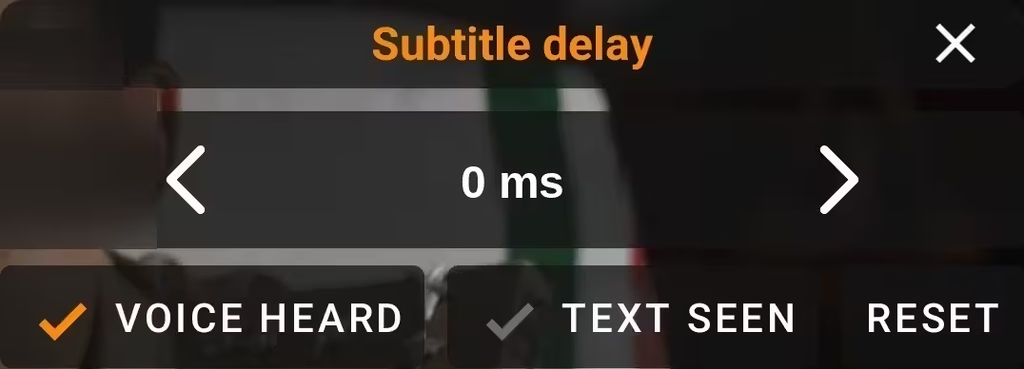
- Wait for the matching subtitle line to appear. When you see it, tap Text Seen.
VLC calculates the difference and adjusts the delay on its own. The video may pause for a moment while it applies the change. Even large gaps of 10 to 50 seconds sync correctly this way.
Tip: Pick a clear, early line of dialogue for this test. Avoid background chatter, songs, or scenes with overlapping voices.
Method 2: Manually Adjust Subtitle Delay in VLC Mobile
If you prefer to control the timing yourself, use the same Subtitle delay panel.
- Open the subtitle icon and tap Subtitle delay.
- Tap the left arrow to make subtitles appear earlier.
- Tap the right arrow to make subtitles appear later.
- Play a few lines and repeat until the text matches the voice.
A negative value, such as -2000 ms, shows subtitles earlier. A positive value shows them later. If your subtitles run late, you need a negative number.
Method 3: Download Subtitles That Match Your Video in VLC
If the subtitles drift out of sync as the movie goes on, switch to a better file.
- Tap the subtitle icon while the video plays.
- Select Download subtitles.
- Search for your movie and check the file names in the results.
- Choose a file that matches your video release, such as WEB-DL, BluRay, or HDRip.
A subtitle made for your exact release needs little or no adjustment.
How to Fix Subtitle Delay in VLC on Windows, Mac, and Linux
On Windows, Mac, or Linux, VLC uses keyboard shortcuts for the same job.
- Press G to make subtitles appear earlier. Each press shifts the timing by 50 ms.
- Press H to make subtitles appear later.
- Open Tools > Track Synchronization to type an exact value.
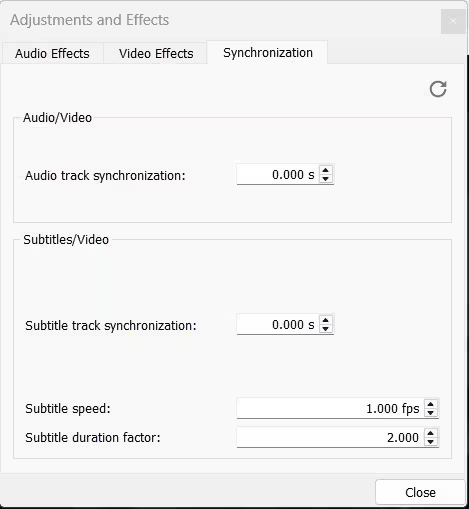
In the Synchronization tab, type a negative number in Subtitle track synchronization (for example, -2.000 s) to show subtitles earlier. Click Close when the text matches the voice.
How to Save Subtitle Delay Permanently in VLC
No. VLC applies the delay to the video you are watching right now, and you repeat the steps for the next video. To fix the timing for good, shift the .srt file itself with a free subtitle editor such as Subtitle Edit, then play the corrected file.
VLC Subtitles Still Not Syncing? Common Problems and Solutions
- Nothing changes after tapping the buttons: Reset the delay, then try again with a clearer line of dialogue.
- Sync works at the start but breaks later: Download a subtitle that matches your video release.
- Subtitles do not appear at all: Open the subtitle menu and confirm you selected the subtitle track.
- Text looks broken or unreadable: Change the subtitle text encoding in VLC’s subtitle settings.
For most videos, the Voice Heard and Text Seen buttons fix the problem in under a minute. Reset the delay, mark the voice, mark the text, and let VLC handle the rest. If the timing still drifts, download a subtitle that matches your video release and enjoy the movie.
Frequently Asked Questions
Why are my subtitles late in VLC?
The subtitle file was timed for a different version of the video, so the text and audio start at different moments.
How do I sync subtitles automatically in VLC mobile?
Open Subtitle delay, tap Reset, tap Voice Heard when you hear a line, then tap Text Seen when that line appears as text.
What does a negative subtitle delay mean?
A negative value makes subtitles appear earlier. Use it when subtitles show up after the dialogue.
Does the Voice Heard and Text Seen method work on iPhone?
Yes. The VLC app on iPhone and Android offers the same sync controls in the Subtitle delay panel.
Can I save the delay for future playback?
VLC does not save it. Shift the .srt file with a subtitle editor to fix it permanently.
Read More
