Audible Error Code IP-4562 stops playback mid-book and refuses to let you continue no matter how many times you hit play. The fix is not what most troubleshooting guides suggest. Restarting your phone and reinstalling the app will not help because the problem is not the app itself.
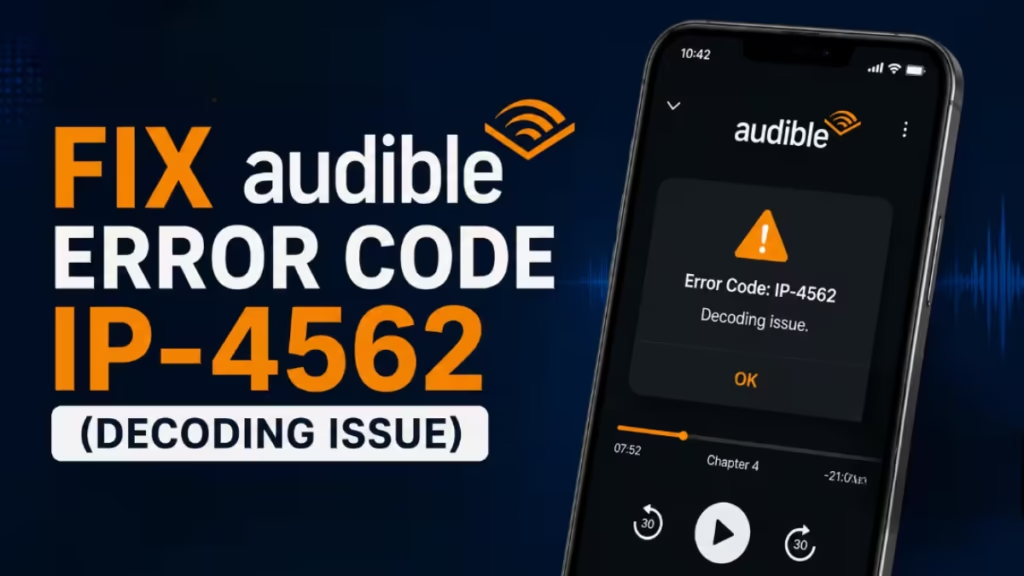
This guide covers exactly what causes IP-4562, why standard fixes fail, and the three specific methods that actually resolve it.
Audible Error Code IP-4562
Audible classifies IP-4562 as a decoding issue. The app downloaded a corrupted audio file to your device and now cannot read it during playback.
The corruption usually happens during the initial download. A brief drop in your Wi-Fi or cellular connection during that download can silently corrupt a small segment of the audio file. Everything plays normally until the playback slider reaches that specific corrupted timestamp. At that point, the app fails to decode the broken data and throws the IP-4562 error.
The error can also occur when Audible’s Stream to Download feature tries to play a file while simultaneously saving it to your device. That dual process sometimes creates a broken file.
Why Only One Audiobook Is Affected
If other titles in your library play without any issue, that confirms the error is tied to the locally stored file of that single corrupted title. Your account is fine. Your other downloads are fine. The problem is isolated to one specific file on your device.
Why Reinstalling Audible Does Not Fix IP-4562
Deleting and reinstalling the app is the first thing most people try. It does not work here.
When you reinstall Audible, the app redownloads the same file parameters from the server. If the local copy was corrupted, the reinstall simply creates another corrupted copy. You end up stuck in the same error loop.
The only way to resolve IP-4562 is to either bypass the corrupted file entirely or force the app to download a clean version of it.
Fix 1: Stream the Book Instead of Playing the Download
This is the fastest fix and the most widely confirmed solution in the Audible community.
- Open your Audible library.
- Tap the three dots next to the affected audiobook.
- Select Remove Download.
- Do not tap the download button again.
- Tap Play directly on the book cover.
The app will stream the audiobook over your internet connection instead of reading the corrupted local file. Your listening position and any bookmarks are stored on Audible’s cloud servers, so you will pick up exactly where you left off.
This fix works in seconds and requires no settings changes.
Fix 2: Force a Clean Redownload at High Quality
Use this method if you need offline access and cannot rely on streaming.
- Tap the three dots next to the corrupted audiobook.
- Select Remove Download to delete the corrupted file.
- Go to Profile > Settings (gear icon) > Data and Storage.
- Change the Download Quality from Standard to High.
- Return to your library and download the audiobook again.
Switching to High quality forces the app to pull a different version of the audio file from Audible’s servers. In most cases, this clean download does not carry the original corruption.
Fix 3: Turn Off Stream to Download
Audible’s Stream to Download feature plays a title while it downloads simultaneously. This process is the most common source of IP-4562 errors because it creates incomplete or corrupted files when the connection fluctuates.
Turning it off prevents the issue from recurring on any future downloads.
- Update your Audible app to the latest version from the App Store or Google Play Store.
- Open the app and go to Profile > Settings > Data and Storage.
- Toggle Stream to Download to off.
From this point forward, Audible will fully download a title before playing it, which eliminates the partial-download corruption that causes IP-4562.
Which Fix Should You Use
| Situation | Best Fix |
|---|---|
| You have a working internet connection | Fix 1 (Stream only) |
| You need offline playback | Fix 2 (High quality redownload) |
| The error keeps coming back on new books | Fix 3 (Disable Stream to Download) |
For most users, Fix 1 resolves the immediate problem. Fix 3 prevents it from happening again.
Your Listening Position Is Saved to the Cloud
Audible saves your listening position, bookmarks, and notes to its cloud servers, not to the local audio file on your device. Removing the download and redownloading or streaming does not erase any of that data. When you start playing again, the app syncs your position from the server and picks up exactly where you stopped.
If none of the three methods above resolve the error, contact Audible Support directly. In rare cases, the issue can be tied to a specific title that requires a server-side fix.
Related App and Streaming Error Fixes
- How to Fix Discord Streaming Failed to Start Error 2007
- How to Fix Tubi Error RO-2-100-404 (Streaming Playback Fix Guide)
- How to Fix HBO Max Error Code 1400500 (Streaming Playback Error Guide)
- How to Fix HLS.js fragLoadError (networkError fatal true) While Streaming Video
- How to Fix Hulu Error Code P-TS207: 8 Proven Ways to Solve Streaming Issues Instantly

