Managing a VPS, a home lab box, or a cloud instance from a Windows PC no longer requires a third-party app. Windows 11 ships with Microsoft's port of OpenSSH, so you can open Terminal, type one command, and land on your Linux shell in seconds.
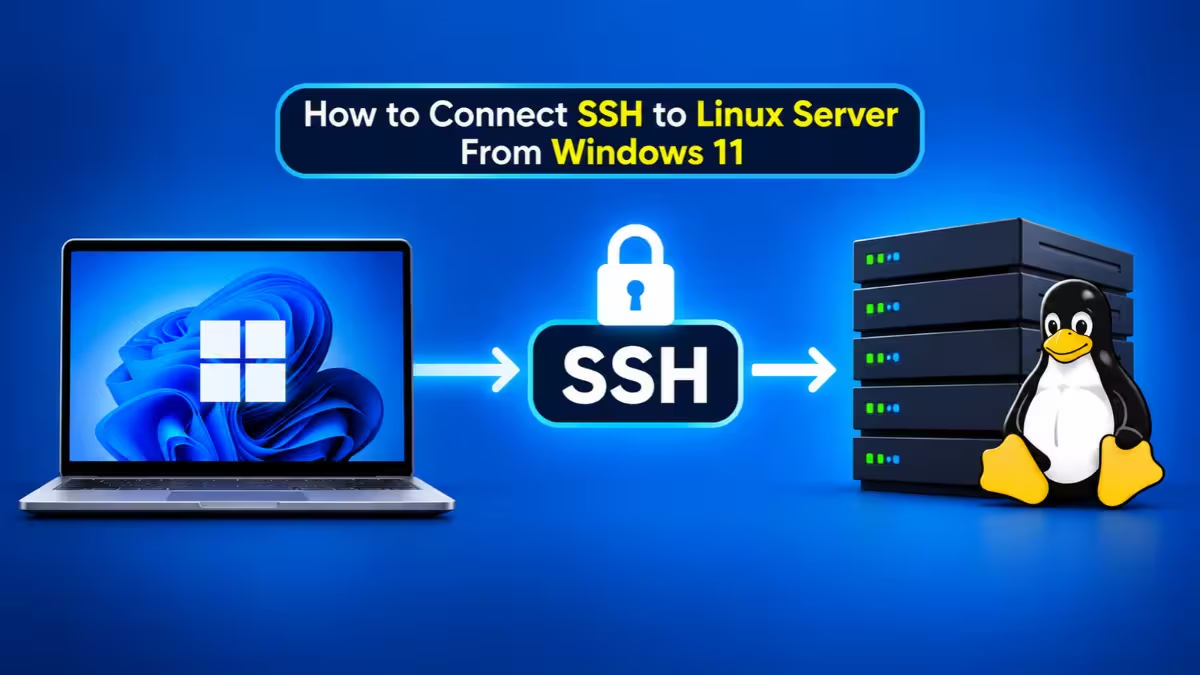
This guide covers everything you need: checking the client, logging in with a password, setting up key-based login, moving over from PuTTY, saving connection shortcuts, transferring files, and fixing the errors that trip most people up.
What You Need to SSH Into a Linux Server From Windows 11
Gather these details first:
- Server address: the public IP or hostname of your Linux machine
- Username: the Linux account you plan to log in with (for example,
ubuntu,root, or your own user) - Login method: the account password or a private key file from your hosting provider
- SSH port: usually 22, unless your provider or admin changed it
- A running SSH service on the server: most Linux distributions and cloud images enable
sshdout of the box
Step 1: Check or Install the OpenSSH Client on Windows 11
Most Windows 11 installs already include the client. To confirm, open Windows Terminal, PowerShell, or Command Prompt and run:
ssh -VUse a capital V. If Windows prints a version string such as OpenSSH_for_Windows_9.x, you can skip to Step 2.
Install the client if it is missing
If Windows says it does not recognize ssh, add the feature through Settings:
- Open Settings and select System.
- Choose Optional features.
- Click View features next to "Add an optional feature."
- Type OpenSSH Client in the search box.
- Tick the checkbox, click Next, then click Add.
Prefer the command line? Open PowerShell as administrator and run:
Add-WindowsCapability -Online -Name OpenSSH.Client~~~~0.0.1.0Close and reopen your terminal afterward so it picks up the new command.
Step 2: Connect to a Linux Server Using SSH and a Password
The basic syntax looks like this:
ssh username@server-ipSwap in your real values, for example:
ssh admin@203.0.113.25On the very first connection, SSH shows the server's key fingerprint and asks whether you want to continue. Compare that fingerprint with the one your hosting dashboard or server admin gives you. If it matches, type yes and press Enter.
Windows then records the server in C:\Users\YourName\.ssh\known_hosts, so it will not ask again unless the server key changes.
Enter your Linux password when prompted. The terminal does not show any characters while you type, which is normal. Once the server accepts the password, you see its shell prompt.
Type exit or logout whenever you want to close the session.
Step 3: Connect Using a Custom SSH Port
If your server listens on a port other than 22, add the -p flag:
ssh -p 2222 admin@203.0.113.25Your host or admin usually tells you the port. You can also save it in your config file (see Step 7) so you never type it again.
Step 4: Set Up SSH Key Authentication on Windows 11
Passwords work, but SSH keys give you stronger security and skip the password prompt. A key pair has two parts: a private key that never leaves your PC and a public key that sits on the server.
Generate a new key pair
Ed25519 keys are short, fast, and secure, so they make the best default:
ssh-keygen -t ed25519 -C "my-windows-pc"Press Enter to accept the default location (C:\Users\YourName\.ssh\id_ed25519). Set a passphrase when asked. It protects the key if someone ever copies your files.
If you deal with an old server that rejects Ed25519, create an RSA key instead:
ssh-keygen -t rsa -b 4096Send the public key to the server
Windows OpenSSH does not include ssh-copy-id, but this PowerShell one-liner does the same job:
type $env:USERPROFILE\.ssh\id_ed25519.pub | ssh admin@203.0.113.25 "mkdir -p ~/.ssh && cat >> ~/.ssh/authorized_keys && chmod 700 ~/.ssh && chmod 600 ~/.ssh/authorized_keys"Enter your password one last time. The command appends your public key to the account's authorized_keys file and sets safe permissions.
Connect with the key
If you saved the key in the default location, a plain ssh admin@203.0.113.25 now uses it automatically. For a key stored elsewhere, or one your host gave you (such as a .pem file from AWS), point to it with -i:
ssh -i C:\Users\YourName\.ssh\server-key.pem admin@203.0.113.25SSH asks for the key passphrase (if you set one) instead of the account password.
Step 5: Convert a PuTTY .ppk Key to OpenSSH Format
PuTTY stores keys in .ppk format, and Windows OpenSSH cannot read that file directly. You do not need a new key pair, though. Convert the existing one with PuTTYgen:
- Launch PuTTYgen (it comes bundled with PuTTY).
- Click Load, change the file filter to show all files, and pick your
.ppkkey. - Enter the key passphrase if PuTTYgen asks for it.
- Open the Conversions menu and select Export OpenSSH key.
- Save the file inside
C:\Users\YourName\.ssh\with a simple name likewebkeyand no extension.
Now connect using the converted file:
ssh -i C:\Users\YourName\.ssh\webkey admin@203.0.113.25Need the matching public key later? Pull it from the private key with:
ssh-keygen -y -f C:\Users\YourName\.ssh\webkeyStep 6: Fix "Unprotected Private Key File" Permissions Error
OpenSSH refuses to use a private key that other Windows accounts can read. When that happens, you get a warning that says the key permissions are too open.
Fix it from an administrator PowerShell window:
icacls C:\Users\YourName\.ssh\webkey /inheritance:r
icacls C:\Users\YourName\.ssh\webkey /grant:r "$($env:USERNAME):(R)"
The first command strips inherited access. The second gives only your account read permission. Try the connection again afterward.
Step 7: Create an SSH Config File for Faster Connections
Typing long commands every day gets old fast. A config file lets you store each server under a short nickname.
Create a file named config (no extension) inside C:\Users\YourName\.ssh\. You can do it from PowerShell:
notepad $env:USERPROFILE\.ssh\configClick Yes when Notepad offers to create the file, then add your servers:
Host blog
    HostName 203.0.113.25
    User admin
    Port 22
    IdentityFile C:\Users\YourName\.ssh\id_ed25519

Host backup
    HostName 198.51.100.40
    User deploy
    Port 2222
    IdentityFile C:\Users\YourName\.ssh\webkey
Save the file. If Notepad adds .txt, turn on file extensions in File Explorer (View > Show > File name extensions) and rename it.
You can now connect with just the alias:
ssh blog
ssh backup
Step 8: Use ssh-agent to Skip Repeated Passphrase Prompts
The Windows ssh-agent service holds your unlocked key in memory, so you enter the passphrase once per login session. Turn it on from an administrator PowerShell window:
Get-Service ssh-agent | Set-Service -StartupType Automatic
Start-Service ssh-agent
ssh-add $env:USERPROFILE\.ssh\id_ed25519
From then on, every SSH command picks up the key from the agent automatically.
Connect to Linux Servers From Windows Terminal and VS Code
Windows Terminal profile: Open Terminal settings, click Add a new profile, choose New empty profile, name it, and set the command line to ssh blog (or any alias from your config). The server then shows up in the Terminal dropdown menu, ready to open in a new tab.
VS Code Remote - SSH: Install the Remote - SSH extension, press F1, run Remote-SSH: Connect to Host, and pick one of your aliases. VS Code reads the same config file and keys, and you can edit server files as if they sat on your own drive.
Transfer Files to Your Linux Server With SCP and SFTP
The same OpenSSH install includes scp and sftp, so you can move files without extra software.
Upload a file to the server:
scp C:\Users\YourName\Documents\report.zip blog:/home/admin/Download a file from the server:
scp blog:/home/admin/backup.tar.gz C:\Users\YourName\Downloads\Copy a whole folder with the -r flag:
scp -r C:\Projects\site blog:/var/www/For an interactive session where you browse folders and move several files, start SFTP instead:
sftp blogInside the SFTP prompt, use put to upload, get to download, ls to list remote files, and lls to list local ones. If your server uses a custom port, scp takes a capital -P (for example, scp -P 2222 file.txt blog:/tmp/), while saved aliases handle the port for you.
Common SSH Connection Errors on Windows 11 and How to Fix Them
| Error message | What it means | How to fix it |
|---|---|---|
Permission denied (publickey) |
The server did not accept your key | Check the username, confirm you point to the right key, and make sure the public key sits in ~/.ssh/authorized_keys on the server |
Load key ... invalid format |
SSH cannot read the key file | Convert any .ppk file to OpenSSH format with PuTTYgen |
Connection timed out |
Your PC cannot reach the server | Verify the IP and port, check the server firewall or cloud security group, and confirm the server is online |
Connection refused |
The server is up but nothing listens on that port | Start the SSH service (sudo systemctl start ssh) or use the correct port |
REMOTE HOST IDENTIFICATION HAS CHANGED |
The server presents a different host key | Confirm the server was rebuilt or reinstalled, then clear the old entry with ssh-keygen -R 203.0.113.25 |
UNPROTECTED PRIVATE KEY FILE |
Other accounts can read your key | Apply the icacls commands from Step 6 |
When nothing obvious stands out, run the connection in verbose mode to see exactly where it fails:
ssh -v admin@203.0.113.25Secure Your Linux Server: Disable Password Login and Root Access
After you confirm key login works, tighten the server side in /etc/ssh/sshd_config:
- Set
PasswordAuthentication noto block password brute-force attacks. - Set
PermitRootLogin noand usesudofrom a normal account instead. - Add
AllowUsers admin deployto limit which accounts can log in.
Restart the service with sudo systemctl restart ssh and test a fresh connection in a new window before you close your current session. That way, a typo cannot lock you out. Tools like fail2ban add another layer by blocking IPs that keep failing logins.
For most people, Windows 11 SSH beats PuTTY. Windows 11 gives you a full SSH toolkit right out of the box. Check that the client is installed, log in once with a password, switch to an Ed25519 key, and save your servers in a config file. After that, reaching any Linux machine takes a single short command, whether you work in Terminal, PowerShell, or VS Code. PuTTY remains a solid option if you prefer a graphical session manager, but you no longer need it to get the job done.
Frequently Asked Questions
Is PuTTY still worth keeping?
PuTTY still works fine, so you can keep it for serial connections or saved sessions you rely on. For everyday SSH work, the built-in client covers the same ground without an extra install.
Does the built-in SSH client work in Command Prompt too?
Yes. The ssh command runs the same way in Command Prompt, PowerShell, and Windows Terminal.
Where does Windows 11 keep the SSH program?
You can find it at C:\Windows\System32\OpenSSH\ssh.exe.
Can I copy files over the same SSH connection?
Yes. Use scp for quick transfers or sftp for an interactive session, as shown in the file transfer section above.
Is SSH key login safer than a password?
Yes. A key pair removes the risk of password guessing, because attackers cannot brute-force a private key that never leaves your PC. Add a passphrase to the key and disable password login on the server for the strongest setup.