If Microsoft Teams keeps asking for location permission on your Mac even after you click “Don’t Allow” repeatedly, you are hitting a confirmed bug. Microsoft has acknowledged the issue and traced it to a recent macOS security update, not to Teams itself.

This guide covers what is causing the loop, which Mac versions are affected, and the exact steps to stop the prompt from coming back.
What Is Causing the Teams Location Prompt Loop on Mac?
A recent macOS security update broke how the operating system stores location permission selections for Microsoft Teams. Normally, when you click “Don’t Allow” or “Allow” on the Teams location prompt, macOS saves that choice and stops asking. After the faulty update, macOS no longer retains that selection, so Teams triggers the prompt again every time it checks for location permission.
Microsoft confirmed this in incident report TM1315837 posted to the Microsoft 365 Admin Center:
“We’ve identified that a recent macOS security update doesn’t store users’ location permission selections for Teams as expected, resulting in repeated location prompts. We’re working with Apple to better understand the change and identify a resolution. In parallel, we’re investigating a potential fix within Teams to mitigate the repeated prompts.”
Microsoft has tagged the incident as an advisory, meaning the issue affects a limited subset of Teams users on Mac. First reports surfaced on May 11, 2026.
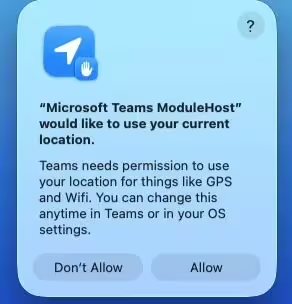
Which macOS Versions Does This Affect?
Microsoft has confirmed the Teams location prompt loop affects the following macOS versions:
- macOS 14 Sonoma
- macOS 15 Sequoia
- macOS 26 Tahoe
If you run any of these versions and Teams keeps asking for location permission even after you respond to the prompt, the macOS update is the cause.
If you run an older version and Teams is not loading at all, that is a separate issue. Microsoft Teams does not work on macOS Monterey 12.7.4 due to app compatibility changes unrelated to this prompt loop.
How to Fix Microsoft Teams Keeps Asking for Location Permission on Mac
Microsoft has provided a manual workaround while it works with Apple on a permanent fix. The steps reset the stored location permission state so macOS saves your selection correctly.
- Open System Settings on your Mac.
- Go to Privacy & Security.
- Click Location Services.
- Scroll down and find Microsoft Teams in the app list.
- Toggle the switch off, then toggle it back on.
- Repeat the same steps for Microsoft Teams ModuleHost directly below it.
- Set both entries to your preferred setting: on or off.
After completing these steps, Teams should stop repeating the location prompt. The key is toggling both entries, including Microsoft Teams ModuleHost, which is the internal Teams process that handles location requests and add-ins.
Why Does Microsoft Teams Have Two Location Entries on Mac?
You will notice two separate entries in Location Services: “Microsoft Teams” and “Microsoft Teams ModuleHost.” Microsoft Teams ModuleHost is not a separate app. It is an internal process Teams uses to run background modules and meeting add-ins. Both entries control location access for the same Teams application, and both need to be toggled for the workaround to take effect.
The automatic work location feature in Teams relies on these location entries to detect whether you are working from the office or elsewhere. If your organization uses that feature, make sure you set both entries to “on” after toggling.
Should You Allow or Deny Location Access in Teams?
Location access in Teams serves two main functions: detecting your work location automatically and enabling proximity join with nearby meeting rooms. If your organization does not use either feature, you can safely deny location access without losing messaging, calling, or meeting functionality.
Microsoft has also flagged that the issue only triggers for users who have location access enabled in their Teams settings. If you deny location access entirely through macOS Location Services, the repeated prompt stops appearing.
When Will Microsoft Release a Permanent Fix?
Microsoft has not shared a timeline for a permanent fix. The company is currently working with Apple to understand the macOS change that caused the permission storage failure. In parallel, Microsoft is investigating a fix inside Teams itself that would prevent the prompt loop without requiring users to change macOS settings manually.
Check the Microsoft 365 Admin Center under incident TM1315837 for updates if your organization has admin access.
Microsoft has been dealing with several Teams issues recently. The company rolled out brand impersonation protection to guard users against scam calls, and separately addressed a bug blocking Windows users from joining meetings after a Microsoft Edge update.

