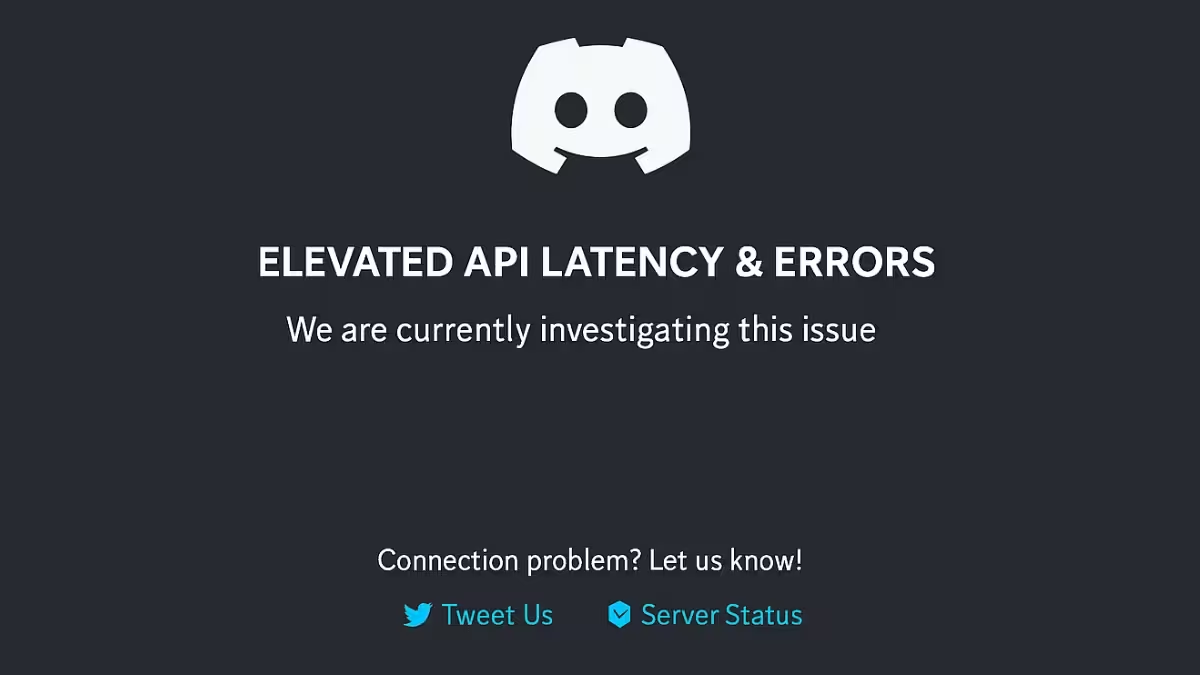
Discord shows the "Elevated API Latency" message when its servers take longer than normal to process requests. Messages take time to send, channels load slowly, and bots stop responding on time. This guide covers every working fix, in order of success rate, for desktop, mobile, and browser.
What Causes Discord Elevated API Latency
Discord's API handles most actions inside the app, including message sends, channel loads, role updates, and bot commands. A slowdown in this system triggers the elevated latency warning.
- Server-side slowdown: Discord's own infrastructure struggles under heavy traffic or during an active incident, which delays every request across the platform.
- Unstable local network: A weak Wi-Fi signal, congested router, or poor ISP route adds delay on top of any server-side issue.
- Corrupted app cache: Old or damaged cache files inside the Discord client cause slow loading and delayed UI updates.
- Outdated client: Older Discord builds carry bugs that later updates already fixed.
- VPN or proxy interference: Routing traffic through a VPN or proxy adds extra hops and can trigger additional rate limit checks.
- Firewall or antivirus blocking: Security software sometimes throttles or blocks Discord's connection after an update.
- Heavy client load: Large servers, animated media, and multiple overlays add extra work for the client even when the API itself runs normally.
Fix 1: Check Discord's Status Page
Before changing any settings, confirm whether the problem sits on Discord's end. Open the official status page at status.discord.com and look for an active incident under the API component. A yellow or orange marker means degraded performance, and a red marker means a major outage.
If Discord confirms the incident, wait for their engineering team to resolve it. Repeatedly resending messages or spamming commands during an active incident adds more load and does not speed anything up.
Fix 2: Fully Restart Discord
Closing the Discord window does not always quit the app in the background, so a full restart clears more than a simple close.
On Windows:
- Right-click the Discord icon in the system tray near the clock.
- Click Quit Discord.
- Press Ctrl + Shift + Esc to open Task Manager.
- End any remaining Discord processes.
- Reopen Discord.
On macOS:
- Click Discord in the menu bar and select Quit Discord.
- If it does not close, press Command + Option + Esc.
- Select Discord and click Force Quit.
- Open Discord again from Applications or Launchpad.
On iPhone or Android:
- Open the app switcher.
- Swipe Discord away to close it.
- Wait 10 seconds, then open Discord again.
Fix 3: Test Discord in a Browser
Open discord.com/app in Chrome, Edge, Firefox, or Safari. If the browser version runs faster than the desktop app, the installed client, its cache, or hardware acceleration settings are likely causing the slowdown. If both the app and browser lag equally, the issue points to your network or Discord's servers instead.
Fix 4: Switch Networks
Try a different connection to isolate the source of the delay. Switch from Wi-Fi to Ethernet, or from home internet to a mobile hotspot. If Discord runs fine on one network but not another, your router, DNS, or ISP route is contributing to the latency.
Fix 5: Clear the Discord Cache
Corrupted cache files cause slow loading, blank screens, and delayed UI updates over time.
On Windows:
- Quit Discord from the system tray.
- Press
Win + R, type%appdata%\discord, and press Enter. - Delete the Cache, Code Cache, and GPUCache folders.
- Press
Win + Ragain, type%localappdata%\Discord, and delete any remaining cache folders there. - Reopen Discord.
On macOS:
- Quit Discord.
- Open Finder, click Go > Go to Folder, and enter
~/Library/Application Support/discord. - Delete the cache folders inside.
- Reopen Discord.
On Android:
- Open Settings > Apps > Discord.
- Tap Storage & Cache.
- Tap Clear Cache. Avoid Clear Storage unless you want to sign in again from scratch.
On iPhone: iOS does not offer a dedicated cache button for individual apps. Remove Discord from your home screen, restart your phone, and reinstall it from the App Store.
Fix 6: Update Discord and Your Device
Outdated app builds carry bugs that affect message loading and API behavior.
Reload Discord with Ctrl + R on Windows or Command + R on Mac to trigger an update check. If the app appears stuck, download the latest installer from discord.com/download and run it over your existing installation.
On iPhone, open the App Store, tap your profile icon, and update Discord from the pending updates list. On Android, open the Play Store, go to Manage Apps & Devices, and update Discord from there.
Install any pending operating system updates as well, since these often include networking and certificate fixes that affect how Discord connects.
Fix 7: Restart Your Router
Unplug your modem and router for at least 30 seconds. Plug the modem back in first, wait until it comes fully online, then plug the router back in. Wait two to three minutes before testing Discord again.
Switch to Ethernet if you normally use Wi-Fi, since a wired connection stays more stable for voice channels and gaming setups. If you must stay on Wi-Fi, move closer to the router and use the 5 GHz or 6 GHz band, since walls, microwaves, and neighboring networks raise packet loss on 2.4 GHz.
Pause heavy background activity such as game downloads, cloud backups, and streaming while you test. A maxed-out upload connection lags Discord even when download speed looks fine.
Fix 8: Change Your DNS Servers
A slow DNS resolver delays app connections and reconnect attempts. Switching DNS will not fix a Discord-wide outage, but it helps when your ISP's default DNS performs poorly.
Reliable public DNS options include:
- Cloudflare:
1.1.1.1and1.0.0.1 - Google Public DNS:
8.8.8.8and8.8.4.4 - Quad9:
9.9.9.9and149.112.112.112
On Windows 11:
- Open Settings > Network & Internet.
- Select your Wi-Fi or Ethernet connection and open its properties.
- Edit the DNS server assignment to Manual and enable IPv4.
- Enter your preferred and alternate DNS addresses, then save.
On macOS:
- Open System Settings > Network.
- Select your active connection and click Details.
- Add your DNS addresses under the DNS section.
After changing DNS, flush the cache so your device picks up fresh records. Run ipconfig /flushdns in an elevated Command Prompt on Windows, or sudo dscacheutil -flushcache; sudo killall -HUP mDNSResponder in Terminal on Mac.
Fix 9: Disable VPNs and Proxies Temporarily
VPNs and proxies route traffic through additional servers, which adds latency and sometimes triggers extra rate limit checks. Turn off any VPN apps, browser proxy extensions, system-wide proxy settings, and traffic-filtering security tools, then restart Discord and test again.
If performance improves without a VPN but you still need one, switch to a server location closer to you, try a different protocol such as WireGuard, or set up split tunneling so Discord traffic bypasses the VPN entirely.
Fix 10: Check Firewall and Antivirus Settings
Firewalls and security suites sometimes block or delay Discord connections after an update.
- Search for Allow an app through Windows Firewall and open it.
- Click Change Settings.
- Confirm Discord is allowed on your current network type.
- Add it manually if it does not appear in the list.
If you run third-party antivirus software, check its web protection or traffic scanning settings and add Discord as a trusted app. Avoid disabling security software permanently. Run a short test instead to confirm whether it causes the delay.
Managed networks at schools, offices, and hotels sometimes throttle or block Discord entirely. If Discord works on mobile data but not on that network, contact the network administrator or switch to an approved connection.
Fix 11: Reinstall Discord Cleanly
If Discord stays slow on one device while working fine elsewhere, a clean reinstall clears out corrupted app files that a standard install does not touch.
On Windows:
- Uninstall Discord from Settings > Apps.
- Press
Win + R, type%appdata%, and delete the leftoverdiscordfolder. - Press
Win + R, type%localappdata%, and delete theDiscordfolder. - Restart your PC and reinstall from discord.com/download.
On macOS:
- Drag Discord to the Trash from Applications.
- Delete the
discordfolder under~/Library/Application Support/. - Restart your Mac and reinstall.
Fixing Bot and Slash Command Delays
Bot delays sometimes get mistaken for Discord's own API latency, but they often trace back to the bot's hosting provider or code.
As a server member, run the command again after a minute, test it in a different channel, or check the bot's own status page. If you manage the bot yourself, check its rate limit logs, gateway reconnect events, and database response times. Discord requires bots to acknowledge slash command interactions quickly, so a slow backend produces a "The application did not respond" error even when the bot eventually finishes the task.
What to Do During a Confirmed Incident
When Discord confirms elevated API latency on their end, avoid actions that add more load, such as spamming message sends or repeating the same slash command multiple times. These requests queue up or fail while Discord's systems are already degraded.
Wait a few seconds before resending anything, switch to a smaller or less active server, or use the browser version if the desktop app struggles more. Keep an eye on the status page for updates, and use a backup communication method such as email or SMS for anything time-sensitive.
Related Guides
- Discord Increased API Errors: What Actually Fixes It
- How to Fix Discord Awaiting Endpoint Error – Quick Guide
- How to Fix Discord Messages Failed to Load Error (Step-by-Step Guide)
Frequently Asked Questions
What does elevated API latency mean on Discord?
It means Discord's servers are taking longer than normal to respond to requests like sending messages, loading channels, or processing bot commands. It differs from voice lag, which affects Discord's separate voice infrastructure.
Can I fix elevated API latency myself?
Only partly. If Discord confirms a server-side incident, no local fix speeds up their response times. You can still reduce delays caused by your own cache, network, DNS, or client settings while you wait for Discord to resolve the incident.
Does clearing the Discord cache help with latency?
Yes, in many cases. A corrupted cache causes slow loading and delayed UI updates that feel similar to API latency, so clearing it often resolves the issue even when Discord's servers are running normally.
Why do bots respond slowly during elevated API latency?
Bots depend on the same API Discord uses for other actions, so server-side delays affect them directly. Bot delays can also come from the bot's own hosting provider, rate limits, or backend code, separate from Discord's infrastructure.
Discord Elevated API Latency almost always starts on Discord's servers, so checking the status page comes first. When Discord confirms an incident, the workarounds above keep you connected without adding more load. When the status page shows everything running normally, the delay usually traces back to your app cache, network, DNS, VPN, or device performance, and working through the fixes above in order should clear it.