The Outlook HTTP 400 Bad Request error appears when Outlook or Outlook Web App (OWA) sends a request that Microsoft servers cannot process. When this happens, users may lose access to emails, fail to log in, or see synchronization errors across devices.
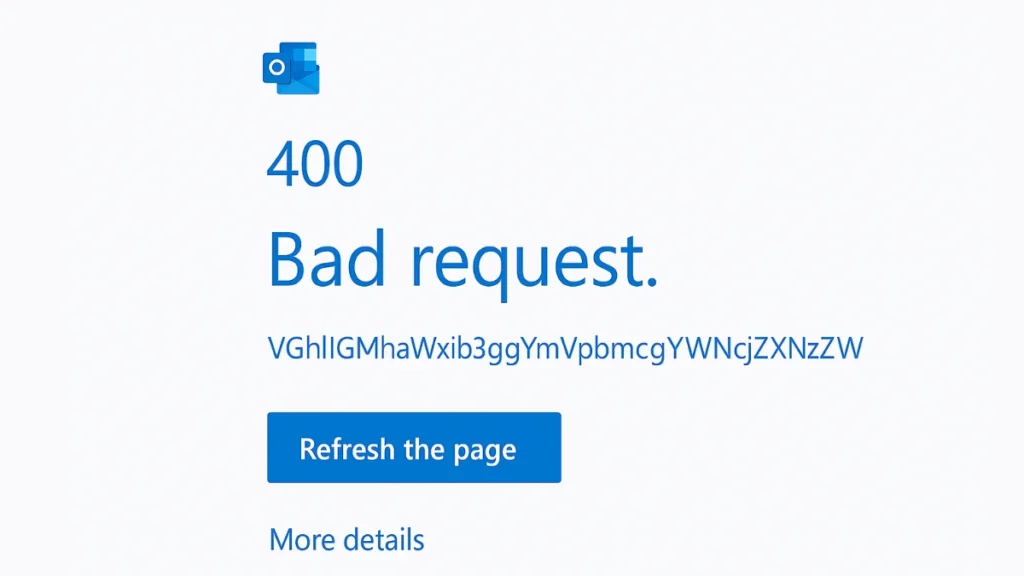
This issue affects both Outlook Desktop and Outlook Web, and it usually occurs because of corrupted cache files, browser cookies, DNS problems, Outlook add-ins, or server miscommunication.
However, most users can resolve the Outlook HTTP 400 error within a few minutes using a few troubleshooting steps. This guide explains the exact causes and the fastest solutions to restore Outlook functionality.
What Is the Outlook HTTP 400 Error?
The HTTP 400 Bad Request error occurs when Outlook sends a malformed or invalid request to Microsoft servers. Because the server cannot process the request correctly, it rejects the connection and blocks the action.
This error can prevent users from:
- Sending or receiving emails
- Accessing Outlook Web App (OWA)
- Syncing mail, calendar, or contacts
- Logging into Outlook through a browser
The problem may originate from either the local system (browser, cache, or Outlook client) or from server configuration issues.
Before applying fixes, it helps to understand why the error occurs. Several technical issues can trigger the problem.
Quick Fixes to Resolve Outlook HTTP 400 Error
Most users resolve the issue using these basic troubleshooting methods.
Fix 1: Clear Browser or Outlook Cache
Corrupted cache files often cause the Outlook 400 Bad Request error, especially in Outlook Web App.
For Outlook Web (OWA)
Open your browser settings and clear cached files.
Chrome / Edge
Press:
Ctrl + Shift + DelThen select:
- Cached images and files
- Cookies
Click Clear Data, then reload Outlook Web.
Firefox
Go to:
Settings → Privacy & Security → Cookies and Site Data → Clear DataFor Outlook Desktop
Close Outlook first.
Open Run using:
Win + RType:
%localappdata%\Microsoft\Outlook\RoamCacheDelete all files inside the folder and restart Outlook.
Clearing these files removes corrupted temporary data that may cause malformed requests.
Fix 2: Flush DNS and Check Network Configuration
DNS issues can sometimes prevent Outlook from reaching Microsoft servers correctly.
Open Command Prompt as Administrator and run:
ipconfig /flushdnsThis clears outdated DNS records stored on your computer.
If the problem continues, you can temporarily switch to Cloudflare DNS.
Open:
Control Panel → Network Settings → IPv4 PropertiesSet DNS servers to:
Preferred DNS:
1.1.1.1Alternate DNS:
1.0.0.1Restart your computer afterward.
Note: Corporate networks may enforce custom DNS rules, so avoid changing DNS if your organization manages the system.
Fix 3: Repair Microsoft Outlook Installation
Corrupted Microsoft Office files can also cause HTTP request errors.
Open:
Settings → Apps → Installed AppsLocate Microsoft 365 or Office, then choose:
Modify → RepairSelect Online Repair for a complete fix.
After the repair completes, restart your computer and test Outlook again.
Fix 4: Disable Outlook Add-ins or Browser Extensions
Some security extensions, ad blockers, or email tools can modify network requests sent by Outlook.
Outlook Desktop
Go to:
File → Options → Add-insChoose:
Manage COM Add-ins → GoDisable all add-ins, restart Outlook, and test again.
If Outlook works normally, re-enable add-ins one by one until you identify the conflicting plugin.
Outlook Web
Disable browser extensions such as:
- Ad blockers
- Cookie managers
- Privacy extensions
You can also test Outlook Web in Incognito Mode to confirm if an extension caused the issue.
Fix 5: Verify Outlook Web Permissions (Shared Mailboxes)
Corporate or shared mailboxes may display HTTP 400 errors when Outlook Web access is disabled.
Microsoft 365 administrators should verify mailbox permissions.
Open the Microsoft 365 Admin Center, then navigate to:
Users → Active Users → Select User → Mail → Email AppsEnsure Outlook on the Web is enabled.
Older Exchange servers may also require specific update patches to resolve request errors.
Advanced Solutions for Persistent HTTP 400 Errors
If the quick fixes do not resolve the issue, deeper configuration problems may exist.
Fix Base64-Encoded Account Errors
Sometimes Outlook displays a long encoded message such as:
VGhlIG1haWxib3ggYmVpbmcgYWNjZXNzZWQgZG9lc24mIzM5O3QgaGF2ZSBhIHZhbGlkIGFjY291bnQgc3RhdGU=This typically indicates that the mailbox account state is invalid or a protocol has been disabled.
In these cases, administrators should verify:
- Account status
- Authentication protocols
- Exchange service configuration
Contact your IT team or Microsoft support if the mailbox appears locked.
Modify Registry Settings for Exchange Servers
Large request headers can cause HTTP 400 errors in some Exchange environments.
Administrators can adjust request limits in Windows Registry.
Open Registry Editor and navigate to:
HKEY_LOCAL_MACHINE\System\CurrentControlSet\Services\HTTP\ParametersCreate or modify these values:
MaxFieldLength = 65534
MaxRequestBytes = 65534
Restart the server afterward.
This change increases the allowed header size and prevents request rejection.
Warning: Registry edits should only be performed by system administrators.
Reduce Large Email Attachments
Sending large files may also trigger request errors.
Outlook may reject messages containing attachments larger than 20 MB.
Instead of attaching files directly:
- Compress files using ZIP or RAR
- Upload files to OneDrive or Google Drive
- Share download links inside emails
This reduces request size and avoids server rejection.
Quick Troubleshooting
| Problem | Likely Cause | Recommended Fix |
|---|---|---|
| Outlook Web shows HTTP 400 | Corrupted cookies | Clear browser cache |
| Outlook Desktop fails to sync | Add-in conflict | Disable Outlook add-ins |
| Login page shows HTTP 400 | DNS issue | Flush DNS |
| Shared mailbox fails | OWA disabled | Enable Outlook Web access |
| Sending large attachments fails | Request size limit | Compress or upload files |
When the HTTP 400 Error Is a Microsoft Server Issue
In rare situations, the problem may originate from Microsoft servers.
If multiple users report the same Outlook HTTP 400 error simultaneously, the issue may relate to a temporary Microsoft 365 service outage. You can verify service status through the Microsoft 365 Service Health dashboard.
If the outage affects your region, waiting for Microsoft to resolve the issue is the only solution.
How to Prevent Outlook HTTP 400 Errors
Once Outlook works normally again, a few preventive steps can reduce the chances of the error returning.
Best practices include:
- Clear Outlook cache periodically
- Avoid installing unnecessary Outlook add-ins
- Keep Outlook and Microsoft 365 updated
- Disable outdated browser extensions
- Monitor Exchange server request limits
Maintaining a clean Outlook environment helps prevent malformed requests and server rejection errors.
FAQs
Why does Outlook show HTTP 400 Bad Request?
Outlook displays the HTTP 400 error when the server receives an invalid request. This usually happens due to corrupted cache files, browser cookies, DNS issues, or conflicting add-ins.
Can Outlook add-ins cause HTTP 400 errors?
Yes. Some add-ins modify network requests or authentication headers, which can cause Outlook servers to reject the request.
Does clearing cookies fix Outlook HTTP 400 errors?
In many cases, clearing browser cookies and cached files resolves the issue immediately because corrupted session tokens are removed.
Is the Outlook HTTP 400 error a server problem?
Most of the time the issue originates on the user’s device. However, large service outages or Exchange configuration problems can also trigger the error.
The Outlook HTTP 400 Bad Request error may appear serious, but it usually results from simple issues such as corrupted cache files, DNS conflicts, or add-in interference.
Clearing cache, flushing DNS, repairing Outlook, or disabling problematic extensions resolves most cases quickly. For persistent issues, administrators may need to review Exchange server settings or mailbox permissions.
Once fixed, Outlook should reconnect to Microsoft servers and resume normal email operations.

