Discord’s “Increased API Errors” banner means the problem is on Discord’s servers, not your device. When this happens, messages fail to load, streaming breaks, server settings stop responding, and long threads become completely inaccessible.
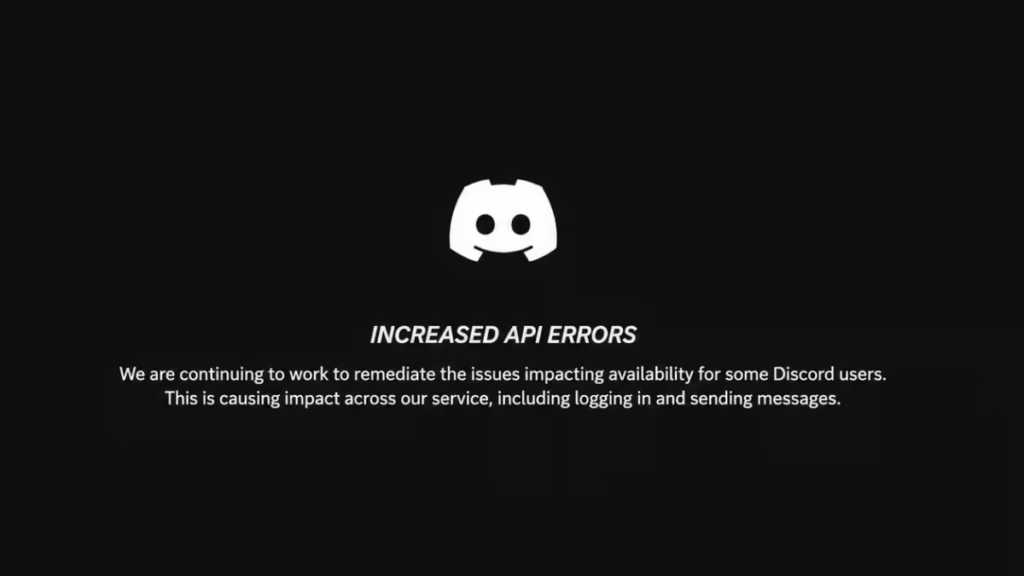
Most fix guides push you through useless steps like restarting your router, flushing DNS, or updating your graphics drivers. None of that touches the actual problem. The fixes below target the specific symptoms Discord API errors actually cause.
What Discord Increased API Errors Actually Break
The “Increased API Errors” status message is Discord’s backend struggling to route requests between the app and its infrastructure. That single failure cascades into multiple visible problems:
- Messages fail to load inside channels and DMs
- Server settings throw “Something went wrong. We couldn’t load the profile for this server”
- Streaming fails to start or drops mid-session
- Long threads with large message counts become completely inaccessible while short threads and main channels stay mostly functional
- Activity and connections stop saving new listening or gaming sessions
- Profile loading throws “Unable to load parts of profile”
- Login and app launch fail if you closed Discord during a heavy error window
Fix 1: Check the Discord Status Page Before Anything Else
Before trying any fix, confirm whether the problem is server-side or local. Open Discord’s status page and look at the current incident state.
If the status page shows an active incident, no client-side fix will fully resolve what you are seeing. The correct move is to wait and retry. Client fixes only matter once Discord’s status page shows “All Systems Operational” but your app still has errors.
Fix 2: Turn Off Hardware Acceleration (Confirmed Fix for Streaming)
When Discord’s API is degraded, hardware-accelerated video encoding is one of the first things to break. Users across multiple outage incidents have confirmed that turning off hardware acceleration immediately resolved streaming failures without requiring any other change.
Steps:
- Click the gear icon at the bottom left to open User Settings.
- Go to Advanced under App Settings.
- Toggle Hardware Acceleration off.
- Click Okay when Discord prompts you to restart.
For deeper streaming error diagnosis beyond API issues, see the full Discord Streaming Failed to Start Error 2007 guide and Discord Error 2012 fix guide.
Fix 3: Switch Networks
During API errors, Discord’s routing degrades along specific network paths. Switching from Wi-Fi to mobile data forces your device onto a completely different route to Discord’s servers, which sometimes bypasses the broken path entirely.
- On mobile: Turn off Wi-Fi and connect through cellular data, then relaunch Discord.
- On desktop: Hotspot your phone to your PC and connect through that instead of your home router.
This does not fix a Discord-side outage, but it can get you back into the app when your current route is heavily degraded while other paths still reach Discord’s servers.
Fix 4: Force Quit and Relaunch After Discord Recovers
Users who keep Discord open through an API error period often find that errors persist even after Discord’s backend recovers. The app holds stale session data and cached API responses that do not refresh on their own.
- Windows: Press
Ctrl + Shift + Esc, find Discord in the list, right-click, and select End Task. Then relaunch. - Mac: Press
Cmd + Option + Esc, select Discord, and click Force Quit. Then relaunch. - Mobile: Swipe Discord off your recent apps list. Reopen it fresh.
This is different from clicking the X on Discord’s window. On Windows, Discord continues running in the system tray unless you quit it from there explicitly.
Fix 5: Unlink and Relink Connections for Activity Bugs
After a major API error period, activity can stop saving even once Discord fully recovers. Games played, music listened to, and Spotify sessions no longer appear in the activity feed or connection history.
The cause is that Discord’s activity sync loses its state during extended API failures. Relinking forces it to re-establish a clean connection.
Steps:
- Go to User Settings > Connections.
- Click the X next to the affected connection (Spotify, Xbox, Steam, etc.) to unlink it.
- Click Add and relink the same service.
- Test by playing something and checking if it shows in your profile after a few minutes.
Wait at least 24 hours before unlinking anything. Activity data from the error window may still be backfilling on Discord’s servers.
Fix 6: Long Threads Require Waiting
During API error incidents, threads with very large message counts stay inaccessible longer than short threads and main channels. Long threads put heavier demands on Discord’s API and are among the last things to recover.
There is no client-side fix for this. If a long thread still fails to load after Discord declares full recovery, contact Discord support. It may need a manual cache rebuild on their end.
Fix 7: Clear Discord Cache for Leftover Loading Errors
If you still see Messages Failed to Load errors after Discord’s status page returns to green, corrupted cache files from the error period can be the cause.
Windows:
- Press
Win + R, type%appdata%\discord, and press Enter. - Delete the Cache, Code Cache, and GPUCache folders.
- Relaunch Discord.
Mac:
- Open Finder, press
Cmd + Shift + G, and go to~/Library/Application Support/discord. - Delete the same three cache folders.
- Relaunch Discord.
Android: Go to Settings > Apps > Discord > Storage > Clear Cache.
iOS: iOS does not expose a direct cache clear. Offload and reinstall the app if cache issues persist.
Fix 8: Reinstall Discord as a Last Resort
A fresh install resolves cases where the app itself corrupted during the error period, particularly if Discord crashed mid-update or mid-launch during heavy API failures. Do this only after clearing cache fails.
Uninstall Discord fully, download the latest version from discord.com, and install fresh. Your account data, servers, and messages all live on Discord’s servers, so reinstalling does not delete anything.
What Does Not Work During Discord API Errors
These steps get recommended constantly but have no effect when the problem is server-side:
- Flushing DNS
- Changing DNS servers
- Disabling VPN or proxy
- Updating graphics drivers
- Checking firewall or antivirus settings
- Restarting your router
If the Discord status page shows an active incident, skip all of the above entirely.
FAQs
Does restarting my router fix Discord API errors?
No. Discord API errors are server-side failures. Restarting your router, flushing DNS, or changing DNS servers has no effect on the problem.
Why do long Discord threads stay broken longer than regular channels?
Long threads with large message counts place heavier demands on Discord’s API. They are among the last things to recover during an incident and require Discord to rebuild their cache on the server side.
Discord’s status page says all systems are operational but errors still appear. Why?
Your app is holding stale session data and cached API responses from the error period. Force quit Discord completely and relaunch it. If errors persist, clear the Discord cache folders from your system.
Why did my activity and Spotify connections stop saving after Discord API errors?
Discord’s activity sync loses its state during extended API failures. Unlinking and relinking your connections in User Settings forces Discord to re-establish a clean sync.
Will Discord API errors delete my messages or server data?
No. API errors affect access and delivery, not storage. Your messages, servers, and account data remain intact on Discord’s servers throughout any incident.
Related Discord Error Fixes
- How to Fix Discord Messages Failed to Load Error
- Discord Elevated API Latency and Errors: Causes and Fixes
- How to Fix Discord Streaming Failed to Start Error 2007
- Discord Error 2012 Fix: Stream Failed to Start
- How to Fix Discord Error 3002 (Mic Not Detecting Input)
- How to Fix Discord Awaiting Endpoint Error
- Discord Phone Verification Not Working? Fix Every dis.gd/phone-errors Error

