Discord is stuck on “Update Failed, Retrying in 10 seconds” and the timer keeps resetting. The desktop app never opens, and no matter how many times you wait, the loop repeats itself. This is the Discord update failed loop, and it has nothing to do with your account or your servers. It is a local installation problem caused by corrupted files, blocked permissions, or antivirus interference.
This guide walks you through 7 proven fixes, ordered from the most to least effective, so you resolve it without wasting time on steps that do not apply to your situation.
What Causes the Discord Update Failed Loop?
Discord uses a self-updating system called Squirrel.Windows. Every time you launch Discord.exe, Squirrel checks for a new build, downloads it to %localappdata%\Discord\packages, and tries to extract it into a new versioned folder. If anything blocks that extraction, the updater retries indefinitely.
The most common causes behind the loop are:
- Corrupted update files in
%localappdata%\Discord\packagesor a half-extractedapp-*folder - Antivirus software quarantining Update.exe or the new build mid-extraction
- Insufficient write permissions on the Discord folder, which is common on shared or corporate computers
- Locked DLL files held by a hidden Discord.exe process that never closed properly
- Conflicting installations when you have Discord Stable, PTB, and Canary running together
- A full or failing disk that prevents the new version from being written
Fix 1 resolves around 70% of cases. Work through the list in order and close all Discord processes in Task Manager before you start any fix.
Fix 1: Delete the Discord LocalAppData Folder
This is the fastest and most reliable fix. Deleting the local folder forces Discord to download a clean installer and start fresh.
- Press Ctrl + Shift + Esc to open Task Manager.
- End every process named Discord.exe, Update.exe, or squirrel.exe.
- Press Win + R, type
%localappdata%, and press Enter. - Right-click the Discord folder and select Delete.
- Press Win + R again, type
%appdata%, and press Enter. - Delete the discord folder there as well to clear cached settings and login tokens.
- Download the latest installer from discord.com/download and run it.
- Log back in when prompted.
Your messages, servers, friends, and DMs are stored on Discord’s servers and reappear instantly after you log in. Deleting the local folder removes nothing from your account.
Important: Do not reinstall over the broken installation. The new installer detects the existing folder and reuses the corrupted files, which puts you back in the loop. Always delete the folder first.
Fix 2: Run Discord as Administrator
If your Windows user account lacks write permission on the Discord installation folder, the updater fails silently and retries forever. Running Discord as administrator gives the updater the access it needs.
- Right-click the Discord shortcut on your desktop.
- Select Run as administrator.
- Let the update complete.
To make this change permanent, right-click the shortcut, go to Properties, click Shortcut, then click Advanced, and check Run as administrator.
If you want to go further, open an elevated Command Prompt and run:
takeown /F "%localappdata%\Discord" /R /D YThis transfers ownership of the Discord folder to your user account so the updater always has full access.
Fix 3: Disable Antivirus and Add Discord to Exclusions
Antivirus programs, including Windows Defender, Avast, AVG, Norton, McAfee, and Bitdefender, sometimes quarantine Discord’s Update.exe or the new build’s executables during extraction. This behavior spikes when Discord ships a major version update.
- Pause your antivirus for 10 minutes by right-clicking the tray icon and selecting Disable or Pause.
- Launch Discord and let the update finish.
- Re-enable your antivirus.
- Add
%localappdata%\Discordto your antivirus exclusion list to prevent the issue from returning.
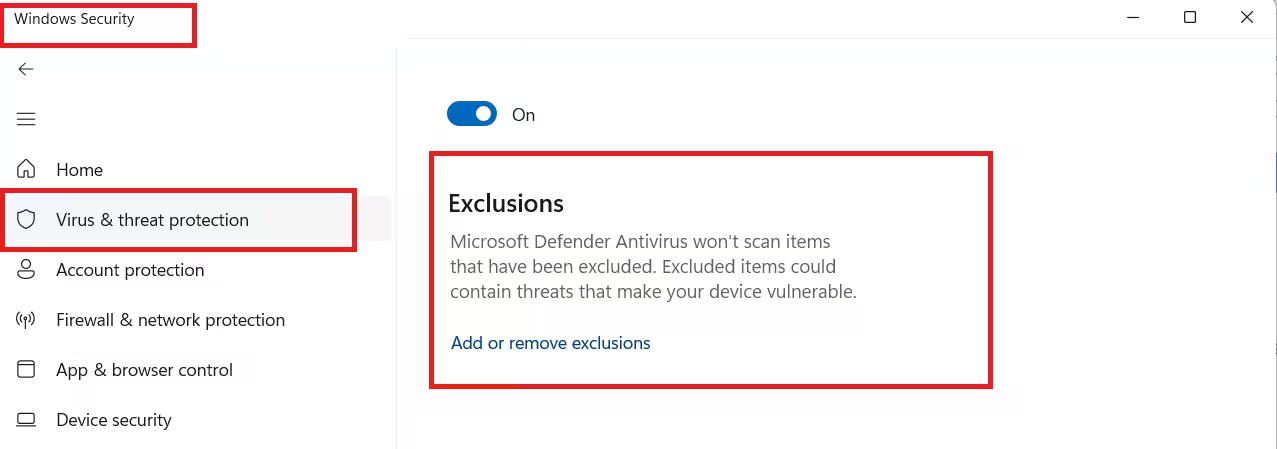
For Windows Defender, go to Settings, then Privacy and Security, then Windows Security, then Virus and Threat Protection, then Manage Settings, then Exclusions, then Add an Exclusion, select Folder, and choose %localappdata%\Discord.
Fix 4: Clear the Temp Folder and Update Cache
Squirrel writes temporary files to %temp% during extraction. A cluttered Temp folder can block writes and trigger the update loop.
- Press Win + R, type
%temp%, and press Enter. - Select all files with Ctrl + A and delete them with Shift + Delete. Skip any files marked as in use.
- Press Win + R and type
cleanmgr. In Disk Cleanup, tick Temporary files and Recycle Bin, then click Clean up system files. - Relaunch Discord.
Fix 5: Install Discord PTB as a Workaround
Discord PTB (Public Test Build) installs to %localappdata%\DiscordPTB, a completely separate path from the stable build. If stable Discord is stuck in a loop, PTB sidesteps the locked folder entirely.
- Go to discord.com/download and scroll to Public Test Build.
- Download and install it.
- Log in with the same account.
PTB is stable enough for daily use and includes all the same features. Use it while you troubleshoot the stable installation with Fix 1 or Fix 6.
Fix 6: Reset Discord Permissions via PowerShell
When the folder ACL (access control list) is broken, typically after a Windows profile migration or an upgrade from Windows 10 to Windows 11, reinstalling Discord alone will not fix the problem. You need to rewrite the permissions directly.
- Open PowerShell as administrator by pressing Win + X and selecting Terminal (Admin).
- Run the following script:
Stop-Process -Name "Discord","Update" -Force -ErrorAction SilentlyContinue
Remove-Item "$env:LOCALAPPDATA\Discord" -Recurse -Force -ErrorAction SilentlyContinue
Remove-Item "$env:APPDATA\discord" -Recurse -Force -ErrorAction SilentlyContinue
icacls "$env:LOCALAPPDATA" /grant "$env:USERNAME`:(OI)(CI)F" /T
Start-Process "https://discord.com/download"
This script kills all Discord processes, removes both corrupted folders, repairs your user’s write permissions on LocalAppData recursively, and opens the Discord download page in one step.
Fix 7: Run Disk Repair and System File Check
If none of the above fixes worked, the underlying drive or Windows installation may be unhealthy. Corrupted system files and disk errors can prevent Squirrel from writing any new files successfully.
Open an elevated Command Prompt and run these three commands in order:
sfc /scannow
DISM /Online /Cleanup-Image /RestoreHealth
chkdsk C: /f /r
The chkdsk command schedules a check on the next reboot. Type Y to confirm and restart your PC. After Windows boots clean, retry the Discord installation.
How to Read the Discord Updater Logs
If you want to confirm exactly what is failing before picking a fix, Discord’s Squirrel updater writes a detailed log to:
%localappdata%\Discord\SquirrelSetup.logOpen it in Notepad and scroll to the bottom. Look for lines containing ERROR, Access is denied, File is being used by another process, or HRESULT 0x80070005.
| Log Message | Which Fix to Use |
|---|---|
| Access is denied / 0x80070005 | Fix 2 or Fix 6 |
| File is being used by another process | Kill Discord in Task Manager, then Fix 1 |
| The system cannot find the path specified | Fix 1 (full reinstall) |
| Operation did not complete successfully because the file contains a virus | Fix 3 (antivirus exclusion) |
How to Prevent the Discord Update Failed Loop
After Discord is running again, make these changes to stop the loop from coming back:
- Add
%localappdata%\Discordto your antivirus exclusions permanently. - Confirm your Windows user account owns the Discord folder with full control by going to the folder’s Properties, then Security, then Advanced, and checking the owner.
- Keep at least 2 GB of free space on your system drive. Discord delta packages can temporarily need around 1 GB during extraction.
- Install Windows updates monthly. Microsoft patched several Squirrel-related permission regressions in Windows 11 23H2 and 24H2.
- Never move or sync the Discord folder to OneDrive, Dropbox, or any other cloud sync location. The sync engine locks files during install and triggers the loop.
Frequently Asked Questions
Why does Discord keep looping during updates?
The Squirrel updater downloads a new build but cannot replace the installed files. This happens because the files are corrupted, locked by another process, quarantined by antivirus, or your user account lacks write permission on the Discord folder.
Will I lose my messages or servers if I delete the LocalAppData folder?
No. All messages, servers, friends, DMs, and account settings live on Discord’s servers. Deleting the local folder only removes the installation files. Everything comes back instantly after you log in.
Can I use Discord while it is stuck updating?
Yes. Open discord.com/app in any browser for full web access. The browser version supports nearly all desktop features while you fix the client.
Why does running Discord as administrator fix the update?
The updater writes files to the installation directory and to system Temp folders. If your standard user account lacks write permission on either path, the updater fails silently and retries forever. Administrator rights bypass the permission check.
Does the Discord update failed loop mean my PC has a virus?
Almost never. The loop is a Windows permissions or file-lock issue in nearly all cases. If you want to be sure, run a Microsoft Defender scan after resolving the error, but the loop itself is not a sign of malware.
Does this fix work on Windows 10 as well as Windows 11?
Yes. The Discord Squirrel updater is identical on Windows 10, Windows 11, and Windows 8.1. All seven fixes above apply to every Windows version. macOS and Linux use a different update mechanism and are not affected by this specific loop.
How long should a Discord update normally take?
A standard delta update takes 5 to 30 seconds depending on your internet speed. A full version upgrade can take 1 to 2 minutes. If the “Update Failed, Retrying” message has been on screen for more than 90 seconds, you are stuck in the loop and should start with Fix 1.
Should I use Discord PTB permanently instead of stable Discord?
You can. PTB is stable enough for daily use and gets new features one to two weeks ahead of the stable channel. The only trade-off is occasional minor UI bugs that the team patches quickly. Many regular users run PTB as their main client.

