Error code 224003 appears when your browser fails to load or play a video. The message usually reads “This video file cannot be played (Error Code: 224003)” and blocks the video entirely. It can hit any browser on any platform, including Chrome, Edge, Safari, Firefox, and even console browsers on PS4 and PS5.
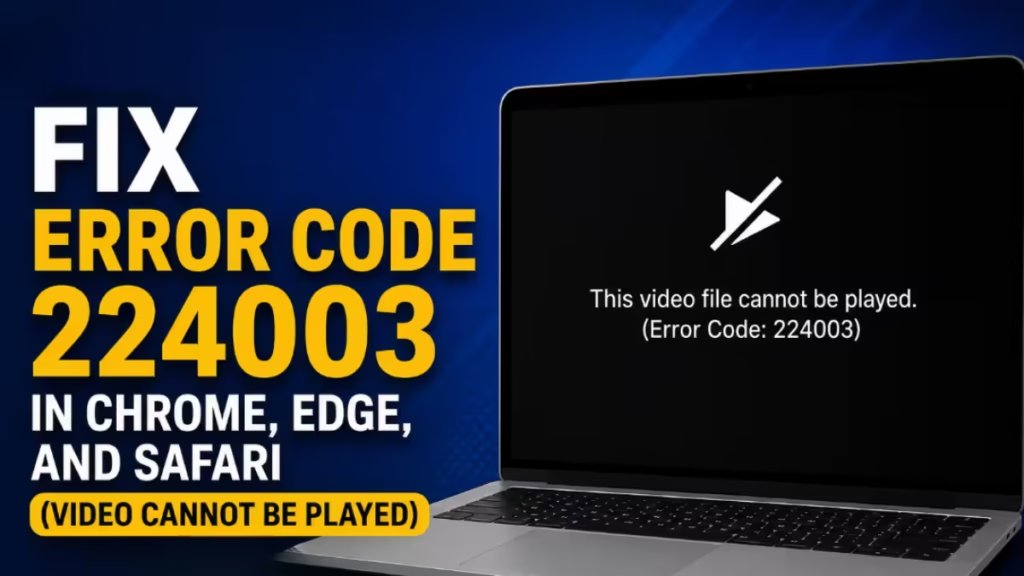
The error is not server-side in most cases. Your browser is the problem, and the fix targets a specific cause: corrupted cache, a blocking extension, disabled JavaScript, or hardware acceleration conflicts. This guide walks you through every real fix, in order of likelihood.
What Causes Error Code 224003
The error fires when the browser cannot retrieve or process the video data stream. These are the confirmed causes:
- Corrupted cache or cookies storing old, broken video data
- Extensions blocking video scripts, especially ad blockers and privacy tools
- Hardware acceleration conflicts between your GPU and the video player
- JavaScript disabled, which breaks most embedded video players
- Firewall or antivirus software blocking the video URL or CDN domain
- Outdated browser lacking compatibility with newer video formats
Fix 1: Clear Cache and Cookies
Corrupted cached files are the most common trigger for error code 224003. Clearing them forces your browser to fetch fresh data from the server.
Chrome
- Press Ctrl + Shift + Delete (Windows) or Cmd + Shift + Delete (Mac).
- Set the time range to All time.
- Check Cached images and files and Cookies and other site data.
- Click Clear data.
- Relaunch Chrome and reload the video page.
Microsoft Edge
- Click the three-dot menu in the top-right corner.
- Go to Settings > Privacy, search, and services.
- Under Clear browsing data, click Choose what to clear.
- Set the time range to All time.
- Check Cached images and files and Cookies and other site data.
- Click Clear now.
Safari (macOS)
- Open Safari > Settings (or Preferences on older macOS).
- Click the Privacy tab.
- Click Manage Website Data, then Remove All.
- Confirm the deletion and relaunch Safari.
Firefox
- Press Ctrl + Shift + Delete (Windows) or Cmd + Shift + Delete (Mac).
- Set the time range to Everything.
- Check Cache and Cookies and Site Data.
- Click Clear Now.
After clearing, reload the video page and test playback immediately.
Fix 2: Disable Extensions and Find the Culprit
Ad blockers, VPN extensions, and privacy tools frequently block the JavaScript or CDN requests that video players depend on. GhostPoster malicious browser extensions have also been known to interfere with video scripts without any visible warning.
Chrome
- Click the three-dot menu > More tools > Extensions.
- Toggle off every extension.
- Reload the video page. If it plays, an extension was responsible.
- Re-enable extensions one at a time, reloading the page after each, until the error returns.
- The last extension you enabled is the cause. Update or remove it.
Microsoft Edge
- Click the Extensions icon in the toolbar (or go to Settings > Extensions).
- Toggle off all extensions.
- Test the video, then re-enable one by one to isolate the issue.
Firefox
- Click the hamburger menu > Add-ons and themes > Extensions.
- Disable all extensions.
- Reload the video and re-enable extensions one at a time to identify the conflict.
Safari (macOS)
- Go to Safari > Settings > Extensions.
- Uncheck every extension checkbox.
- Reload the page, then re-enable them one by one.
Ad blockers are the most common culprits. When you find the offending extension, add the video site to its whitelist rather than uninstalling the extension entirely.
Fix 3: Disable Hardware Acceleration
Hardware acceleration offloads rendering to your GPU. On some systems, this conflicts with certain video players and produces error code 224003.
Chrome
- Click the three-dot menu > Settings.
- Click System in the left sidebar.
- Turn off Use hardware acceleration when available.
- Click Relaunch to restart Chrome.
Microsoft Edge
- Click the three-dot menu > Settings.
- Click System and performance in the left sidebar.
- Turn off Use hardware acceleration when available.
- Click Restart.
Safari manages hardware acceleration automatically and does not expose a toggle. If you are hitting this error specifically in Safari, skip to Fix 4.
Fix 4: Verify JavaScript Is Enabled
Most embedded video players rely entirely on JavaScript. If JavaScript is disabled or blocked for a specific site, the player never loads and 224003 appears.
Chrome
- Go to Settings > Privacy and security > Site Settings.
- Click JavaScript.
- Make sure Sites can use JavaScript is selected.
- If you use an extension that blocks JavaScript per site (like NoScript or uBlock Origin’s advanced mode), whitelist the video site there as well.
Microsoft Edge
- Go to Settings > Cookies and site permissions.
- Click JavaScript.
- Set it to Allowed (recommended).
Firefox
- Type
about:configin the address bar and press Enter. - Search for
javascript.enabled. - Confirm the value is true. If it shows false, double-click it to toggle it back to true.
Safari (macOS)
- Go to Safari > Settings > Security.
- Make sure Enable JavaScript is checked.
Fix 5: Whitelist the Video Site in Your Firewall or Antivirus
Your firewall or antivirus software may block the CDN domain that delivers the video stream. This is a common issue with aggressive third-party security suites.
To confirm this is the cause: Temporarily disable your antivirus or firewall, then reload the video. If it plays, your security software is blocking the connection.
To fix it without disabling protection:
- Open your antivirus or firewall settings.
- Find the Allowed sites, Exceptions, or Whitelist section.
- Add the domain of the video site (for example,
streamingsite.comand its CDN subdomains). - Save the rule and reload the video.
Do not leave your firewall or antivirus disabled after testing. Always restore protection and add a proper whitelist rule instead.
Fix 6: Reset Browser Settings
If the previous fixes did not resolve error code 224003, a misconfigured browser setting may be responsible. Resetting your browser restores all settings to defaults without uninstalling it.
Chrome
- Go to Settings > Reset settings.
- Click Restore settings to their original defaults.
- Confirm by clicking Reset settings.
This does not delete bookmarks or saved passwords. It removes custom flags, site permissions, and any settings that may conflict with video playback.
Microsoft Edge
- Go to Settings > Reset settings.
- Click Restore settings to their default values.
- Confirm the reset.
Firefox
- Type
about:supportin the address bar. - Click Refresh Firefox in the top-right corner.
- Confirm in the dialog box.
Firefox’s refresh removes extensions and theme customizations but keeps bookmarks, passwords, and browsing history.
Safari
Safari does not have a one-click reset. To manually reset it:
- Clear cache and cookies (see Fix 1).
- Disable all extensions (see Fix 2).
- Reset the homepage and search engine settings under Safari > Settings > General and Search.
Fix 7: Use a Private Window to Confirm the Root Cause
Before spending time on deeper fixes, open a Private or Incognito window and try the video there.
- Chrome / Edge: Press Ctrl + Shift + N (Windows) or Cmd + Shift + N (Mac).
- Firefox: Press Ctrl + Shift + P (Windows) or Cmd + Shift + P (Mac).
- Safari: Press Cmd + Shift + N.
Private windows start with no extensions active and no cached data. If the video plays in private mode but not normally, the cause is either an extension (Fix 2) or corrupted cache (Fix 1). Address those two fixes first before doing anything else.
Related Tech Guides
- How to Fix NET::ERR_CERT_AUTHORITY_INVALID Error in Chrome, Edge, and Firefox
- ERR_SSL_PROTOCOL_ERROR Edge Opera Fix: How to Restore Secure Browsing When Chrome Works
- How to Fix “Hmm Can’t Reach This Page Error” in Edge and Chrome (Full Guide)
FAQs
What does error code 224003 mean?
Error code 224003 means the browser cannot load or play the video. The player receives no data or encounters a blocked request before the stream starts.
Which extension most commonly causes error 224003?
Ad blockers are the most frequent cause. Extensions like uBlock Origin, AdBlock, and Ghostery can block video CDN requests or JavaScript that the player depends on. Whitelist the video site in the extension settings to fix it.
Does disabling hardware acceleration break anything else?
No. Disabling hardware acceleration may slightly reduce rendering performance on some pages, but it has no impact on general browsing. Most users notice no difference after turning it off.
Why does the video play in incognito mode but not normally?
Incognito mode loads with no extensions and no cached data. If video playback works there, either an extension is blocking the player or your cache contains corrupted data. Clear your cache and disable extensions one by one to find the cause.
Can error 224003 appear on PS4 or PS5?
Yes. The PS4 and PS5 browsers use WebKit, which can also encounter this error. Clear the browser cache in the console’s network or browser settings and try the video again.

