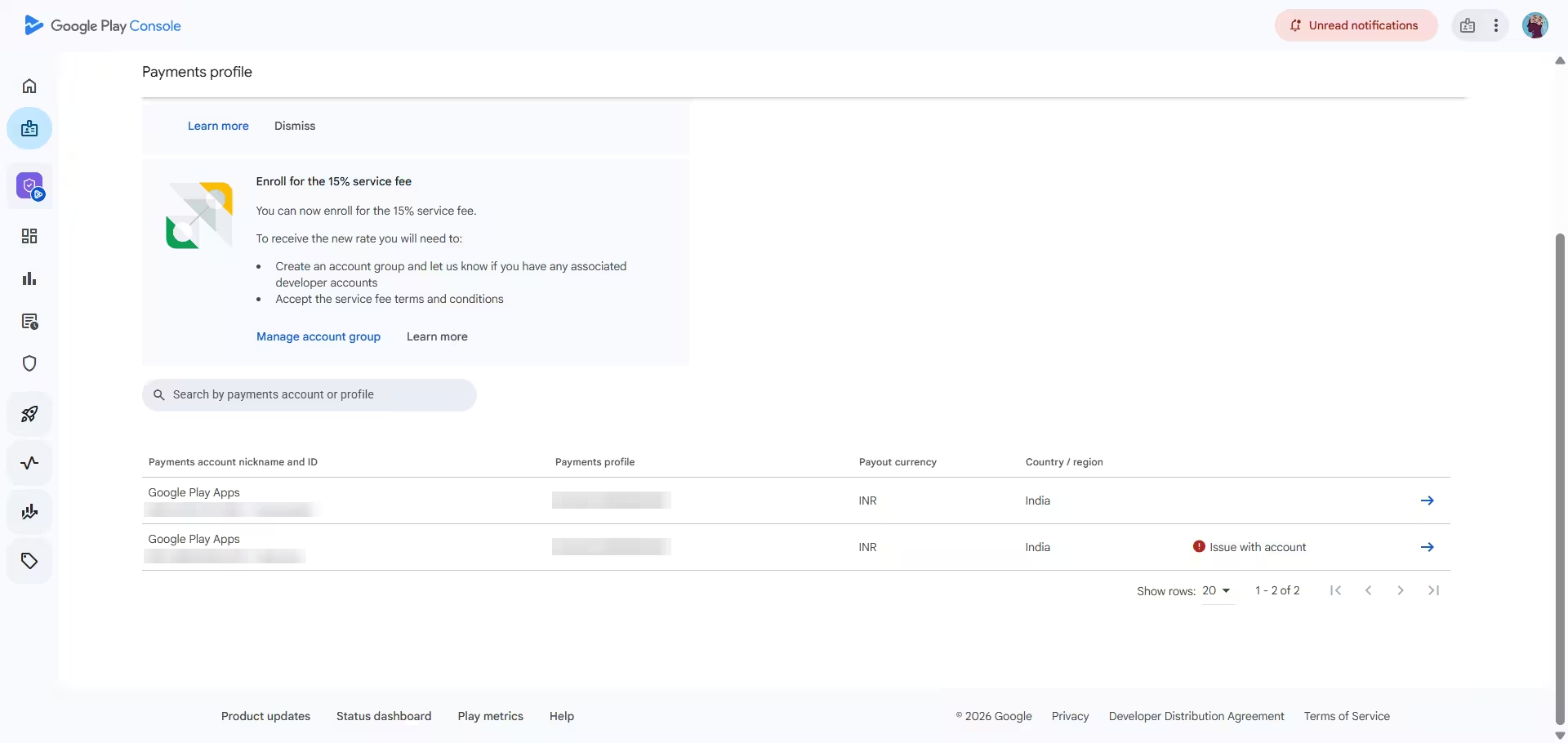
If your Google Play Console shows a red "Issue with account" label on the "India only" payments profile, Google is missing your tax details. Until you fix it, your earnings stay out of the next payout, even when you have crossed the minimum threshold. The fix takes about 15 minutes, and this guide gives you the exact answer for every screen.
What Causes the "Issue with Account" Error on Your Google Play Payments Profile
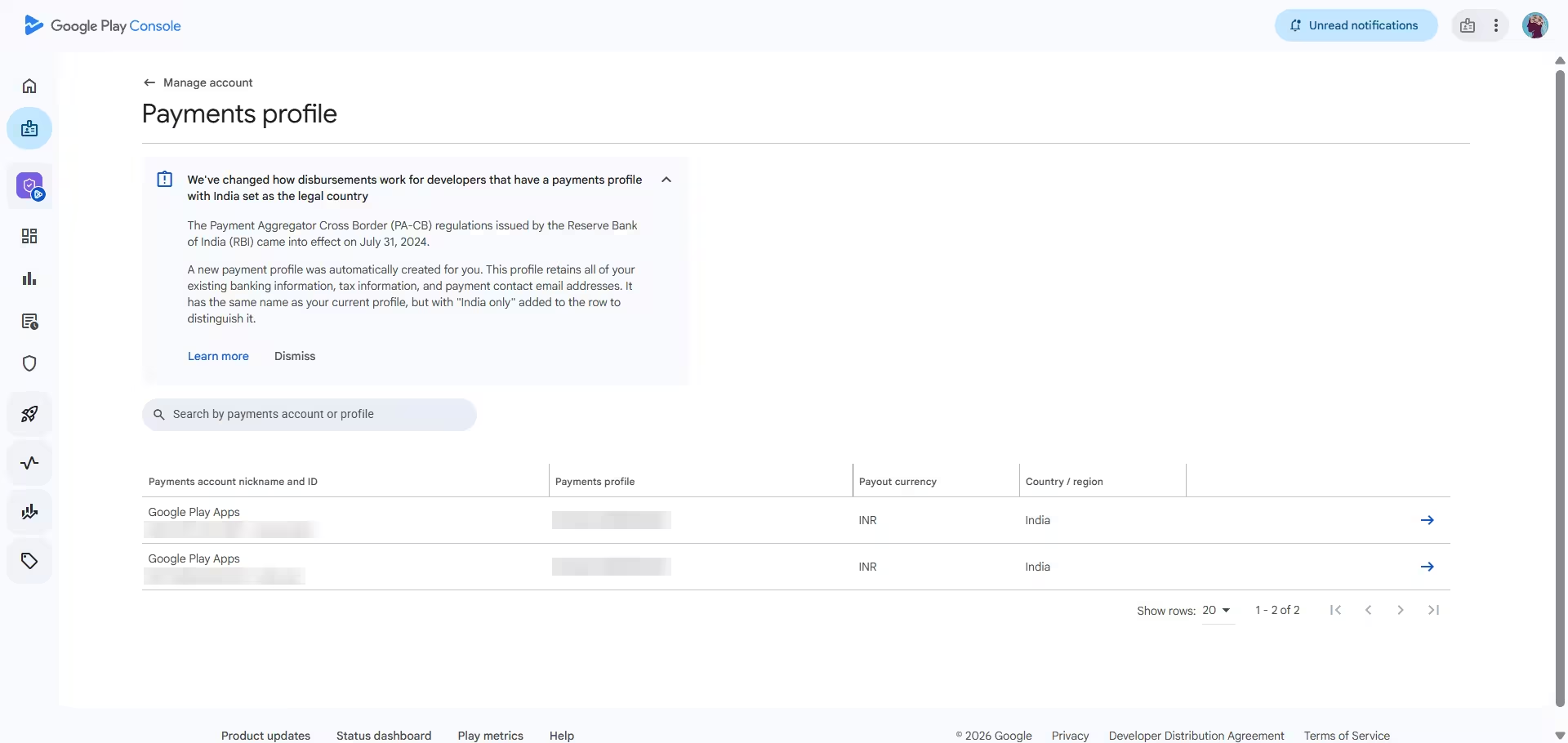
In July 2024, the Reserve Bank of India's Payment Aggregator Cross Border (PA-CB) rules came into force. Google responded by creating a second payments profile for every Indian developer. Both profiles carry the same name, but one is marked "Cross border" and the other "India only".
The India only profile needs complete tax information before Google includes your earnings in a payout. Most developers see the error after their first sale or a self purchase, because that sale pushes earnings above the payout threshold. The threshold is ₹100 for India payouts.
What You Get After Fixing the Google Play Payments Profile
- India tax info showing Accepted
- US Form W-8BEN showing Approved, with the 15% treaty rate instead of the default 30%
- The "Issue with account" flag cleared on both profiles
- The reduced 15% Google Play service fee active on your account
Step 1: Open the "India Only" Payments Profile in Play Console
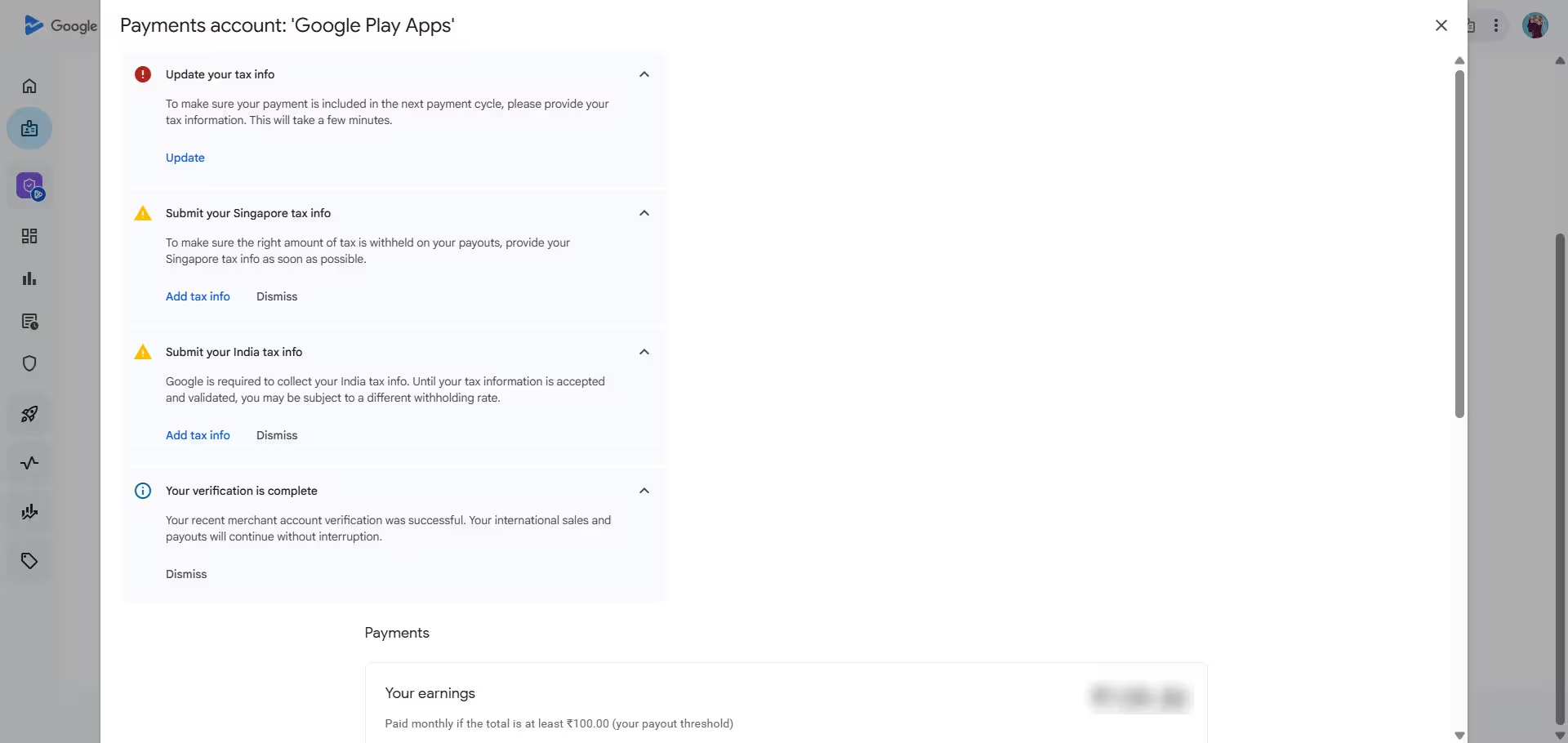
Open Google Play Console and go to Settings, then Manage account, then Payments profile. You will see two rows named "Google Play Apps". Click the arrow on the row marked "India only" with the red label.
Inside the profile, read the notices at the top. A red "Update your tax info" notice blocks your payout. Yellow notices for Singapore or India are only warnings. Then scroll down to Manage tax information, which lists every country Google needs tax details for.
Step 2: Check Your India Tax Info and Ignore the GSTIN Warning
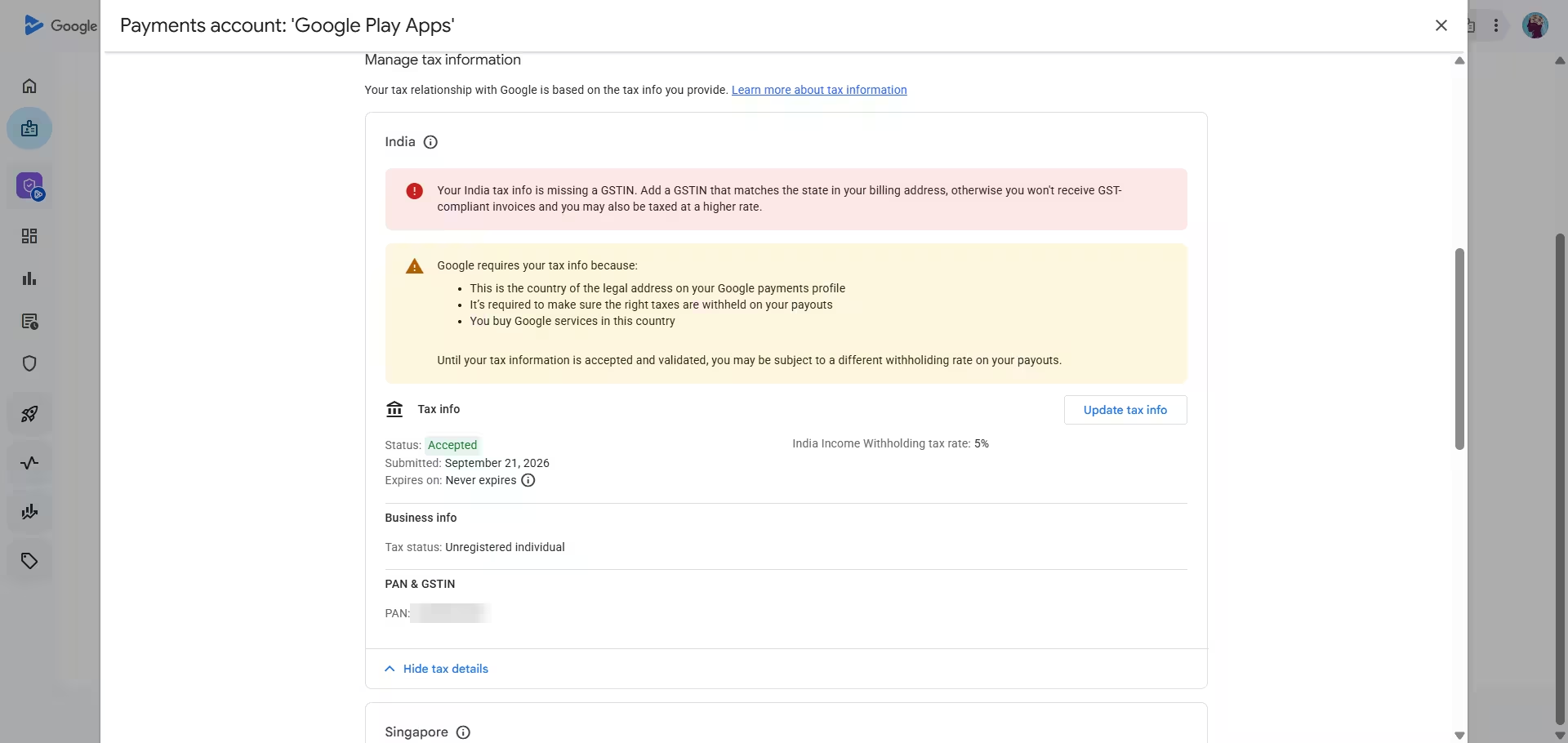
Under India, the status should read Accepted, with a 5% income withholding rate and "Never expires". Your PAN appears under "PAN & GSTIN".
You may also see a red banner saying your India tax info is missing a GSTIN. If you are an Unregistered individual, you can ignore it. You have no GSTIN to add, and the only effect is that you do not receive GST-compliant invoices. Add a GSTIN only if you are GST-registered.
If India shows no tax info at all, click Add tax info, choose Individual, and enter your name exactly as it appears on your PAN card, plus the PAN number.
Step 3: Fill the Google Play W-8BEN Form as an Indian Developer (15% Treaty Rate)
This step clears the red notice. Google pays you from the United States, so it must collect a US tax form. Without one, it can withhold up to 30% of your payouts or hold them. A W-8BEN with an India treaty claim lowers the rate to 15% on royalties.
Scroll to United States, click Add tax info, and then click Start form on the "Before you start" box.
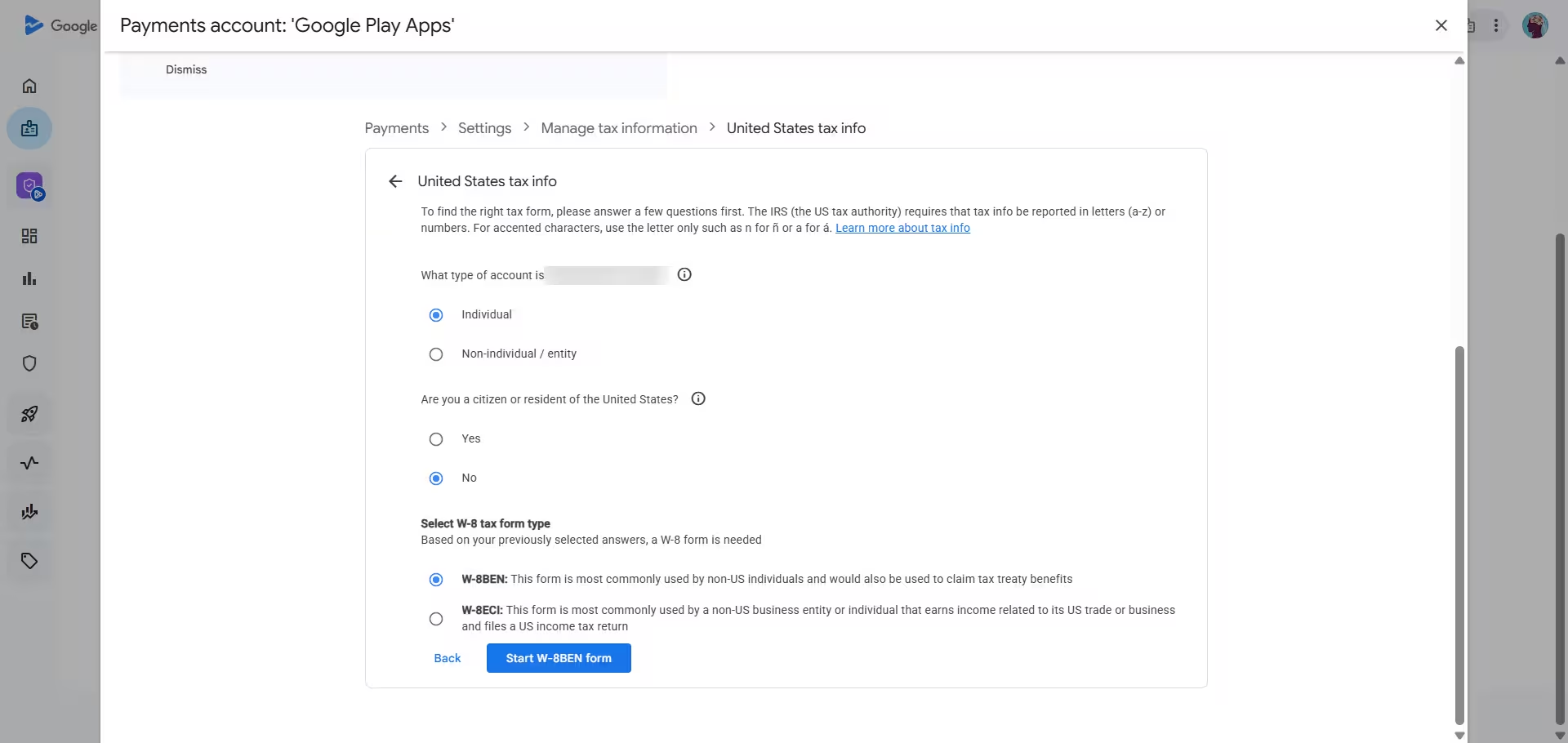
Choose the form type
Select Individual as the account type, answer No to the US citizen or resident question, and choose W-8BEN (not W-8ECI). Then click Start W-8BEN form.
Enter your tax identity and address
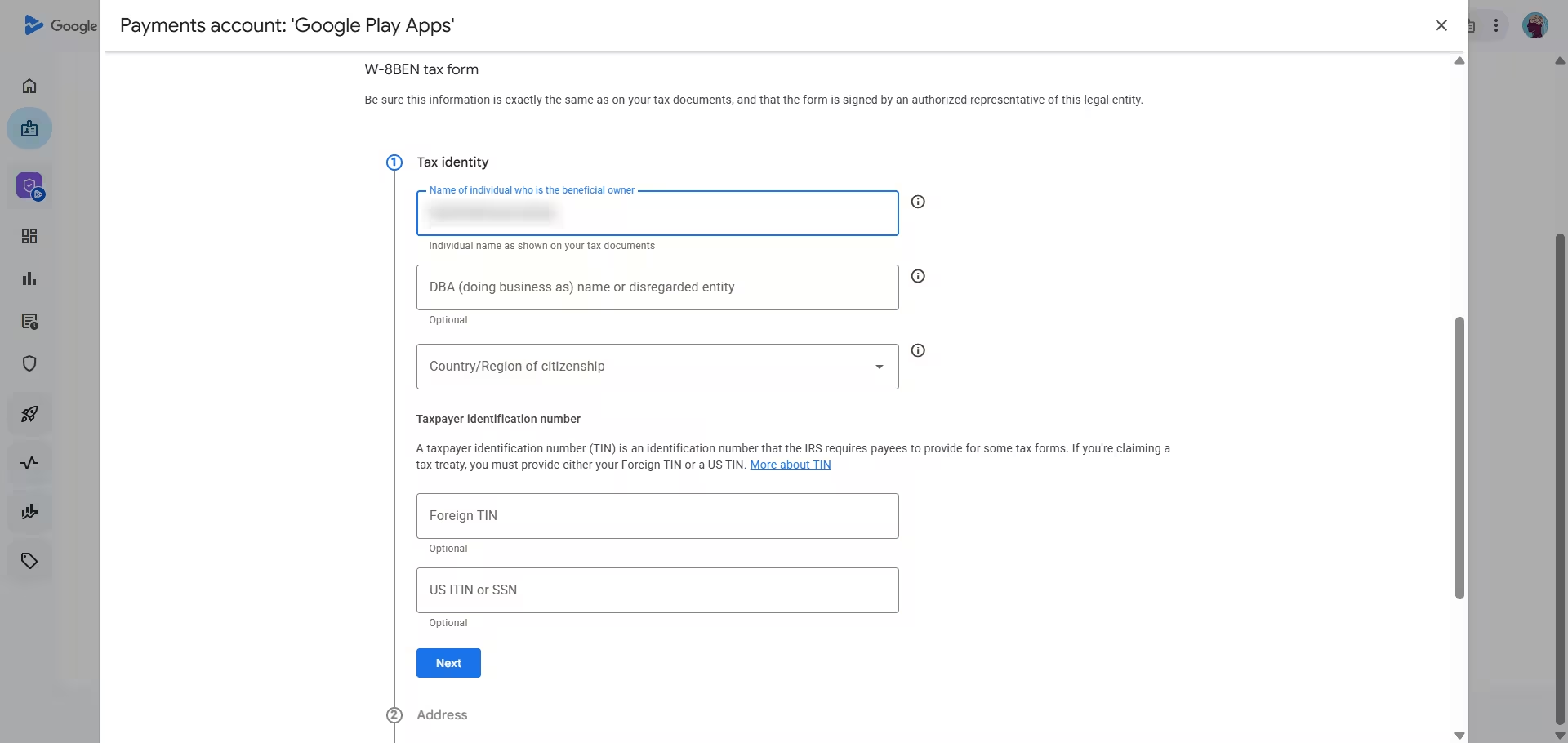
Enter your name exactly as it appears on your PAN card, and set the country of citizenship to India. Enter your PAN as the Foreign TIN. Leave the US ITIN or SSN and DBA fields blank.
On the address step, enter your permanent address in Latin letters. Set "PO box or in-care-of address" to No unless your address truly is one.
Claim the India tax treaty
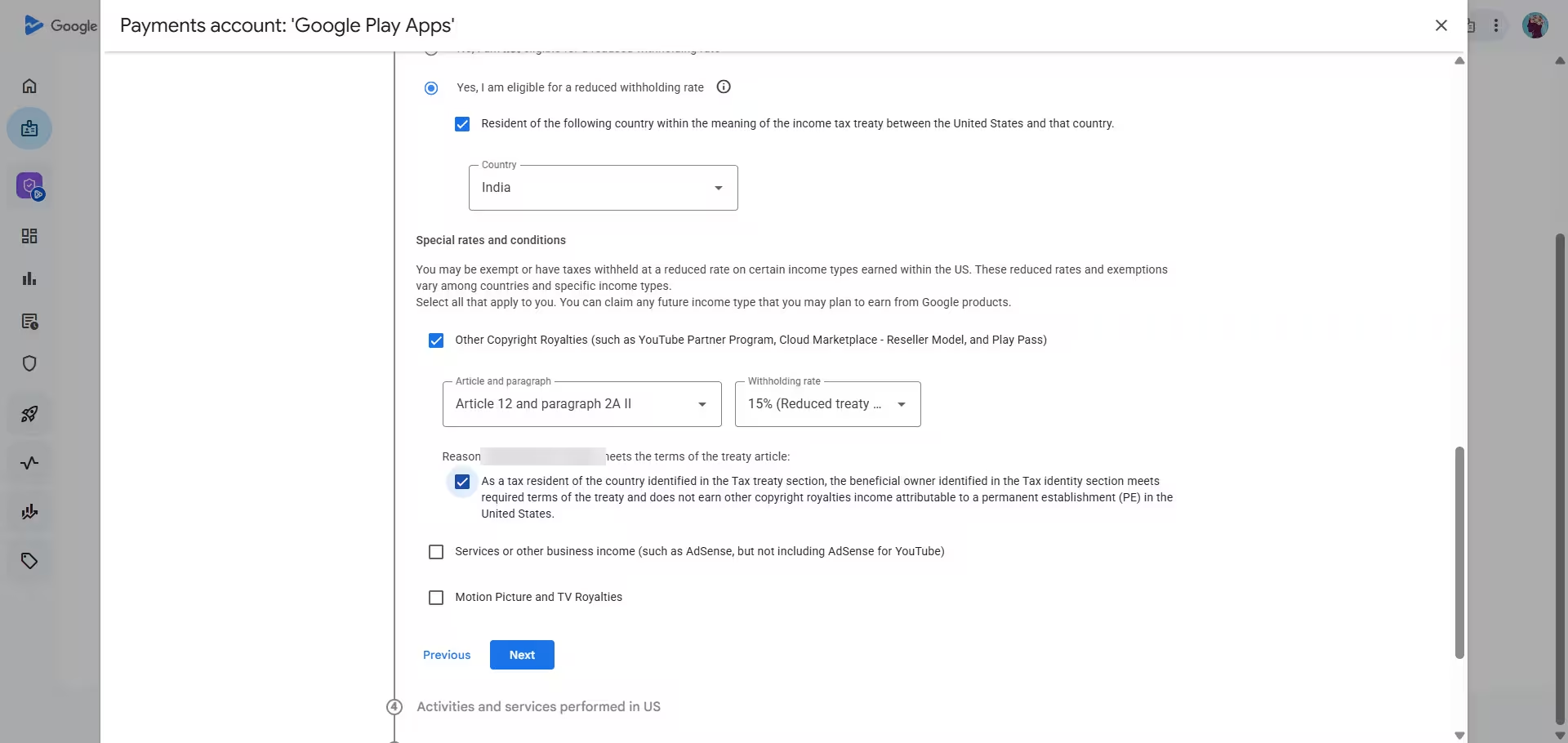
Choose Yes to claim a reduced rate and select India as your country of residence. Tick Other Copyright Royalties, choose Article 12 and paragraph 2A II, and set the withholding rate to 15%. Then tick the reason checkbox, which confirms you are an Indian tax resident with no permanent establishment in the US.
Finish the remaining screens and sign
On the activities screen, choose No and tick the certification that you perform all services outside the US. Choose Go paperless on the tax reporting screen. On the document preview, open the first PDF, confirm your name, PAN and address, and tick the confirmation box.
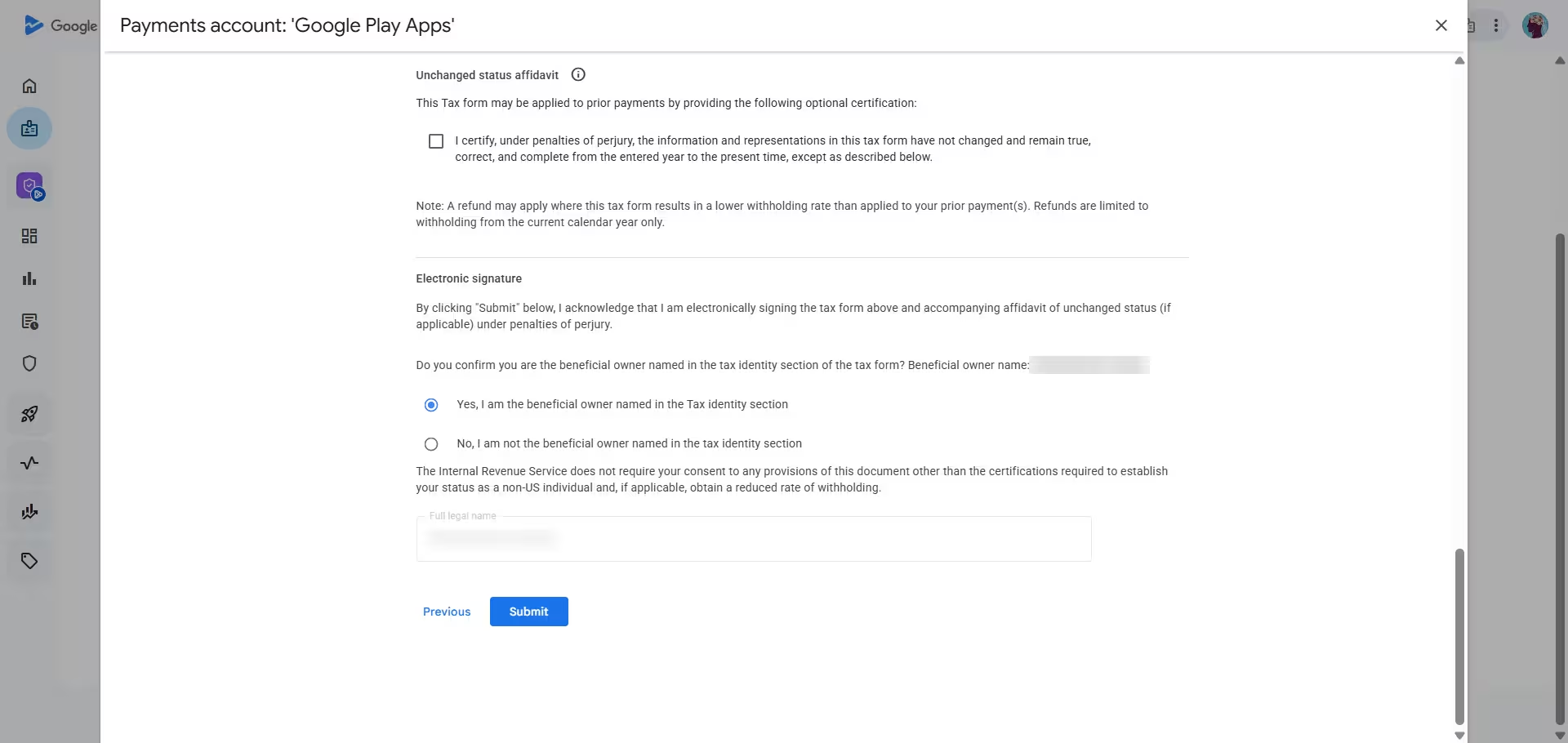
On the final screen, tick the perjury declaration and leave the unchanged status affidavit unticked. Select "Yes, I am the beneficial owner" and click Submit.
If you plan to earn AdSense or similar business income through Google, also tick Services or other business income on the treaty screen. Google then generates a second form for that income.
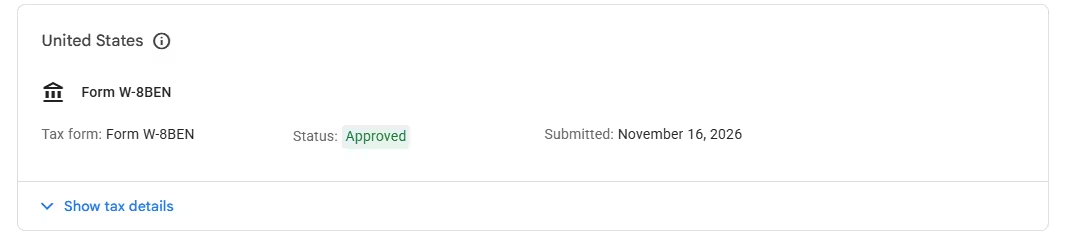
After you submit, the US row changes to Approved. This takes a few minutes to a day.
Step 4: Should You Add Singapore and Taiwan Tax Info on Google Play?
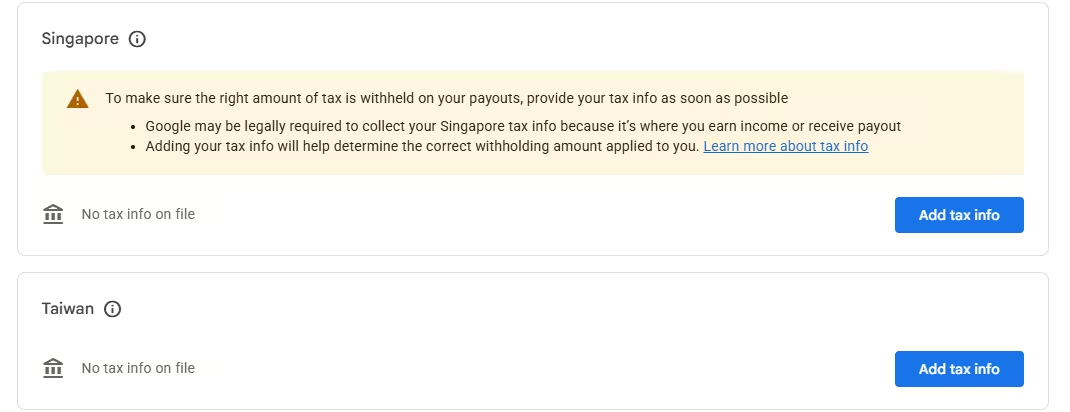
Both countries show a yellow "No tax info on file" warning. They are optional. The Singapore form asks for a tax residency certificate or a similar document, which most individual developers do not have.
If you skip them, Google may withhold local tax at the default rate on earnings paid by its Singapore entity. Your payout does not stop, and for a small app the amount stays tiny. Click Dismiss on both notices. If your Singapore earnings grow later, get a tax residency certificate from the Indian tax authorities and add it then.
Step 5: Enroll in the Google Play 15% Service Fee
The Payments profile page also shows an "Enroll for the 15% service fee" banner. It cuts Google's commission from 30% to 15% on the first $1 million you earn each year, and it costs nothing.
- Click Manage account group, then Create account group.
- Name the group anything, such as your name or brand.
- Answer the two questions honestly. If this is your only developer account, choose No for both. Never hide other accounts you own.
- Click Save.
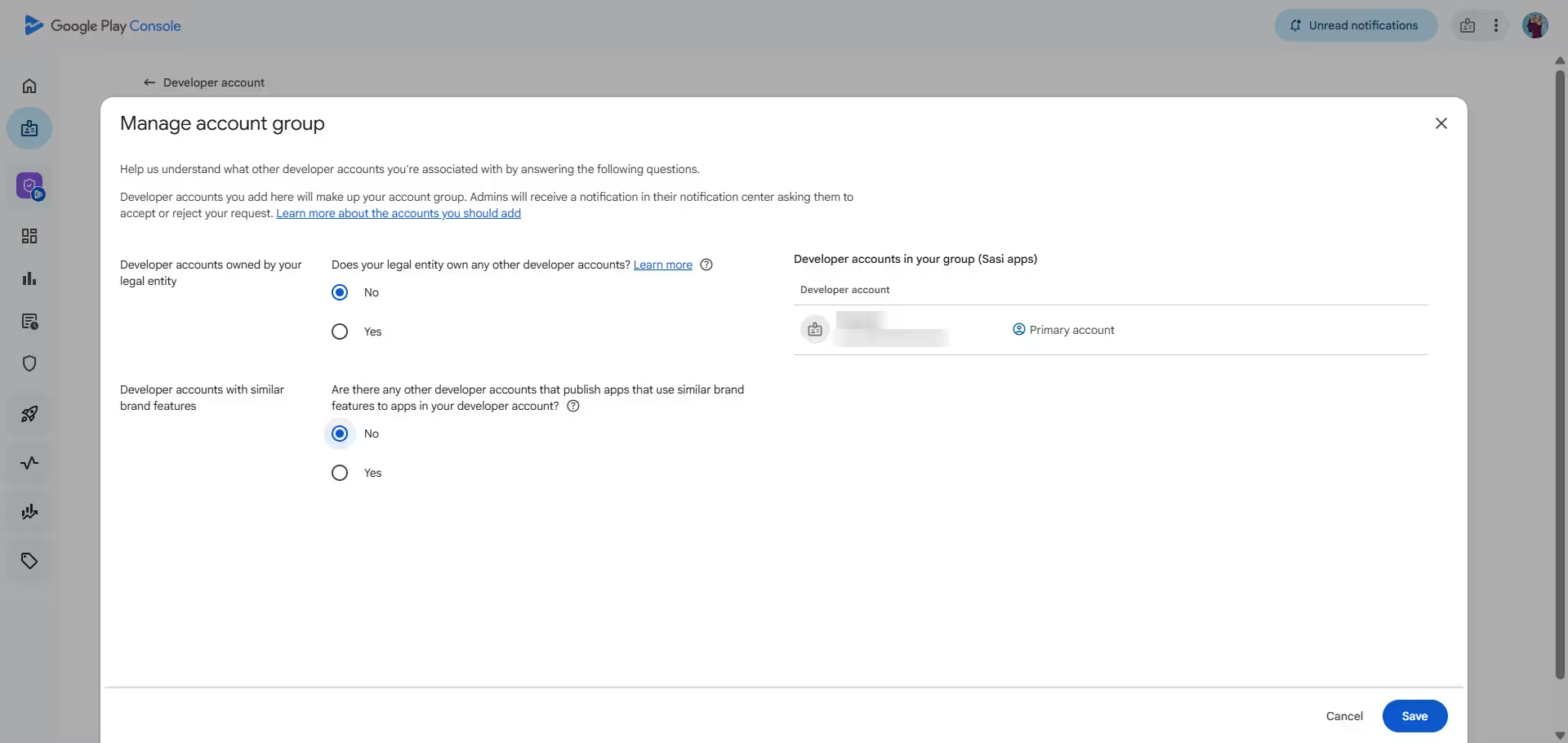
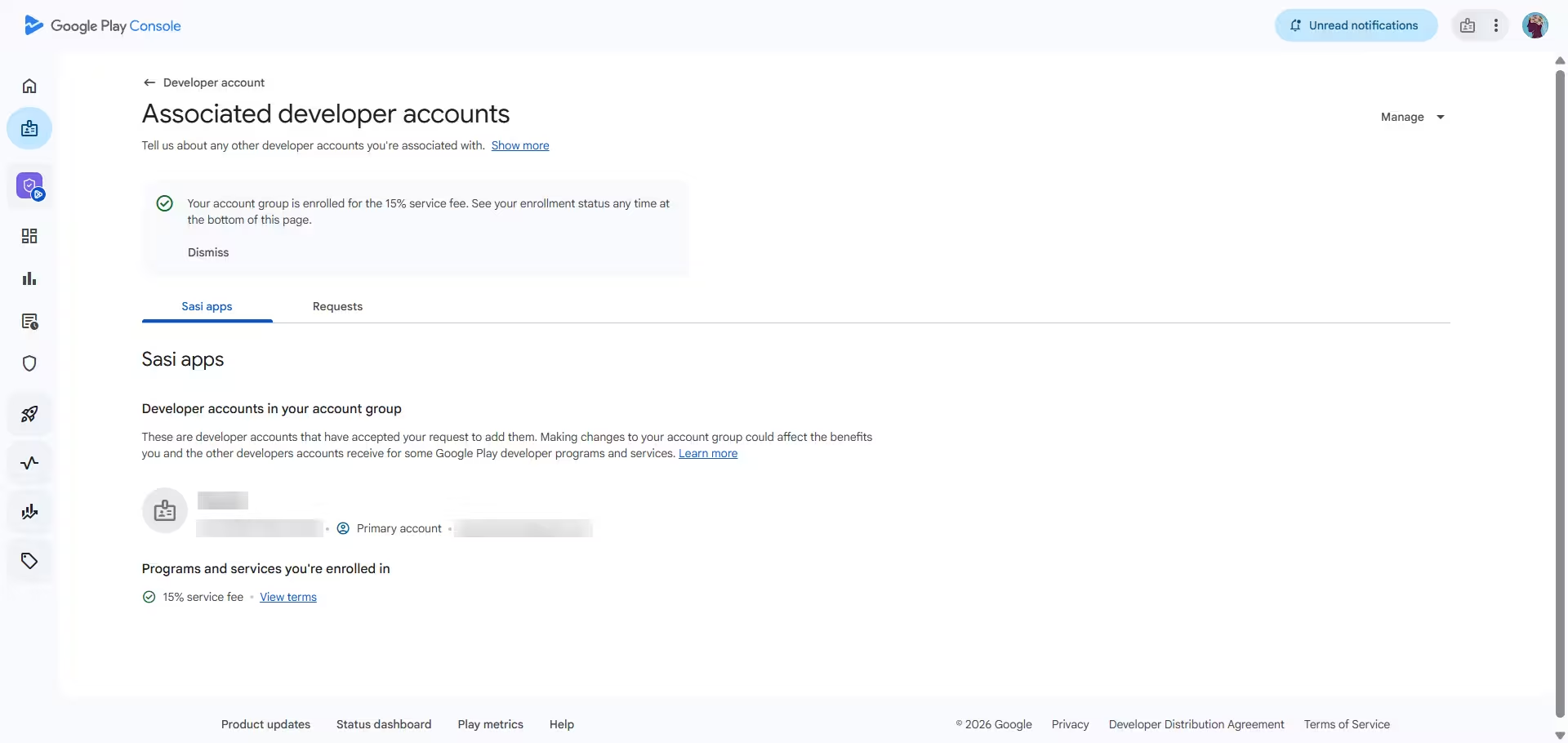
Next, go to the Associated developer accounts page, click Review and enroll, then Confirm and view terms, and accept. You should now see "15% service fee" under "Programs and services you're enrolled in", with a green tick.
Common Google Play Tax Form Mistakes to Avoid
- PO box set to Yes. The address step can show "PO box or in-care-of address: Yes". For a normal street address, change it to No, or the IRS can reject the form.
- Name mismatch. Enter your name exactly as it appears on your PAN card, in Latin letters.
- Missing Foreign TIN. The treaty claim needs your PAN as the Foreign TIN.
- Wrong form. Choose W-8BEN, not W-8ECI.
- Repeated self purchases. One small test purchase is fine. Google can reverse repeated self purchases, so do not repeat them.
Google Play Payments Profile Fix Checklist
The flag usually clears within a few hours of approval and can take up to 24 hours. Refresh the Payments profile page to check.
Frequently Asked Questions
Will Google hold my payout because of Singapore tax info?
No. Missing Singapore info only affects the withholding rate on earnings paid by Google's Singapore entity.
Should I add a GSTIN?
Only if you are GST-registered. Unregistered individuals can ignore the warning.
How long does the "Issue with account" flag take to clear?
It clears a few hours to one day after Google approves your forms. Refresh the page to see the update.
Why does Google ask for a US tax form from an Indian developer?
Google pays Play earnings from the United States, so US tax law requires a W-8BEN. The form also lets you claim the India treaty rate of 15% instead of 30%.
When do I get paid?
Google pays monthly once your total earnings reach ₹100. The money reaches your bank account through the payout provider listed under "How you get paid". Indian developers may also need to complete BillDesk verification before payouts start.
Related Guides
- Google Play Trader Status: How to Declare It, Who Must Do It and What Goes Public
- Google Play DMCA Suspension: Why Apps Get Removed, How to File a Counter-Notice and Get Reinstated
- Google Play Impersonation Policy: Why Apps Get Suspended, How to Fix Your Listing and Appeal
- Google Play Device and Network Abuse Suspension: Causes, Fixes and How to Appeal
- Google Play Account Deletion URL: What to Add If Your App Has No Login