Plenty of Android owners want a copy of their phone that lives on their own hardware. Some people hit the 15 GB free storage wall. Others simply dislike sending family photos and private chats to a company server. If you are weighing your options, our list of Google Photos alternatives covers private cloud choices too. But you can also keep a full local backup on your computer and never open a Google app.
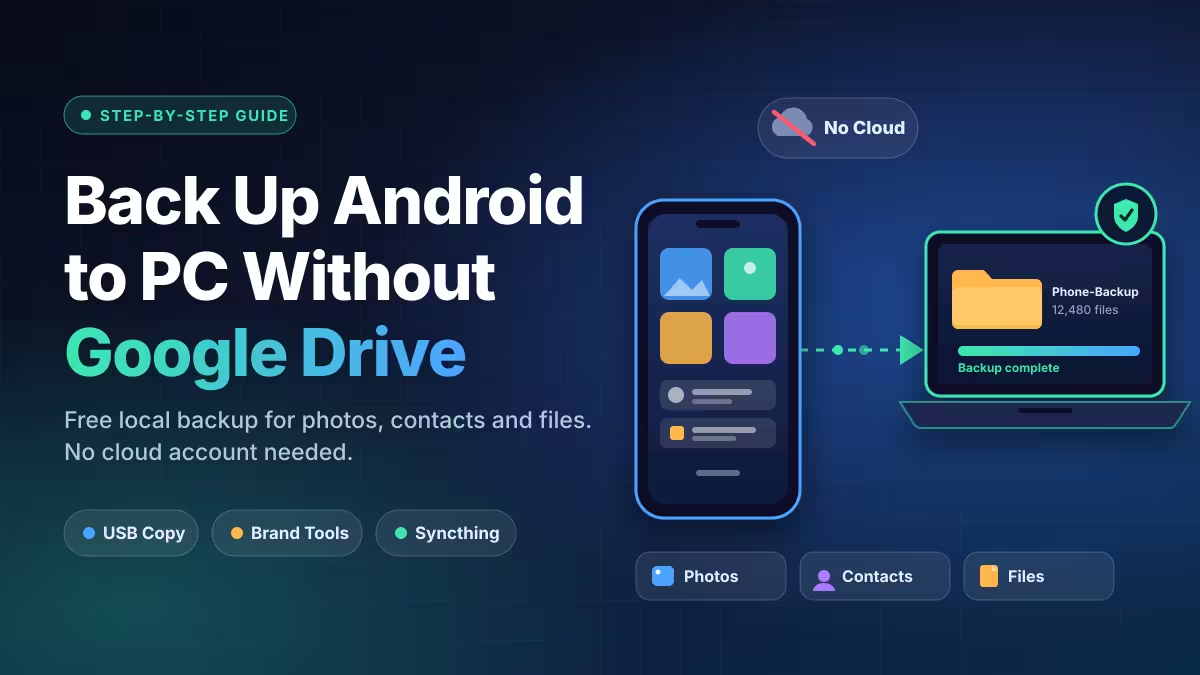
This guide shows four working methods, explains what each one can and cannot save, and ends with a simple habit that keeps your data safe even if your PC fails.
Best Ways to Back Up Android to PC Without Google Drive (Quick Comparison)
| Method | Best for | Saves | Needs extra software | Root needed |
|---|---|---|---|---|
| USB file transfer | One-time copies of photos and files | Photos, videos, music, documents | No (Mac needs Android File Transfer) | No |
| Brand desktop tool | Contacts, texts, and settings | Files plus contacts, SMS, call logs, some settings | Yes, from your phone maker | No |
| Syncthing | Automatic, ongoing photo and file backup | Any folder you choose | Yes, free and open source | No |
| Nandroid (TWRP) | Full system image for advanced users | System, apps, and data | Yes, custom recovery | Yes |
What Can You Back Up to a PC Without Google?
Android splits your data into two groups, and that split decides which method you need.
The first group is files you can see. Photos, videos, music, PDFs, downloads, and voice recordings sit in normal folders. Any method can copy them.
The second group is protected data. Contacts, SMS, call logs, system settings, and the internal data of apps belong here. Android blocks direct access to most of it, so a plain USB copy never reaches it. You need your phone maker's desktop software, a third-party backup tool, or an export button inside the app itself.
Decide which group matters to you before you pick a method. Most people only fear losing photos and documents, and for them the USB method or Syncthing is enough.
How to Back Up Android to PC via USB File Transfer
This is the simplest option. It costs nothing and needs no extra software on Windows.
- Plug your phone into the PC with a data-capable cable. A cheap charge-only cable will not work.
- Unlock the phone and pull down the notification shade.
- Tap the USB notification and choose File transfer (some phones label it MTP).
- On Windows, open File Explorer, click This PC, and open your phone's name.
- Open Internal storage and copy the folders you care about to a new folder on your PC.
Start with these folders:
- DCIM holds your camera photos and videos.
- Pictures holds screenshots and edited images.
- Download holds files you saved from browsers and apps.
- Documents holds notes and office files.
- Movies and Music hold media you added yourself.
WhatsApp, Telegram, and similar apps keep their media in their own folders under Android > media or inside the app's named folder. Copy those too if you want chat photos and voice notes.
Mac users: macOS cannot read Android storage by itself. Install the free Android File Transfer app from Google, then drag the same folders out.
Tip: Name the destination folder with the date, such as Phone-Backup-2026-11-17. After the copy finishes, compare the folder sizes on both sides and open a few photos to confirm they work. If your phone has an SD card, copy it separately, because it appears as its own storage location. Prefer to skip the cable? See how to transfer files from Android to PC wirelessly.
How to Back Up Android to PC With Samsung Smart Switch and Other Brand Tools
Brand tools reach further than a USB copy. They can often save contacts, messages, call logs, calendar entries, and some app settings along with your files.
- Samsung: Install Smart Switch on your PC, connect the phone, and click Backup. You can pick which data types to include.
- Xiaomi: Use Mi PC Suite or the Mi Mover features, depending on your model and MIUI or HyperOS version.
- Huawei: HiSuite handles backup and restore for supported models.
- Other brands: Check Settings > System > Backup on your phone and the support page of your manufacturer for a desktop companion.
Be realistic about the results. Many brand tools aim at moving data to a new phone, so they may skip some third-party app data. Android also lets apps opt out of local backups, and banking apps almost always do. Read the list of supported data types before you trust the backup with anything critical.
Third-party desktop tools such as Dr.Fone, Coolmuster, and MobileTrans also exist. They can back up contacts and messages to your PC, but most are paid and several ask you to enable USB debugging or change your default SMS app temporarily. Use them only if the free routes do not cover your needs, and download them from the official site, because fake apps are a common way malware reaches Android phones.
How to Back Up Android to PC Automatically With Syncthing (Free, No Cloud)
A manual copy works until you forget to do it. Syncthing removes that problem. It is a free, open-source tool that keeps folders identical across your devices over your own network. Nothing goes to a company server.
Install the apps
- On your PC, download Syncthing from the official Syncthing site. It supports Windows, macOS, and Linux.
- On your phone, install Syncthing-Fork. The original project stopped making its Android app, and this community fork carries the work forward. You can find it on the Play Store or on F-Droid, one of several private Android app stores that need no Google account.
Pair the two devices
- Open Syncthing on both devices and keep them on the same Wi-Fi network. If the devices cannot see each other, fix a Wi-Fi that will not connect first.
- On the phone, open the Devices tab and add your PC. If the PC does not show up on its own, scan the QR code from the PC's Syncthing page or paste its device ID.
- Accept the pairing request on the PC when it appears.
Choose what to sync
On the phone, tap the folder icon and add a folder. Pick DCIM or Camera for photos. You can add Download, Documents, or a notes folder, such as an Obsidian vault, as separate entries.
Each folder has a folder type. Set it to Send Only on the phone if you want the PC to act purely as a backup target. Pick the two-way option if you want changes to flow in both directions.
After that, new photos land on your PC whenever both devices run Syncthing on the same network. You do not need a cable or a cloud account.
Know the big catch
Syncthing mirrors your folders, and a mirror copies mistakes too. If you delete a photo on the phone, the deletion reaches the PC copy as well. That makes Syncthing great protection against a lost or smashed phone, and a charger alarm anti-theft app helps keep the phone from walking away in the first place. But it will not rescue you from an accidental delete.
Two fixes help. Turn on file versioning for the PC folder so Syncthing keeps older copies in a hidden archive. Better still, back up the PC folder to a second drive, as described in the safety section below.
How to Back Up Contacts, SMS, WhatsApp and App Data Without Google
Even with the methods above, a few items need their own steps.
- Contacts: Open the Contacts app, go to Settings > Export, and save a
.vcffile. Copy that file to your PC. - SMS and call logs: Use your brand's tool, or a trusted backup app from our list of utility apps for Android that exports them to a file on your phone, then copy the file across.
- WhatsApp chats: Use Export chat inside a conversation to save it with or without media. WhatsApp also offers a local backup file in its storage folder, which you can copy to the PC.
- App data and game progress: Look for an export or account-linking option inside each app. Copying an app's APK file does not save your login or your progress.
Advanced Option: Full System Backup With Root (Nandroid/TWRP)
A Nandroid backup is a complete snapshot of your phone's system, apps, settings, and data. It lets you restore the phone to the exact state you saved. It also demands the most effort, so treat it as an option for experienced users only.
You need a rooted phone with a custom recovery such as TWRP installed. Rooting can void your warranty, and some banking and payment apps refuse to run on rooted devices.
- Power off the phone and boot into TWRP recovery with your model's key combination, usually Power plus Volume Down or Volume Up.
- Tap Backup.
- Select the partitions to save, such as Boot, System, and Data.
- Choose internal storage, an SD card, or a USB OTG drive as the destination.
- Swipe to confirm and wait for the image to finish.
- Reboot, connect the phone to your PC, and copy the backup folder to your computer.
These images take a lot of space, so check your free storage before you start.
How to Keep Your Local Backup Safe (3-2-1 Rule)
A backup that lives in one place is a single point of failure. Your PC drive can die, and a ransomware attack or a stolen laptop can erase both the original and the copy.
Follow the 3-2-1 rule to avoid that:
- Keep three copies of your data: the phone and two backups.
- Store them on two different types of media, such as the phone, the PC, and an external hard drive.
- Keep one copy somewhere else, such as a drive at a relative's house. A cloud service is the easiest off-site option, but a drive you update every month works fine.
If your backup holds messages, ID scans, or other private files, encrypt the folder or the external drive. On Windows, BitLocker handles this. On macOS, FileVault does the job. On Linux, tools like Pika Backup can encrypt for you.
A quick monthly routine keeps everything fresh: run your sync or copy, check that the newest photos opened correctly, and refresh the external drive. Once you have verified a backup of an old handset, you can wipe it and reuse your old Android phone.
Which Android Backup Method Is Best for You?
- You only care about photos and files: Use the USB method today, then set up Syncthing so you never need to remember.
- You want contacts and texts too: Use your brand's desktop tool, and add Syncthing for media.
- You want hands-off automation: Use Syncthing for files and an external drive for the second copy.
- You want a full system image and know how to root: Use a Nandroid backup, and still copy your photos separately.
The first three routes work without a Google account, and they cost nothing if you stick to the free tools.
Frequently Asked Questions
Can I back up my entire Android phone to a PC without a Google account?
You can back up almost everything, but not always in one click. A USB copy or Syncthing covers your photos, videos, and documents. Your brand's desktop tool can add contacts, messages, and settings. Some app data stays locked by Android, so use each app's own export feature for that.
Will a USB copy save my contacts, SMS, and app data?
No. A USB file transfer only exposes your visible storage folders. Export contacts as a VCF file, and use your brand's backup software or a trusted backup tool for messages and call logs.
Is Syncthing safe to use?
Syncthing is open source and sends data directly between your own devices with encryption. It does not store your files on a third-party server. Download it only from the official site, the Play Store, or F-Droid.
Does Syncthing count as a real backup?
Not on its own. It mirrors changes, so deleting a file on your phone also removes it from the synced folder on your PC. Turn on file versioning and keep a separate copy on an external drive for true backup protection.
Why does my PC not detect my phone?
A charge-only cable, the wrong USB mode, or a missing driver causes most detection problems. Switch the phone to File transfer, try a different cable and port, and install your brand's USB driver if Windows still cannot see it.
Do I need to root my phone to back it up?
No. USB copies, brand tools, and Syncthing all work without root. Only full system-image backups, such as Nandroid through a custom recovery, require a rooted phone, and most people never need that level of access.
Can I restore a local backup to a new phone?
Yes, for files. Copy your folders back over USB or let Syncthing sync them down. For contacts, import the VCF file. For messages and settings, restore with the same brand tool that created the backup, since its backup format is usually tied to that software.
Related Guides
- How to Transfer Files from Android to PC Wirelessly: 6 Easy Methods
- 5 Best Google Photos Alternatives and iCloud Alternatives for Private Photo Storage and Backup
- Best Private Android App Stores: Install Apps Without a Google Account
- What to Do With Your Old Android Phone: 7 Smart Ways to Reuse It
- Charger Alarm Anti-Theft App: Stop Phone Theft While Charging on Android