Getting a "Failed to accept the family invite. You are ineligible to join this Steam Family at this time, as your Steam activity doesn't indicate that you are in the same household as other members of this family" error on Steam? This error blocks you from joining a Steam Family even when you genuinely live in the same house. Steam's verification system uses account signals to confirm household status, and a mismatch in any one of them triggers this block.
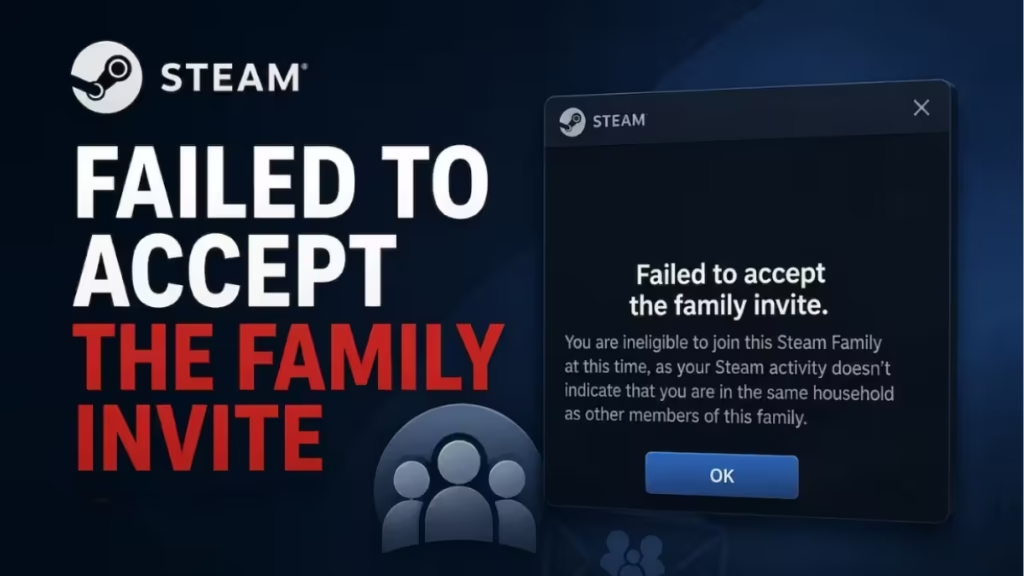
Why Does Steam Say You Are Ineligible to Join This Steam Family
Steam's new Family system replaced the older Family Sharing model with stricter household verification. Valve checks several account signals to decide whether you and the family host live together:
- IP address history and login locations
- Store region and country on each account
- Shared device history (both accounts logged into the same PC)
- Family cooldown status (if you recently left another Steam Family)
If Steam detects a mismatch across these signals, such as different countries, no overlapping device history, or regular VPN usage that masks your real location, it flags your account as ineligible.
Fix 1: Log Your Account Into the Host's PC
Shared device history is the strongest household signal Steam checks. When both accounts have logged into the same physical machine, Steam treats that as solid proof of the same household.
- On the host's PC, log out of Steam.
- Log into your Steam account on that same PC.
- Complete any verification steps Steam asks for.
- Log the host's account back in.
- Re-send or re-accept the family invite.
This fix resolves the error for most users.
If the Steam client invite keeps failing, try this browser workaround on the host's PC:
- Open a browser and log into your Steam account.
- Keep that browser tab open and active.
- Open the Steam client and log into the host's account.
- Send the invite from the Steam client.
- Accept the invite from the browser tab where your account is logged in.
Fix 2: Match the Store Region on Both Accounts
Steam blocks family invites when accounts appear to be in different countries. VPN usage, travel, or purchases made abroad can shift your store region without you noticing.
- Log into your Steam account.
- Click your username in the top-right corner and select Account Details.
- Check the Store Country listed on your account.
- Have the family host check their Store Country the same way.
- If the countries do not match, update your store region by completing a purchase using a valid payment method registered to the host's country.
- Retry the family invite after the region update.
Fix 3: Disable Your VPN Before Accepting the Invite
A VPN routes your connection through a server in a different city or country. Steam sees that external IP address, not your real home IP, which makes your account look like it belongs to a different household.
- Disconnect your VPN completely.
- Restart Steam.
- Accept the family invite again while on your real home network.
If you run a VPN at the system or router level for work, disable it temporarily just for this step. Once you join the family successfully, you can turn the VPN back on.
Fix 4: Wait Out the Family Cooldown Period
Steam locks your account into a cooldown period after you leave a Steam Family. During this time, you cannot join a new family. The cooldown can last up to 12 months, though some users report shorter wait times when rejoining the same family.
- Check your Steam account history to see if you recently left or got removed from a Steam Family.
- If a cooldown applies, you have to wait for it to expire. There is no bypass.
- Once the cooldown period ends, ask the family host to send a new invite.
Fix 5: Contact Steam Support
If none of the above fixes work, submit a ticket to Steam Support with the following details:
- Both account names involved in the invite
- Proof that both accounts belong to the same household (shared purchase history, gift history, or years of account activity)
- Your real public IP address (not VPN IP) and confirmation that both accounts connect from the same network
- Any steps you already tried
Steam Support can manually review household eligibility for accounts with a strong shared history. A second or third follow-up ticket is worth sending if the first response does not resolve the issue.
Frequently Asked Questions
Can VPN usage permanently block me from Steam Family?
No. VPN usage affects eligibility checks but does not permanently block your account. Disable the VPN, accept the invite on your real home network, and the block lifts.
How long does the Steam Family cooldown last?
Valve sets the cooldown at up to 12 months. Some users report shorter cooldowns when rejoining the same family they previously left, but Valve does not publish an exact timeline.
Does logging in on the host's PC fix this permanently?
Yes, in most cases. Creating shared device history between accounts gives Steam strong household confirmation and resolves the eligibility check for most users.
Can I join a Steam Family if I live in a different country than the host?
No. Steam requires all family members to share the same store country. You need to update your store region to match the host's country before the invite can go through.
What if Steam Support does not help?
Submit a follow-up ticket with additional evidence. Include combined purchase history, gift activity, and any account details that confirm a shared household. Escalating with more specific documentation improves your chances of a manual review.
Related Gaming Guides
- How to Fix “Error Initializing or Updating Your Transaction” in Steam
- Fix Error Code 0xFFFFFFFE Call of Duty Game Crash on PC (Steam, Battle.net, Game Pass)
- How to Fix Battlefield 6 Connection Lost Error on Steam
- Steam Error Code E20: Fix Login Issues, QR Failures & Network Errors
- Steam Fatal Error Fix: How to Solve Launch, Update, and Crash Problems