When you try to buy a game on Steam and see "There seems to have been an error initializing or updating your transaction. Please wait a minute and try again or contact support for assistance," your purchase stops completely. The message appears regardless of which payment method you use, whether that is a credit card, debit card, PayPal, or your Steam Wallet balance.
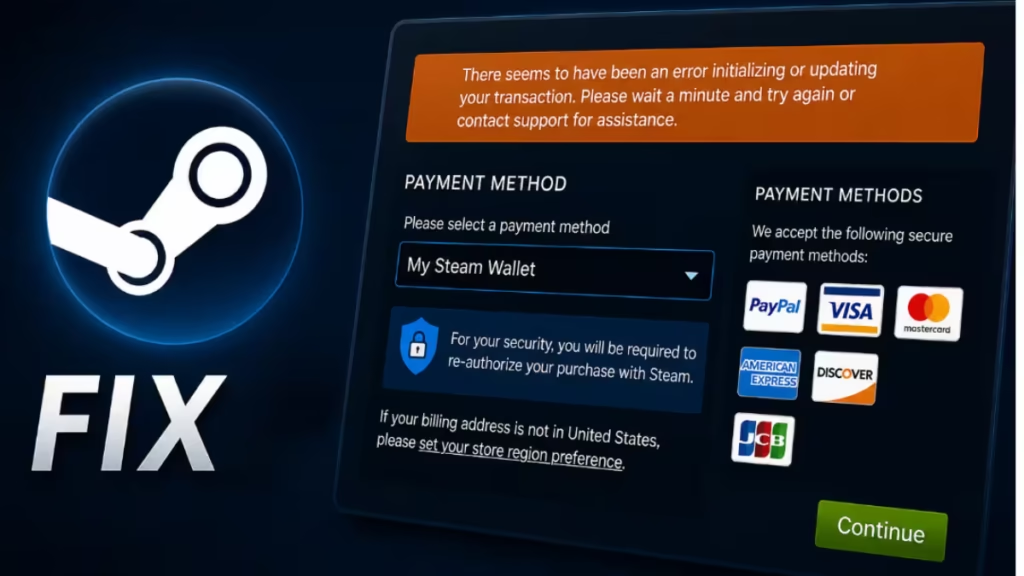
This guide covers every confirmed cause and working fix for the Steam error initializing or updating transaction.
Why Does This Error Appear?
Several different problems can trigger this error:
- Steam Beta enrollment introduces transaction bugs that the stable release does not have.
- Pending transactions on your account block all new purchases until you cancel the old one.
- Corrupted Steam installation files prevent the client from validating purchases correctly.
- Corrupted download cache interferes with the checkout process.
- Cart items priced below $0.99 in a bundle or multi-item cart trip Steam's pricing validation and block the entire transaction.
- Account lock occurs when Steam's security bots flag repeated failed purchase attempts.
- Steam server outages temporarily block all transactions site-wide.
How to Fix Steam Error Initializing or Updating Transaction
Work through these fixes in order. Most users resolve the issue by Fix 3 or Fix 4.
Fix 1: Check Steam Server Status
Before changing anything on your system, confirm that Steam's servers are online.
- Open your browser and go to the official Steam Status page.
- Check whether all services show as operational.
- If Steam reports an outage in your region, wait for Valve to restore service before retrying your purchase.
Server-side outages block all transactions temporarily. No local fix will help until Steam resolves the problem on their end.
Fix 2: Cancel Pending Transactions
A pending transaction on your account blocks every new purchase. Canceling it often clears the Steam error initializing or updating transaction immediately.
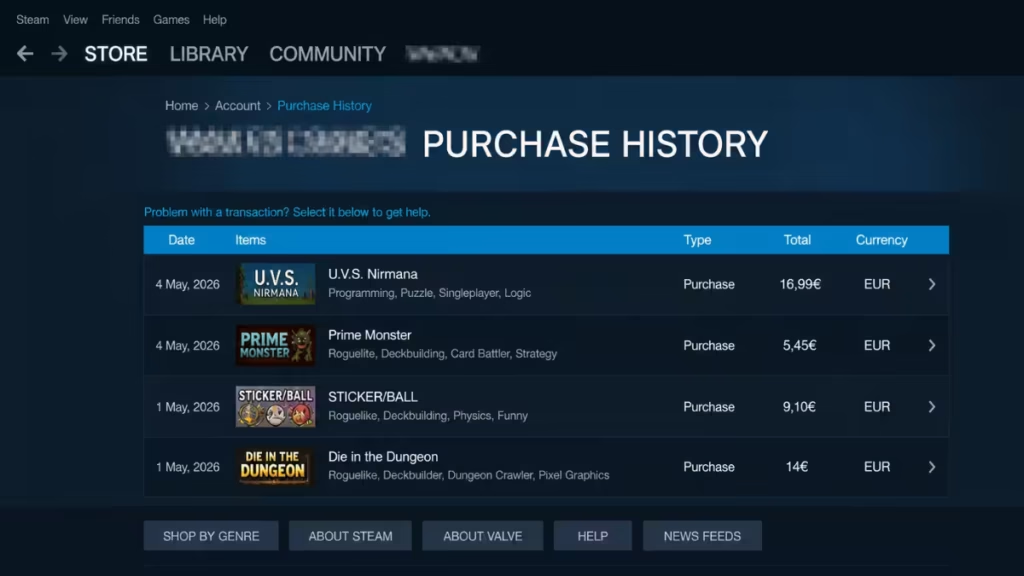
- Open the Steam client.
- Click your profile icon in the top-right corner and select Account Details.
- Under Store & Purchase History, click View Purchase History.
- Locate any transaction with a Pending status.
- Click it and select Cancel, then confirm with Cancel My Purchase.
- Return to the store and retry your purchase.
Steam also flags carts containing bundles where individual items fall below the $0.99 threshold. If your cart includes one of these bundles, remove those items and purchase them separately to avoid triggering the error again.
Fix 3: Opt Out of the Steam Beta Program
Steam Beta builds contain bugs that the stable release does not. If you are enrolled in the Beta program, opting out frequently resolves this error.
- Open the Steam client.
- Click Steam in the top-left menu bar and select Settings.
- Go to the Account tab.
- Next to Beta Participation, click Change.
- In the dropdown, select NONE - Opt out of all beta programs.
- Click OK and restart Steam when prompted.
- Clear your cart and retry the purchase.
Fix 4: Clear the Download Cache
A corrupted download cache can prevent Steam from processing purchases. Clearing it forces Steam to rebuild a fresh cache and often resolves the checkout issue.
- Open the Steam client and empty your cart.
- Click Steam in the top menu and select Settings.
- Go to the Downloads tab.
- Click Clear Download Cache at the bottom of the page.
- Confirm with Yes when the prompt appears.
- Steam logs you out automatically. Sign back in and retry your purchase.
Fix 5: Flush the Steam Configuration
Flushing Steam's configuration removes stored settings that may conflict with the purchase system. This is a quick and non-destructive fix.
- Close Steam completely. Open Task Manager (Ctrl + Shift + Esc), find all Steam-related processes, and click End Task on each one.
- Press Windows + R to open the Run dialog.
- Type
steam://flushconfigand press Enter. - Steam opens and displays a confirmation prompt warning that configuration files will be removed and you need to sign in again.
- Click OK.
- Sign back into Steam and retry the purchase.
Fix 6: Remove Corrupted Steam Installation Files
Corrupted files inside the Steam installation folder can block purchases even when the client appears to run normally. Deleting non-essential files forces Steam to regenerate a clean install without touching your game library.
- Close Steam fully and end all Steam processes in Task Manager.
- Open File Explorer and navigate to your Steam installation folder. The default path is:
C:\Program Files (x86)\Steam - Select everything inside the Steam folder except the following three items:
Steam.exesteamappsfolderuserdatafolder
- Press Shift + Delete to permanently remove the selected files.
- Restart your PC.
- Launch Steam and let it download and reinstall its core files automatically.
- Sign in and retry the purchase.
This process does not delete your games or account data. Steam rebuilds the client files on the next launch. If you see a Steam Fatal Error during relaunch, let Steam finish its repair cycle before attempting any other actions.
Fix 7: Use the Steam Website Instead of the App
The Steam web store and the desktop app run on separate infrastructure. When the desktop client fails to process a purchase, the website sometimes completes it without issues.
- Open your browser and go to store.steampowered.com.
- Click Login in the top-right corner and sign in with your Steam credentials.
- Search for the game you want, add it to your cart, and complete checkout through the browser.
- After the purchase completes, click Install or use Remote Install to send the download to your PC.
- Return to the desktop app to play once the download finishes.
Fix 8: Try a Different Payment Method
A specific payment method can trigger the Steam error initializing or updating transaction even when that method works fine on other platforms.
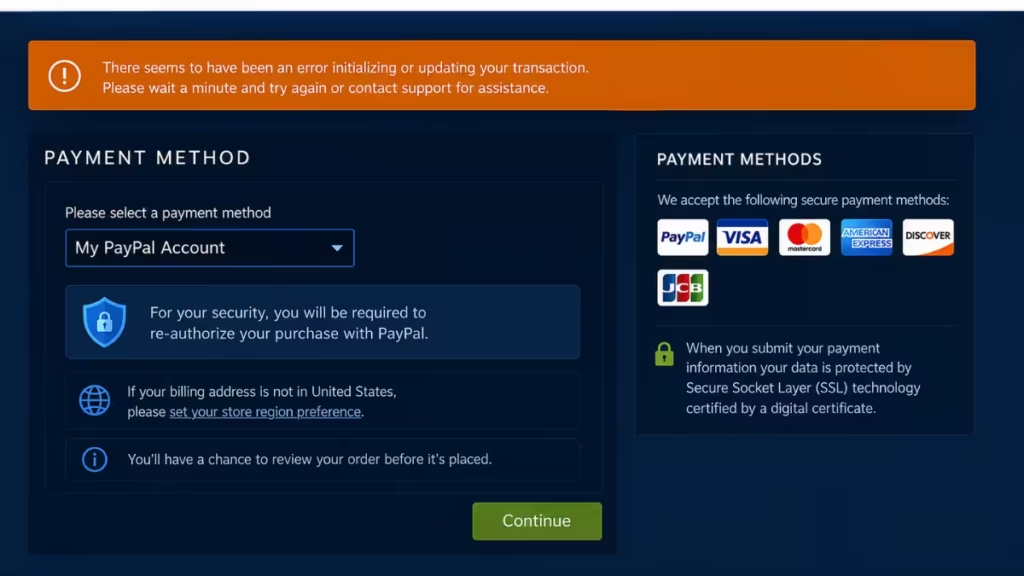
- Open Steam and go to your cart.
- At checkout, switch to a different payment method. If you used a credit card, try PayPal or your Steam Wallet balance instead.
- Complete the purchase with the alternative method.
Using your Steam Wallet balance directly removes the external payment processor from the equation and often bypasses the error entirely.
Fix 9: Contact Steam Support
If you retried a failing purchase multiple times, Steam's security system may have placed a temporary lock on your account. This lock does not always clear automatically within a short window.
- Open your browser and go to help.steampowered.com.
- Click Help me with My Issue and sign in with your Steam account.
- Follow the prompts to open a new support ticket.
- Describe the error, mention how many purchase attempts you made, and ask the agent to remove the security hold from your account.
Steam Support typically responds within 24 to 48 hours. While you wait, avoid retrying the purchase since each failed attempt can extend the lock duration.
Quick Fix Steam Error Initializing or Updating Transaction
| Fix | When to Use It |
|---|---|
| Check server status | First step before anything else |
| Cancel pending transaction | Cart shows a stuck or pending order |
| Opt out of Steam Beta | You are enrolled in the Beta program |
| Clear download cache | Cache-related glitch blocking checkout |
| Flush Steam configuration | Settings conflict interfering with purchases |
| Remove corrupted files | Persistent error after other fixes |
| Use Steam website | Desktop app fails but web store works |
| Try a different payment method | Specific payment method gets rejected |
| Contact Steam Support | Account locked after multiple failed attempts |
Frequently Asked Questions
Why does this error appear even when I have enough Steam Wallet funds?
The error does not always relate to insufficient funds. It can stem from a pending transaction, corrupted installation files, Beta program bugs, or a temporary account lock triggered by repeated failed purchase attempts.
Can a bundle with items under $0.99 cause this error?
Yes. Steam's purchase validation has a known issue with bundles that contain individual items priced below $0.99. Remove those items from your cart and purchase the rest first. Then buy the low-priced items individually.
Will removing Steam installation files delete my games?
No. Deleting files from the Steam folder while keeping the steamapps and userdata folders intact preserves all your installed games and account data. Steam only reinstalls the client files it needs to operate.
How long does a Steam account lock last?
The lock duration varies. In mild cases it lifts within a few hours. For accounts flagged repeatedly, contacting Steam Support is faster than waiting for the automatic cooldown to expire.