Claude Code is Anthropic's official AI coding assistant that runs directly in your terminal. It reads your files, writes and edits code, runs commands, and works across your entire project without leaving the command line. This guide walks you through the full installation process on every major platform, covers all three authentication methods, and fixes the most common errors you will run into.
System Requirements for Claude Code CLI
Before you install Claude Code, confirm your machine meets these minimum specs:
| Requirement | Minimum | Recommended |
|---|---|---|
| Node.js | 18.0 | 20+ (LTS) |
| npm | 9.0 | 10+ |
| OS | macOS 12+, Ubuntu 20.04+, Windows 10+ | Latest |
| RAM | 4 GB | 8 GB+ |
| Disk Space | 500 MB | 2 GB+ |
| Internet | Required | Stable broadband |
Check your current Node.js version before proceeding:
node --versionIf the output shows a version below 18, update Node.js first. You can download the latest LTS from nodejs.org or use nvm to manage versions.
Install Claude Code Using the Native Installer (Fastest Method)
Anthropic now ships native installers as the recommended path. These require no Node.js setup and complete in under 60 seconds.
Windows (PowerShell, run as Administrator):
irm https://claude.ai/install.ps1 | iexmacOS and Linux:
curl -fsSL https://claude.ai/install.sh | bashmacOS via Homebrew:
brew install --cask claude-codeAfter the installer finishes, run this to confirm success:
claude --versionA version number in the output means the installation worked. If the command returns an error, follow the platform-specific steps below.
How to Install Claude Code on macOS
Step 1: Install Node.js (if not already installed)
Use Homebrew to install Node.js:
brew install nodeIf you do not have Homebrew, download Node.js directly from nodejs.org.
Step 2: Install Claude Code via npm
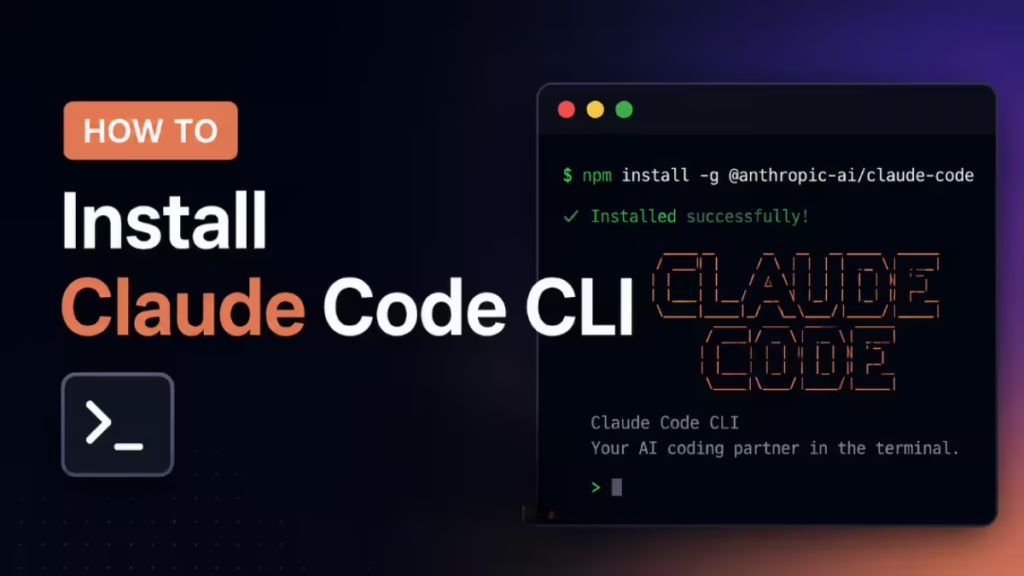
npm install -g @anthropic-ai/claude-code@latestStep 3: Verify the Installation
claude --versionThe terminal prints a version number like 1.x.x if installation succeeded.
Step 4: Authenticate
claude auth loginThis command opens a browser window where you log in with your Anthropic account.
Fix for PATH errors (zsh users):
If macOS reports command not found: claude after installation, add npm's bin directory to your PATH:
echo 'export PATH="$(npm config get prefix)/bin:$PATH"' >> ~/.zshrc
source ~/.zshrc
How to Install Claude Code on Linux
Step 1: Install Node.js
Ubuntu and Debian:
curl -fsSL https://deb.nodesource.com/setup_20.x | sudo -E bash -
sudo apt-get install -y nodejs
For Fedora, Arch, or other distributions, use your package manager or install via nvm.
Step 2: Configure npm to Avoid Permission Errors
Never run sudo npm install -g. Set a user-level npm directory instead:
mkdir ~/.npm-global
npm config set prefix '~/.npm-global'
echo 'export PATH=~/.npm-global/bin:$PATH' >> ~/.bashrc
source ~/.bashrc
Step 3: Install Claude Code
npm install -g @anthropic-ai/claude-code@latestStep 4: Verify and Authenticate
claude --version
claude auth login
How to Install Claude Code on Windows
Option 1: Native Installer (Recommended)
Open PowerShell as Administrator and run:
irm https://claude.ai/install.ps1 | iex
claude --version
This method requires no Node.js.
Option 2: Git Bash
Install Git for Windows, then open Git Bash and run:
curl -fsSL https://claude.ai/install.sh | bash
claude --version
Option 3: WSL (Ubuntu)
# Run in PowerShell as Administrator
wsl --install -d Ubuntu
Then open the Ubuntu terminal and run:
curl -fsSL https://claude.ai/install.sh | bash
claude --version
Option 4: npm on Windows
Download the Node.js Windows installer from nodejs.org. During installation, check the "Add to PATH" option. Then open PowerShell or Windows Terminal and run:
npm install -g @anthropic-ai/claude-code@latest
claude --version
If Windows does not recognize the claude command after installation, run this to find the npm global bin path:
npm config get prefixAdd that path to your system PATH environment variable, then restart your terminal.
Authenticate after installation:
claude auth loginAuthentication Methods
Claude Code supports three ways to authenticate.
Method 1: OAuth Login (Easiest)
claude auth loginThis opens a browser window and logs you in via your Anthropic account. Use this method if you have a Pro or Max subscription.
Method 2: API Key (Best for API Credits)
Set your API key as an environment variable.
macOS and Linux:
export ANTHROPIC_API_KEY="sk-ant-..."
echo 'export ANTHROPIC_API_KEY="sk-ant-..."' >> ~/.zshrc  # or ~/.bashrc
Windows (PowerShell):
[System.Environment]::SetEnvironmentVariable('ANTHROPIC_API_KEY', 'sk-ant-...', 'User')Generate your API key at console.anthropic.com under Settings > API Keys.
Method 3: Config File
Edit or create ~/.claude/auth/credentials.json:
{
  "api_key": "sk-ant-...",
  "auth_type": "api_key"
}
Verify Your Installation Works
After authentication, run a quick functionality test.
Open the Claude Code REPL:
claudeType a prompt at the cursor:
Hello! What model are you running?Claude responds with a greeting and the active model name. That confirms the setup works end to end.
Test file reading:
cd ~/projects/my-app
claude
Then enter:
Can you read the README.md and summarize this project?If Claude reads and summarizes the file, your installation is fully working.
Run diagnostics anytime:
claude doctorThis command auto-detects most configuration problems and suggests fixes.
Common Claude Code Installation Errors and Fixes
Error: npm ERR! EACCES Permission Denied
This error means npm cannot write to its global folder. Fix it by switching to a user-level directory instead of using sudo:
mkdir ~/.npm-global
npm config set prefix '~/.npm-global'
export PATH=~/.npm-global/bin:$PATH
Add the export line to your ~/.zshrc or ~/.bashrc to make the change permanent.
Error: command not found: claude
The claude binary exists but your shell cannot find it. Check these causes:
- Terminal not restarted -- Close and reopen your terminal.
- PATH missing npm bin -- Run
echo $(npm config get prefix)/binand add that path to PATH. - Wrong shell config -- For zsh, edit
~/.zshrc. For bash, edit~/.bashrc.
Error: Node.js Version Too Old
Upgrade Node.js to version 18 or later:
# macOS (Homebrew)
brew upgrade node

# Linux (nvm)
nvm install 20
nvm use 20

# Windows
# Download the latest LTS from nodejs.org
Error: Authentication Failed
Work through these checks in order:
- Confirm your API key starts with
sk-ant- - Check that the key has not been revoked at console.anthropic.com
- Remove any extra spaces in your
ANTHROPIC_API_KEYenvironment variable - Regenerate the key if nothing else resolves it
On remote servers or WSL where the browser does not open, skip OAuth and use the API key method instead:
export ANTHROPIC_API_KEY=sk-ant-your-key-here
claude
Error: Cannot find module '@anthropic-ai/claude-code'
The install did not complete. Force a clean reinstall:
npm cache clean --force
npm install -g @anthropic-ai/claude-code@latest --force
Error: EBADPLATFORM
This error appears when npm installation fails due to an unsupported platform configuration. Switch to the native installer instead:
# macOS and Linux
curl -fsSL https://claude.ai/install.sh | bash

# Windows PowerShell
irm https://claude.ai/install.ps1 | iex
Nuclear Reset (Fixes Most Persistent Issues)
When nothing else works, wipe everything and reinstall from scratch:
npm uninstall -g @anthropic-ai/claude-code
rm -rf ~/.claude ~/.npm/_cacache
npm cache clean --force
npm install -g @anthropic-ai/claude-code@latest
claude --version
Network Error or Timeout During Installation
If your network or a corporate firewall blocks npm, reset the registry and configure a proxy if needed:
npm config set registry https://registry.npmjs.org/

# Behind a corporate proxy:
npm config set proxy http://your-proxy:8080
npm config set https-proxy http://your-proxy:8080
VS Code and JetBrains Integration
Claude Code works inside popular IDEs as well as the terminal.
VS Code:
Install the Claude Code extension from the VS Code Marketplace. It connects to the Claude Code CLI you already installed and adds inline suggestions, diff views, and multi-file editing directly in the editor.
JetBrains (IntelliJ, PyCharm, WebStorm, etc.):
- Open your JetBrains IDE.
- Go to Settings, then Plugins, then Marketplace.
- Search for "Claude Code."
- Click Install and restart the IDE.
The JetBrains plugin runs the CLI inside the IDE's integrated terminal and displays proposed changes in the built-in diff viewer. It is currently in beta but works reliably for daily use.
Frequently Asked Questions
How long does Claude Code take to install?
The native installer finishes in under 60 seconds. The npm method takes 30 to 90 seconds, not counting any time needed to install Node.js. Run claude --version afterward to confirm success.
Do I need a paid subscription to install Claude Code?
No. The installation itself is free. You need either a paid Anthropic subscription or API credits to actually run prompts. You can fund your account with API credits to avoid a monthly subscription.
Can I install Claude Code on multiple machines?
Yes. Install it on as many machines as you want at no cost. Your Anthropic account, API keys, and credit balance are shared across all machines. Usage from any machine draws from the same balance.
What is the difference between the native installer and npm?
The native installer bundles its own runtime and requires no Node.js on your system. It is faster to set up and avoids PATH and permission issues that come with global npm installs. Use npm only if you already manage Node.js versions with nvm or prefer that workflow.
Claude Code runs slowly. What causes that?
Claude Code itself is lightweight. Slowness almost always means network latency between your machine and Anthropic's API. Check your internet connection. If you run a VPN, try disabling it temporarily. Check the API status at status.anthropic.com.