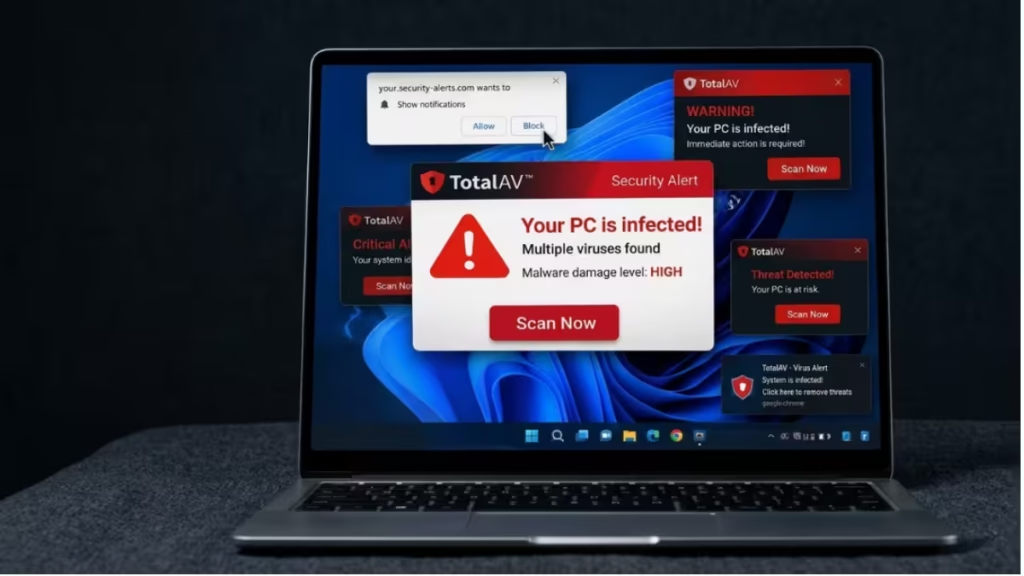
If you keep seeing TotalAV pop-ups warning about trojan viruses with error codes like “e,tre 456” while McAfee is already installed and protecting your PC, your actual antivirus is not the problem. Those alerts are browser notification scareware, not real virus detections. They do not show up in Task Manager because they run inside your browser, not as a Windows process.
Why You Are Getting Fake TotalAV Alerts
At some point your browser granted notification permission to a website running a scareware campaign. That site now sends push notifications dressed up to look like TotalAV security alerts. The fake error codes (“e,tre 456”, random strings) and urgent language are designed to scare you into clicking and either installing TotalAV or buying a fake “fix.”
A real virus detection comes from your installed antivirus, not from a browser notification badge.
Fix 1: Revoke Notification Permission in Edge (Most Common Cause)
This is the root fix for most users. You need to find the site that was granted notification permission and remove it.
In Microsoft Edge:
- Open Edge and go to
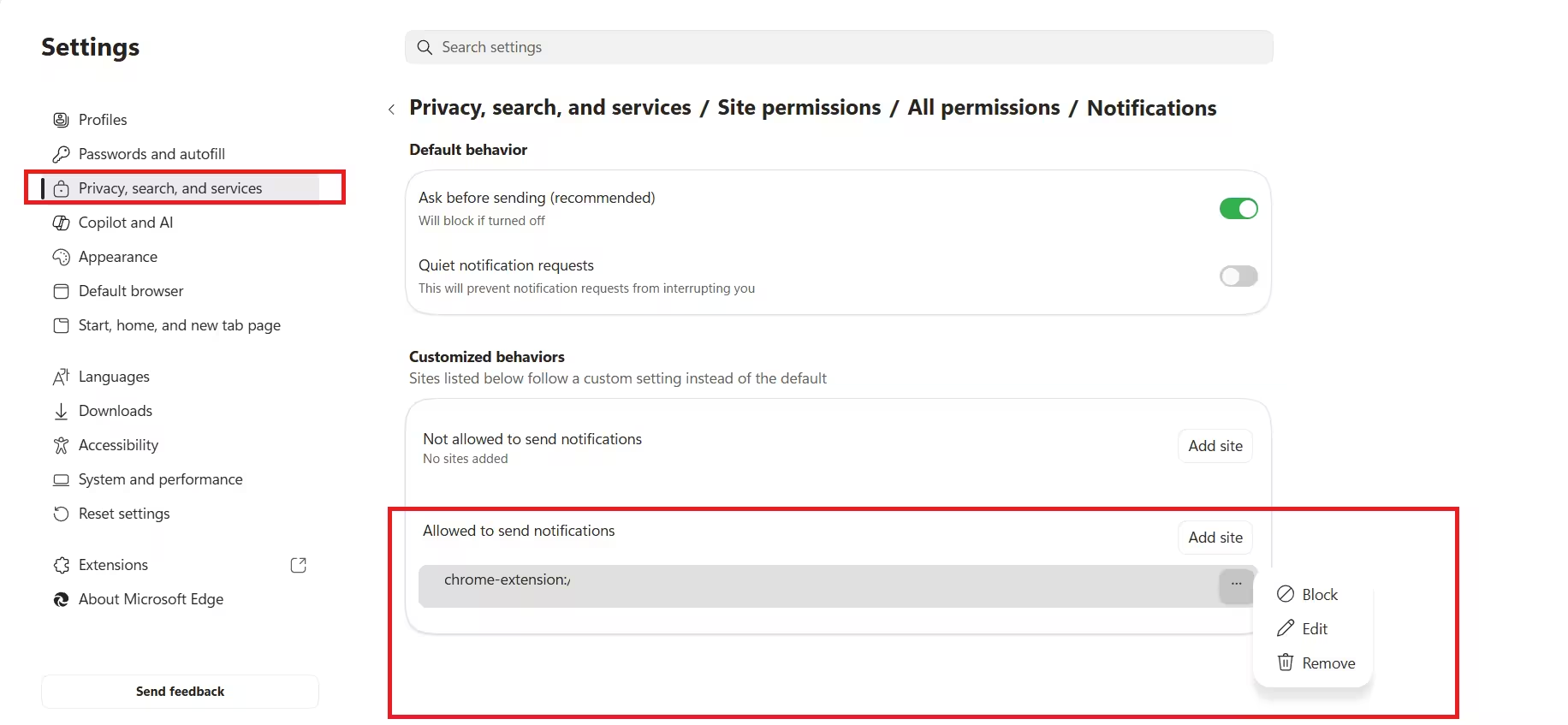
edge://settings/content/notifications - Under Allow, look for any site you do not recognize, especially anything with a suspicious or unfamiliar domain name
- Click the three-dot menu next to that site and select Remove
- Restart Edge
In Google Chrome:
- Open Chrome and go to
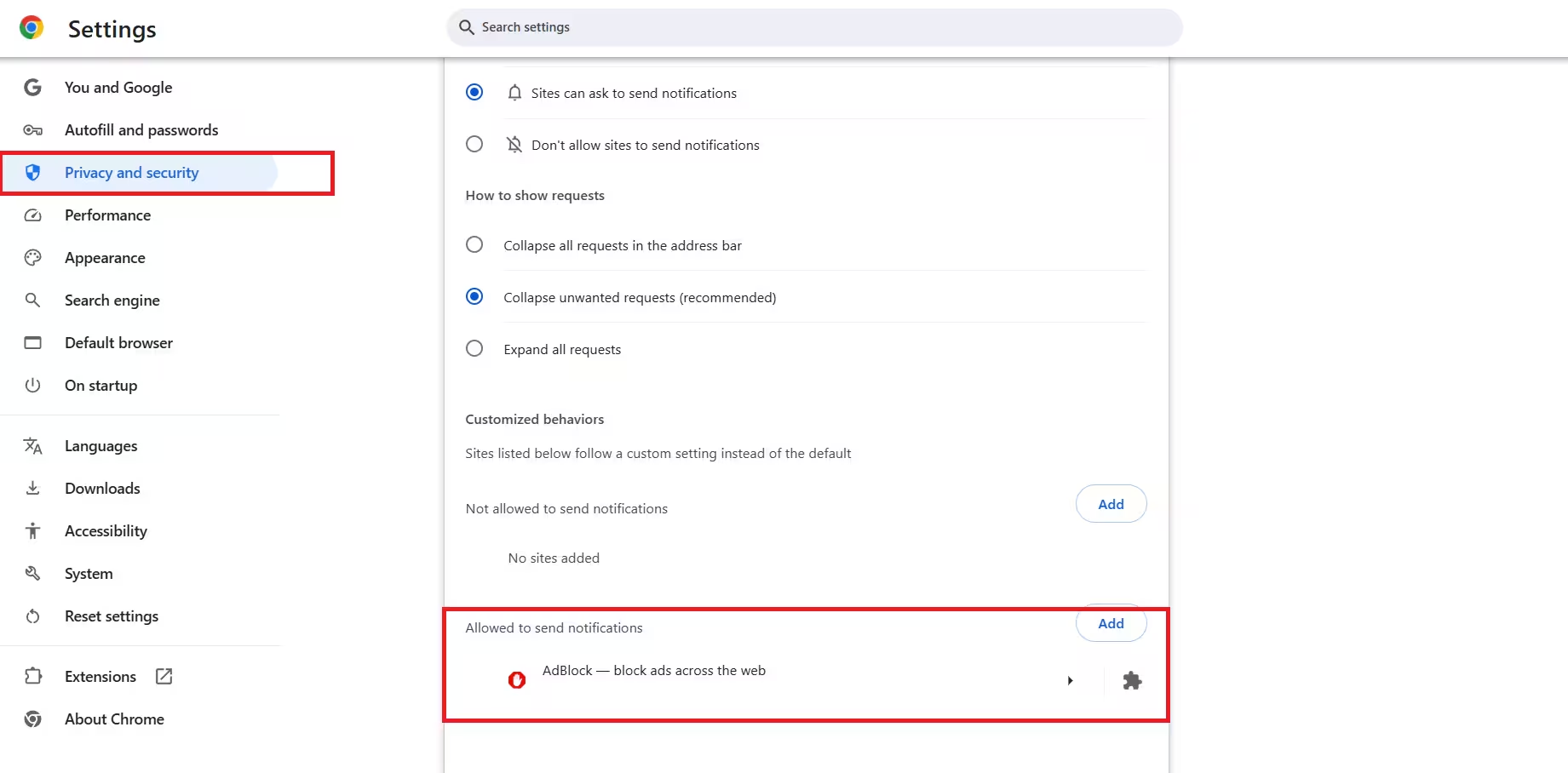
chrome://settings/content/notifications - Under Allowed to send notifications, look for unknown or suspicious domains
- Click the three-dot menu next to each suspicious entry and select Remove
- Restart Chrome
Once you remove the permission, the scareware pop-ups stop immediately. No scan required.
Fix 2: Check If TotalAV Is Actually Installed
TotalAV is a legitimate antivirus but is commonly bundled with free software downloads. If it installed itself without your intent, it may be generating its own alerts on top of McAfee.
- Press Win + I to open Settings
- Go to Apps > Installed apps
- Search for TotalAV in the search bar
- If it appears, click the three-dot menu next to it and select Uninstall
- Follow the uninstall wizard completely
Having two antivirus programs running at the same time causes conflicts and generates redundant alerts. McAfee is already covering your system. Remove TotalAV if it is installed without your knowledge.
Fix 3: Remove Suspicious Browser Extensions
Scareware notification sites often arrive through browser extensions installed during software downloads. A rogue extension can re-grant notification permissions or redirect pages.
In Edge:
- Go to
edge://extensions/ - Review every installed extension
- Toggle off or remove anything you did not install yourself
- Pay close attention to extensions installed recently around the time the pop-ups started
In Chrome:
- Go to
chrome://extensions/ - Remove any extension you do not recognize or did not install intentionally
Fix 4: Block All Notification Prompts Going Forward
To prevent any site from asking for notification permission again:
In Edge:
- Go to
edge://settings/content/notifications - Under Ask before sending, toggle it off to change it to Don’t allow sites to ask to send notifications
In Chrome:
- Go to
chrome://settings/content/notifications - Select Don’t allow sites to send notifications
This blocks all future notification permission requests at the browser level.
Fix 5: Run a Targeted Malwarebytes Scan
If the pop-ups continue after clearing browser notifications and removing TotalAV, a PUP (potentially unwanted program) may have installed adware alongside it. McAfee handles traditional viruses well but sometimes misses adware and PUPs.
- Download Malwarebytes Free from malwarebytes.com
- Install and run a Threat Scan
- Quarantine everything it finds
- Restart your PC
Malwarebytes runs alongside McAfee without conflict for one-time cleanup scans.
Fix 6: Reset Browser Notifications Entirely
If you cannot identify which site is sending the notifications, a full notification reset clears all permissions at once.
In Edge:
- Go to
edge://settings/privacy - Under Clear browsing data, click Choose what to clear
- Check Cookies and other site data and Cached images and files
- Click Clear now
- Then go back to
edge://settings/content/notificationsand remove all entries under Allow
In Chrome:
- Go to
chrome://settings/privacy - Click Clear browsing data
- Select Cookies and other site data and Cached images and files
- Click Clear data
- Then remove all entries under
chrome://settings/content/notifications
What the Fake Error Code Means
Error codes like “e,tre 456” or similar garbled strings in TotalAV pop-ups are not real Windows or antivirus error codes. Legitimate antivirus software never displays alerts through browser notifications. Real McAfee and Windows Security alerts appear as Windows toast notifications from the system tray, not inside or below your browser window.
If the pop-up asks you to call a phone number or click a link to fix the “virus,” it is a scam. Do not call the number and do not click the link.
Related Guides
- How to Remove the “Your Norton Antivirus or McAfee Antivirus Expired” Popup
- FROST Browser Attack: How Websites Spy on You Through SSD Activity
- Your Wi-Fi Router Is Watching You: The BFI Tracking Attack That Needs No Phone or Password
- Wi-Fi Routers Can Track You Without Your Phone: KIT Researchers Reveal the BFId Attack

