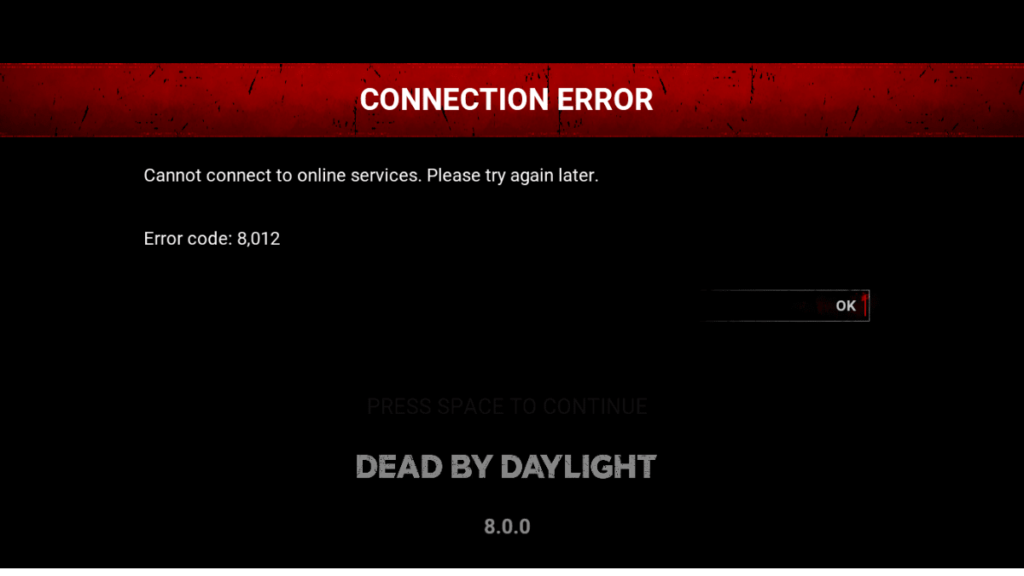
Dead by Daylight Error Code 8012 blocks you from connecting to online services, dropping you back to the main menu with the message: “Cannot connect to online services. Please try again later.” This error hits PC, Xbox, and PlayStation players, and while server downtime is the most common trigger, your local network, VPN, firewall, or a broken EAC install can all cause the same result.
Work through the fixes below in order. Start with the server check since most 8012 errors resolve on their own once servers recover.
Why Dead by Daylight Error Code 8012 Happens
DBD runs on Steamworks, Valve’s network infrastructure that ties the game’s online sessions directly to Steam’s servers. If Steam is down for any reason, including its routine Tuesday afternoon maintenance (around 3 PM Pacific), DBD cannot authenticate your session and throws 8012.
Beyond Steam, these are the confirmed triggers:
- Steam server downtime or maintenance
- PSN or Xbox Live outages
- A VPN or proxy blocking the game’s connection
- Windows Firewall preventing DBD from reaching the internet
- Corrupted or missing Easy Anti-Cheat installation
- Stale DNS cache on your PC
- Network congestion or router instability
- Running an outdated version of the game
If you have faced other DBD connection problems before, the fix steps here overlap with what clears Error Code 8001 and the Timeout Created error.
Fix 1: Check Dead by Daylight and Steam Server Status
Before touching anything on your end, confirm that the problem is not server-side. If servers are down, no local fix will work.
Check these sources:
- SteamDB SteamStat: Shows Steam server health per region in real time. This is the fastest way to confirm whether Valve’s servers are behind the 8012 error.
- DownDetector: Shows how many players reported problems in the past 24 hours and what type of issues they hit. User comments often explain exactly what broke.
- Official DBD Twitter/X: The team posts about significant outages and maintenance windows here.
- DBD Support page (support.deadbydaylight.com): Error banners appear at the top of the page during active incidents.
If you confirm servers are down, wait for Behaviour Interactive or Steam to resolve it. The downtime is usually short, and restarting the game once servers recover is enough to clear the error.
Fix 2: Restart Dead by Daylight
Close the game completely and relaunch it. For Steam players, exit Steam entirely before relaunching, not just the game window. A fresh session forces a new authentication attempt with the servers and clears any stale connection state that triggered 8012.
Fix 3: Verify Game Files (Steam)
Corrupted or missing game files can prevent DBD from connecting to its online services. Steam can detect and re-download only the broken files without a full reinstall.
- Open Steam and go to your Library
- Right-click Dead by Daylight and select Properties
- Go to the Installed Files tab
- Click Verify integrity of game files
- Wait for the scan to complete, then relaunch DBD
If Steam replaces any files, that confirms something was corrupted.
Fix 4: Repair Easy Anti-Cheat
DBD requires Easy Anti-Cheat (EAC) for multiplayer. If EAC is corrupted or was not installed correctly, the game fails to authenticate with the servers and returns Error Code 8012. This is especially common if you have modified game files previously or have multiple EAC games installed.
- Open Steam and go to your Library
- Right-click Dead by Daylight, select Manage, then click Browse local files
- Open the EasyAntiCheat folder
- Right-click EasyAntiCheat_Setup.exe and select Run as administrator
- Select Dead by Daylight from the game list
- Click Repair Service (or Install Service if it appears instead)
- Reboot your PC once the repair completes, then relaunch DBD
Fix 5: Disable VPN or Proxy
Dead by Daylight blocks VPNs and proxies at the server level. If either is active, the game will refuse the connection and throw 8012. Disable them completely before launching.
To disable a proxy:
- Press Windows + R, type
ms-settings:network-proxy, and press Enter - Under both Automatic proxy setup and Manual proxy setup, turn off all toggles
- Restart your PC and test DBD
To disconnect a native VPN:
- Press Windows + R, type
ms-settings:network-vpn, and press Enter - Click your VPN connection and select Disconnect
- Restart your PC and test DBD
To remove a third-party VPN app:
- Press Windows + R, type
appwiz.cpl, and press Enter - Find your VPN app in the list, right-click it, and select Uninstall
- Restart your PC once uninstalled, then test DBD
Fix 6: Allow Dead by Daylight Through Windows Firewall
Windows Defender Firewall can silently block DBD from reaching the internet. If the game does not have explicit permission, it cannot connect to Behaviour’s servers.
- Open the Start menu and search for Windows Defender Firewall
- Click Allow an app or feature through Windows Defender Firewall
- Click Change settings at the top right and confirm the UAC prompt
- Click Allow another app, then click Browse
- Navigate to your DBD installation folder (usually
C:\Program Files (x86)\Steam\steamapps\common\Dead by Daylight) and selectDeadByDaylight.exe - Click Add, make sure both Private and Public checkboxes are ticked for the entry
- Click OK and relaunch the game
Fix 7: Flush DNS Cache (PC)
Your PC stores DNS records locally to speed up connections. If those records become outdated or corrupted, they can interfere with the game reaching its servers. Run all three commands below in order for a complete reset.
- Press Windows + R, type
cmd, then press Ctrl + Shift + Enter to open Command Prompt as Administrator - Click Yes on the UAC prompt
- Type or paste each command and press Enter after each:
ipconfig /release
ipconfig /renew
ipconfig /flushdns- Restart your PC once all three commands complete, then relaunch DBD
Fix 8: Reboot Your Router
Network congestion or a stale router session can cause DBD to lose its connection mid-session. A clean reboot clears the router’s temporary TCP/IP data without changing any of your settings.
- Press the power button on the back of your router to turn it off, or unplug the power cable
- Wait 60 seconds to let the capacitors fully drain
- Power the router back on and wait for it to establish a connection
- Relaunch DBD and test
If possible, switch from Wi-Fi to a wired Ethernet connection during this process. A wired connection eliminates wireless interference as a variable and gives you a more stable path to the servers.
Fix 9: Check for Game Updates
Running an outdated version of DBD breaks compatibility with live servers. Check for pending updates on your platform and install them before retrying.
- Steam: Fully exit Steam and reopen it. Pending updates appear automatically before the game launches.
- Xbox: Go to My Games and Apps, find DBD, and check for updates.
- PlayStation: Highlight DBD on the home screen, press Options, and select Check for Update.
After installing any patch notes update, relaunch the game and check whether 8012 clears.
Fix 10: Test with Mobile Hotspot
If you want to determine whether your home internet connection is the cause rather than the game itself, connect your PC or console to your phone’s mobile hotspot and launch DBD.
- If DBD connects successfully on mobile data, your home ISP or router is the problem.
- If 8012 still appears on mobile data, the issue is on DBD’s server side or within the game files.
This test takes two minutes and tells you exactly where to focus your troubleshooting.
Fix 11: Contact Your ISP
If DBD connects fine on mobile data but not on your home connection, there may be a local outage or a routing issue your ISP needs to resolve. Call your ISP and ask them to check for outages in your area and to monitor your connection quality. Some ISPs throttle gaming traffic, which can disrupt DBD’s connection without fully cutting it.
Fix 12: Reinstall Dead by Daylight
If none of the above steps work, a clean reinstall resets all game files, the EAC installation, and any corrupted dependencies back to default.
- Uninstall Dead by Daylight through Steam, Xbox, or PlayStation
- Restart your device
- Reinstall DBD from your platform’s store
- Launch the game and test
This is a last resort. Try every other fix first before doing a full reinstall.
Still Getting Error 8012?
If you have worked through all of these steps and 8012 persists, submit a ticket directly to the Dead by Daylight Support team at support.deadbydaylight.com. Include your platform, the steps you already tried, and any error details. A platform-specific or account-level block may need the developers to resolve it on their end.
DBD players also run into the Save Game Error when the game cannot sync local data with servers, and the fix steps share overlap with 8012 troubleshooting.

