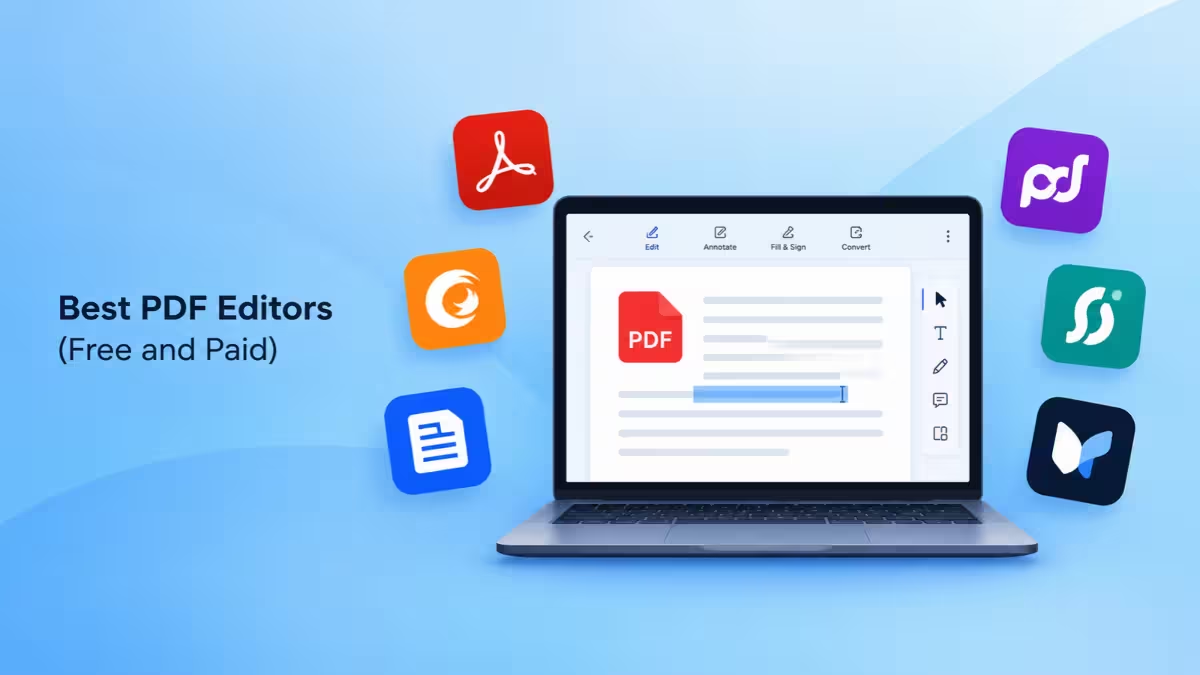
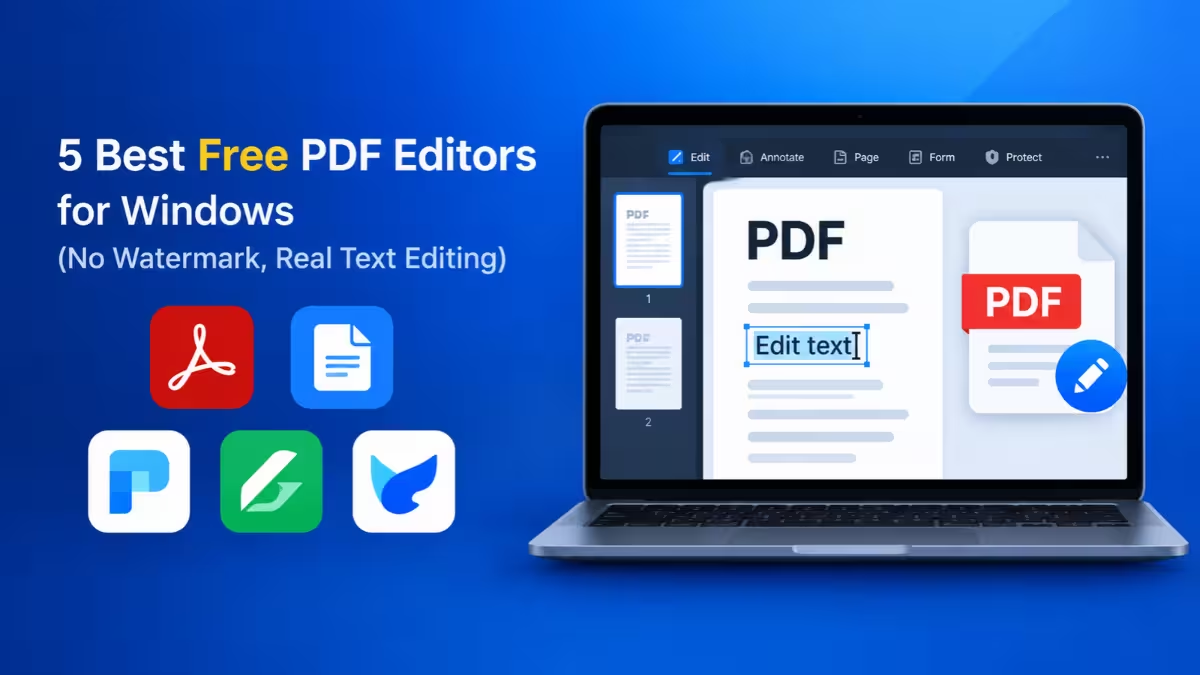
Most programs that call themselves free PDF editors only let you highlight, comment, or sign. Changing the words already printed in the file usually sits behind a paywall. The five tools below actually edit PDF content on Windows without charging you, and each one suits a different kind of user.
Free PDF Editors for Windows Compared: Text Editing, OCR and Limits
A good free PDF editor changes text, reads scans, and exports clean files, and the table below shows which of the five tools do each.
| Tool | Edits Existing Text | OCR | Watermark on Output | Free Limit | Works Offline |
|---|---|---|---|---|---|
| PDFgear | Yes | Yes | None | No published cap | Yes |
| PDF24 Creator | Basic | Yes | None | No published cap | Yes |
| PDF-XChange Editor | Yes | Basic | Only on premium features | About 70% of features | Yes |
| LibreOffice Draw | Yes | No | None | None | Yes |
| Sejda PDF Desktop | Yes | Limited | None | 200 pages, 50 MB, task cap | Yes |
Why a Free PDF Editor Often Cannot Edit Text
Many tools labeled free only let you view, annotate, and fill forms.
Adobe Acrobat Reader, Foxit Reader, and most browser tools stop at comments, highlights, and signatures. Rewriting a sentence that already sits in the file requires a real editor, and many vendors lock that feature behind a paid plan. Some free editors also add a watermark once you use a premium function, or cap the pages, file size, or daily tasks you can process. This list includes only tools where you can change existing text or images without paying, and it states each tool's limits upfront.
What to Check Before You Pick a Free PDF Editor
Five checks separate a useful free editor from a trial in disguise.
- Text editing: confirm you can change existing paragraphs, not only add new text boxes.
- Watermarks: look for a clean export on the free plan.
- Caps: check page, file size, and task limits.
- OCR: make sure the tool can read scanned pages if you handle them.
- Offline use: prefer desktop apps for private documents.
1. PDFgear: Best Overall Free PDF Editor for Windows
PDFgear is the most complete free PDF editor you can install on Windows 10 or 11 right now. It needs no account, adds no watermark, and keeps no feature behind a paid tier.
You can click into a paragraph and rewrite it, and PDFgear tries to match the original font as you type. It also swaps images, fills and signs forms, merges and splits files, compresses large documents, and converts PDFs to Word, Excel, PowerPoint, or image formats. Its OCR engine turns scanned pages into selectable text in more than 30 languages.
PDFgear also ships a built-in AI assistant. You type a question about the open document, and it summarizes sections or pulls out answers without you copying text into another app. The same free editor runs on macOS, iOS, and Android, so a file you start on your PC can move to your phone.
Pros
- Full text, image, and form editing at zero cost
- OCR and AI document chat included free
- No signup, no watermark, no file size cap
- Native apps on Windows, Mac, iOS, and Android
Cons
- The AI features need an internet connection
- The vendor publishes no guarantee that the app stays free forever
- Smaller support community than Adobe or Foxit
2. PDF24 Creator: Best Free Offline PDF Toolbox
PDF24 Creator is a German-made Windows app that bundles more than 30 PDF tools into one free package. It runs fully offline, so your files never leave your PC.
Its standout trick is a virtual PDF printer. Once installed, any Windows program that can print, including Word, Excel, and Chrome, can save straight to PDF through it. Beyond that, PDF24 merges, splits, compresses, rotates, watermarks, signs, and converts files, and it runs OCR on scans so you can search and copy their text.
Ads fund the project instead of subscriptions, and the developer places no artificial limits on how many files you process. Text editing works best for small changes, though. For heavy rewrites inside an existing paragraph, PDFgear or PDF-XChange handle the job more cleanly.
Pros
- Completely free for personal and commercial use
- No daily task limit or file size cap
- Fully offline processing keeps confidential files local
- Virtual PDF printer works with every Windows app
Cons
- Inline text editing is basic
- The interface looks dated
- The desktop app exists only for Windows
3. PDF-XChange Editor: Most Features in a Free Desktop Editor
PDF-XChange Editor suits power users who want deep editing control without paying. The free download unlocks roughly 70% of its feature set, which is far more than most free editors offer.
Free users get proper text editing, comments, stamps, shapes, digital signatures, page tools, and basic OCR. The program loads quickly and handles large, complex documents better than most browser tools.
You need to watch one trap. If you use a premium-only feature, PDF-XChange stamps a watermark on that document when you save it. The app labels paid features, so check the label before you click. If you later want the full toolset, a perpetual license starts at around EUR 56 as a one-time payment instead of a subscription.
Pros
- The largest free feature set among desktop editors
- Real text editing plus annotations and signatures
- Fast and light on system resources
- Paid upgrade is a one-time license, not a subscription
Cons
- Premium features add a watermark if you use them by mistake
- The crowded interface overwhelms beginners
- Windows only
4. LibreOffice Draw: Best Free Option for Quick Text Fixes
LibreOffice Draw is not a dedicated PDF editor, but it rewrites existing PDF text better than many tools that claim the title. It comes free with the open-source LibreOffice suite.
When you open a PDF in Draw, it breaks each page into separate objects. You click any text box to retype it, drag images around, add new elements, and then export the result back to PDF. It has no page limits, no file caps, and no watermark.
Draw shines on simple, text-heavy files such as letters, certificates, or one-page forms where you need to fix a name, date, or line. Complex layouts with unusual fonts or many layered elements may shift slightly after import, so check the output before you send it. Draw also cannot read scanned PDFs as text, since it has no OCR.
Pros
- Edits existing PDF text directly
- Free and open source with no limits
- No watermark on exported files
- Includes a full office suite alongside it
Cons
- Complex layouts can shift during import
- No OCR for scanned documents
- Large download if you only need PDF editing
5. Sejda PDF Desktop: Best for Occasional Edits
Sejda PDF Desktop brings the popular Sejda web editor to Windows with a clean, modern interface. It edits existing text instead of only placing new text boxes on top.
The free version handles text and image edits, form filling and creation, whiteout, signing, merging, splitting, compressing, and converting. You can start without an account, and the output carries no watermark.
The catch is a usage cap. Free use stops at documents of 200 pages or 50 MB, and Sejda limits how many tasks you run within a set time window. That covers a contract or a form now and then, but a folder full of scanned invoices will hit the ceiling quickly. Paid plans remove the cap and start with a low-cost week pass.
Pros
- Clean, beginner-friendly interface
- Edits existing text, not just overlays
- No signup and no watermark
- Desktop app keeps files on your PC
Cons
- Task, page, and file size caps on the free plan
- Limited font choices when editing
- Heavy users need a paid plan
Which Free PDF Editor Fits Your Task?
Your choice depends on the job you need done most often.
- You want one free editor for everything: install PDFgear.
- You process lots of files and want them offline: use PDF24 Creator.
- You want maximum editing depth and do not mind a busy interface: try PDF-XChange Editor.
- You need to fix a word or date in a simple PDF: open it in LibreOffice Draw.
- You edit a document only now and then and like a tidy interface: pick Sejda PDF Desktop.
Does Adobe Acrobat Reader Edit PDF Text for Free?
Adobe Acrobat Reader remains the most reliable free app for opening official forms and certified signatures, but it does not edit text.
Reader lets you highlight, comment, fill forms, and sign. Rewriting a sentence or replacing an image requires a paid Acrobat Standard or Pro subscription. Keep Reader installed for government and legal PDFs, and use one of the editors above when you need to change the content itself.
Online vs Offline PDF Editors: Which Is Safer for Sensitive Files?
Offline editors keep your document on your PC, while online editors upload it to a server.
For confidential contracts, medical records, or financial statements, use a desktop app. All five tools in this list process files on your own machine. If you must use a browser tool, check that the site loads over HTTPS, read its file retention policy, and delete your upload once you finish. Never upload ID scans or bank statements to a site you do not recognize.
Common Mistakes When Using Free PDF Editors
A few avoidable errors cause most of the frustration with free tools.
- Editing a scanned PDF without OCR. A scan is an image, so run OCR first to create editable text.
- Saving over the original. Use Save As so you keep an untouched copy.
- Ignoring watermarks. Open the exported file and check every page before you send it.
- Downloading from third-party sites. Get each installer from the vendor's official page to avoid bundled adware.
- Expecting perfect layout. Complex files can shift after text edits, so review fonts and spacing.
Frequently Asked Questions
What is the best completely free PDF editor for Windows?
PDFgear offers the most features with no paid tier, no watermark, and no file size limit. It edits text, converts files, runs OCR, and signs documents for free.
Can I edit PDF text on Windows without a watermark?
Yes. PDFgear, PDF24 Creator, LibreOffice Draw, and Sejda PDF Desktop all export clean files. PDF-XChange Editor stays watermark-free as long as you avoid its premium-only features.
Which free PDF editor can edit a scanned document?
PDFgear and PDF24 Creator both include free OCR that converts scanned pages into editable, searchable text. Run OCR first, then edit the recognized text.
Do these PDF editors work on Windows 10 and Windows 11?
Yes. All five tools in this list support both Windows 10 and Windows 11.
Is it safe to edit sensitive PDFs with free tools?
Desktop editors process files locally, so your documents stay on your PC. Download each tool only from its official website to avoid installers bundled with adware.