A good PDF editor lets you fix a typo, swap an image, sign a contract or turn a scanned page into searchable text without rebuilding the whole file. The market is crowded, prices range from zero to nearly $300 a year, and many tools hide key features like OCR or redaction behind higher tiers. This list covers seven editors that handle real work well, with clear notes on platforms, pricing and where each one falls short.
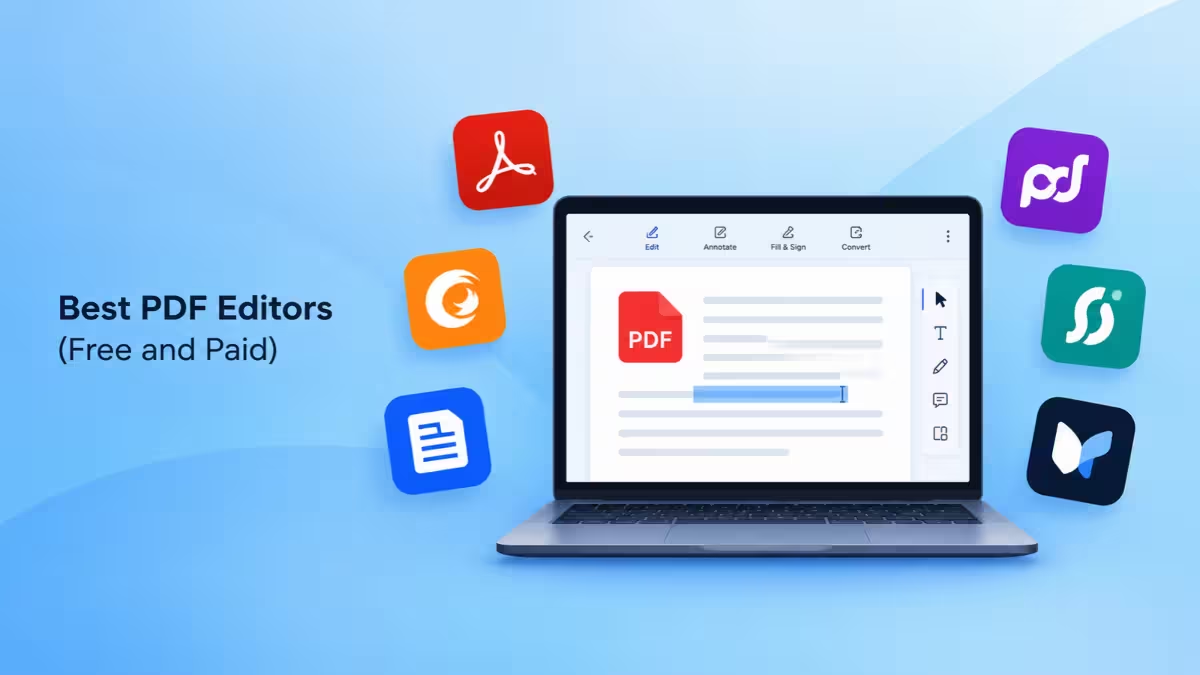
Best PDF Editors Compared: Price, Platforms and Use Case
The right PDF editor depends on your device and budget, and the table below lists the seven tools we recommend for different needs.
| PDF Editor | Best For | Platforms | Starting Price |
|---|---|---|---|
| Adobe Acrobat Pro | Full-featured professional work | Windows, macOS, iOS, Android, Web | $239.88/year |
| Foxit PDF Editor | Acrobat-level features for less | Windows, macOS, iOS, Android, Web | $129.99/year |
| Nitro PDF | Business teams and one-time licensing | Windows, macOS | $180/year |
| EaseUS PDF Editor | Budget pick for Windows | Windows | $49.95/year |
| PDF Expert | Mac, iPhone and iPad users | macOS, iOS | $79.99/year |
| pdfFiller | Browser-based editing and e-signatures | Web | $8/month (annual) |
| PDFgear | Completely free editing | Windows, macOS, iOS, Android | Free |
1. Adobe Acrobat Pro: Most Complete PDF Editor for Professionals
Acrobat Pro still sets the standard every other editor gets measured against.
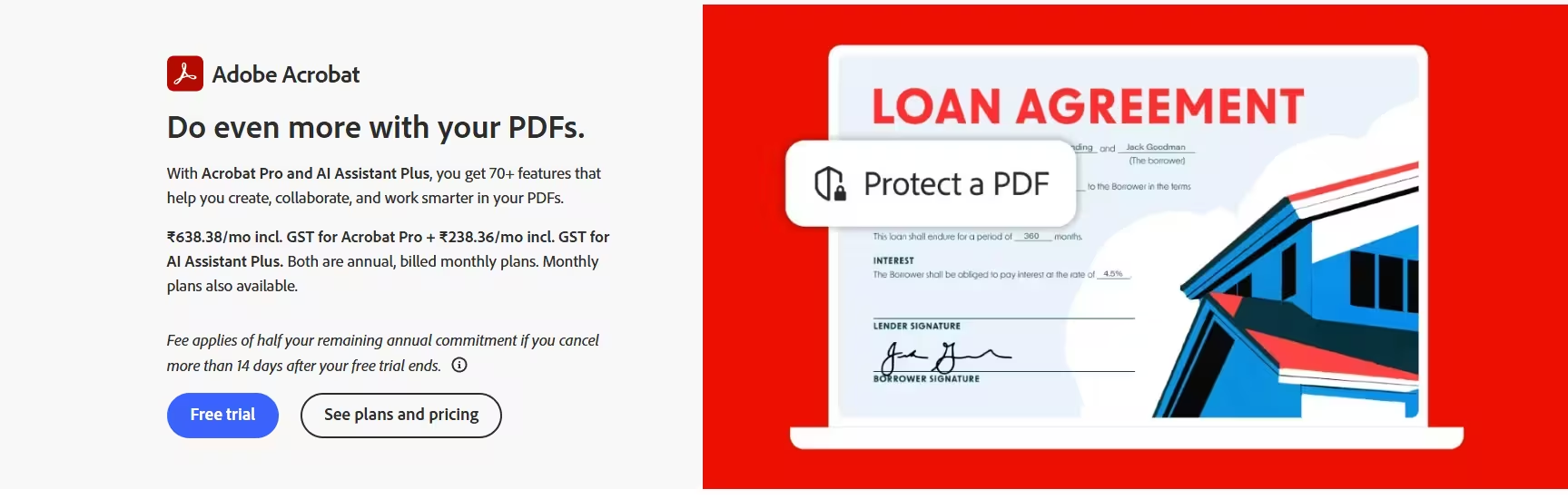
Adobe Acrobat Pro comes from the company that created the PDF format, and it covers nearly every task you can throw at a document. You can edit text and images in place, compare two versions of a file, build web forms, collect legally binding signatures and run OCR on scanned pages. The Pro tier also adds true redaction with sanitization, which removes hidden metadata and comments instead of just covering text with a black box.
One standout feature helps anyone who works with old scans. Acrobat can build a matching digital font from text in a scanned image, so new words you type blend in with the original page. It also lets you number different sections of a document separately, such as Roman numerals for a preface and Arabic numerals for the main body.
The catch is cost. Acrobat Standard starts around $155.88 to $179.88 per year but skips OCR and redaction, so most power users end up on Pro at $239.88 per year. The AI Assistant adds another $4.99 per month unless you move up to Acrobat Studio at $299.88 per year.
Pros
- Most complete PDF toolkit available
- True redaction and sanitization on Pro
- Font matching for editing scanned pages
- Smooth cross-platform experience with cloud sync
Cons
- Most expensive option on this list
- Standard plan lacks OCR and redaction
- Large feature set can feel heavy for new users
2. Foxit PDF Editor: Best Adobe Acrobat Alternative
Foxit gives you most of what Acrobat Pro offers at a noticeably lower yearly price.
Foxit PDF Editor works as a desktop app on Windows and macOS and as a web editor, all under one subscription. Its OCR engine is licensed from ABBYY, one of the strongest names in text recognition, so scanned documents convert cleanly. Foxit also handles long edits better than many rivals because you can link separate text boxes and let text flow from one to the next.
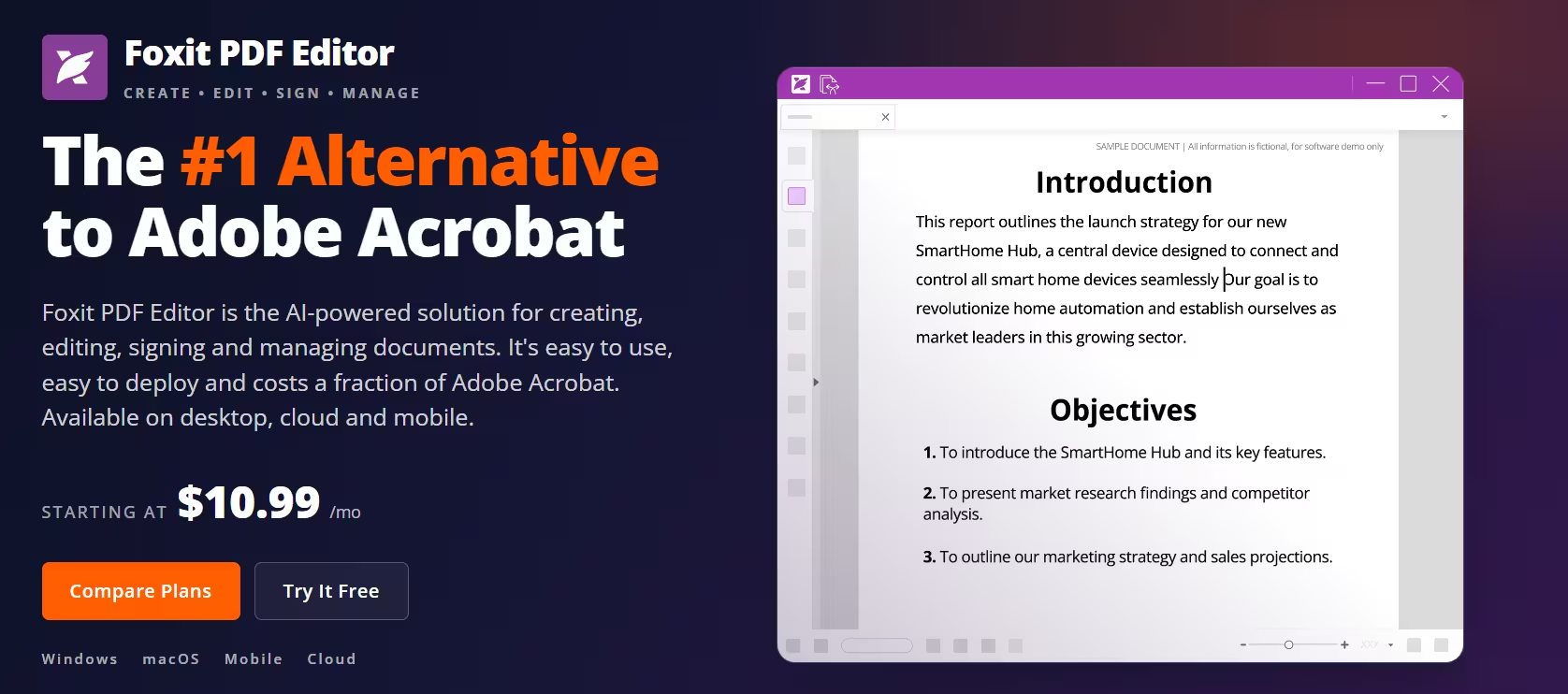
The ribbon-style toolbar feels familiar to anyone who uses Microsoft Office, and large files open quickly. Enterprise users also get support for document management systems like iManage and eDocs.
The base PDF Editor plan costs $129.99 per year and includes OCR, which Acrobat locks behind Pro. eSign, Smart Redact and mobile editing require PDF Editor+ at $159.99 to $172.79 per year depending on the region and offer, and AI credits cost extra on top.
Pros
- Strong ABBYY-based OCR on the base plan
- Linked text boxes for smooth long edits
- Fast performance with large documents
- Desktop, web and mobile coverage
Cons
- eSign and redaction need the higher tier
- AI features cost extra
- Reflow editing can shift layouts on long text changes
3. Nitro PDF: Best PDF Editor for Business Teams
Nitro suits businesses that want precise editing, strong security and admin controls.
Nitro PDF edits text line by line instead of forcing you to work with whole text blocks, which makes small corrections fast and clean. Its image tools let you adjust brightness, color and position without breaking the page layout. The interface uses an Office-style ribbon, so most users find their way around in minutes.
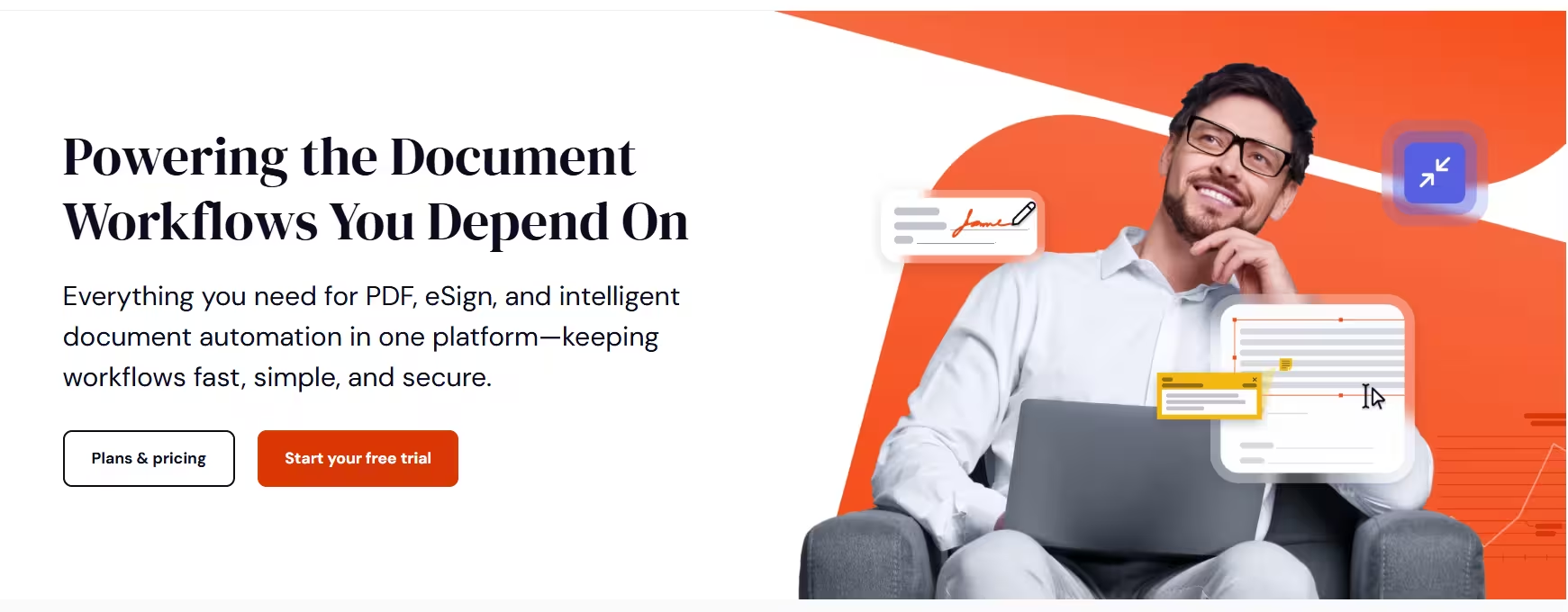
Business users get the most value here. Smart Redact automatically spots sensitive data, Nitro Sign builds full signing workflows with audit trails, and the Admin Portal gives IT teams license and usage controls. Nitro also supports Bates numbering for legal documents.
The Standard plan costs $15 per user per month, billed at $180 per year, and includes a 14-day trial with no credit card required. If you dislike subscriptions, Nitro PDF Classic sells as a one-time $270 license for Windows that covers three years, though it drops some newer features.
Pros
- Precise line-level text editing
- Smart Redact and audit-ready signing
- Admin portal and 24/7 live support
- One-time license option
Cons
- Too expensive for occasional users
- AI tools only work in the web version
- Juggling several open PDFs feels clunky
4. EaseUS PDF Editor: Best Cheap PDF Editor for Windows
EaseUS delivers solid editing and OCR at one of the lowest prices in the paid market.
EaseUS PDF Editor keeps things simple. You open a file in Read mode and switch to Edit, Comment, Protect or Convert from tabs at the top. Click any text block and you can move, resize or rewrite it one paragraph at a time. The OCR tool turns scans into editable text in several output formats, and the converter handles Word, Excel, PowerPoint, HTML, plain text and images.
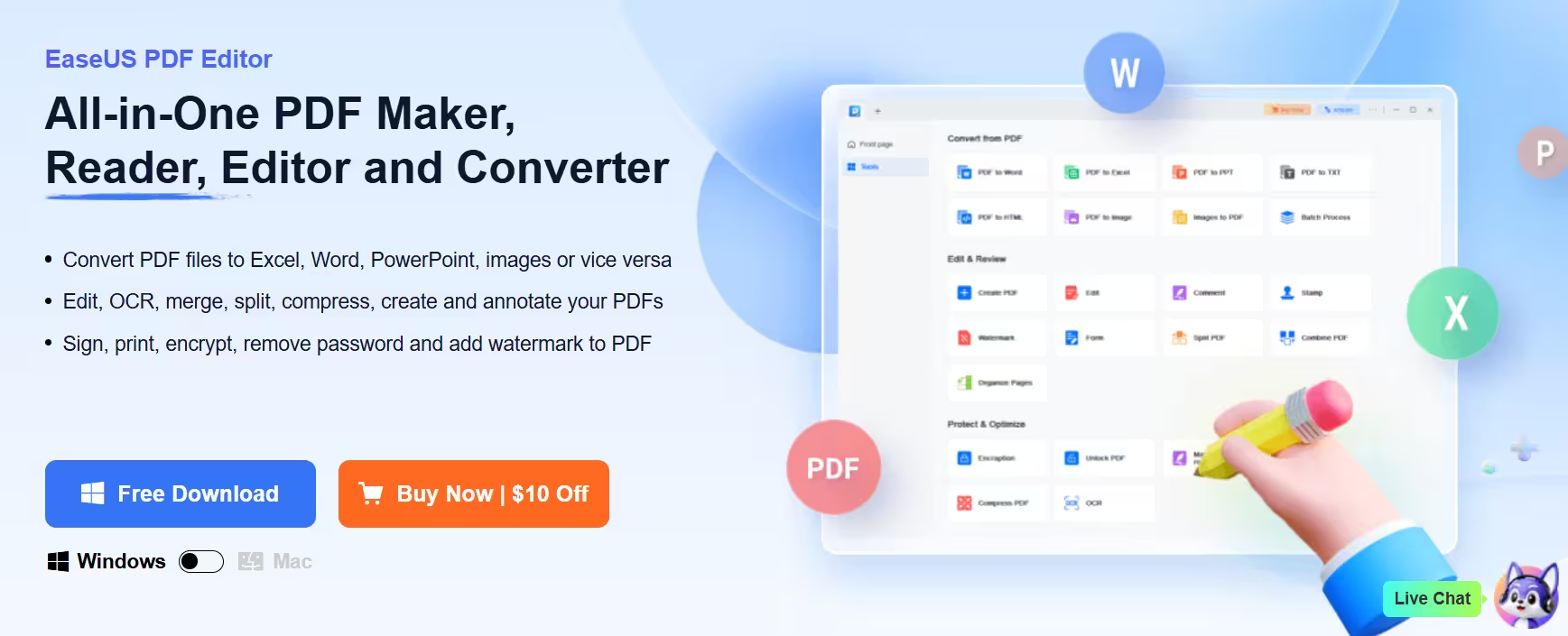
Security tools cover open and permission passwords, AES encryption and watermarks. You also get merge, split, crop and form tools that most people need for everyday paperwork.
Pricing is where EaseUS stands out. The yearly plan costs $49.95, and a lifetime license with free upgrades costs $79.95. A free version exists, but it limits OCR and conversion to the first three pages. The editor runs on Windows only, and its built-in AI assistant works online rather than inside the desktop app.
Pros
- Very affordable yearly and lifetime plans
- Accurate OCR for the price
- Clean, beginner-friendly layout
- Lifetime license includes upgrades
Cons
- Windows only, no Mac or mobile apps
- Free version limits key tools to three pages
- AI features are online only
5. PDF Expert: Best PDF Editor for Mac, iPhone and iPad
PDF Expert is the easiest pick for anyone who works inside the Apple ecosystem.
PDF Expert runs on Mac, iPhone and iPad and keeps your files in sync across all three. It opens large documents quickly, and its reading view ranks among the best available, with themes, layout options and bookmarks. Editing text, managing pages and converting scans into editable documents all feel natural on both a trackpad and a touchscreen.
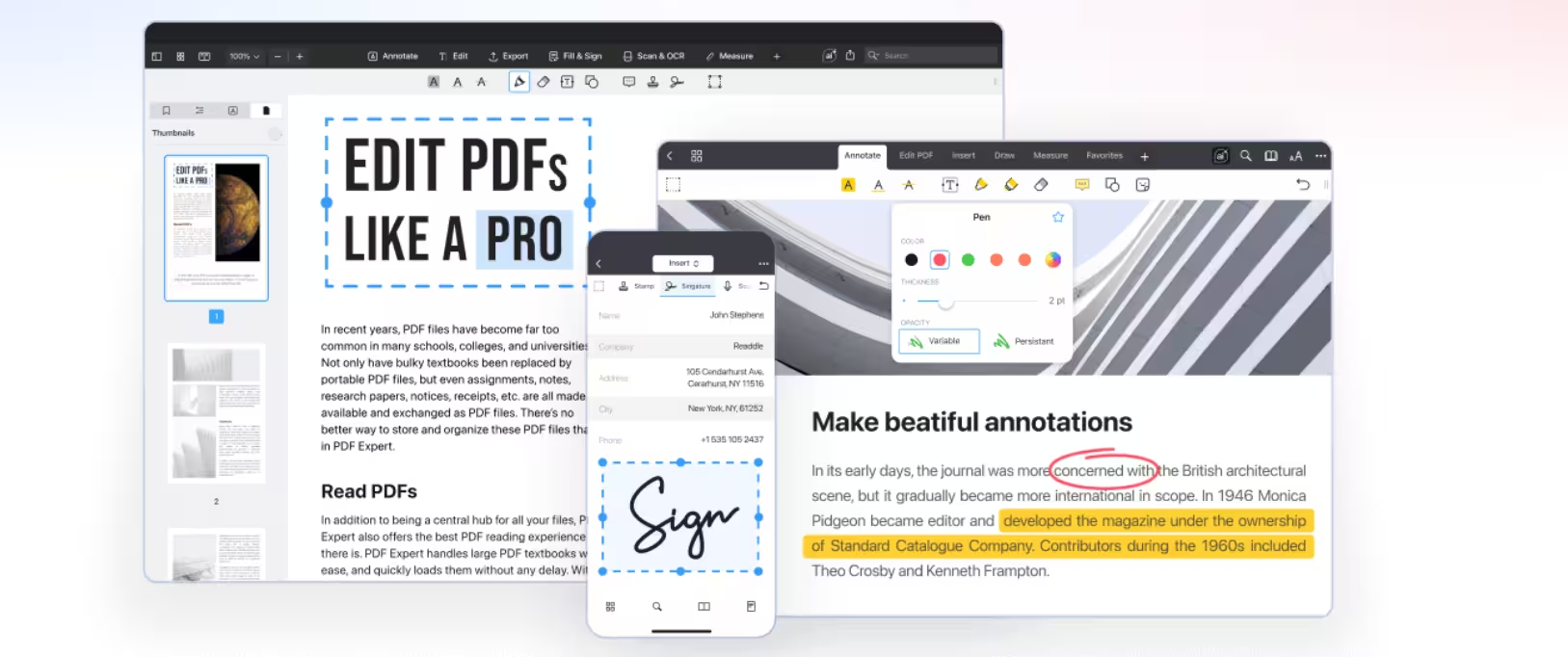
The app also includes simple redaction for sensitive data and an AI chat assistant that summarizes long files and pulls out key points. Since iOS has no built-in PDF editor, PDF Expert fills a real gap on iPhone and iPad.
The yearly plan costs $79.99 and covers all Apple devices. A $139.99 lifetime license exists, but it only covers the Mac and may charge for major future upgrades. You cannot build PDF forms from scratch, and there is no Windows version.
Pros
- Excellent reading and annotation experience
- Fast with large files
- Syncs across Mac, iPhone and iPad
- Built-in AI summaries
Cons
- Apple devices only
- No form creation from scratch
- Lifetime license is Mac only
6. pdfFiller: Best Online PDF Editor for Forms and E-Signatures
pdfFiller runs entirely in your browser and focuses on forms, signatures and document workflows.
pdfFiller feels like a desktop app even though it lives in a browser tab. A thumbnail sidebar lets you reorder, rotate, duplicate or delete pages, and a top toolbar handles text edits, annotations and form filling. You can pull files straight from Google Drive, Dropbox, OneDrive or Box and import contacts from Google to send documents for signature.
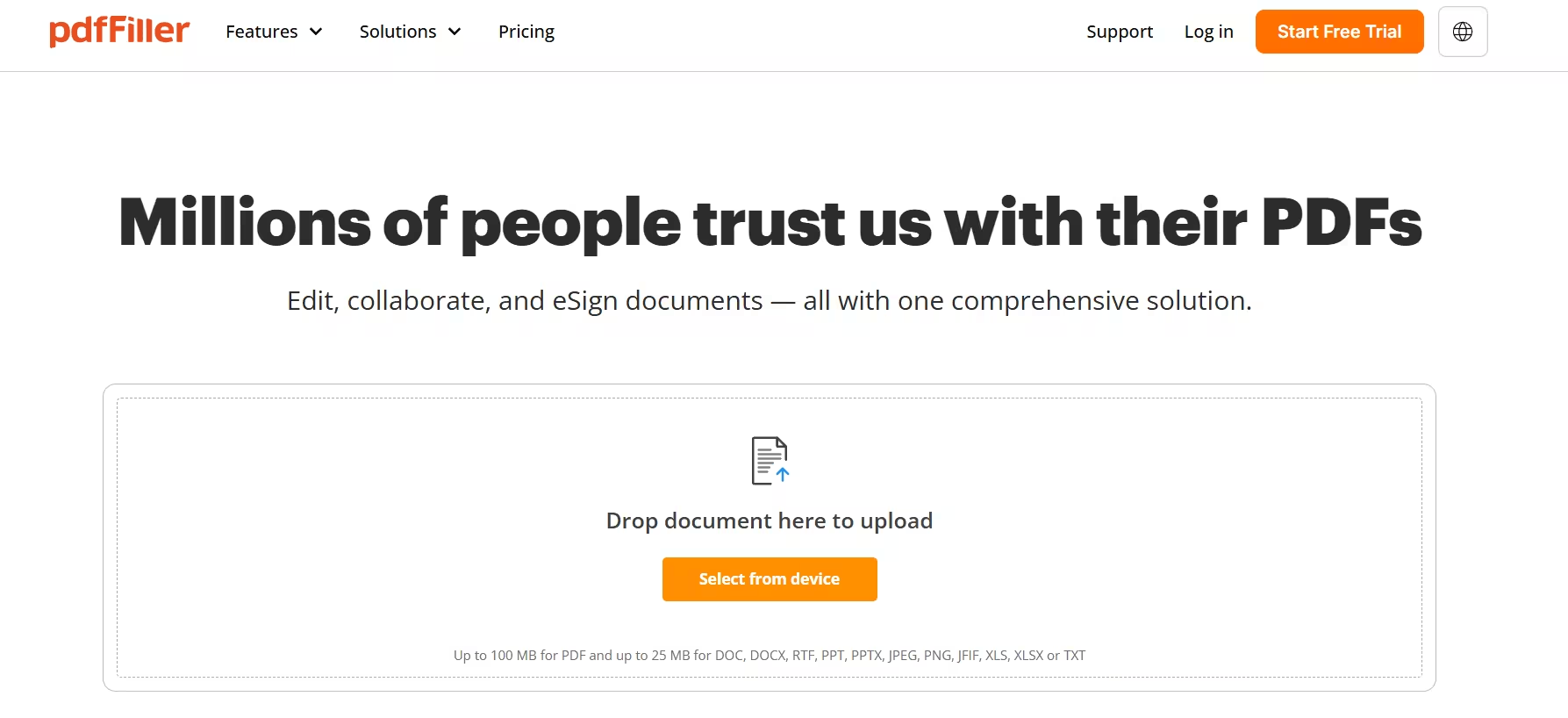
Teams get the most from it. Reusable templates, tags and folders keep documents organized, and the Premium tier adds a US legal forms library, custom branding and SignNow-powered signing. Since everything runs online, you can pick up work from any computer.
Plans cost $8, $12 and $15 per month on annual billing for Basic, Plus and Premium, while monthly billing jumps to $20, $30 and $40. A 30-day free trial and a 180-day money-back guarantee let you test it without risk. Advanced reading features are limited, and the tool needs an internet connection to work.
Pros
- Works on any computer with a browser
- Strong e-signature and template tools
- Direct cloud storage integration
- Long free trial and refund window
Cons
- Monthly billing is expensive
- No permanent free plan
- Limited offline use and reading features
7. PDFgear: Best Free PDF Editor That Edits Existing Text
PDFgear is the free PDF editor that actually lets you change existing text.
PDFgear stands apart from most free tools because it edits the text already in a PDF instead of only adding overlay boxes. It also merges, splits, converts, compresses and fills forms with no watermarks, page caps or sign-up walls. The built-in Copilot answers questions about your document and summarizes long files at no cost.
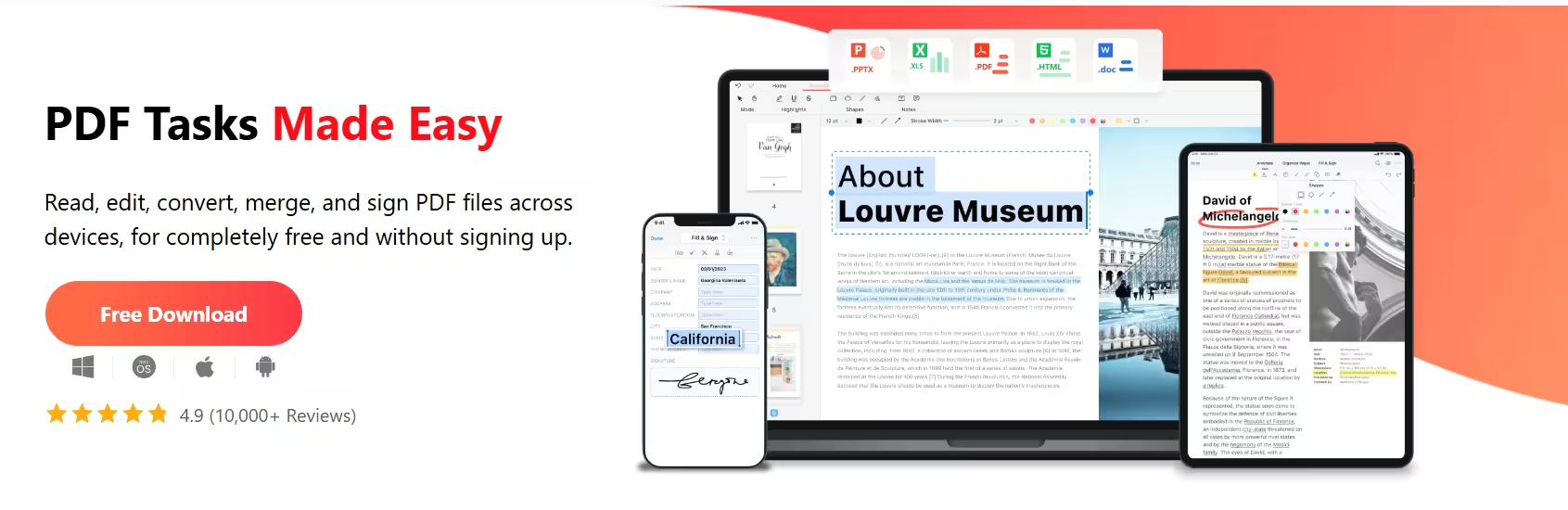
It runs on Windows, macOS, iOS and Android, so you can use the same tool on every device. For quick fixes to PDFs exported from Word or Excel, it does the job well.
Free has limits, though. PDFgear sometimes splits the last line of a paragraph into its own edit box, which makes reflowing text awkward. OCR on scanned pages produces weak results, and conversions to Word tend to lose the original fonts. Some users also raise privacy concerns, so avoid it for sensitive business or legal files.
Pros
- Completely free with no watermarks
- Edits existing text, not just overlays
- Free AI Copilot
- Available on desktop and mobile
Cons
- Weak OCR on scanned documents
- Formatting can break on longer edits
- Ongoing privacy questions
How to Choose the Best PDF Editor for Your Needs
Start with the tasks you do most often, then match them to the features and platforms you need.
- Editing existing text: Paid editors handle full paragraphs cleanly. Among free tools, PDFgear is the main option that edits original text.
- Scanned documents: Pick an editor with strong OCR, such as Foxit or Acrobat Pro, if you convert paper files regularly.
- Sensitive files: Look for true redaction that sanitizes hidden data. Drawing a black box over text does not delete it.
- Platform: EaseUS works on Windows only, PDF Expert stays on Apple devices, and pdfFiller runs in any browser.
- Budget: Lifetime licenses from EaseUS and Nitro save money over several years compared with yearly subscriptions.
You can test whether redaction actually worked by selecting all text with Ctrl + A, pasting it into Notepad and checking whether the hidden words still appear. A search with Ctrl + F inside the redacted file also reveals masked text that the editor never removed.
Free vs Paid PDF Editors: What You Actually Get
Free editors cover simple jobs, but paid tools pull ahead once documents get complex.
Free tools like PDFgear handle merging, splitting, form filling and light text edits without watermarks. Paid editors such as Foxit, Nitro and Acrobat Pro add accurate OCR, clean paragraph-level editing, true redaction, e-signature workflows and admin controls. Free versions of paid apps, like EaseUS, usually cap OCR and conversion at a few pages.
If you edit a PDF once a month, a free tool is enough. If you convert scans, redact sensitive data or sign documents for clients, a paid plan saves time and avoids formatting problems.
Frequently Asked Questions
What is the best PDF editor overall?
Adobe Acrobat Pro offers the most complete feature set, but Foxit PDF Editor and Nitro PDF match most of its tools for less money. Pick based on the features you actually use.
Can I edit a PDF for free?
Yes. PDFgear lets you edit existing text, merge files and fill forms at no cost. Most other free tools only let you add text boxes, comments and images on top of the page.
Is it safe to use online PDF editors?
Trusted services like pdfFiller and Adobe's web tools are safe for everyday files. Avoid unknown free converter sites, since some deliver malware in downloaded files, and remember that uploaded PDFs carry metadata such as the author name.
Which PDF editor is best for Mac?
PDF Expert works best for most Mac users who also use an iPhone or iPad. If you only need basic markup, signatures and passwords, the built-in Preview app on macOS handles those for free.
Do I need OCR in a PDF editor?
You need OCR if you work with scanned pages or photos of documents. It turns the image into searchable, editable text so you can copy, search and correct it.