A Gemini API key lets your scripts, apps and automation tools such as the Gemini CLI talk to Google's Gemini models without using the chat window. Google AI Studio creates the key in under a minute, and you can start testing on the free usage it offers. This guide shows where to click, how to store the key safely, and what to do when requests fail.
What You Need to Get a Gemini API Key
You need a Google account and a browser. If you plan to attach the key to an existing Google Cloud project, have that project ready. Personal Gmail accounts usually need nothing else.
How to Create a Gemini API Key in Google AI Studio
- Open the AI Studio API Keys page and sign in with your Google account.
- Click Create API key at the top right of the page.
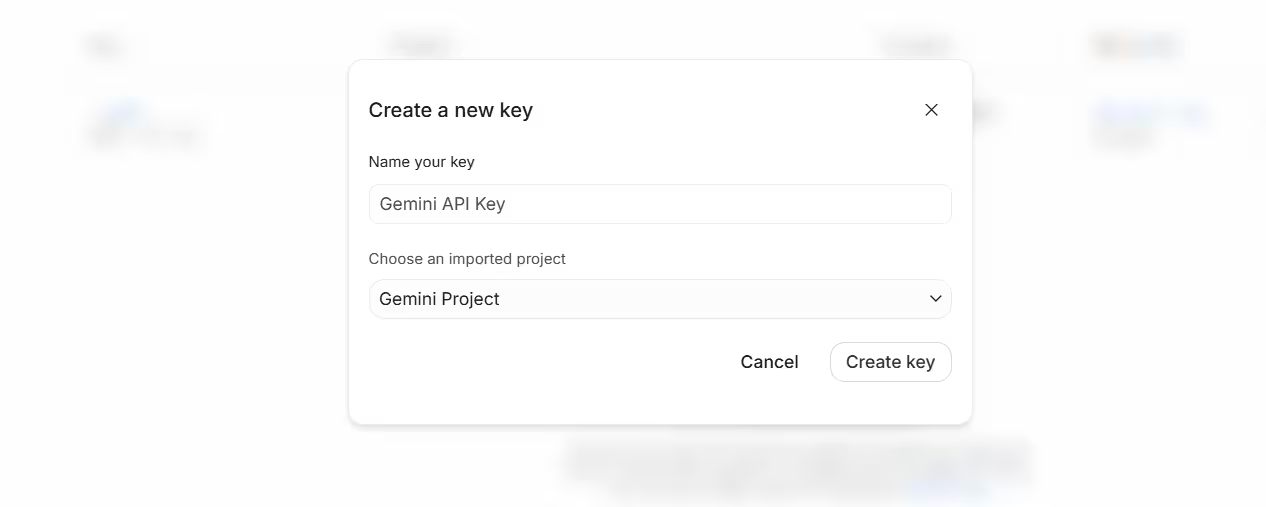
- In the Create a new key window, type a name under Name your key, then pick a project under Choose an imported project.
- Click Create key, then copy the key and save it right away in a safe place.
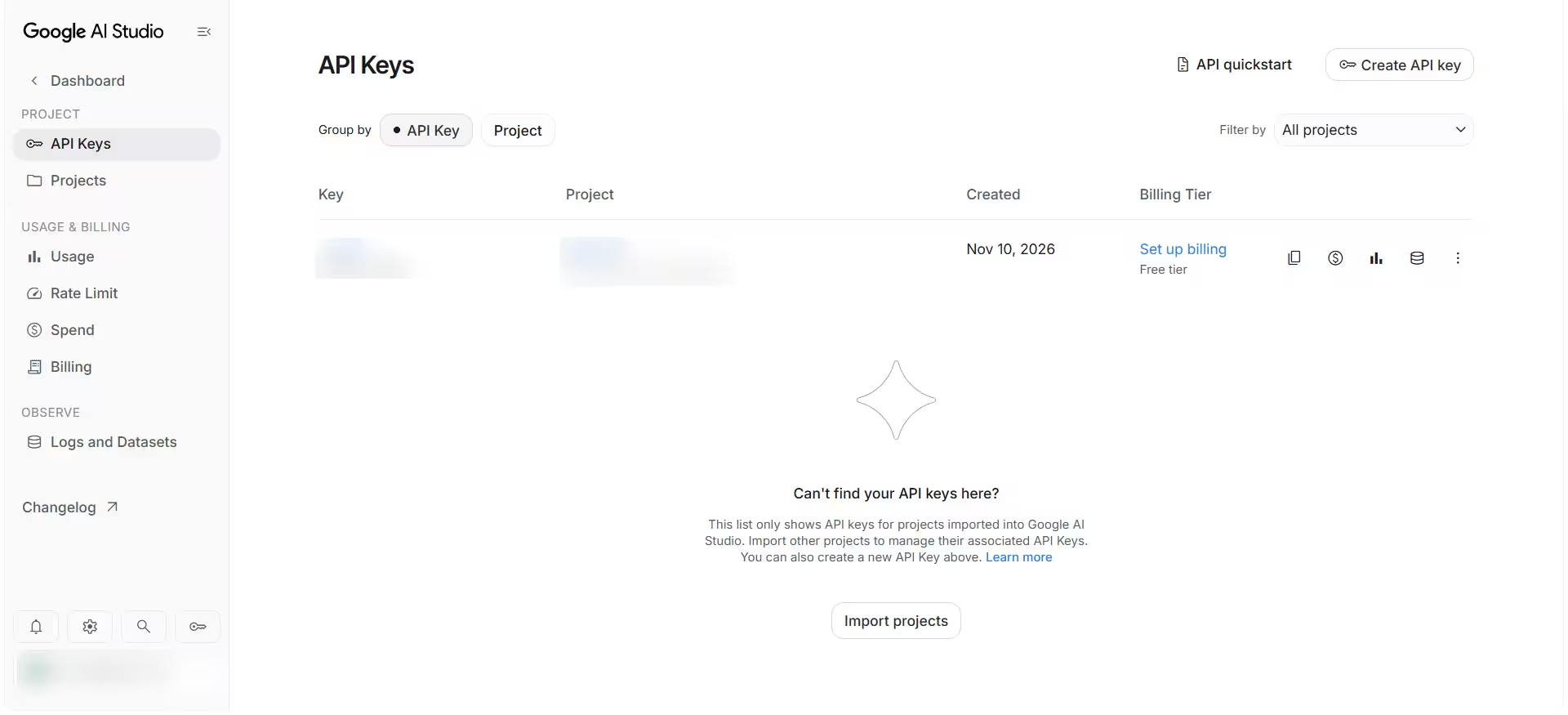
Your new key appears later on the same API Keys page. The list shows the key, its project, the date you created it and its billing tier. A new key shows Free tier until you set up billing.
If your project is missing from the list, click Import projects at the bottom of the page and add it.
If the Create API key button is greyed out, your account probably lacks permission in that Cloud project. Ask the project administrator for an editor role, or create a new Cloud project that is not tied to an organization and make the key there.
How to Find and Copy Your Gemini API Key Again
Go back to the API Keys page at any time. It lists every key you created, so you can copy one again, check which project owns it or remove it. The Usage page shows how many requests your keys have made, and the Rate Limit page shows the limits that apply to your key. Check both when a script hits a limit.
How to Save Your Gemini API Key in a .env File on Windows
Never paste the key straight into your code. A .env file keeps it in one private place.
- Open the folder where your script lives.
- Right-click, choose New, then Text Document, and open it in Notepad.
- Type one line:
GEMINI_API_KEY=followed by your key, with no spaces and no quotation marks. - Choose File, then Save As. Set Save as type to All files and name it
.env. - Confirm the file is not called
.env.txt. If it is, turn on file extensions in File Explorer and rename it.
Your script can now read GEMINI_API_KEY from this file. Google's own guidance uses the same variable name, so most libraries find it without extra setup.
How to Keep Your Gemini API Key Safe
Treat the key like a password. Anyone who has it can use your quota, and infostealer malware can copy stored keys from an unprotected PC.
- Never paste it into chat windows, forums or screenshots.
- Never upload the
.envfile to GitHub or any shared folder. - Never place the key inside a website or mobile app that other people can open. Send requests through your own server instead.
- Restrict the key to the Gemini API only if AI Studio offers that option for your key.
If a key leaks, create a new one, update your script and confirm it works. Then disable the old key and check your usage for requests you do not recognize.
Is the Gemini API Free? Free Tier Limits Explained
Yes, you can start without paying. A new key shows Free tier in the Billing Tier column of the API Keys page. The free tier caps how many requests you can send. Open the Rate Limit page in the left menu to see the limits that apply to your project, and the Usage page to see how much you have used. To check limits in the chat app instead, read our guide on the Gemini usage limit.
If you outgrow those limits, click Set up billing next to the key. Until you do, your key stays on the free tier, which suits testing and small personal projects. For model prices, see the Gemini API pricing guide.
Gemini API 429 and 503 Errors: What They Mean and How to Fix Them
Two errors show up most often on free usage.
- 429 means you sent more requests than your limits allow. Open the Rate Limit page to see your limits, wait a minute and slow your script down, or spread the work across a longer period.
- 503 means the model is overloaded on Google's side. Your key is fine. Retry after a short wait, or switch to a different Gemini model.
Free usage works well for testing and small personal projects. For work that must run on a schedule every day, expect occasional failures and add retries to your script.
If the Gemini chat app shows "Something went wrong" instead of an API error, the fix is different. Follow our guide to Gemini error 1013.
Frequently Asked Questions
Is the Gemini API key really free?
You can create the key at no cost and use the free usage that AI Studio offers. It comes with limits on how many requests you can send, so heavy or scheduled work may need a paid plan.
Where do I copy my Gemini API key?
Open the API Keys page in Google AI Studio. Your keys are listed there, and you can copy a key from that list whenever you need it.
Why is the Create API key button not working?
Your account most likely lacks permission in the selected Cloud project. Ask the administrator for an editor role or create a new project that is not part of an organization.
What should I do if my API key leaks?
Create a new key, update your script and test it. Then disable the old key and review your usage for anything you did not send.