A Linux machine that stops booting feels like a disaster, but a reinstall is rarely the answer. Most startup failures come from a bad kernel update, a broken graphics driver, a wrong line in a config file, or a service that hangs. Linux gives you several ways to step into a failing system and repair it. This guide covers the most useful ones, in the order you should try them.
How to Edit Linux Boot Parameters in GRUB
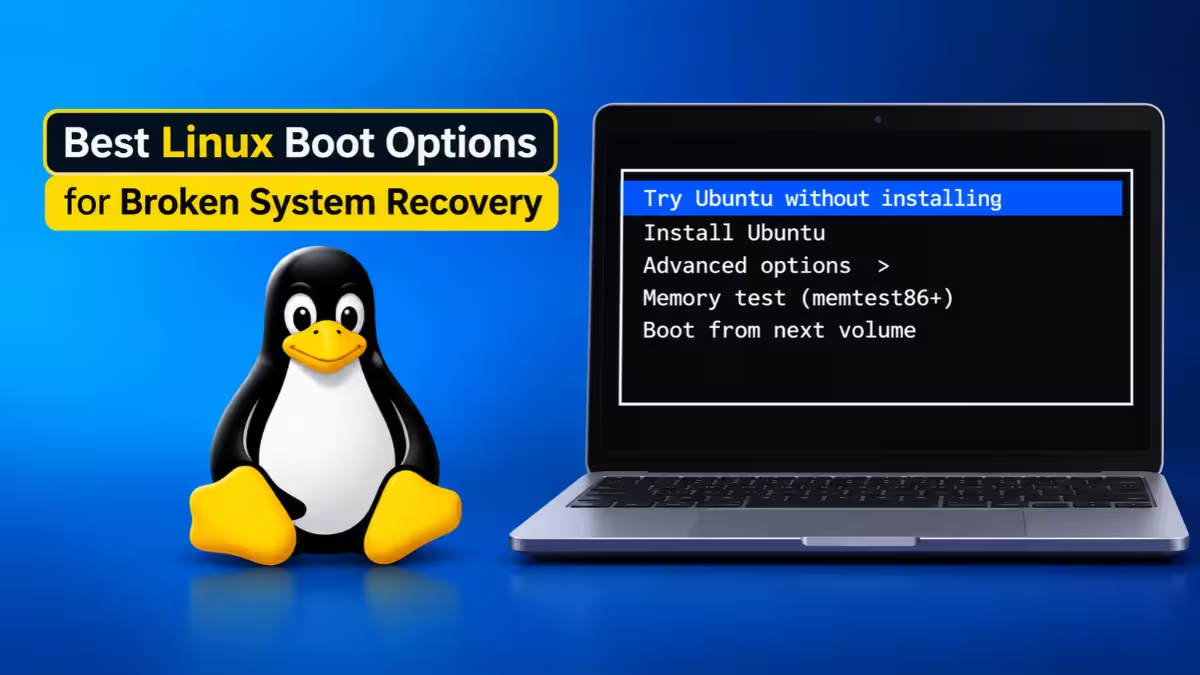
Almost every fix below begins at the GRUB boot menu. Hold Shift during startup on a legacy BIOS machine, or tap Esc repeatedly on a UEFI machine. Once the menu appears, highlight your normal boot entry and press e. GRUB opens an editor that shows the boot commands for that entry.
Find the line that begins with linux or linuxefi, go to the end of it, and add the parameter you need. Press Ctrl+X or F10 to boot with the change. The edit applies to that single boot only, so a wrong guess never damages your permanent configuration.
Fix a Linux Black Screen After a Driver Update with nomodeset
If the system boots in the background but your screen stays black, the graphics driver is the likely culprit. Add this parameter to the end of the linux line:
nomodesetThis tells the kernel to skip kernel mode setting during early startup. Your desktop usually loads with a basic display driver instead of the broken one. Expect a lower resolution and no hardware acceleration while you use it. Treat nomodeset as a short-term rescue. After you reach the desktop, remove or reinstall the faulty driver, then reboot normally.
Boot an Older Linux Kernel After a Bad Update
A new kernel can break Wi-Fi, graphics, storage, or other hardware support. Most distributions keep at least one previous kernel installed, so you can switch back.
- Open the GRUB menu.
- Choose Advanced options for your distribution.
- Pick an older kernel version from the list.
- Press Enter.
If the old kernel works, you know the new one caused the problem. You can then wait for a patched kernel, remove the bad one, or check your drivers against the new version.
Skip a Failing systemd Service During Boot with systemd.mask
Sometimes a single service hangs startup, often after a network change or a new driver install. You can block that service for one boot with this parameter:
systemd.mask=NetworkManager.serviceSwap in the unit name of the service you suspect. Systemd skips that unit during the boot, and the rest of the system starts normally. Once you log in, read the logs with journalctl -xb, then decide whether to reconfigure, disable, or reinstall the service.
Keep in mind that masking NetworkManager removes your network connection for that session. Have a wired fallback or a phone tether ready if you need internet access during the repair.
Boot Linux Into Rescue Mode (rescue.target)
Rescue mode starts a stripped down environment, mounts your local filesystems, and gives you a root shell. It suits problems where the kernel loads but normal startup fails. On a systemd distribution, add this to the linux line:
systemd.unit=rescue.targetThe system may ask for the root password before it opens the shell. From there you can edit config files, remove a broken package, or read startup errors with journalctl -xb.
Ubuntu also offers a menu version. Choose the entry that ends in (recovery mode) under Advanced options. It gives you shortcuts for repairing packages, checking the disk, and enabling networking.
Boot Linux Into Emergency Mode to Fix fstab and Mount Errors
Rescue mode still tries to mount your filesystems. If a bad /etc/fstab entry or a damaged volume stops that step, you need something smaller. Emergency mode starts almost nothing and gives you a root shell with only the root filesystem mounted. Use this parameter:
systemd.unit=emergency.targetThe root filesystem often mounts read-only in this mode. Remount it with write access before you edit anything:
mount -o remount,rw /Now open /etc/fstab, compare each UUID against the output of blkid, and fix any wrong or stale entry. A mistyped UUID after a disk clone or partition resize causes this problem more often than anything else.
Recover a Lost Root Password in Rescue Mode
A forgotten password does not lock you out for good. A recovery shell lets you set a new one without logging in first, and the same idea applies when you reset the root password on a Linux VM.
On Ubuntu, pick (recovery mode) from Advanced options, then choose the root shell option from the menu. Remount the filesystem with write access and set the password:
mount -o remount,rw /
passwd username
On Fedora, press e at GRUB, replace rhgb quiet on the linux line with rd.break, and boot. You land in a shell before the real root filesystem mounts. Run these commands:
mount -o remount,rw /sysroot
chroot /sysroot
passwd username
touch /.autorelabel
exit
The touch /.autorelabel step matters because SELinux runs by default on Fedora. Without it, the new password file carries the wrong security label and logins can fail silently. On Arch, boot with systemd.unit=emergency.target, remount root as writable, and run passwd the same way as on Ubuntu.
Boot Straight to a Root Shell with init=/bin/bash
This is the heaviest option, so save it for cases where rescue and emergency modes both fail. Add this parameter:
init=/bin/bashThe kernel launches Bash as the very first process and bypasses systemd completely. You land in a bare root shell with no services, no login manager, and a read-only root filesystem. Remount it as writable, make your fixes, then flush your changes to disk:
mount -o remount,rw /
sync
reboot -f
Normal shutdown tools do not work in this environment, so always run sync before you force the reboot. Skipping that step can lose the changes you just made.
Fix a Broken GRUB Bootloader from a Live USB
None of the parameters above help if GRUB fails to load or the EFI entry disappears. A Windows update on a dual boot machine causes this regularly. You need an external environment to repair it.
Boot from a Linux live USB, identify your partitions with lsblk, mount your root partition, and bind the system directories into it. Then chroot into the installed system and reinstall the bootloader. On Debian and Ubuntu based systems, the commands are grub-install and update-grub. On Fedora, use grub2-install and grub2-mkconfig. On Arch Linux, use arch-chroot from the install ISO instead of plain chroot.
A live USB also handles repairs that rescue mode cannot, such as damaged LUKS headers and data recovery from a failing disk.
SystemRescue: A Free Linux Rescue USB for Broken PCs
SystemRescue is a free, Arch based live environment built for repair work. It boots from USB without installing anything and works on both BIOS and UEFI machines. It includes GParted for partition changes, fsarchiver and Partclone for backups and cloning, TestDisk and PhotoRec for recovering lost partitions and files, and filesystem tools for ext4, XFS, Btrfs, NTFS, and others.
The environment also supports NetworkManager and SSH, so you can pull in extra packages or let a helper guide you remotely. The copytoram option loads the whole system into memory, which helps when a USB port or stick behaves unreliably. Plan for around 2GB of RAM, and note that the project no longer supports 32 bit hardware.
Repair Linux Filesystem Errors with fsck
Filesystem errors often show up as an automatic check at boot or a drop to an (initramfs) prompt. Run fsck only on an unmounted partition:
umount /dev/sda2
fsck -f /dev/sda2
Replace /dev/sda2 with your actual partition. The -f flag forces a full check even if the filesystem looks clean. Running fsck on a mounted, writable filesystem can corrupt your data, so use a live USB when you cannot unmount the partition.
Recover from a Failed Package Update (APT, DNF, Pacman)
An interrupted upgrade can leave packages half installed, which breaks startup in odd ways. Boot into rescue mode, enable networking, and run the repair commands for your package manager.
On Ubuntu and Debian:
apt-get --fix-broken install
dpkg --configure -a
On Fedora:
dnf distro-syncOn Arch:
pacman -SyuEach command realigns your installed packages with the repository versions. If DNF fails with repository metadata errors, fix those first. If a kernel update finished but the initramfs did not rebuild, regenerate it inside the shell with dracut --force on Fedora or update-initramfs -u -k all on Debian and Ubuntu.
Prevent Boot Failures with Timeshift and Snapper Snapshots
Recovery skills help, but a snapshot saves you the whole effort. Timeshift creates restorable system snapshots on a schedule or on demand. Btrfs users can rely on Snapper, which fits naturally into that filesystem. Store snapshots on a drive you can still reach if the main system fails to boot. A few minutes spent creating a snapshot before a kernel or driver update can replace hours of repair work.
Which Linux Boot Recovery Option Should You Use?
| Symptom | First thing to try |
|---|---|
| Black screen after a driver update | nomodeset |
| New kernel breaks hardware | Boot an older kernel from Advanced options |
| Boot hangs on one service | systemd.mask= with the unit name |
| Kernel loads but startup fails | systemd.unit=rescue.target |
| Bad fstab or mount failure | systemd.unit=emergency.target |
| Forgotten password | Root shell in recovery mode, then passwd |
| Broken packages after an update | Rescue mode with your package manager's repair commands |
| Systemd itself will not start | init=/bin/bash |
| GRUB or EFI entry missing | Live USB with chroot, or SystemRescue |
Frequently Asked Questions
What is the difference between rescue mode and emergency mode?
Rescue mode mounts your local filesystems and starts a few basic services, which gives you a more complete repair shell. Emergency mode mounts only the root filesystem, usually read-only, and starts almost nothing. Use emergency mode when a broken mount entry blocks rescue mode.
Do these boot parameters change my system permanently?
No. Parameters you add in the GRUB editor apply to that single boot. After the next restart, GRUB goes back to its normal settings. Any file you fix inside the recovery shell stays fixed, of course.
Why does my root filesystem open as read-only?
Recovery environments mount the root filesystem read-only to protect it from further damage. Run mount -o remount,rw / when you are ready to edit files.
Can I use these methods on an encrypted drive?
Yes, in most cases. The system asks for your LUKS passphrase before it mounts the root filesystem, and then the recovery mode loads as usual. If the drive refuses to unlock because of a damaged header, boot a live USB and open the volume with cryptsetup.
Is nomodeset safe to leave on permanently?
It is not a good long term setting. It limits your resolution and disables hardware graphics acceleration. Use it to get into the system, then fix the real driver problem and remove the parameter.