Genmoji stopped working on your iPhone? You are not the only one dealing with this. The feature has had a rocky track record since it launched in iOS 18.2, and even with the major overhaul Apple shipped in iOS 27, users still run into situations where Genmoji refuses to load, crashes mid-generation, or simply does not appear in the emoji keyboard.
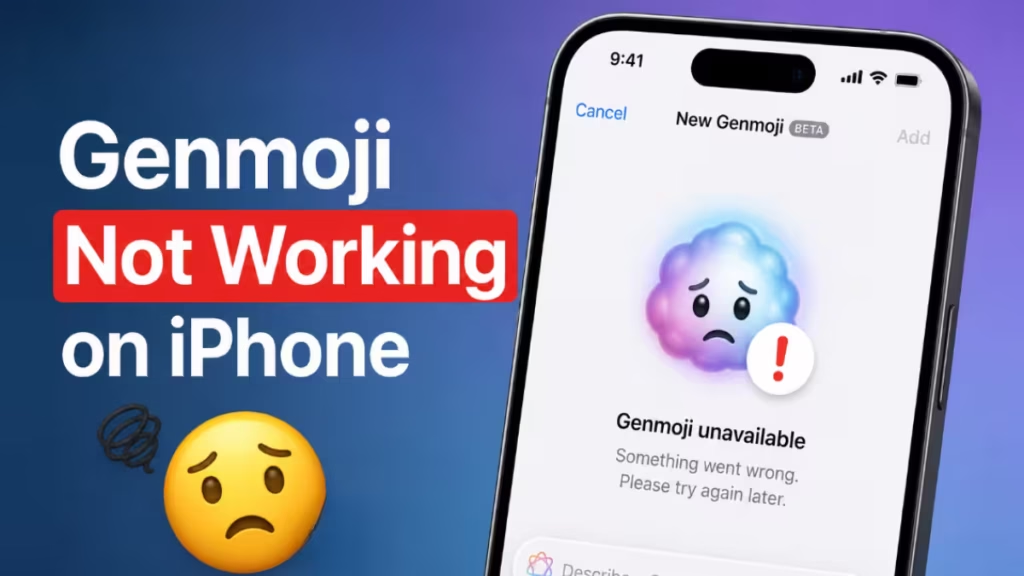
This guide covers the most common reasons Genmoji breaks and walks you through seven fixes that actually work, whether you are on iOS 26 or the latest iOS 27.
What Is Genmoji and Which iPhones Support It
Genmoji is Apple's AI-powered custom emoji generator, part of the Apple Intelligence suite. You describe what you want in text, and the on-device model generates a matching emoji you can send in Messages, Mail, or any app that supports stickers.
iOS 27 brought a significant redesign. Instead of one-shot generation where a bad result meant starting over, Apple introduced iterative editing. You can now use a "Describe a change" field to refine the existing Genmoji by adjusting colors, swapping objects, or changing the style without regenerating from scratch. Output defaults to a 3D cartoon look consistent with the standard Apple emoji set, with sketch and drawing available as alternatives.
Supported devices:
Genmoji runs on the Apple Intelligence stack, which requires an A17 Pro chip or newer. That means:
- iPhone 15 Pro and iPhone 15 Pro Max
- iPhone 16, 16 Plus, 16 Pro, 16 Pro Max
- All iPhone 17 models
The standard iPhone 15, all iPhone 14 models, and anything older do not support Genmoji. This is a hardware limitation, not a software setting you can change.
Why Genmoji Not Working on Your iPhone
Most Genmoji failures fall into one of these categories:
- Apple Intelligence is disabled in Settings, so the feature never loads
- Your device is not compatible but the emoji keyboard still shows a Genmoji icon (which then fails to function)
- Permissions are missing, blocking the feature from accessing required system resources
- iOS bugs introduced in an update are interfering with the AI model
- The Genmoji toggle in Messages is off, so the option does not appear in the keyboard
- Background resource pressure causes the on-device model to crash during generation
- An incomplete iOS update left system files in a broken state
How to Fix Genmoji Not Working on iPhone
Fix 1: Confirm Your iPhone Actually Supports Apple Intelligence
This is the first thing to check. A lot of "Genmoji not working" reports come from users on unsupported hardware.
- Open Settings.
- Tap General, then tap About.
- Look at Model Name and cross-check it against the supported list above.
If your device is unsupported, no software fix will change that. The Genmoji icon may still appear in the emoji keyboard on some iOS builds, but tapping it will produce nothing or an error.
Fix 2: Enable Apple Intelligence in Settings
Genmoji requires Apple Intelligence to be active. If you upgraded to iOS 26 or iOS 27 on a fresh install, or if a reset cleared your preferences, Apple Intelligence may be off.
- Open Settings.
- Tap Apple Intelligence and Siri.
- Toggle Apple Intelligence to on.
The first time you enable it, iOS downloads the AI models to your device. This can take several minutes depending on your connection. Wait for the download to complete before testing Genmoji.
Fix 3: Check and Grant Genmoji Permissions
If the app lacks the right system permissions, Genmoji will fail silently or refuse to generate output.
- Open Settings.
- Tap Privacy and Security.
- Scroll through the permissions list and look for any entry related to Apple Intelligence, Messages, or keyboard features.
- Enable any permissions that are turned off.
On iOS 27, also check under Settings > Apple Intelligence and Siri for any specific Genmoji-related toggles that may have been disabled by default after an update.
Fix 4: Re-Enable Genmoji Inside the Messages App
The Genmoji icon in the keyboard can get disabled independently of the main Apple Intelligence setting. A quick toggle often fixes it.
- Open the Messages app.
- Start a new message or open an existing conversation.
- Tap the Apps icon (the plus button to the left of the text field on iOS 26 and later).
- Look for Genmoji in the apps row.
- If it is hidden, tap More and toggle Genmoji back on.
- Return to the keyboard and tap the emoji icon, then look for the Genmoji option (the smiley face with a sparkle symbol).
If the icon now appears but generation fails, move to the next fix.
Fix 5: Close Background Apps and Restart Your iPhone
Genmoji runs the generation model entirely on-device. When the iPhone has too many apps running simultaneously, the system can starve the AI model of memory, causing crashes or timeouts.
- Swipe up from the bottom of the screen and pause to open the App Switcher.
- Swipe up on each app to close it, especially graphics-heavy apps like games.
- Hold the Side button and either Volume button until the power slider appears.
- Drag the slider to turn off the iPhone.
- Wait 30 seconds, then press the Side button to restart.
After the restart, open Messages and test Genmoji before launching other apps.
Fix 6: Update to the Latest iOS Version
Apple has shipped multiple under-the-hood improvements to the Genmoji model across iOS 26 and iOS 27 point releases. Running an older version of iOS 27 means you may be on a build with known bugs that Apple already patched.
- Open Settings.
- Tap General, then tap Software Update.
- If an update is available, tap Update Now.
- Let the update complete and your iPhone restart.
After updating, go to Settings > Apple Intelligence and Siri to confirm Apple Intelligence is still enabled, since major updates occasionally reset this toggle.
Fix 7: Reset All Settings
If none of the above fixes Genmoji, a corrupted preference file may be causing the issue. Resetting all settings clears system preferences without deleting your photos, apps, or data.
- Open Settings.
- Tap General, then tap Transfer or Reset iPhone.
- Tap Reset, then tap Reset All Settings.
- Enter your passcode when prompted and confirm the reset.
Your iPhone will restart with default settings. You will need to re-enable Apple Intelligence under Settings > Apple Intelligence and Siri and reconnect to Wi-Fi. Test Genmoji after the iPhone finishes resetting.
When Genmoji Still Does Not Work on iPhone
If Genmoji still does not function after all seven steps, contact Apple Support directly. Provide your iPhone model, iOS version, and a description of exactly what happens when you try to use Genmoji. In some cases, a full restore through Finder or iTunes resolves deep system issues that settings resets do not.
You can also check the Apple Support Communities to see if other users on the same iOS version and device report the same behavior, which would indicate a wider bug that Apple is likely to patch in an upcoming release.