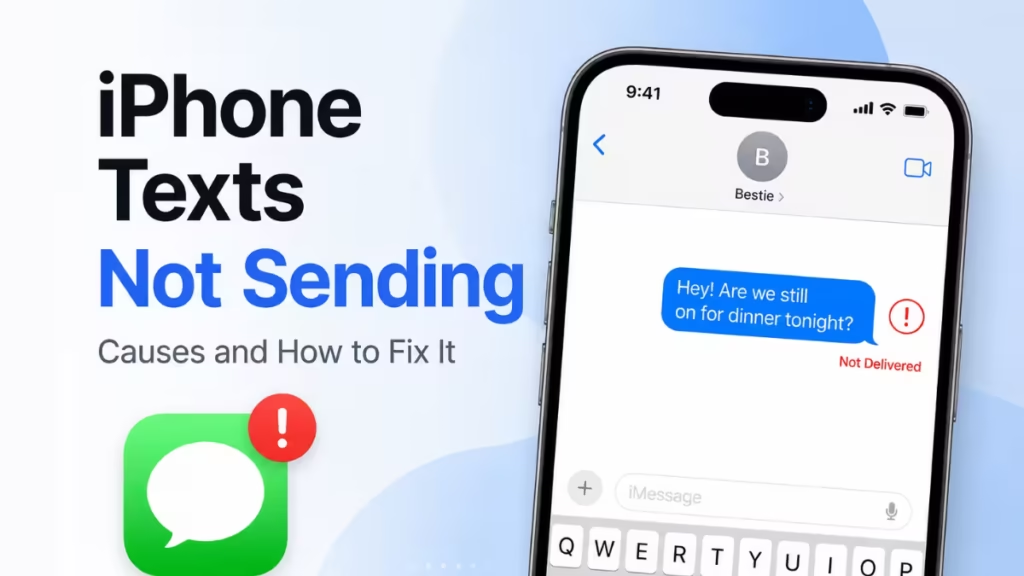
Your iPhone shows a red exclamation mark, a “Not Delivered” alert, or the send button just spins forever. iPhone texts not sending is one of the most frustrating iOS problems because it cuts you off from everyone without warning. This guide walks you through every working fix, from the fastest one-tap solutions to deeper settings resets, so you can get your messages moving again.
Why Are iPhone Texts Not Sending?
Before jumping into fixes, it helps to know what causes the problem. The most common reasons include:
- No network connection: iMessage needs Wi-Fi or cellular data. SMS and MMS need a cellular signal.
- Airplane Mode is on: When Airplane Mode is active, your iPhone blocks all wireless connections.
- iMessage is disabled or mis-configured: A toggled-off setting or a wrong Apple ID address stops iMessage cold.
- Apple server outage: Apple’s iMessage servers occasionally go down, and no local fix will resolve that.
- Wrong contact info: Sending to a misspelled number or an old email address fails silently.
- MMS or Group Messaging is off: Photo messages and group threads require both features to be enabled.
- Incorrect date and time: A wrong system clock breaks network authentication and blocks sending.
- Outdated iOS or carrier settings: Bugs in old software and stale carrier files both cause sending failures.
How to Fix iPhone Texts Not Sending
Work through these fixes in order. Most users resolve the problem within the first five steps.
Fix 1: Tap “Try Again” on the Failed Message
Start with the easiest option. When a message fails, the Messages app shows a red exclamation mark next to it.
- Open Messages and find the failed message thread.
- Tap the red exclamation mark icon.
- Tap Try Again.
- If the message still fails, tap the exclamation mark again and select Send as Text Message. Standard messaging rates may apply.
This works well for one-off failures caused by a momentary network blip.
Fix 2: Check Your Network Connection
iMessage requires a Wi-Fi or cellular data connection. SMS requires a cellular signal.
- Swipe down from the top-right corner to open Control Center.
- Check that Wi-Fi or cellular data shows an active connection.
- If you see no signal bars or a “No Service” label, move to an area with better coverage.
- Try disabling Wi-Fi temporarily and switching to cellular data, then attempt to send again.
If your iPhone connects to a Wi-Fi network but has no internet access (common on hotel or public networks), switch to cellular data instead.
Fix 3: Toggle Airplane Mode On and Off
Toggling Airplane Mode forces your iPhone to drop all wireless connections and rebuild them from scratch. This clears stuck network sessions quickly.
- Open Control Center.
- Tap the Airplane Mode icon to turn it on. Wait 10 seconds.
- Tap the icon again to turn it off.
- Wait for your iPhone to reconnect to the network, then try sending again.
Fix 4: Force Quit and Restart the Messages App
A crashed or frozen Messages app prevents outgoing texts from queuing correctly.
- On iPhone X or later: Swipe up from the bottom of the screen and pause in the middle to open the App Switcher.
- On iPhone 8 or earlier: Double-press the Home button.
- Find the Messages app card and swipe it up to close it.
- Return to your home screen, reopen Messages, and try sending.
Fix 5: Restart Your iPhone
A full restart clears temporary software errors, flushes the network stack, and refreshes all background processes.
iPhone X and later:
- Press and hold the Side button and either Volume button until the power slider appears.
- Drag the slider to shut down.
- After 30 seconds, press and hold the Side button until the Apple logo appears.
iPhone 8 and earlier:
- Press and hold the Side (or Top) button until the power slider appears.
- Drag the slider to shut down.
- After 30 seconds, press and hold the same button to restart.
Fix 6: Check Apple’s iMessage Server Status
If Apple’s servers are down, your iPhone cannot send iMessages no matter what you do locally.
- Open Safari and go to apple.com/support/systemstatus.
- Look for iMessage in the list.
- A green dot means the service runs normally. A yellow or red indicator means Apple is working on an outage.
- If the servers are down, wait for Apple to resolve the issue before trying again.
Fix 7: Verify the Recipient’s Contact Information
Sending a message to a wrong or outdated number or email address produces a delivery failure that looks like a network problem.
- Open the failed conversation in Messages.
- Tap the contact name or number at the top of the thread.
- Confirm the phone number or email address matches what the recipient currently uses.
- If you need to reach someone by iMessage and they are not responding, consider that they may have blocked your number. In that case, messages appear as delivered on your end but never reach them.
Fix 8: Enable MMS Messaging and Group Messaging
Photos, videos, and group threads all rely on MMS. If MMS is off, those messages fail to send without a clear error.
- Open Settings and tap Apps (iOS 18) or scroll down to Messages.
- Tap Messages.
- Under the SMS/MMS section, toggle MMS Messaging to on (green).
- Toggle Group Messaging to on (green).
- Return to the conversation and try sending again.
Note: If you do not see MMS Messaging as an option, your carrier does not support MMS. Contact your carrier to confirm what messaging types they support.
Fix 9: Fix Your Date and Time Settings
Your iPhone uses the system clock to authenticate with network services, including iMessage. A wrong date or time breaks that authentication.
- Open Settings and tap General.
- Tap Date and Time.
- Toggle Set Automatically off, wait 5 seconds, then toggle it back on.
- Confirm your time zone and clock display the correct values.
- Return to Messages and try sending.
Fix 10: Toggle iMessage Off and On
Resetting iMessage forces it to re-register with Apple’s servers. This fixes activation errors and sending blocks that build up over time.
- Open Settings and tap Apps (iOS 18) or scroll down to Messages.
- Tap Messages.
- Toggle iMessage off. Wait 15 seconds.
- Toggle iMessage back on.
- Wait for the activation to complete (you may see “Waiting for Activation” briefly), then try sending.
Fix 11: Reset Network Settings
If none of the above steps work, corrupted network configuration files on your iPhone may be blocking outgoing messages. Resetting network settings removes all saved Wi-Fi passwords, VPN profiles, and cellular settings, and restores them to defaults.
Important: Write down your Wi-Fi passwords before doing this step since your iPhone will forget them.
- Open Settings and tap General.
- Tap Transfer or Reset iPhone.
- Tap Reset, then tap Reset Network Settings.
- Enter your passcode and confirm.
- Your iPhone restarts automatically. Reconnect to Wi-Fi and test messaging.
Fix 12: Update Your Carrier Settings
Carriers push periodic updates to the hidden configuration files your iPhone uses for calls, data, and messaging. Running an outdated carrier profile causes sending failures.
- Connect your iPhone to Wi-Fi.
- Open Settings and tap General.
- Tap About.
- If a carrier settings update is available, a pop-up appears automatically. Tap Update.
- If no pop-up appears, your carrier settings are already current.
Fix 13: Update iOS
Apple releases iOS updates to patch known bugs, including messaging bugs. Running an older iOS version leaves known send failures unresolved.
- Connect your iPhone to Wi-Fi and plug in to a charger (recommended).
- Open Settings and tap General.
- Tap Software Update.
- If an update is available, tap Download and Install.
- After the update completes, open Messages and retry.
Still Not Fixed? Contact Apple Support
If you have tried every step above and your iPhone still cannot send texts, the problem may involve a deeper iOS issue or a hardware fault. Book a session with Apple Support or visit an Apple Store for a diagnosis.
Frequently Asked Questions
Why does my iPhone say “Not Delivered” on some messages but not others?
“Not Delivered” usually points to a problem specific to that conversation. Check that you have the correct contact number or email address. The recipient may also have blocked your number, or their device may be off or out of range at that moment.
Why do my messages send as green bubbles instead of blue?
Green bubbles mean your iPhone sent the message as an SMS or RCS instead of iMessage. This happens when iMessage is off, the recipient does not use an Apple device, or Apple’s iMessage servers cannot be reached. Toggle iMessage off and back on (Fix 10) to re-establish the connection.
Can I send texts without a cellular signal?
Yes, but only iMessages. iMessage works over Wi-Fi without a cellular connection. SMS and MMS require a cellular signal unless your carrier supports Wi-Fi Calling, which routes SMS over a Wi-Fi connection.
Why do my group texts fail to send?
Group texts that include photos or videos use MMS. If MMS Messaging or Group Messaging is turned off in your settings, those threads fail. Follow Fix 8 to enable both options. Also confirm that your carrier supports group MMS.
Does resetting network settings delete my messages or contacts?
No. Resetting network settings only removes saved Wi-Fi passwords, Bluetooth pairings, VPN profiles, and cellular configurations. Your messages, photos, apps, and contacts stay untouched.
iPhone texts not sending comes down to a short list of causes: network problems, wrong settings, outdated software, or a temporary Apple server issue. Start with the quick fixes (retry the message, toggle Airplane Mode, restart the app) and work down to the deeper resets only if needed. In most cases, the problem clears up by Fix 5. Update iOS regularly and keep your carrier settings current to prevent the issue from returning.
Related iOS How-To Guides
- Face ID Not Working on iPhone: 10 Fixes That Actually Work
- What Is “Indexing in Progress” on iPhone After iOS 27 Update and How Long Does It Last
- iPhone Charging Port Not Working? 10 Fixes to Try
- How to Fix Apple Pay “Payment Not Completed” Error on iPhone and iPad
- iPhone Personal Hotspot Not Working? 11 Fixes That Actually Work

