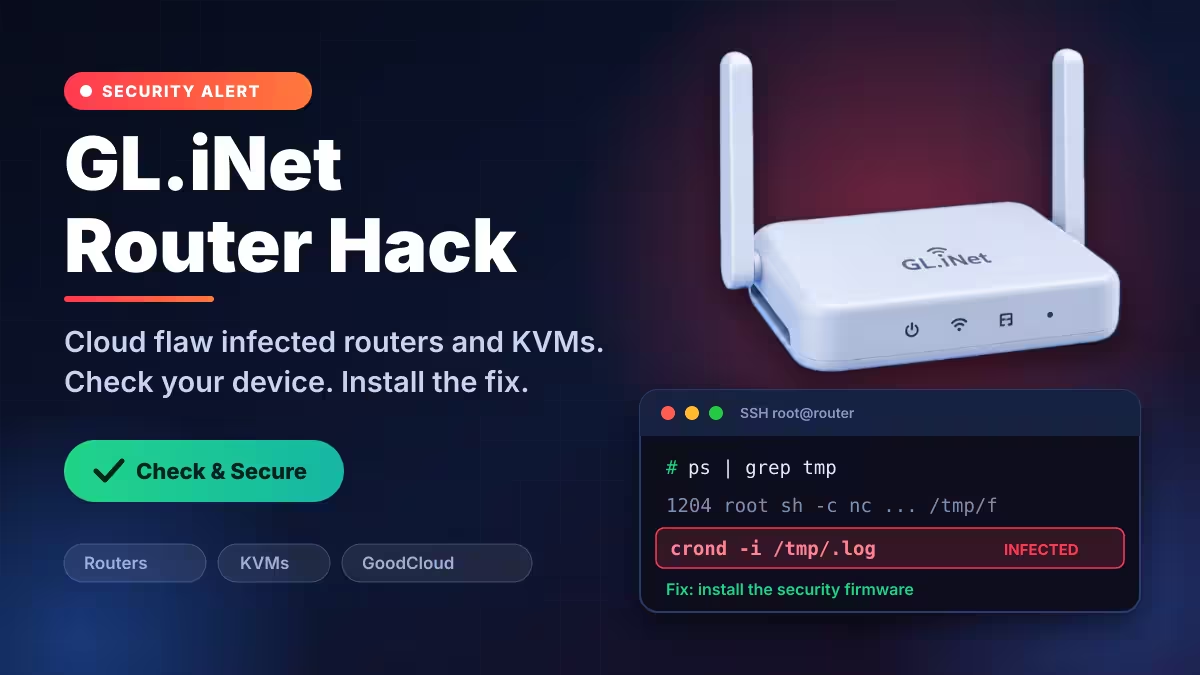
GL.iNet has confirmed a serious security incident that hit some of its routers and Comet KVM devices. An attacker found a weakness in the company's cloud remote management service (GoodCloud) and used it to push malicious software onto customer hardware. GL.iNet discovered the problem on November 20 and has since closed the hole on the cloud side.
That fix stops new infections. It does nothing for a device that already carries the malware. If you own a Beryl, Slate, Flint, Brume or any other GL.iNet router, or a Comet KVM, you need to check it yourself and install the new security firmware.
This guide walks you through what happened, how to tell whether your device is infected, and the exact steps to clean and harden it.
What Happened in the GL.iNet Cloud Attack
GoodCloud lets you manage a GL.iNet router from anywhere. Once you bind a device to your account, you can change settings, block clients, open the admin panel and even launch a terminal session remotely. On firmware 4.10 and newer, linking a router to GoodCloud switches on remote admin and terminal access automatically. The KVM cloud service also ships enabled by default.
That convenience became the attack route. An unauthorized party abused a flaw in the cloud service and ran commands on devices that trusted it. Because the router accepts instructions from the vendor cloud, the attacker never needed your router password.
GL.iNet has not yet named the exact bug, assigned a CVE, shared a device count or said who is behind the attack. Independent researchers at RemoteToHome Consulting pointed to a possible command injection weakness in the GoodCloud client tied to the AstroWarp/SD-WAN feature, where cloud-supplied values reach root-level shell commands without proper filtering. GL.iNet has not confirmed that this flaw played a part.
Why a Hacked Router or KVM Is Dangerous
A router sits in front of every phone, laptop, camera and smart device on your network. It also stores your Wi-Fi password, admin password, DDNS login and VPN keys. Malware on that box does not have to break your VPN. It sits upstream and sees traffic before the tunnel encrypts it, which undercuts every other home network security habit you follow.
Comet KVMs carry even higher stakes. A KVM controls the keyboard, mouse and screen of the computer plugged into it. Whoever owns the KVM can effectively sit at that machine, type commands and reboot it. GL.iNet is still investigating whether attackers reached computers attached to infected KVMs.
Owners on the GL.iNet forum have shared real evidence. One GL-AXT1800 on firmware 4.8.3 showed a root reverse shell that looped through a named pipe and called out to 170.39.226.219 using nc. A forum report on a GL-RM1 KVM showed the device pulling a script called ni.sh from 66.245.219.252 on November 19, a day before GL.iNet announced the incident. RemoteToHome reported suspicious activity on 152 of the 183 routers it manages, though it warns its results may not match the wider customer base.
Which GL.iNet Routers and KVMs Are at Risk
Use this quick sort to set your priority:
- Comet KVM owners: Treat this as urgent. Check the KVM and the computer it controls.
- Routers bound to GoodCloud: Follow every step below. GL.iNet staff have said that an active GoodCloud connection matters more than your firmware version.
- Routers never linked to a GL.iNet cloud account: Your risk looks lower, but you should still install the security update.
GL.iNet has not published a full list of affected models. Owners have reported traces on many popular units, including the Beryl AX (GL-MT3000), Slate AX (GL-AXT1800) and Flint 2 (GL-MT6000). A model missing from any list does not mean it is safe.
How to Check If Your GL.iNet Router Is Infected
GL.iNet's official indicator is a running process that contains the exact text crond -i /tmp/.log. Run the check before you reboot. Community responders report that the reverse shell lives only in memory and disappears on restart, so a reboot can erase the evidence without removing the root cause.
Option A: Check Through LuCI
- Open your router's admin panel (usually
192.168.8.1) and sign in. - Go to System, then Advanced Settings, and sign in to LuCI.
- Open Status, then Processes.
- Press Ctrl+F (Command+F on a Mac) and search for
tmp/.log. - Look for a process that shows
crond -i /tmp/.log.
A line such as /usr/sbin/crond -f -c /tmp/gl_crontabs is normal. GL.iNet staff confirmed that this entry belongs to the stock firmware.
Option B: Check Over SSH
Log in to the router over SSH and run:
ps | grep tmpScan the output for crond -i /tmp/.log. If you see only the grep tmp line itself, that is not a match. Save the full output to a text file before you change anything.
How to Check If Your Comet KVM Is Infected
Run this check on the KVM itself, not on the computer it controls.
- Open the KVM web interface.
- Go to Toolbox, then Terminal, then Access.
- Run the command for your model:
For the Comet Q (RMQ1):
ps -a | grep tmpFor all other Comet models:
ps -aux | grep tmpLook for crond -i /tmp/.log. As with routers, a line that only shows the grep command does not count.
Other Signs of Compromise the Quick Check Can Miss
The official check catches one known indicator. GL.iNet itself admits the quick checks may miss some infected devices. The community incident tracker lists more signs worth a look, though GL.iNet has not confirmed them:
- A named pipe at
/tmp/f - Processes running
nctogether with/bin/sh -iin a loop - Outbound connections to the
170.39.226.0/24range - An unusual
SDWAN_IP_MAPPINGfirewall chain - A replaced
/bin/netstatbinary gl-helpermarker files under/etc/glinet/.cache/or/etc/config/.gl/- A
gl-helperimplant on some KVMs
A volunteer-built scanner can automate much of this hunt. GL.iNet links to it but does not build, verify or support it. It can run with admin rights and includes optional cleanup, evidence collection and reporting functions, so read the source code and instructions before you run it. A clean scan still does not prove a device was never compromised.
Owners have also reported a separate, older backdoor with files dating back to September 2025. GL.iNet's check does not detect it, and it may have no link to this attack. That is one more reason not to treat a single clean check as final.
GL.iNet Security Firmware Versions by Model
Install the latest stable security firmware for your exact model, even if every check comes back clean. GL.iNet says the update removes the known malware without a factory reset, and you can keep your settings. Only download firmware from the router's own System > Upgrade page or the GL.iNet Download Center. Never flash firmware built for a different model.
Router Firmware Versions
| Model | Minimum Security Firmware |
|---|---|
| GL-MG1300, GL-MT3000, GL-MT6000 | 4.11.1 |
| GL-E5800 | 4.10.3 |
| GL-BE3600, GL-BE9300 | 4.10.2 |
| GL-BE14000 | 4.9.3 |
| GL-BE6500, GL-MT3600BE, GL-MT5000 | 4.9.1 |
| GL-BE10000 | 4.8.7 |
| GL-AX1800, GL-AXT1800, GL-SFT1200, GL-X3000, GL-XE3000 | 4.8.4 |
| GL-MT2500 / GL-MT2500A, GL-X2000 | 4.7.14 |
If your router does not appear here, check the Download Center or email support@gl-inet.com. An unlisted model is not automatically safe.
KVM Firmware Versions
| Model | Minimum Security Firmware |
|---|---|
| RM1, RM1V2, RM1PE, RM4PE, RM10 | 1.10.3 |
| RM10RC | 1.10.3 beta |
| Comet Q (RMQ1) | 1.8.7 |
If you installed an earlier security beta on your KVM, move to the latest stable build. KVMs on older firmware may not offer the update on their own, so download the file and use Local Upgrade.
How to Remove the Malware From an Infected Device
If you found the indicator or any of the extra warning signs, treat the device as infected.
- Save your check output and any logs you can export.
- Install the security firmware for your model.
- For stronger assurance, reflash the firmware with Keep Settings turned off. Community researchers warn that malicious files in config folders could survive a normal upgrade.
- Set the device up by hand. Do not restore a configuration backup made before the cleanup, since it could bring the problem back.
- Run the check again. If the indicator remains or the upgrade fails, contact support@gl-inet.com for recovery help.
Passwords and VPN Keys to Change After an Infection
Assume an attacker could have copied anything stored on an infected or cloud-linked device. Replace it all:
- Wi-Fi password for every network the router broadcasts
- Admin password for the router or KVM
- VPN credentials: log in to your VPN provider, delete the old WireGuard or OpenVPN profile, and create a fresh one so stolen keys stop working
- DDNS and SSH credentials, including any SSH keys you added
How to Check the Computer Connected to Your KVM
If your KVM showed signs of infection, inspect the computer it controls. Look for:
- Programs, browser extensions or user accounts you do not recognize
- New startup items or scheduled tasks
- Changed settings or strange network activity
Then run a full scan with up-to-date security software. If anything looks wrong, change the passwords for every account you used on that machine. In a business, hand this to your security team as a formal incident.
How to Turn Off GoodCloud Remote Access
Remote management is the door the attacker used, so it belongs on any router security checklist. If you rarely manage your router from outside your home, close it.
- Routers on firmware 4.7 or newer: click the cloud icon in the top-right corner of the admin panel, click the gear icon, then choose Disable.
- Older router firmware: go to Applications, then GoodCloud.
- Comet KVMs: open Cloud Service, click the gear icon, then choose Disable.
If the router sits somewhere remote, like a camper or cabin, set up another way to reach it before you switch off cloud access. Network admins can also block outbound traffic to 170.39.226.0/24 at the firewall.
Beware of Fake GL.iNet Security Emails
GL.iNet is emailing affected customers at the address tied to their cloud account, with device-specific guidance. Scammers love a real security scare. Do not click links or download "fixes" from any email about this incident. Open your router's admin panel yourself or type the GL.iNet address into your browser by hand. You also do not need to wait for an email before you check your device or update it.
What We Still Don't Know About the Attack
Several big questions remain open:
- How the attacker broke into the cloud platform
- How many devices and which firmware versions the attack reached
- What the malware does and whether it stole passwords, VPN keys or traffic
- Whether computers connected to infected KVMs were compromised
- Who carried out the attack
GL.iNet says it will update its official security notice as it confirms more details. Check it again over the coming days.
Frequently Asked Questions
Does GL.iNet's cloud fix remove malware from my router?
No. The cloud fix blocks new infections through this path. You must install the security firmware to remove malware already on your device.
My check came back clean. Am I safe?
Not for certain. The official check looks for one indicator and only shows processes running right now. Install the security firmware anyway, rotate your passwords if the device was linked to GoodCloud, and consider the community scanner for a deeper look.
Do I need to factory reset my GL.iNet router?
GL.iNet says the security firmware removes the known malware without a reset. If your device showed signs of infection, reflashing with Keep Settings turned off and setting it up by hand gives you a cleaner start.
Can I restore my old configuration backup?
Avoid restoring a backup made before the cleanup on an infected device. Set it up manually instead, then rotate all passwords and keys.
I never used GoodCloud. Should I still update?
Yes. Your risk looks lower because the attack went through the cloud service, but the security firmware adds protections every owner should have.
How do I contact GL.iNet about this?
Email support@gl-inet.com for help with checks and recovery. Report new security findings to security@gl-inet.com.
Related Guides
- Home Network Security: A Practical Checklist to Lock Down Your WiFi Router
- Router Security Checklist: 9 Settings to Lock Down Your Home Wi-Fi
- Best WiFi Routers: Top 5 Picks for Every Home and Budget
- Wi-Fi Routers Can Track You Without Your Phone: KIT Researchers Reveal the BFId Attack
- Why Snapchat or Signal Can Appear in Router Logs Even When the Apps Are Not Installed