A new Windows 11 PC rarely arrives clean. Microsoft ships its own apps, PC makers add their utilities, and antivirus vendors drop in trials that start nagging within days. Many of these programs launch at sign-in, sync in the background, and show ads or alerts you never asked for.
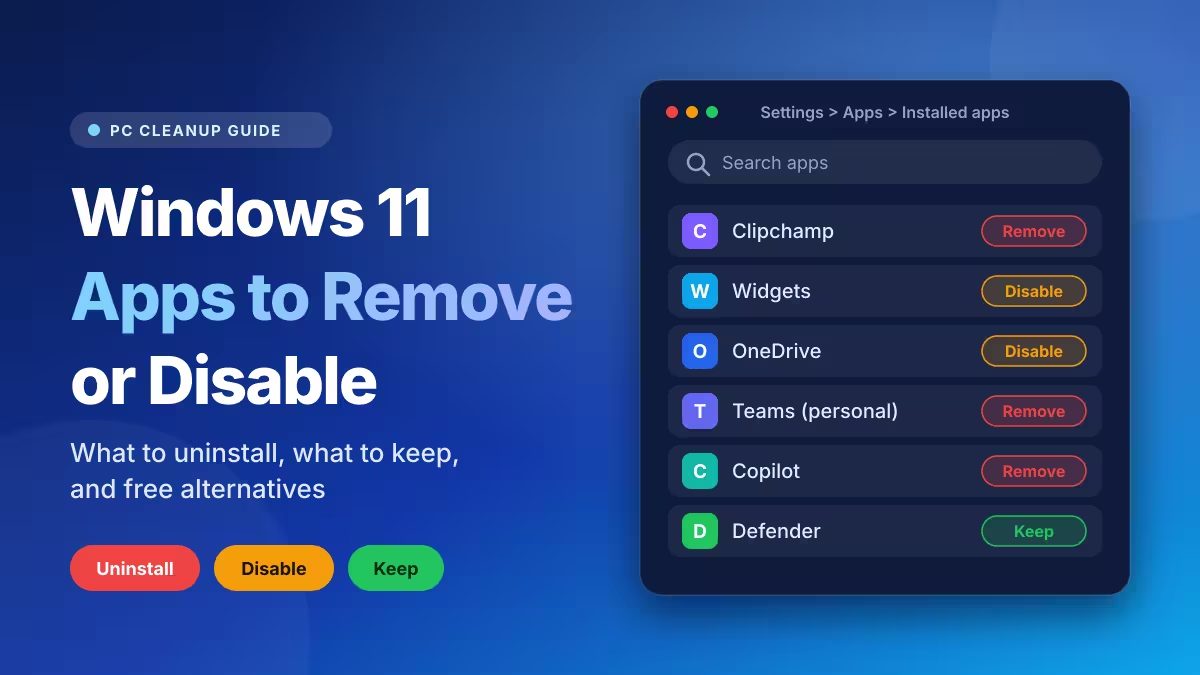
You don't need a sketchy debloat script to fix this. Settings, Task Manager, and WinGet handle almost everything. This guide sorts common apps into three groups: apps to disable, apps to uninstall, and apps you should leave alone. It also suggests better free replacements where they exist.
Should You Uninstall or Disable Windows 11 Apps?
Removing an app frees storage. It does not always speed up Windows 11. The real speed gains come from apps that start at boot, sync files constantly, or keep processes alive after you close them.
Use this simple rule:
- You never use the app: uninstall it.
- You use it now and then: keep it, but turn off its startup and background activity.
- Windows or other apps depend on it: leave it alone unless you know exactly what it does.
To check what slows your boot, right-click Start, open Task Manager, and select Startup apps. Windows rates each entry as None, Low, Medium, or High impact. Microsoft labels an app "High" when it uses more than one second of CPU time or more than 3 MB of disk activity during startup. Start your cleanup with the High entries.
Windows 11 Apps That Slow Startup and Use RAM in the Background
These apps are useful to some people. For everyone else, they run in the background for no reason. The memory they hold matters most on an 8GB PC.
How to Turn Off Edge Startup Boost
Plenty of people browse in Chrome or Firefox, yet Edge still preloads at boot through a feature called Startup Boost. It keeps core browser processes in RAM even when you never open Edge.
You can't uninstall Edge, but you can stop it from running uninvited:
- Open Edge and go to Settings.
- Select System and performance.
- Turn off Startup boost.
- Turn off Continue running background extensions and apps when Microsoft Edge is closed.
How to Disable Widgets in Windows 11
The Widgets panel pulls MSN headlines, stock tickers, sports scores, and weather through WebView2 processes. It typically holds around 60 to 70 MB of RAM while idle and climbs past 300 MB when you open it.
If you never check it, right-click the taskbar, choose Taskbar settings, and switch Widgets off under Taskbar items.
How to Unlink and Disable OneDrive
Windows 11 sets OneDrive to launch at boot and watch your folders. It usually runs two processes, the main app and a sync service, and together they can hold more than 200 MB of memory.
If you back up locally or use Google Drive or Dropbox instead, unlink OneDrive properly before you remove it:
- Click the OneDrive cloud icon in the system tray and open Settings.
- On the Account tab, select Unlink this PC, then confirm.
- Open Windows Settings > Apps > Startup and turn off both OneDrive entries.
Unlinking stops syncing but leaves your local files in place. Files you already uploaded stay available at OneDrive.com. Before you go further, back up Windows 11 or at least confirm that every important local file exists somewhere else. On some Windows builds, OneDrive counts as a built-in component and offers no uninstall button. In that case, unlink it, quit it, and leave it disabled.
How to Stop Microsoft Teams from Starting at Boot
Windows bundles the personal version of Teams and sets it to start on every boot. It can sit at 150 to 300 MB of RAM without you ever opening a chat.
If Teams isn't part of your work or school life, uninstall it from Settings > Apps > Installed apps. If you only need it occasionally, just turn it off under Settings > Apps > Startup. PCs that had Office deployed may also list a Teams Machine-Wide Installer. Remove that entry too, or Teams may come back. A Microsoft 365 repair can also reinstall it, so check again after one.
How to Uninstall the Copilot App
Copilot now ships as a standalone app. It can use over 350 MB while open and still holds around 100 MB after you close it. If you don't use Microsoft's AI assistant, go to Settings > Apps > Installed apps, find Copilot, click the three-dot menu, and choose Uninstall.
Built-In Windows 11 Apps You Can Safely Uninstall
These apps mostly cost you storage and clutter rather than speed. Remove any you don't touch. A free disk space analyzer shows what takes the most room on your drive.
| App | Remove it if | Keep it if |
|---|---|---|
| Clipchamp | You never edit video | You rely on Microsoft's built-in editor |
| Microsoft Solitaire Collection | Nobody plays the games | You care about account-linked progress |
| Microsoft News / Start | You get news elsewhere | You use its personalized feed |
| Weather | A website or phone app covers it | You like it in the Start menu |
| Maps | You never use offline maps | You downloaded offline map data |
| Microsoft To Do | You track tasks in another app | You sync Microsoft task lists |
| Feedback Hub | You never report bugs | You're a Windows Insider or working with support |
| Outlook for Windows | Another mail client handles your accounts | It's your only mail and calendar app |
| Xbox and Xbox Game Bar | You don't game, or you only use Steam | You use Game Pass, cloud gaming, or Win+G capture |
A few notes before you start deleting:
- Clipchamp stores temporary project media in your user folder. If you keep the app but want space back, use Advanced options > Reset instead.
- News and Widgets work separately. Removing the News app won't stop headlines from appearing in the Widgets board. Turn Widgets off as well.
- Xbox and Xbox Game Bar are two different apps. Gamers on handhelds or PCs that use Xbox mode should keep both.
- Maps: check Settings > Apps > Offline maps for downloaded data before you remove it. Map sites in your browser keep working either way.
Preinstalled Bloatware to Remove: Antivirus Trials, PC Maker Tools and More
Not all junk comes from Microsoft. These programs show up often and have better free options.
Antivirus Trials
Many laptops ship with a McAfee or Norton trial that starts sending renewal alerts almost immediately. For basic virus protection, the built-in Microsoft Defender does the job well for most users. Paid suites do add extras like a VPN, scam alerts, and identity theft support, so keep one only if you actually want those features. Otherwise, uninstall the trial and let Defender take over.
uTorrent
uTorrent loads its interface with ads and tries to install extra software during setup. It also has a history of bundling a cryptocurrency miner with installs years ago, which many users haven't forgotten. Switch to qBittorrent for a familiar layout with built-in search and no ads, or Transmission if you want something minimal.
PC Maker Utilities
Tools like HP JumpStart, Dell SupportAssist, Lenovo Vantage, ASUS Live Update, and MSI Dragon Center often overlap with what Windows already does. Keep a utility only if you use it for firmware updates, battery settings, or fan control on that specific machine.
Office Trials
Windows often includes a Microsoft 365 trial that pushes a subscription every time you open a document. If you don't pay for Microsoft 365, uninstall the trial. Google Docs covers most personal documents, sheets, and slides for free. If you prefer a desktop app, OnlyOffice handles .docx and .xlsx files well at no cost. Professionals who trade complex Office files every day will still need the real Microsoft suite, since exported files from other tools can break formatting.
Old Runtimes and Plugins
Java Updater (if no app needs Java), QuickTime, Silverlight, Adobe Flash, and Shockwave no longer serve a purpose on a modern PC. Remove them, along with control panels for printers or webcams you no longer own.
Best Free Alternatives to Windows 11 Built-In Apps
Some built-in apps work fine but fall short of free alternatives:
- Media Player → VLC. VLC plays nearly any format without extra codecs, converts files, and lets you drag subtitle files onto a video. Removing Media Player doesn't remove Windows codecs.
- Clipchamp → CapCut. Clipchamp locks 4K export and premium assets behind a Microsoft 365 subscription. CapCut stays friendly for beginners and adds stronger tools, with a paid plan if you want everything.
- Solitaire Collection → ad-free versions. Microsoft now charges a monthly fee to remove ads from Solitaire. Free browser versions or an offline Solitaire game on Steam give you the same classic play without the ads.
- News app → RSS or publisher apps. A curated RSS reader or apps from the outlets you trust will give you better reading than the clickbait-heavy default feed.
How to Uninstall Windows 11 Apps Using Settings, Task Manager and WinGet
Stick to the supported methods. They remove apps cleanly and won't break Windows.
Through Settings
- Open Settings > Apps > Installed apps.
- Search for the app.
- Click the three-dot menu next to it and select Uninstall.
You can also right-click an app in Start > All apps and choose Uninstall. Older desktop programs may send you to Control Panel > Programs and Features.
To keep an app but stop it in the background, open Installed apps, click the three-dot menu, choose Advanced options, and set Background apps permissions to Never. This option only appears for Store apps. Traditional desktop programs control their own background behavior in their settings.
Through WinGet (when Settings won't cooperate)
Open Terminal and list your installed packages:
winget listThen remove an app by name or package ID:
winget uninstall --name "Microsoft Teams"
winget uninstall --id <app-id>
Add --source winget to skip Microsoft Store agreement prompts. WinGet doesn't accept wildcards, so type a precise name or ID.
Third-party uninstallers such as Revo Uninstaller, BCUninstaller, and IObit Uninstaller can clear leftover files and registry entries after removal. They help with stubborn programs, but no tool removes every trace. Create a restore point first. Many system optimization tools bundle an uninstaller too.
Windows 11 Apps and Components You Should Not Uninstall
Some entries look mysterious but keep Windows and your other apps running. Leave these alone:
- Microsoft Visual C++ Redistributables and .NET Framework, which countless programs need.
- DirectX, PowerShell, and Windows SDKs.
- Drivers and hardware software for Bluetooth, chipsets, touchpads, and graphics.
- Anything named Runtime, Framework, Service, Installer, WebView, Shell, or Identity. Other apps likely depend on it.
- Phone Link. Windows offers no normal uninstall for it. To disconnect, go to Phone Link > Settings > Devices and sign out.
- Your active security software, whether Defender or a paid suite you use.
- Anything you can't identify. Search the name before you touch it.
Also avoid old debloat guides that paste random PowerShell commands to strip built-in packages. Those commands can break features, delete dependencies, or simply fail when a feature update restores the apps. If you want a scripted route, try these PowerShell commands to clean up Windows. If you prefer a lean install from the start, look at a Tiny11 ISO.
Frequently Asked Questions
Will removing these apps make Windows 11 noticeably faster?
It depends on the app. Removing a game or an unused Store app mostly frees storage. You'll feel a real difference when you disable apps that launch at boot or run in the background, such as OneDrive, Teams, Widgets, Edge Startup Boost, and Copilot. Results vary by hardware, so check Task Manager before and after. Some Windows 11 settings that slow down your PC are worth a look too.
Can I reinstall a built-in app after deleting it?
Yes. Most optional apps, including Clipchamp, Solitaire Collection, Maps, To Do, and Feedback Hub, are available again from the Microsoft Store. Availability can vary by region and Windows build.
Why did an app I removed come back?
Feature updates, Microsoft 365 repairs, and PC maker software can reinstall apps. Teams often returns after an Office repair. Check Installed apps after big updates and disable startup if the app reappears.
Is Microsoft Defender enough without a paid antivirus?
For most home users, yes. Defender provides solid real-time protection at no extra cost. Pay for a security suite only if you want added features like a VPN or identity monitoring.
Is it safe to uninstall OneDrive?
Yes, if you don't use it. Unlink your PC first, copy local files elsewhere with good backup software, and then uninstall it or disable it at startup.
Related Guides
- How to Speed Up Windows 11: 14 Free Fixes and Smart Upgrades for a Slow PC
- Windows 11 Settings That Slow Down Your PC (and How to Fix Them)
- Essential Windows 11 Settings and Tools Every User Should Know
- PowerShell Commands to Clean Up Windows and Speed It Up Without a Cleaner App
- Best System Optimization Tools for Windows PCs