If music or audio streams stop the moment you close your laptop lid or press the power button on Windows 11, you are not experiencing a bug. Microsoft deliberately changed how audio works during sleep mode in Windows 11 versions 24H2 and 25H2, and the behavior is now working as intended.
What Microsoft Changed in Windows 11 24H2 and 25H2
Earlier versions of Windows allowed audio to keep playing even after a laptop entered sleep mode. Users streamed music to Bluetooth speakers with the lid closed or listened to audio while their laptop sat idle in a bag.
Windows 11 24H2 and 25H2 remove that capability for manual sleep actions. The moment you close the lid, press the power button, or select Sleep from the Start menu, Windows stops all audio playback immediately. This applies to both internal speakers and Bluetooth audio devices.
Playback resumes automatically once the PC wakes up.
Microsoft updated its documentation to confirm that this behavior is intentional. The restriction applies regardless of whether the laptop runs on battery or is plugged into AC power.
Audio Still Works During Automatic Screen-Off
The audio restriction does not apply to every low-power state. If Windows turns off the screen automatically after a period of inactivity, audio can continue playing in the background.
The key distinction is how the system enters standby. An automatic idle screen-off leaves the device active enough to sustain audio streams. A manual sleep action, triggered by closing the lid or choosing Sleep from the Start menu, puts the system into a deeper standby state where audio stops.
If your music cuts out only when you manually trigger sleep but continues when the screen turns off on its own, that matches the expected behavior in Windows 11 24H2 and 25H2.
Why Microsoft Made This Change
Microsoft tied this change to broader Modern Standby improvements in Windows 11. Modern Standby has faced long-standing criticism for battery drain issues, unexpected wake events, and laptops overheating inside bags.
By stopping background audio and limiting activity during manual standby, Microsoft aims to improve battery life and reduce unintended wake events. The trade-off is that users who previously relied on closed-lid audio playback lose that option by default.
Microsoft continues to release Windows 11 updates and emergency fixes as it refines platform behavior across versions.
How to Keep Audio Playing When You Close the Lid
A workaround exists for users who need audio to continue after closing the lid.
- Open the Start menu and search for Control Panel.
- Go to Hardware and Sound, then select Power Options.
- Click Choose what closing the lid does in the left sidebar.
- Set When I close the lid to Do nothing for both On battery and Plugged in.
- Click Save changes.
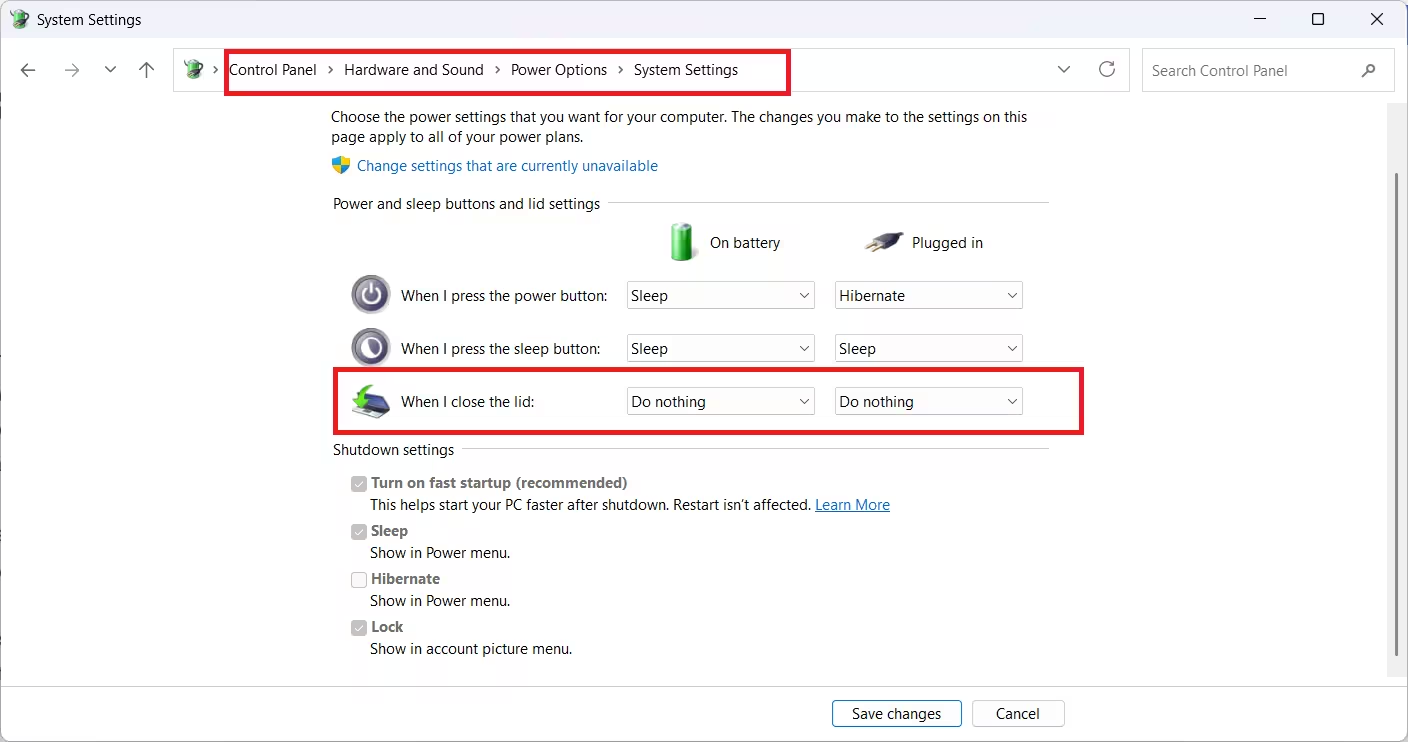
With this setting, closing the lid no longer sends the laptop into sleep mode. Audio playback continues normally, and the device stays active.
Keep in mind that this setting increases battery usage. The laptop remains powered on while the lid is closed, so the battery drains faster than it would in sleep mode. Plug in your charger if you plan to use this setting for extended periods.
To reverse the change later, return to the same Power Options screen and switch the lid action back to Sleep.

