Windows 11 26H2 (the 2026 Update) is not expected to launch until Fall 2026, likely sometime in September or October. But you do not have to wait. Microsoft already makes preview builds available through the Windows Insider Program, and you can also do a clean install using a bootable USB drive loaded with the 26H2 ISO.
Before you proceed, back up your PC. Preview builds are not final software, and restoring from a backup is far easier than troubleshooting a broken system.
What Is Windows 11 26H2?
Windows 11 26H2 uses the same platform and source code base as Windows 11 25H2. The two releases share the same security updates, quality updates, and compatibility validation. The main difference is which features get enabled, not how the underlying OS works.
Because of this shared servicing model, Microsoft delivers 26H2 as a small enablement package rather than a full OS download. If your device runs Windows 11 24H2 or 25H2, the upgrade will feel closer to a regular monthly update than a major install.
One confirmed feature in 26H2 is the ability to disable web search results inside Windows Search. Many users have wanted this for years because Windows Search frequently surfaces Bing links instead of local files and apps. Microsoft is now testing an option to prioritize local results, and early testers report that Search feels noticeably faster once web results are turned off.
Hardware requirements for Windows 11 26H2:
- 4 GB RAM (minimum)
- 64 GB storage (minimum)
- 1 GHz 64-bit dual-core processor
Note: Devices running Windows 11 26H1 cannot upgrade directly to 26H2. Microsoft will provide a separate upgrade path for those devices to a future Windows release.
Method 1: Install Windows 11 26H2 Using the Windows Insider Program
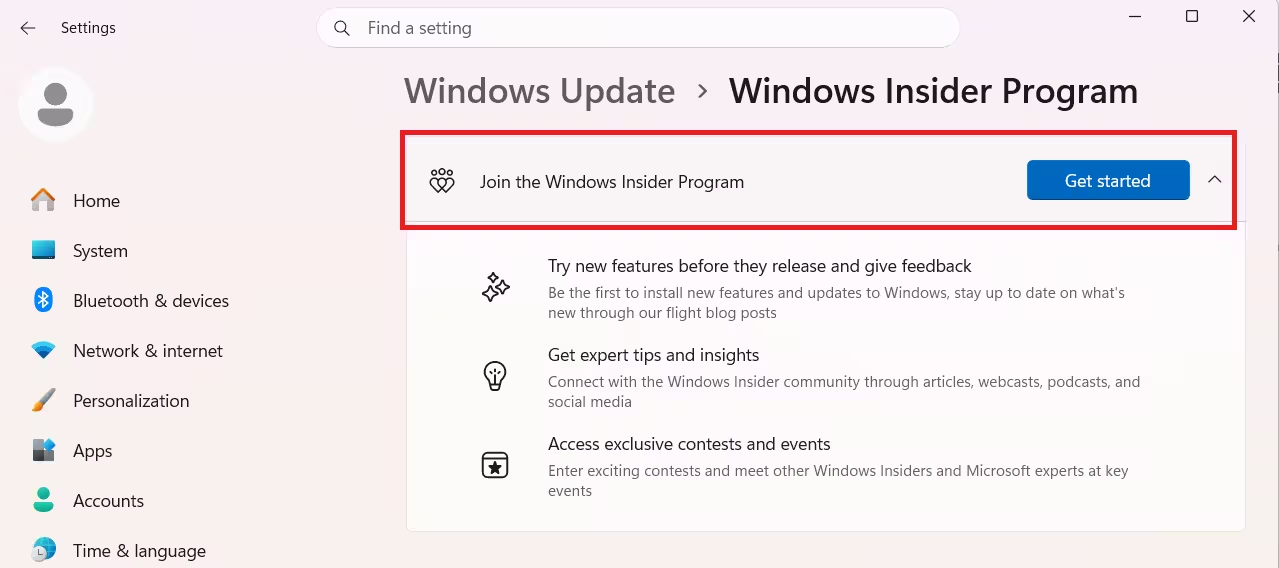
The Insider Program lets you download and install the latest 26H2 preview build directly through Windows Update. This is the simplest approach if you want to stay on your current installation.
- Open Settings.
- Click Windows Update.
- Select the Windows Insider Program tab.
- Click Get started.
- Click Link an account.
- Sign in with your Microsoft account credentials.
- Click Continue.
- Under Pick your Insider settings, select Dev Channel.
- Click Continue.
- Click Continue again to accept the terms and conditions.
- Click Restart to reboot your device.
- After the reboot, open Settings again.
- Click Windows Update.
- Click Check for updates.
- Download and install the available update.
- Click Restart now to finish the installation.
After the restart, your device runs Windows 11 26H2. It will continue to receive new preview builds roughly every week, including new features, changes, and fixes as Microsoft prepares the final release.
Method 2: Clean Install Windows 11 26H2 Using Bootable USB
A clean install wipes everything on the target drive and installs a fresh copy of Windows 11 26H2. The ISO is available to download from the Windows Insider Program, not the public Microsoft download page. Use this method if you want a completely fresh setup instead of upgrading in place.
Before starting, make sure your device can boot from a USB flash drive. You may need to adjust the UEFI firmware settings to change the boot order. Check your PC manufacturer's support page for specific instructions since these settings vary by device.
- Start your PC with the Windows 11 26H2 USB flash drive inserted.
- Press any key when prompted to boot from the USB.
- Choose your installation language and format, then click Next.
- Choose your keyboard and input method, then click Next.
- Select Install Windows 11.
- Check the box to confirm that this process will delete everything on the drive.
- Click I don't have a product key (you can activate later if needed).
- Select the Windows 11 edition your license activates, then click Next.
- Click Accept to agree to the license terms.
- Select each partition on Drive 0 and click Delete to remove existing partitions. Drive 0 is usually where your current OS files live.
- Select Drive 0 Unallocated Space as the installation destination.
- Click Next, then click Install.
- Wait for the installation to complete. Your PC will restart automatically.
After the installation, complete the out-of-box experience (OOBE):
- On the first OOBE screen, select your region and click Yes.
- Select your keyboard layout and click Yes.
- Click Skip if you do not need a second keyboard layout.
- Connect to your network (Ethernet connects automatically; Wi-Fi requires a password).
- Optionally, set a name for your PC and click Next.
- Select Set up for personal use (Windows 11 Pro only) and click Next.
- Click Sign in and enter your Microsoft account email, then click Next.
- Enter your Microsoft account password and click Next.
- Click Create PIN, enter a four-digit Windows Hello PIN, and click OK.
- Choose your privacy settings and click Next twice, then click Accept.
- Click More options, then select Set up as a new PC.
- Optionally, choose how you plan to use the device to let Windows suggest relevant tools.
- Click Accept to continue or Skip to move past this step.
- Skip the Android phone link, OneDrive phone link, and Microsoft Edge setup prompts if you prefer.
Windows 11 26H2 will complete the setup and take you to the desktop.
When Will the Final Release Arrive?
Microsoft has not confirmed a specific date, but the company points to the second half of 2026. Devices on Windows 11 24H2 or 25H2 will receive 26H2 as a small enablement package through Windows Update, similar to how 24H2 devices received 25H2.
If you are an IT administrator or manage multiple devices, Microsoft recommends starting compatibility testing now using the Insider Program's Experimental channel. The company will also release a Release Preview build before the general rollout, which is better suited for broader enterprise testing.