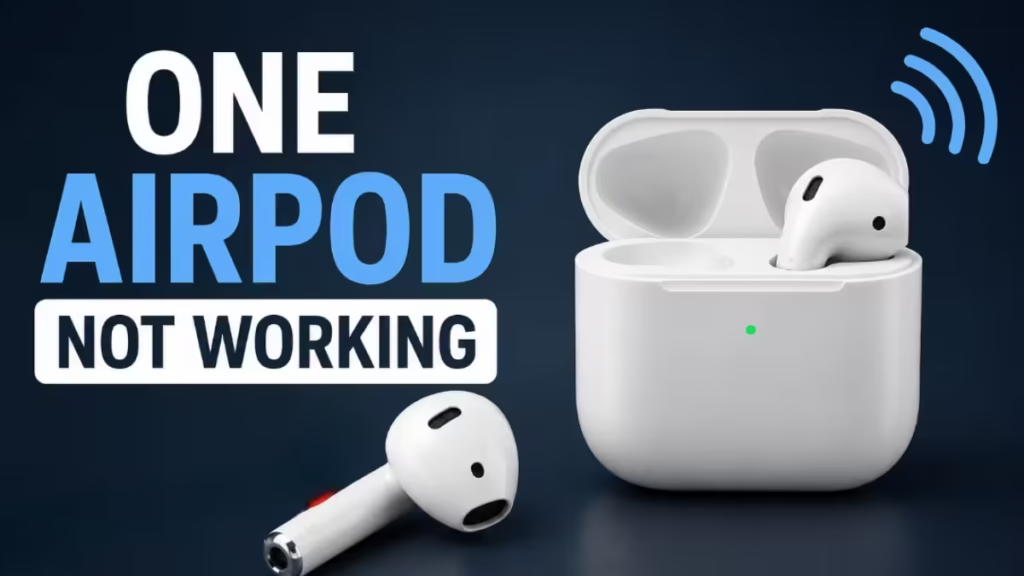
One AirPod not working is one of the most common AirPods complaints, and the good news is that most causes are fixable at home. Battery imbalance, Bluetooth glitches, blocked speaker mesh, outdated firmware, or a misconfigured audio setting can all make one earbud go silent. This guide walks you through 11 fixes, from the simplest checks to a full reset, so you can find the problem and solve it fast.
What Causes One AirPod to Stop Working?
Here are the most common reasons one AirPod stops working:
- Battery issues: One AirPod ran out of charge, is not charging properly, or has a degraded battery.
- Bluetooth bugs: A glitchy connection between your AirPods and your device.
- Dirt or debris: Earwax, dust, or lint blocking the speaker mesh.
- Firmware or software bugs: Outdated firmware can trigger random sound and connection problems.
- Audio balance or Mono Audio settings: A shifted balance slider or enabled Mono Audio sends sound to only one ear.
- Physical damage: A drop or exposure to moisture can damage internal components.
Watch for early warning signs too. If one AirPod drains battery faster than the other, drops connection randomly, or takes longer to pair, deal with it early before the problem gets worse.
Fix 1: Charge Both AirPods and the Case
Start here. Place both AirPods in the case and charge for at least 30 minutes. Make sure the case itself has enough charge and that the cable and adapter are working properly.
How to check battery levels:
- Hold your AirPods case close to your iPhone or iPad.
- A popup appears showing the battery level of each AirPod and the case.
- You can also swipe right on the home screen to open Today View and check the Batteries widget.
If only one AirPod is not charging:
- Remove both AirPods and inspect the charging contacts on the AirPods and inside the case for dirt or debris.
- Clean the contacts gently with a dry cotton swab.
- Try placing the AirPods in a different case, or test a different pair of AirPods in your case to isolate whether the case or the earbud is the problem.
If one AirPod still refuses to charge after cleaning, the battery or hardware may be faulty. Skip to Fix 11 for guidance on contacting Apple Support.
Fix 2: Clean Your AirPods
Blocked speaker mesh causes muffled sound or complete silence in one AirPod. Clean your AirPods before assuming the problem is more serious.
How to clean AirPods safely:
- Inspect the speaker mesh and microphone holes on both AirPods for dust, earwax, or lint.
- Wipe the outside of the AirPods and case with a soft, dry, lint-free cloth.
- Use a soft dry brush (a clean makeup brush or paintbrush works well) to gently sweep debris off the speaker mesh.
- Use a dry cotton swab to clean the charging contacts inside the case and on each AirPod.
- For AirPods Pro or AirPods 4: Remove the silicone or foam ear tips, rinse them with water only (never rinse the AirPods themselves), and dry them completely before reattaching.
Do not use compressed air. It pushes debris deeper inside and can damage fragile components.
Recommended cleaning schedule:
- Daily users: Once a week
- After workouts: After each session
- Any time you hear muffled sound: Inspect and clean immediately
Fix 3: Re-Pair Your AirPods
A fresh Bluetooth pairing resolves many one-AirPod issues. Here is how to do it:
- Go to Settings > Bluetooth on your iPhone or iPad.
- Tap the “i” icon next to your AirPods.
- Tap “Forget This Device” and confirm.
- Put both AirPods in the charging case and close the lid for at least 15 seconds.
- Open the lid and hold the case near your device.
- Press and hold the setup button on the back of the case until the status light flashes white.
- Follow the on-screen instructions to reconnect.
AirPods 4 note: The case has no button. Open the lid and double-tap the front of the case while the light is on. Double-tap again when the light flashes white, then double-tap once more when it flashes faster. When the light turns amber and then white, your AirPods are reset and ready to pair.
Fix 4: Restart Your iPhone, iPad, or Mac
A device-side Bluetooth glitch can make one AirPod stop working even when nothing is wrong with the earbuds themselves. Restart your device while your AirPods are in the case, then reconnect.
- iPhone/iPad: Hold the side button and a volume button, then slide to power off.
- Mac: Go to Apple menu > Restart.
After the device restarts, open the AirPods case near it and let it reconnect automatically.
Fix 5: Check the Audio Balance and Mono Audio Settings
This is one of the most overlooked causes. A shifted audio balance slider routes all sound to one ear. Enabled Mono Audio does the same thing. A software update or another user touching your accessibility settings can change these without you noticing.
How to fix audio balance on iPhone or iPad:
- Go to Settings > Accessibility > Audio/Visual.
- Check the Balance slider. Center it exactly between L and R.
- Make sure Mono Audio is turned OFF.
Verify your fix: Play a song or video with clear left and right audio effects. Listen to confirm that sound moves between both ears.
Pro tip: If you use accessibility shortcuts (triple-click Side or Home button), you may have accidentally enabled Mono Audio. Check Settings > Accessibility > Accessibility Shortcut to see what is assigned.
Fix 6: Check the Microphone Setting (Left AirPod Silent on Calls)
If the left AirPod works fine for music but goes silent during phone calls, your microphone may be locked to the right earbud.
- Go to Settings > Bluetooth.
- Tap the “i” next to your AirPods.
- Tap Microphone and select Automatic.
Automatic lets your AirPods choose the active microphone based on which earbud is in your ear. If you only wear one AirPod during calls, set it to Always Left AirPod or Always Right AirPod based on your preference.
Fix 7: Update AirPods Firmware
Outdated firmware causes random connection drops, sound issues, and one AirPod malfunctions. AirPods update firmware automatically, but you can encourage an update manually.
How to trigger a firmware update:
- Connect your AirPods to your iPhone.
- Place the AirPods in the charging case and plug the case into power.
- Keep your iPhone nearby with an active Wi-Fi connection.
- Leave them for 30 minutes.
How to check your current firmware version:
- Go to Settings > Bluetooth.
- Tap the “i” next to your AirPods.
- Scroll down to find the firmware version under About.
Compare it against the latest version on Apple’s support page. If it has not updated, repeat the process and try again.
Fix 8: Reset Network Settings on Your iPhone
If re-pairing did not fix the problem, reset your iPhone’s network settings. This clears all saved Bluetooth and Wi-Fi connections and often resolves stubborn pairing issues.
- Go to Settings > General > Transfer or Reset iPhone.
- Tap Reset > Reset Network Settings.
- Enter your passcode if prompted and confirm.
After the reset, go to Settings > Bluetooth, pair your AirPods again, and test both earbuds.
Note: This removes all saved Wi-Fi passwords. Make sure you have them available before proceeding.
Fix 9: Test Your AirPods on Another Device
Connect your AirPods to a completely different device such as another iPhone, an iPad, or a Mac. If both AirPods work correctly on the second device, the problem is with your original device’s Bluetooth settings or software, not the AirPods themselves.
If one AirPod still does not work on the second device, the earbud itself has a hardware or firmware issue.
Fix 10: Full Reset Your AirPods
A full factory reset clears all stored settings and pairs your AirPods fresh. Use this when all other steps have failed.
How to reset all AirPods models except AirPods 4:
- Put both AirPods in the charging case and close the lid.
- Wait 30 seconds, then open the lid.
- On your iPhone, go to Settings > Bluetooth, tap the “i” next to your AirPods, and tap Forget This Device.
- With the case lid open, press and hold the setup button on the back of the case for about 15 seconds.
- The status light flashes amber, then white. Release the button.
- Hold the open case near your iPhone and follow the on-screen pairing instructions.
How to reset AirPods 4:
- Put both AirPods in the case and close the lid for 30 seconds.
- Open the lid and tap the front of the case twice while the light is on.
- Double-tap again when the light flashes white, then double-tap when it flashes faster.
- When the light turns amber, the AirPods are reset. Hold the case near your iPhone to pair.
Fix 11: Contact Apple Support
If none of the above fixes work, one AirPod has a hardware problem. Signs that point to hardware failure include:
- One AirPod will not charge at all, even after cleaning contacts.
- Visible physical damage from a drop or liquid exposure.
- One AirPod stays silent on multiple devices after a full reset.
Visit Apple Support and start a service request. If your AirPods are under the one-year limited warranty or you have AppleCare Plus, Apple may repair or replace the affected earbud. Out-of-warranty replacement for a single AirPod is available at a fixed cost through Apple’s service program.
Quick Reference: One AirPod Not Working Fixes
| Fix | What It Solves |
|---|---|
| Charge both AirPods and case | Dead or unbalanced battery |
| Clean speaker mesh and contacts | Blocked sound, dirty contacts |
| Re-pair your AirPods | Bluetooth connection glitch |
| Restart your device | Device-side software glitch |
| Fix audio balance and Mono Audio | Sound only in one ear |
| Adjust microphone setting | Silent on calls only |
| Update AirPods firmware | Firmware-related sound or connection bugs |
| Reset network settings | Persistent Bluetooth pairing issues |
| Test on another device | Isolates device vs. hardware problem |
| Full AirPods reset | Clears all settings and pairs fresh |
| Contact Apple Support | Hardware damage or battery failure |
Frequently Asked Questions
How do I fix one AirPod not working on Android?
The troubleshooting steps are similar. Use an app like AirBattery from the Google Play Store to check battery levels. To keep firmware updated, pair your AirPods with an iPhone periodically, since firmware updates only push through iOS.
Why does my left AirPod go quiet during calls but work fine for music?
Your microphone is likely locked to the right AirPod. Go to Settings > Bluetooth > tap the “i” next to your AirPods > Microphone > Automatic to fix it.
Will a full reset delete my AirPods settings permanently?
No. After you reset and re-pair, your AirPods restore your previous settings from iCloud if you are signed in with the same Apple ID.
Can one AirPod fail while the other is still fine?
Yes. Each AirPod contains its own battery, driver, and Bluetooth chip. One can develop a hardware fault independently of the other.
How long do AirPods batteries last before they degrade?
Apple rates AirPods batteries for around 500 full charge cycles before capacity drops noticeably. After that, you may see shorter playback time or uneven charging between the two earbuds.
Related Troubleshooting
- How to Fix Apple Pay “Payment Not Completed” Error on iPhone and iPad
- How to Fix Wi-Fi Not Connecting on Windows, Android, and iPhone (2026)
- iPhone Personal Hotspot Not Working? 11 Fixes That Actually Work
- How to Fix Apple CarPlay Not Working on iPhone: 10 Proven Fixes
- How to Clear System Data on iPhone (Free Up Storage Fast)
- AirPlay Not Working: 7 Fixes for All Apple Devices

