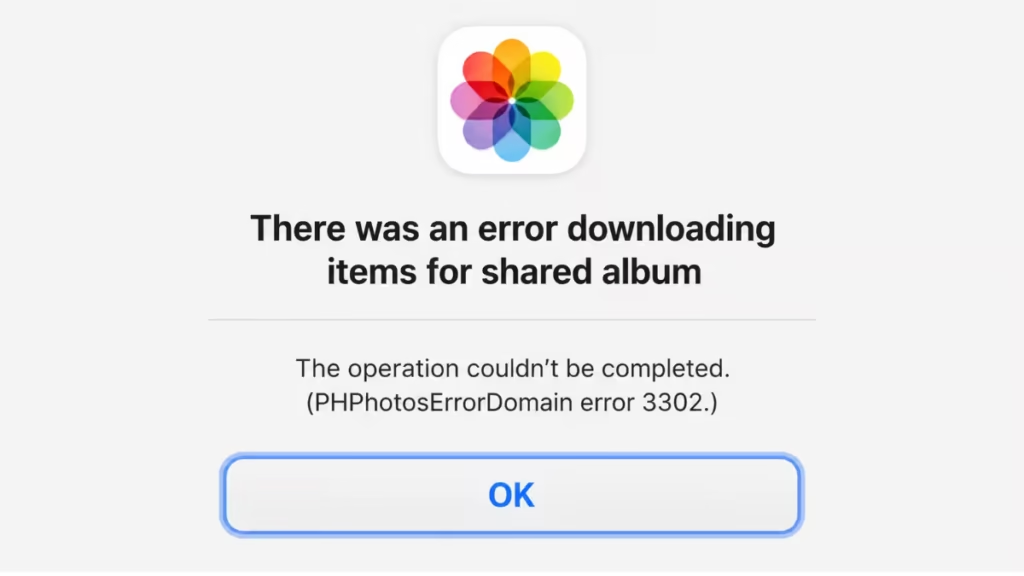
Getting PHPhotosErrorDomain error 3302 on iOS or Mac? This error points to unsupported file formats, blocked Photos permissions, shared album failures, and Camera Roll save errors. This guide covers every known cause with exact steps to fix each one.
What Is PHPhotosErrorDomain Error 3302?
Error code 3302 is thrown by Apple's PhotoKit framework when it cannot process a media file. The most common reason is an unsupported file format or codec. Photos on iOS and macOS accepts a strict list of formats, and anything outside that list fails with this error.
You will see it in several situations:
- Saving a video from a third-party app (such as Send Anywhere) to the Camera Roll
- Downloading items into a shared album on macOS Photos
- Transferring files over AirDrop and trying to save them to Photos
- Using a React Native app that calls
CameraRoll.saveAsset() - Moving photos downloaded from iCloud or another device into a shared folder
Fix 1: Restart Your Device First
Before anything else, restart your iPhone, iPad, or Mac. A stuck Photos process or a partial iCloud sync can cause error 3302 even on files that are otherwise valid. Restarting clears those temporary states.
- On iPhone or iPad: hold the side button and volume down, then slide to power off. Wait 30 seconds, then turn it back on.
- On Mac: go to Apple menu and select Restart.
Try saving the file again after the restart. If the error persists, continue with the fixes below.
Fix 2: Check Photos App Permissions for Third-Party Apps
If error 3302 appears when a third-party app tries to save to your Camera Roll, the app may not have permission to access Photos at all. iOS blocks the save at the permission level, and the error surfaces as 3302 rather than a clear permission message.
Steps to check on iPhone or iPad:
- Open Settings.
- Scroll down and tap the name of the app causing the error (for example, Send Anywhere, Files, or your browser).
- Tap Photos.
- Set access to Add Photos Only or Full Access, depending on what the app needs.
- Go back to the app and try saving again.
If the permission was set to None, this fix alone will resolve the error without any file conversion needed.
Fix 3: Convert the File to a Supported Format
This is the most frequent root cause. The file format looks valid on the surface, but Photos rejects it because it uses an unsupported codec or container.
Formats known to trigger error 3302:
| File Type | Problem |
|---|---|
| AVIF | Not supported by iOS Photos or macOS shared albums |
| WebP | Not supported for saving to Camera Roll on iOS 13 and earlier |
| MP4 with unsupported audio codec | Video container is fine, but audio codec fails validation |
| HEVC with non-standard encoding | Some encoders produce HEVC files that pass lightly but fail PhotoKit |
Safe target formats:
- Images: JPEG, PNG, or HEIC
- Videos: MP4 with H.264 or HEVC video and AAC audio
How to convert on iPhone:
- Use the Files app to locate the problem file.
- Open it in a free converter app such as Image Converter or Media Converter.
- Export as JPEG (for images) or MP4 with AAC audio (for videos).
- Save the converted file to Camera Roll.
How to convert on Mac:
- Open the file in Preview (images) or QuickTime Player (videos).
- Go to File > Export.
- Choose JPEG or MP4 as the format.
- Save and then import the converted file into Photos.
For batch video conversion, use HandBrake (free). Set the audio codec to AAC and the container to MP4. This resolves most video-related 3302 errors.
Fix 4: Update iOS or macOS
WebP image support for saving to Camera Roll was not available before iOS 14. If your device runs iOS 13 or earlier, no converter trick will help because the system itself cannot write WebP to the photo library. Updating iOS adds native support for additional formats and fixes bugs in the PhotoKit framework.
How to update on iPhone or iPad:
- Go to Settings > General > Software Update.
- Download and install any available update.
- Try saving the file again after the update completes.
How to update on Mac:
- Go to Apple menu > System Settings > General > Software Update.
- Install any pending macOS updates.
Fix 5: Fix Shared Album Errors on macOS Photos
If error 3302 appears when downloading or moving items into a shared album on macOS Photos, one of two things is happening: a file in the album uses an unsupported format (AVIF is the most common), or iCloud sync is partially stuck and serving a corrupted or incomplete file.
Steps to isolate and fix:
- Open Photos on your Mac.
- Go to the shared album that is failing.
- Select items in small batches to identify which file triggers the error.
- Once you isolate the problem file, right-click it and choose Download Originals to Mac.
- Convert the file to JPEG or MP4 using Preview or HandBrake.
- Delete the original from the shared album and re-upload the converted version.
If the error persists across many files:
- Quit Photos completely.
- Hold Option and relaunch Photos to open the library repair tool.
- Click Repair and let it complete.
- Try the download again.
For iPhone users with a stuck iCloud sync:
- Go to Settings > [Your Name] > iCloud > Photos.
- Toggle Sync this iPhone off, wait 15 seconds, then toggle it back on.
- Open Photos and wait for the sync to resume.
- Try saving the file again.
Fix 6: Fix AirDrop Transfer Errors
When you receive a file over AirDrop and tap Save to Photos, iOS hands the file directly to PhotoKit. If the file uses an unsupported format, PhotoKit rejects it with error 3302 before the file ever reaches your Camera Roll.
Steps to fix:
- When the AirDrop transfer completes, choose Save to Files instead of Save to Photos.
- Open the Files app and locate the received file.
- Convert it to JPEG (images) or MP4 with AAC audio (videos) using a converter app.
- Open the converted file and tap the share icon, then choose Save Image or Save Video to add it to your Camera Roll.
This two-step approach bypasses the direct PhotoKit rejection and gives you control over the format before it reaches Photos.
Fix 7: Fix Third-Party App Errors (Send Anywhere, File Manager Apps)
When you receive a video through Send Anywhere or a similar file transfer app and try to move it to Camera Roll, the app saves it to its own internal Files tab first, then hands it off to PhotoKit. If the file contains an unsupported audio codec, PhotoKit rejects it at that handoff point.
Steps to fix:
- Open the third-party app (for example, Send Anywhere).
- Find the file in the Files tab of the app.
- Use the app's share sheet to open the file in a converter app first.
- Convert it to a compatible format (JPEG for images, MP4 with AAC for videos).
- Save the converted file directly to Camera Roll.
Do not move the original file directly. Convert it first, then save.
Fix 8: For Developers Using React Native Camera Roll
If you use @react-native-camera-roll/camera-roll and CameraRoll.saveAsset() throws PHPhotosErrorDomain error 3302 on iOS, the file format is the issue.
What works on iOS:
- JPEG, PNG, HEIC for images
- MP4 (H.264 or HEVC with AAC audio) for videos
What triggers error 3302:
- AVIF images
- WebP images
- Remote URIs passed directly without downloading to disk first
How to fix it in your app:
- Download the file to the device's local filesystem before passing the URI to
saveAsset(). Do not pass remote URLs directly. - If your app handles AVIF or WebP, convert the file to JPEG on-device before saving. Use a library like
react-native-image-resizeror handle conversion on your backend before serving the file. - Verify your
Info.plistcontains both keys:
<key>NSPhotoLibraryAddUsageDescription</key>
<string>Allow access to save photos to your library</string>
<key>NSPhotoLibraryUsageDescription</key>
<string>Allow access to your photo library</string>- Test with a known-good JPEG or MP4 file to confirm permissions work correctly before debugging format issues.
Fix 9: Check Available Storage Space
Error 3302 specifically means a format or codec problem. If you see error 3305, that indicates insufficient storage — a different issue entirely. However, low storage can cause cascading errors during file processing, so it is worth ruling out.
How to check storage on iPhone:
- Go to Settings > General > iPhone Storage.
- Check how much free space you have.
- If you are saving a large video, the process temporarily requires roughly double the file size during transfer. A 4 GB video needs approximately 8 GB of free space during the save operation.
Free up space by offloading unused apps or deleting large files before attempting the save again.
Quick Reference: PHPhotosErrorDomain Error Codes
| Error Code | Meaning |
|---|---|
| 3302 | Unsupported file format or codec |
| 3305 | Insufficient storage space on device |
FAQs
What does PHPhotosErrorDomain error 3302 mean?
It means Apple Photos could not process the file because the image format, video format, or codec is not supported on your device.
Which file types usually cause PHPhotosErrorDomain error 3302?
AVIF and WebP images are common causes. Videos saved as MP4 with unsupported audio codecs or unusual HEVC settings can also trigger it.
How do I fix error 3302 when saving a video?
Convert the video to a standard MP4 file with AAC audio using a converter app or HandBrake, then try saving it again.
Why does error 3302 happen in shared albums on Mac?
Shared albums use stricter file support rules. If one file has an unsupported format, the album download may fail with error 3302.
Is PHPhotosErrorDomain error 3302 the same as error 3305?
No. Error 3302 usually points to unsupported file formats, while error 3305 is commonly related to low storage space.