If War Thunder greets players with "Connection Error 81110013" or "Failed to Load Player Profile" at launch, the culprit is almost always an authentication failure. The game cannot verify the account against Gaijin's servers, so it stops the login process entirely.
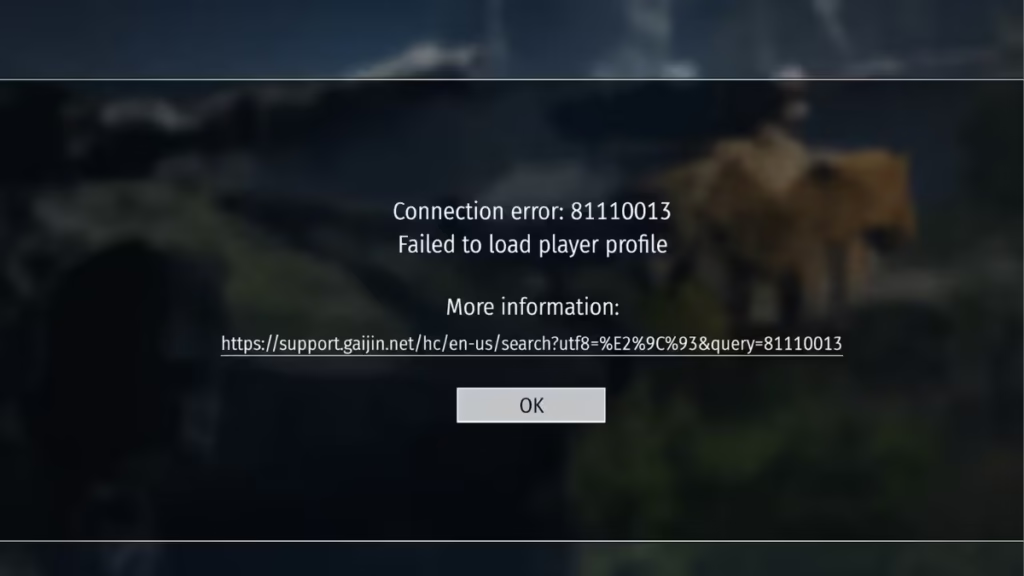
Error 81110013 is frequently a server-side problem, not something the player caused. Authentication server outages, maintenance windows, and even targeted attacks against Gaijin's infrastructure can trigger widespread login failures simultaneously. That said, local issues including firewall rules, antivirus settings, and Steam authentication conflicts can also produce this error when the servers themselves are healthy.
This guide walks through every known fix in order from the fastest to the most involved.
What Causes War Thunder Error 81110013?
Before diving into fixes, understanding the root cause saves time. Error 81110013 falls into two categories:
Server-side causes:
- Gaijin authentication server outages or maintenance
- DDoS attacks or security incidents targeting War Thunder servers
- Server congestion during peak hours
Local causes:
- Steam authentication failing while the standalone launcher works fine
- Antivirus software intercepting encrypted SSL connections
- Firewall blocking required TCP or UDP ports
- VPN or proxy routing traffic through blocked regions
- Outdated War Thunder launcher version
Fix 1: Check War Thunder Server Status
This is the single most important step. If Gaijin's authentication servers are down, no local fix will work, and the only option is to wait.
Check server status through these channels:
- Official War Thunder forums at forum.warthunder.com for pinned maintenance announcements
- Downdetector (downdetector.com/status/war-thunder) for live community outage reports
- Steam Community Hub for War Thunder to read player reports in real time
- Gaijin's official social media accounts on X (Twitter) for quick status updates
If the servers show problems, stop here and wait for Gaijin to restore service. If everything looks healthy, move to the next fix.
Fix 2: Restart War Thunder and the PC
Temporary launcher glitches can prevent a clean authentication handshake. A full restart forces the game to start fresh.
- Close War Thunder completely using the in-game exit option or Alt + F4.
- Press Ctrl + Shift + Esc to open Task Manager.
- End every War Thunder and Gaijin launcher process listed under the Processes tab by right-clicking each one and selecting End Task.
- Restart the PC via the Start menu to clear all cached session data.
- Launch War Thunder again and test.
Fix 3: Update War Thunder
Running an outdated launcher version can cause authentication mismatches with the servers.
For the standalone launcher:
- Right-click the Gaijin updater tray icon and close it completely.
- Right-click the War Thunder desktop shortcut and select Run as Administrator.
- Let the launcher scan and download all pending updates.
- Click Play once the scan bar completes.
For Steam:
- Close War Thunder and exit Steam fully via Steam > Exit.
- Relaunch Steam to trigger an automatic update check.
- Wait for any pending updates to finish downloading.
- Launch War Thunder from the Library page.
Fix 4: Switch to the Standalone Launcher
Several players have resolved error 81110013 by bypassing Steam entirely. Steam's authentication layer occasionally conflicts with War Thunder's login system, causing profile loading to fail even when the standalone launcher works without issues.
- Exit Steam completely via Steam > Exit.
- Open File Explorer and navigate to the War Thunder installation folder (typically
C:\Program Files (x86)\Steam\steamapps\common\War Thunderor a custom path). - Launch aces.exe or the Gaijin updater executable directly.
- Sign in with Gaijin account credentials and attempt to load the profile.
If the standalone launcher loads the profile without error, the issue is tied to Steam authentication specifically. In that case, playing outside Steam temporarily resolves access while the underlying Steam conflict is investigated.
Fix 5: Disable Antivirus SSL Scanning
Antivirus programs that inspect encrypted SSL traffic can block War Thunder's secure communication with authentication servers. Kaspersky is the most commonly reported offender, but other security suites including ESET, Bitdefender, and Avast can cause this as well.
- Open the antivirus software's settings panel.
- Navigate to Network Protection, Web Shield, or a similarly named section.
- Find the SSL Scanning, HTTPS Scanning, or Encrypted Connection Scanning toggle.
- Disable it temporarily or add War Thunder as a trusted exception.
- Restart War Thunder and test the login.
Warning: Only disable SSL scanning for testing purposes. If disabling it fixes the error, add War Thunder as a permanent exception rather than leaving SSL scanning off entirely.
Fix 6: Configure Firewall Ports for War Thunder
Windows Firewall or a third-party firewall may block the ports War Thunder needs to communicate with its servers. Opening these ports manually often resolves persistent connection errors.
Open Windows Defender Firewall:
- Press Windows + S, type Windows Defender Firewall, and open it.
- Click Advanced Settings in the left panel.
- Select Inbound Rules in the left column.
- Click New Rule in the Actions panel on the right.
- Select Port and click Next.
Create the TCP rule:
- Select TCP and enter these port values in the Specific local ports field:
80, 443, 5222, 7850, 7851, 7852, 7853, 7854, 7800, 7801, 7802, 6881, 8090, 27022-27042 - Click Next, select Allow the connection, and click Next twice.
- Name the rule (e.g., War Thunder TCP) and click Finish.
Create the UDP rule:
- Start a New Rule again, select Port, then select UDP.
- Enter these values in the Specific local ports field:
20000-30000, 3478, 3479, 3480, 16172 - Click Next, select Allow the connection, and click Next twice.
- Name the rule (e.g., War Thunder UDP) and click Finish.
Restart War Thunder after saving both rules.
Fix 7: Check the Internet Connection
An unstable or slow connection can fail the authentication handshake before it completes.
- Run a speed test at speedtest.net to check download speed, upload speed, and ping.
- If results show high packet loss or unusually high ping, restart the router by unplugging it for 30 seconds.
- Use a wired Ethernet connection instead of Wi-Fi when possible for more stable latency.
- Retest the connection and relaunch War Thunder.
Fix 8: Flush DNS and Reset Winsock
Corrupted DNS records or damaged Winsock settings can interfere with the network connections War Thunder requires for authentication.
Flush DNS:
- Press Windows + S, type cmd, right-click Command Prompt, and select Run as administrator.
- Enter the following command and press Enter:
ipconfig /flushdns
Reset Winsock:
- In the same elevated Command Prompt window, enter:
netsh winsock reset - Press Enter, then restart the PC to complete the reset.
Fix 9: Disable VPN and Proxy Services
VPN services can route traffic through server locations that War Thunder blocks, or they can trigger automated security systems on Gaijin's end. Proxies cause similar routing conflicts.
- Disconnect from any active VPN client.
- Check for proxy settings via Settings > Network and Internet > Proxy and disable any manually configured proxy entries.
- Relaunch War Thunder and test.
If the error clears without the VPN, the VPN server location or IP range is the problem. Trying a different VPN server region or switching VPN providers may let players use a VPN while still connecting.
Fix 10: Re-authenticate the Gaijin Account
Session token corruption can prevent successful authentication even when the servers and local network are both working correctly.
- Open the War Thunder launcher and sign out of the Gaijin account.
- Close the launcher completely and use Task Manager to end any remaining Gaijin processes.
- Restart the PC to clear cached session data.
- Reopen the launcher, sign back in, and attempt to load the game.
Fix 11: Reinstall War Thunder (Last Resort)
If every fix above fails, a clean reinstall removes any persistent file corruption or configuration issues that verification may have missed.
- Backup custom control bindings and configuration files from the War Thunder installation folder before uninstalling.
- Uninstall War Thunder via Settings > Apps on Windows, or via the Steam library using Manage > Uninstall.
- Restart the PC after uninstalling to clear residual registry entries and cached data.
- Download the latest installer from warthunder.com or reinstall through Steam.
- Complete the installation, verify the new install, and launch the game.
Note: Because error 81110013 is frequently server-related, reinstalling should always be the final step rather than an early troubleshooting attempt.
Reach out to Gaijin Support if error 81110013 persists for several days while the server status appears normal, other players log in successfully, none of the fixes above work, or the account appears to have authentication issues specific to it. Providing screenshots of the error message alongside detailed information about what has been tried speeds up the support process significantly.
Contact Gaijin Support at: support.gaijin.net
Frequently Asked Questions
What does War Thunder error 81110013 mean?
Error 81110013 means War Thunder failed to load the player profile from authentication servers. This typically indicates a connection failure between the game client and Gaijin's login infrastructure.
Is error 81110013 a server-side issue?
In most cases, yes. Authentication server outages, maintenance periods, and security incidents are among the most common triggers. If the error appears alongside widespread community reports, waiting for Gaijin to restore service is the practical solution.
Can Steam cause error 81110013?
Yes. Some players experience this error exclusively when launching through Steam while the standalone launcher works correctly. Bypassing Steam authentication by using the direct Gaijin launcher often resolves it immediately.
Which ports does War Thunder require?
War Thunder requires TCP ports 80, 443, 5222, 7850 through 7854, 7800 through 7802, 6881, 8090, and 27022 through 27042, plus UDP ports 20000 through 30000, 3478, 3479, 3480, and 16172.
Can antivirus software cause error 81110013?
Yes. Antivirus programs with SSL scanning or encrypted connection inspection features can block War Thunder's secure authentication requests. Kaspersky, Avast, and similar suites are frequent causes.
How do players check if War Thunder servers are down?
Check the official War Thunder forums, Downdetector, Steam Community Hub discussions, and Gaijin's social media for outage reports and maintenance announcements.